Key takeaways:
- The traditional solution to Excel's limitations involves finding, installing, and learning multiple, separate add-ins, which creates a complex and fragmented workflow.
- An Excel AI agent like Excelmatic consolidates the functions of dozens of add-ins—from data cleaning and analysis to creating advanced charts and reports—into a single, conversational interface.
- By using Excelmatic, you can replace a costly and hard-to-maintain collection of add-ins, drastically reducing setup time, eliminating compatibility issues, and boosting your data productivity with simple language prompts.
Problem background & pain points
If you're a regular Excel user, you've likely hit a wall. You have a task—maybe cleaning a messy contact list, plotting sales data on a map, or running a complex financial forecast—and Excel's built-in features just don't cut it. Your next logical step is a Google search, which quickly leads you down the rabbit hole of "Excel add-ins."
Initially, it feels like you've discovered a treasure trove. An add-in to find duplicates! Another to create waterfall charts! One for SEO keyword analysis, and another for connecting to your analytics platform. You start installing them, one by one, to build your perfect Excel toolkit.
But soon, a new set of problems emerges. Your Excel ribbon is now cluttered with a dozen new tabs, each with its own unique interface and learning curve. One add-in stops working after an Office update, while another turns out to be a "free trial" that now demands a subscription. Your IT department starts asking questions about the security of installing so much third-party software.
This is the hidden cost of the add-in ecosystem: you've traded one problem for another. Instead of a streamlined workflow, you're now a reluctant systems administrator for a patchwork of tools that don't talk to each other. Getting a simple report done might require exporting data from one add-in, pasting it into a new sheet, and then using a second add-in to visualize it. It's clunky, inefficient, and anything but seamless.
The Traditional Solution: A Patchwork of Excel Add-ins
For years, the accepted "power user" approach has been to augment Excel with a curated collection of add-ins. These tools are genuinely useful and address real-world limitations in the core Excel software.
Generally, these add-ins fall into a few key categories:
- Productivity & Data Cleaning: Tools like
ASAP UtilitiesorDuplicate Finderthat offer shortcuts for common tasks, such as removing duplicates, cleaning text, or selecting cells based on complex criteria. - Advanced Charting & Visualization: Add-ins that provide chart types not native to Excel, like
Gauge Charts,Radial Bar Charts, or tools likeBing Mapsto plot geographic data. - Data Analysis & Modeling: This includes the built-in
Analysis ToolPakandSolverfor statistical analysis and optimization, as well as third-party tools for financial modeling (Macabacus), risk analysis (@Risk), or data mining. - Niche & Integration Tools: Highly specific add-ins for tasks like SEO analysis (
SEO Tools for Excel), connecting to Google Analytics, or generating QR codes.
Steps and Limitations of the Add-in Approach
The workflow is always the same:
- Identify a specific need (e.g., "I need to make a heat map").
- Research and find a suitable add-in.
- Install and activate it, hoping it's compatible with your Excel version and other add-ins.
- Learn its specific interface and menu options.
- Perform your single task.
- Repeat for every new, unique requirement.
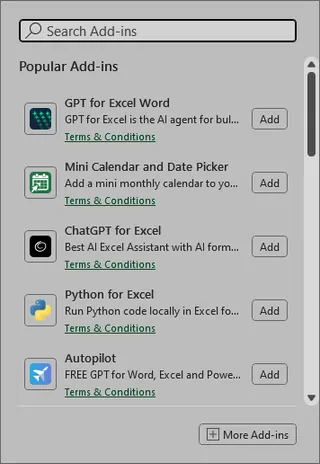
While this approach gets the job done, its limitations become glaringly obvious over time:
- Fragmentation: Your data workflow is broken. The SEO add-in has no idea what the charting add-in is doing. You're constantly copying and pasting data between different tool outputs.
- High Cognitive Load: You have to remember which of your ten add-ins performs which function and how to operate its unique UI.
- Maintenance Nightmare: You are responsible for keeping all add-ins updated. An Excel update can break your entire workflow overnight.
- Security & Cost: Each add-in is a potential security vulnerability. Furthermore, the costs of subscribing to multiple premium add-ins can quickly spiral.
- Lack of Flexibility: Add-ins are rigid. They are built to do a few specific things well. If you have a slightly different request, you're out of luck. You can't just "ask" your chart add-in to also calculate the year-over-year growth and display it as an annotation.
The New Solution: Using an Excel AI Agent (Excelmatic)
What if, instead of a cluttered toolbox of single-purpose gadgets, you had one intelligent assistant who could handle all of these tasks? That's the promise of an Excel AI Agent like Excelmatic.

Excelmatic transforms your relationship with your data. You stop hunting for the right button or the right add-in. Instead, you simply state your goal in plain language, and the AI does the work for you. It combines the capabilities of a data cleaner, an analyst, a chart designer, and a formula expert into a single, conversational interface.
Step-by-Step: Replacing a Dozen Add-ins with One AI
Here's how you can solve the same problems using Excelmatic, but with a radically simplified workflow.
1. Upload Your Data File
Start by uploading your Excel or CSV file to Excelmatic. This is your single starting point for any task, whether it's cleaning, analyzing, or visualizing. The AI scans your data and understands its structure.

2. Describe Your Goal in Natural Language
This is where the magic happens. Instead of clicking through menus, you just type what you want.
Instead of a "Duplicate Finder" add-in:
Find and remove all duplicate rows based on the 'Email Address' and 'Last Name' columns.
Instead of a "Bing Maps" or "Geographic Heat Map" add-in:
Create a map of the United States and color-code each state based on its total sales volume, from light green for low sales to dark green for high sales.
Instead of an "SEO Tools" add-in:
I've uploaded my Google Search Console data. Generate a table of the top 20 non-branded keywords by clicks, and add columns for impressions and average CTR.
Instead of the
Analysis ToolPak:Perform a linear regression analysis to understand the relationship between 'Ad Spend' and 'New Signups'.
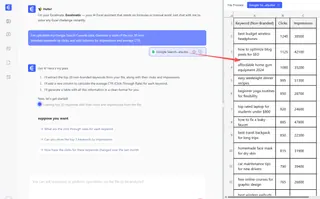
3. Review and Iterate on the Results
Excelmatic doesn't just give you a final, static output. It presents the result—be it a table, a chart, or a formula—and invites you to refine it. This conversational iteration is something no traditional add-in can offer.
You can continue the conversation:
- "Great. Now, for that sales map, can you add labels showing the exact sales figure for the top 5 states?"
- "Filter the keyword list to only show keywords with a click-through rate below 3%."
- "Add a trendline to the regression analysis chart and show me the R-squared value."
4. Export Your Finished Work
Once you're satisfied, you can download a new Excel file containing all the generated tables, charts, and analysis. You can also copy AI-generated formulas or PivotTable configurations to use directly in your existing workbooks.
Dialogue Example: Combining Multiple Tasks
Imagine you need to clean data, perform a financial calculation, and visualize it. With add-ins, this would be a three-step, multi-tool process. With Excelmatic, it's one conversation.
User: I've uploaded our quarterly sales data. First, please clean the 'Country' column by standardizing 'USA', 'U.S.', and 'United States' to 'USA'. Then, calculate the Compound Annual Growth Rate (CAGR) for our global sales from 2021 to 2023.
Excelmatic: I have standardized the 'Country' column as requested. Based on the data provided, the CAGR for global sales from 2021 to 2023 is 14.2%. I have added this calculation to a summary table. Would you like me to create a chart to visualize this growth?
User: Yes, create a bar chart showing the total sales for each year. Also, on that same chart, add a data label showing the year-over-year percentage growth.
Excelmatic: Understood. Here is the bar chart showing total sales for 2021, 2022, and 2023, with YoY growth percentages displayed above each bar. You can download the updated Excel file now.
Traditional Add-ins vs. Excelmatic: A Quick Comparison
| Feature | Traditional Add-in Approach | Excelmatic (Excel AI Agent) |
|---|---|---|
| Workflow | Fragmented across multiple tools | Unified in a single chat interface |
| Flexibility | Rigid, function-specific | Highly flexible, conversational requests |
| Setup & Maintenance | High (Install, update, check compatibility) | Zero (Cloud-based, always up-to-date) |
| Learning Curve | Steep (Learn each add-in's UI) | Minimal (Just describe your goal) |
| Cost | Can be high with multiple subscriptions | Predictable subscription model |
| Integration | Poor; tools don't communicate | Seamless; all tasks in one context |
FAQ
1. Does Excelmatic completely replace all Excel add-ins? For the vast majority of business users, yes. Excelmatic covers the most common and time-consuming tasks related to data cleaning, transformation, analysis, reporting, and visualization. Highly specialized, niche add-ins (e.g., for specific scientific hardware or complex actuarial modeling) may still be necessary, but Excelmatic can replace the entire suite of general productivity and analysis add-ins.
2. Is it secure to upload my company's sensitive data to Excelmatic? Excelmatic is built with enterprise-grade security in mind. Data is encrypted in transit and at rest, and we adhere to strict data privacy policies. We never use your data to train models for other customers. For specific compliance details, always refer to the official privacy policy on the website.
3. Can Excelmatic handle complex tasks like the Solver add-in? Yes. You can describe optimization problems in natural language. For example, you could ask, "Given this list of products with their costs, prices, and production constraints, find the optimal product mix to maximize profit." The AI can formulate and solve this for you.
4. What if my Excel data is really messy and inconsistent? That's a perfect use case for Excelmatic. It excels at data cleaning. You can issue commands like "Trim all leading/trailing whitespace from the 'Product Name' column," "Convert all dates in the 'Order Date' column to MM/DD/YYYY format," or "Split the 'Full Address' column into 'Street', 'City', and 'State'."
5. Can I use the formulas or charts generated by Excelmatic in my own offline Excel files? Absolutely. You can ask Excelmatic to generate a complex formula for you, then simply copy and paste it into your own spreadsheet. You can also download complete Excel files with the generated charts, PivotTables, and data already formatted.
Take Action: Upgrade Your Excel Workflow with Excelmatic
Stop wasting time managing a fragile ecosystem of add-ins. Every hour you spend searching for a new tool, troubleshooting a compatibility issue, or trying to remember a specific button-click sequence is an hour you could have spent getting actual insights from your data.
The future of data work in Excel isn't about more buttons and more tabs. It's about less friction and more intelligence. By switching to an AI-powered workflow, you empower yourself and your team to move faster, make fewer errors, and answer complex business questions in minutes, not hours.
Ready to see the difference? Try Excelmatic today. Upload one of the spreadsheets you're working on right now and try asking it to perform a task you'd normally use an add-in for. Start with one of the prompts from this article and experience a truly modern Excel workflow.