Key takeaways:
- The traditional Excel workflow often requires manually merging data from different tables (e.g., sales and products) with
VLOOKUPbefore you can even begin creating a Pivot Table. - An Excel AI agent like Excelmatic eliminates this tedious preparation. You can simply upload your separate tables and use natural language to ask the AI to join them and create the summary report you need.
- By using Excelmatic, you can replace complex, error-prone formulas with simple language prompts, dramatically reducing analysis time and increasing the flexibility to explore your data on the fly.
The Common Challenge: Reporting on Disconnected Data
Imagine you're a sales analyst. Your company's data lives in different places. You have a large Sales transaction table, exported from your CRM. It contains thousands of rows, with columns like OrderID, Date, ProductID, Quantity, and Total Sale.
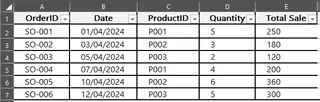
Separately, you have a Products lookup table, managed by the inventory team. This table contains details for each ProductID, including the Product Name and, most importantly, the Category.
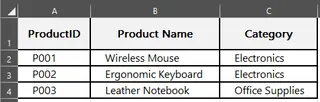
Your manager asks a simple question: "What are our total sales for each product category this quarter?"
This "simple" request immediately creates a roadblock. Your main sales data doesn't contain the Category name; it only has a ProductID. To answer the question, you must first combine information from both tables. For millions of Excel users, this means one thing: it's time to start a wrestling match with VLOOKUP.
The Traditional Solution: A Multi-Step, Manual Process
To get from your raw data to the final report, the traditional Excel path involves a sequence of fragile, time-consuming steps. It generally breaks down into two phases: data merging with VLOOKUP and summarization with a Pivot Table.
Step 1: Manually Merging Data with VLOOKUP
VLOOKUP (Vertical Lookup) is a legendary Excel function used to find something in one table and bring it into another. In our scenario, you'd use it to pull the Category from the Products table into your Sales table.
Here's the formula you'd write in a new "Category" column in your Sales table:
=VLOOKUP([@[ProductID]],Products,3,FALSE)
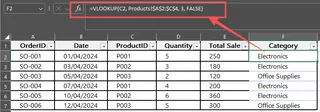
Let's break that down:
[@[ProductID]]: This is the value you're looking for (the Product ID in the current row of the Sales table).Products: This is the table where you're looking for the information (yourProductslookup table).3: This tells Excel to return the value from the third column of theProductstable (theCategorycolumn).FALSE: This ensures you get an exact match, preventing costly errors.
After writing the formula once, you drag it down for thousands of rows and hope for the best.
Step 2: Creating the Pivot Table
Once your Sales table is enriched with the Category data, you can finally build your Pivot Table.
- Select your entire
Salestable. - Go to Insert > PivotTable.
- In the PivotTable Fields pane, drag the
Categoryfield to the Rows area. - Drag the
Total Salefield to the Values area.
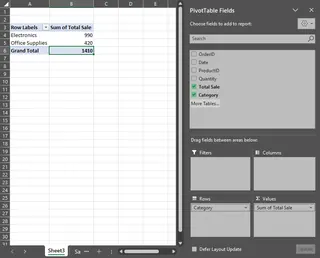
You'll get your summary, but the process is far from perfect.
The Limitations of the Manual Approach
While this VLOOKUP-then-Pivot-Table method works, it's fraught with problems that every experienced Excel user knows too well:
- Fragile and Error-Prone: A single
#N/Aerror from a missingProductIDcan disrupt your calculations. If someone adds a column to theProductstable, yourcol_index_numof2might become wrong, silently pulling incorrect data. - Time-Consuming and Repetitive: This isn't a one-time task. Every time new sales data comes in, you have to repeat the process: add the data, extend the
VLOOKUPformula, and refresh the Pivot Table. - Poor Performance: On datasets with hundreds of thousands of rows, multiple
VLOOKUPformulas can make your workbook slow and unresponsive. - Inflexible: What if your manager asks a follow-up question? "Great, now can you show me sales by
Sub-Category?" If that data is in yet another table, you have to start the tediousVLOOKUPprocess all over again. - High Learning Curve for Alternatives: More advanced users might suggest using
INDEX/MATCHor Power Pivot's Data Model. While powerful, these tools introduce even more complexity (like learning DAX or relationship modeling), making them inaccessible to the average business user.
The New Solution: Using Excel AI (with Excelmatic)
What if you could skip the entire data preparation step? What if you could just give Excel your separate tables and ask your question in plain language? That's exactly what Excel AI agents like Excelmatic are designed to do.

Excelmatic is an AI-powered chat tool for your spreadsheets. You upload your data, and then you can talk to it, asking it to analyze, transform, visualize, and report on your data without writing a single formula.
Let's solve the same problem using Excelmatic.
Step 1: Upload Your Excel File
First, you simply upload your Excel workbook containing both the Sales and Products sheets to Excelmatic. You don't need to merge them beforehand. The AI is designed to understand data across multiple sheets.

Step 2: Describe Your Goal in Natural Language
Instead of writing a VLOOKUP formula, you just type your request into the chatbox. You can be direct and specific about what you need.
Here are a few examples of prompts you could use:
- "I have two sheets, 'Sales' and 'Products'. Join them using the 'ProductID' from the 'Sales' sheet and the 'ID' from the 'Products' sheet. Then, create a pivot table to show the sum of 'Total Sale' for each 'Category'."
- "Create a summary report that shows total sales by product category. The category name is in the 'Products' sheet."
- "For each category in the 'Products' tab, calculate the total sales from the 'Sales' tab and show me the results in a table."
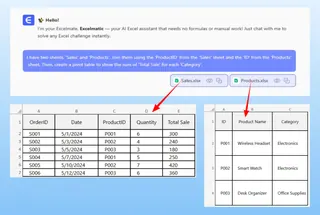
Step 3: Review and Iterate on the Results
Excelmatic will analyze your request, understand the relationship between the two sheets, and instantly generate the pivot table you asked for.
But the real power lies in the conversational nature of the tool. You can continue the dialogue to refine your analysis.
User: I have an Excel file with a 'Sales' sheet and a 'Products' sheet. Can you show me the total sales for each product category?
Excelmatic: Of course. I've joined the two sheets on the product ID and created a pivot table summarizing the total sales by category. Here is the result:
| Category | Sum of Total Sale |
|---|---|
| Beverages | $125,450 |
| Food | $98,200 |
| Tech | $215,800 |
| Office | $76,550 |
User: Great. Now can you create a bar chart to visualize this and sort it from highest to lowest sales?
Excelmatic: Done. I have generated a bar chart showing the sales by category, sorted in descending order. You can download the new Excel file containing this chart and the pivot table.
This ability to ask follow-up questions is a game-changer. There's no need to go back, create new formulas, or reconfigure a pivot table manually. You just ask.
Traditional vs. Excelmatic: A Quick Comparison
| Aspect | Traditional Method (VLOOKUP + Pivot Table) | Excelmatic AI Method |
|---|---|---|
| Time to Result | 15-30 minutes, depending on complexity | < 1 minute |
| Skill Required | Intermediate (VLOOKUP, Pivot Tables) | Basic (Can describe the business goal) |
| Flexibility | Low. Changes require manual rework. | High. Easily refine with follow-up questions. |
| Error Rate | High risk of formula or range errors. | Low. AI handles the logic consistently. |
| Maintenance | Requires manual updates for new data. | Just re-upload the new file and ask again. |
FAQ
1. Does Excelmatic change my original Excel file? No. Excelmatic works on a copy of your data in a secure cloud environment. Your original file remains untouched on your computer. You can download the results as a new Excel file.
2. Is my company's data safe when I upload it to Excelmatic? Yes. Excelmatic is built with enterprise-grade security. Data is encrypted both in transit and at rest, and is never used for training AI models. For specific compliance needs, always refer to the official privacy policy.
3. Do I need to know any Excel formulas to use Excelmatic? Not at all. The entire purpose of an Excel AI agent is to translate your natural language requests into the results you need. You just need to know what you want to achieve with your data.
4. What if my data is messy or my column names aren't perfect? Excelmatic's AI is quite good at understanding context. For example, it can often figure out that "Prod_ID" in one sheet corresponds to "Product Identifier" in another. For best results, having clear column headers is recommended, but you can also guide the AI in your prompt, e.g., "Join the tables using the 'Prod_ID' and 'Product Identifier' columns."
5. Can Excelmatic handle more complex joins, like matching on two or more columns? Yes. You can simply describe the logic in your prompt. For example: "Create a summary by joining the 'Sales' and 'RegionalManagers' tables where 'Sales.Region' matches 'RegionalManagers.Region' AND 'Sales.Year' matches 'RegionalManagers.FiscalYear'."
Get Started with a Smarter Workflow Today
For years, VLOOKUP has been the necessary evil of Excel data analysis—a powerful but clumsy bridge between disconnected data. But the era of manual data stitching is coming to an end.
By embracing an Excel AI agent like Excelmatic, you can shift your focus from how to get the data ready to what the data is actually telling you. You can answer complex business questions in seconds, not hours, and spend your valuable time on strategic analysis rather than formula debugging.
Ready to leave the VLOOKUP headaches behind? Try Excelmatic for free today and see how a simple conversation can transform your Excel workflow.