Key takeaways:
- Manually tracking employee vacation in Excel involves juggling multiple sheets and writing complex, error-prone formulas like SUMIFS, VLOOKUP, and various date functions.
- An Excel AI agent like Excelmatic automates this process. Simply upload your employee and transaction files and use plain language to ask for remaining days, check policy rules, and generate summary reports.
- Using Excelmatic drastically reduces time spent on HR admin, minimizes calculation errors, and provides instant, flexible answers to ad-hoc queries about employee leave balances.
Problem Background & Pain Points
For any HR professional, manager, or small business owner, managing employee vacation is a recurring and surprisingly complex task. It seems simple on the surface: track how many days employees are entitled to and subtract the days they've taken. But in reality, it's a data management headache waiting to happen.
You typically start with a master employee list in Excel. This sheet contains employee names, IDs, hire dates, and their total annual vacation entitlement. Then, you have a separate file or tab, a "transaction log," where you or your team members record every vacation period start date, end date, and total days taken. Now, the real work begins. You need to create a third summary sheet, a "Vacation Tracker," that gives you a live, accurate overview of everyone's status.
This is where the pain points emerge. To calculate the remaining days for a single employee, you have to:
- Look up their total entitlement from the master list.
- Go to the transaction log and sum up all the vacation days they've used so far.
- Subtract the used days from the total entitlement.
Now, imagine doing this for a team of 50. The process becomes a tangled web of VLOOKUP, SUMIFS, and date formulas. What if there are specific company policies, like "employees can only take their first vacation six months after their hire date"? You're now forced to write complicated nested IF statements combined with EDATE to flag violations. It's time-consuming, prone to human error, and incredibly difficult for a colleague to take over if you're away.
Traditional Excel Solution: Steps and Limitations
In a traditional Excel environment, building a semi-automated vacation tracker requires a fair bit of formula-writing prowess. The goal is to create a dashboard that pulls data from your source sheets and calculates the key metrics.
Here’s a typical manual approach:
- Set Up Your Sheets: You'd have at least three worksheets:
Employees(with hire dates and total entitlement),Transactions(a log of all vacation taken), andVacationTracker(your summary dashboard).

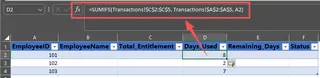
- Calculate Used Days with
SUMIFS: In yourVacationTrackersheet, for each employee, you need to sum their used vacation days from theTransactionssheet. The formula would look something like this:=SUMIFS(Transactions[DaysUsed], Transactions[EmployeeID], [@[EmployeeID]])DaysUsedcolumn in theTransactionstable, but only for rows for which theEmployeeIDmatches the current employee in your summary table.
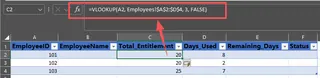
- Look Up Entitlement with
VLOOKUP: To get the total annual leave, you'd use aVLOOKUPorINDEX/MATCHto pull it from theEmployeessheet.=VLOOKUP([@[EmployeeID]], Employees!A:C, 3, FALSE)
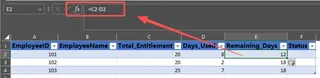
- Calculate Remaining Days: This is the easy part—a simple subtraction of the two columns you just created.
=[@[Total Entitlement]] - [@[Days Used]]
- Validate Business Rules with
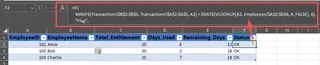
IFandEDATE: This is where it gets truly complicated. To check the "6-month" rule, you need to find the earliest vacation date for an employee usingMINIFS, find their hire date withVLOOKUP, add six months withEDATE, and then wrap it all in anIFstatement to return a "Flag" or "OK" status. The formula can quickly become a monstrosity that's hard to read and debug.
The Limitations of the Manual Method
While this approach works, it's brittle and inefficient.
- Formula Complexity: The formulas, especially for rule validation, are long and difficult for anyone but an Excel expert to understand or modify. A single misplaced comma can break the entire report.
- Manual Updates: If the source data ranges change (e.g., you add more rows to the transaction log), you may need to manually update your formulas or pivot table data sources. Forgetting to "Refresh" a PivotTable is a classic source of reporting errors.
- Lack of Flexibility: What if your manager asks, "Who has more than 10 days of leave left and was hired before 2022?" Answering this ad-hoc question requires creating new filters, helper columns, or even a whole new report.
- High Risk of Error: With so many manual steps, copy-pasting formulas, and linking between sheets, the risk of a simple mistake leading to incorrect vacation balances is incredibly high. This can cause real issues with employee morale and payroll.
The New Way: Using an Excel AI Agent (Excelmatic)
Instead of wrestling with formulas, an Excel AI agent like Excelmatic allows you to accomplish the same goal through a simple conversation. You upload your data files and tell the AI what you want to calculate, just like you would instruct a human assistant.

The Overall Approach
Excelmatic acts as your personal data analyst. You upload your Employees and Transactions spreadsheets. The AI understands the structure and content of your files. From there, you can ask it to perform calculations, merge data, check for conditions, and visualize the results. The entire process is conversational, iterative, and requires zero formula writing.
Step-by-Step Guide
Here’s how you can build the same vacation tracker in a fraction of the time using Excelmatic.
1. Upload Your Data Files
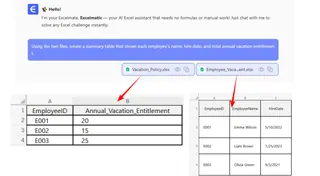
Log in to Excelmatic and upload your Excel or CSV files. In this case, you would upload both the employee master file and the vacation transaction log. Excelmatic can analyze data across multiple files simultaneously.

2. Describe Your Goal in Plain Language
Once your files are uploaded, you can start the conversation. Use simple prompts to tell the AI what you need.
Here are some example prompts you could use:
- "Using the two files, create a summary table that shows each employee's name, hire date, and total annual vacation entitlement."
- "Now, calculate the total vacation days used by each employee from the transaction log and add it as a new column called 'Days Used'."
- "Add another column named 'Days Remaining' by subtracting 'Days Used' from the 'Total Entitlement'."
- "Based on the hire date and the transaction log, add a new column to flag any employee whose first vacation started less than 6 months after their hire date."
3. Review and Iterate on the Results
Excelmatic will instantly generate the summary table you requested. But you don't have to stop there. The real power is in the ability to refine your analysis with follow-up questions.
- "Sort the table to show the employees with the most remaining days at the top."
- "Filter this result to only show me employees from the 'Sales' department."
- "Create a bar chart that visualizes the 'Days Remaining' for each employee."
This conversational iteration is impossible with a formula-based approach. You get immediate answers to your questions without ever touching a formula bar.
4. Export Your Final Report
Once you are satisfied with the summary table, analysis, or chart, you can download the result as a new, clean Excel file with a single click. You can also copy the formulas or PivotTable configurations that Excelmatic generates if you want to reuse them in your original workbook.
Example Conversation
Here’s what a typical interaction might look like inside Excelmatic:
User: I've uploaded my employee list and vacation log. Can you merge them and calculate the remaining vacation days for everyone?
Excelmatic: Certainly. I have created a summary table with Employee ID, Name, Annual Entitlement, Days Used, and Days Remaining. I noticed a business rule mentioned in your notes about a 6-month waiting period for the first vacation. Would you like me to validate this rule against your data?
User: Yes, please. Add a column and flag anyone who violated this rule.
Excelmatic: I've added a 'Rule Check' column to the table. Two employees, John Doe and Jane Smith, have been flagged for taking vacation within 6 months of their hire date. Would you like to see the specific transaction details for them?
Traditional vs. Excelmatic: A Quick Comparison
| Aspect | Traditional Excel Method | Excelmatic AI Method |
|---|---|---|
| Time to Build | 1-2 hours of setup and debugging | 5-10 minutes of conversation |
| Required Skill | Advanced: SUMIFS, VLOOKUP, EDATE, IF |
Basic: Ability to describe your goal in language |
| Flexibility | Rigid. New questions require new formulas. | Highly flexible. Ask ad-hoc questions freely. |
| Error Rate | High. Prone to formula and copy-paste errors. | Low. Logic is applied consistently by the AI. |
| Maintenance | Difficult. Hard to update or transfer ownership. | Easy. The conversation history serves as documentation. |
FAQ
Do I need to know advanced Excel functions like VLOOKUP or SUMIFS to use Excelmatic?
No, not at all. You just need to describe the outcome you want in plain language. The AI handles the complex logic of looking up, matching, and summing data behind the scenes.
Will Excelmatic modify my original Excel file? No. Excelmatic works on a copy of your data in a secure cloud environment. Your original files are never altered. You can download the results as a new Excel file.
Is my sensitive employee data safe when I upload it? Data security is a top priority. Excelmatic uses industry-standard encryption for data in transit and at rest. For specific details on security and privacy policies, it's always best to consult the official website.
Can Excelmatic handle complex business rules and date calculations? Yes. As shown in the vacation tracking example, you can describe rules like the "6-month waiting period" in natural language, and the AI can translate that into a logical check on your date-based data.
What if my data is a bit messy? While clean data with clear column headers works best, Excelmatic can also help with basic data cleaning tasks. You can ask it to "trim whitespace," "change date formats," or "split a column into two," for example.
Can I export the formulas Excelmatic creates? Yes. In many cases, Excelmatic can provide the exact Excel formula it used to generate a result. You can then copy this formula and paste it into your own spreadsheet for reuse.
Take Action: Upgrade Your Excel Workflow with Excelmatic
Stop spending valuable hours wrestling with brittle formulas and manually updating your HR reports. The time you waste debugging a broken VLOOKUP is time you could be spending on more strategic HR initiatives.
By leveraging an Excel AI agent, you transform a tedious, error-prone task into a quick and insightful conversation. You can build, validate, and update your employee vacation tracker in minutes, not hours, and gain the flexibility to answer any question that comes your way instantly.
Ready to see it for yourself? Try Excelmatic today. Upload your current vacation tracking spreadsheet and ask it one of the questions from this article. It's time to let AI handle the manual work.