Key takeaways:
- Traditional Excel travel budgets require tedious manual data entry for every expense, complex formula setup like
SUMorSUMIFS, and are prone to errors. - An Excel AI tool like Excelmatic revolutionizes this process by allowing you to analyze your spending data using natural language, completely bypassing manual formula writing and pivot table configuration.
- By using Excelmatic, you can get instant answers to budget questions, generate charts in seconds, and spend less time on spreadsheets and more time enjoying your trip.
Problem background & pain points
Planning a trip is exciting. You map out destinations, book flights, and dream of new experiences. But then comes the less glamorous part: managing the budget. For decades, the go-to tool for this has been Microsoft Excel. You create a spreadsheet, set up columns for "Date," "Category," "Description," and "Amount," and diligently log every expense, from a morning coffee to a major hotel bill.
While this method seems organized, anyone who has actually done it knows the reality. You're on a beautiful train ride through the Swiss Alps, but instead of enjoying the view, you're hunched over your laptop, trying to remember if that train ticket was €45 or €54. You get back to your hotel after a long day of sightseeing, and now you have a pocketful of receipts to enter.
The real frustration begins when you want to get insights from your data. How much have we spent on food so far? Are we over budget on activities? Answering these "simple" questions requires filtering, sorting, or writing formulas like SUMIFS. If you make a mistake in a formula or accidentally delete a cell, your entire budget calculation can be thrown off. The spreadsheet that was meant to bring clarity quickly becomes a source of stress and a time-consuming chore.
The traditional Excel solution: Steps & limitations
The classic approach to creating a travel budget in Excel involves building a manual tracker from scratch. While it offers control, it's a rigid and labor-intensive process.
Here’s a summary of the typical manual workflow:
Worksheet Setup: You start with a blank workbook and create headers. A typical setup includes columns like
Date,Expense Category(e.g., Food, Transport, Accommodation),Description, andAmount. You might also add aBudgeted Amountcolumn for comparison.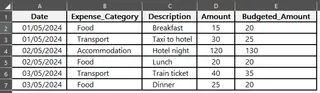
Data Entry: This is the most time-consuming part. You must manually enter every single transaction. This requires discipline and can be particularly difficult to keep up with during the trip itself.
Calculating Totals: To understand your spending, you need formulas. You’ll use the
SUMfunction to get the grand total of all expenses.=SUM(D2:D7)This formula adds up all the values in the "Amount" column.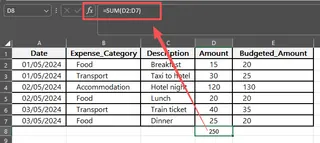
Summarizing by Category: To get a breakdown of spending, you need a more advanced function like
SUMIFor you have to build a Pivot Table. You might create a separate summary table and use formulas like this for each category:=SUMIF(B:B, "Food", D:D)This formula sums up all amounts where the corresponding category in column B is "Food". You'd have to repeat this for every single category.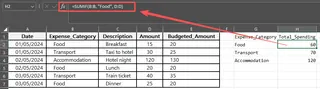
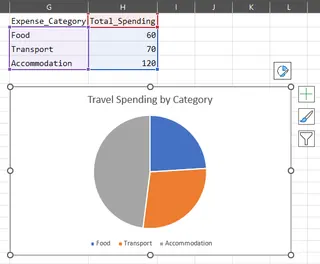
Visualization: If you want to see your spending distribution visually, you'll need to create a chart. This involves selecting your summary data, going to the "Insert" tab, choosing a chart type (like a pie or bar chart), and then formatting it to be readable.
The limitations of the manual method
While functional, this traditional approach is fraught with problems that make it impractical for modern travel:
- Extremely Time-Consuming: The constant need for manual data entry and formula updates consumes valuable time that could be spent planning or enjoying your vacation.
- Error-Prone: A simple typo in a formula or a wrong cell reference can lead to incorrect budget calculations, defeating the purpose of the spreadsheet.
- Inflexible: What if you want to analyze spending by city, not just by category? You'd have to go back, add a new "City" column, populate it for all past entries, and then create new
SUMIFSformulas or a new Pivot Table. Answering ad-hoc questions is a major project. - High Learning Curve: While
SUMis basic, functions likeSUMIFSand the intricacies of Pivot Tables require a certain level of Excel proficiency. A travel companion who isn't an Excel user can't easily contribute or analyze the data. - Difficult to Maintain: As the list of expenses grows, the spreadsheet becomes slow and unwieldy. Keeping track of formula ranges and ensuring everything is up-to-date is a constant battle.
The new solution: Using an Excel AI Agent (Excelmatic)
Instead of building and wrestling with a manual system, you can use an Excel AI Agent like Excelmatic to do the heavy lifting for you. The core idea is simple: you provide the raw data, and then you ask the AI questions in plain language to get the summaries, analyses, and charts you need.

How it works with Excelmatic
The process is conversational and intuitive, transforming a tedious task into a quick, interactive analysis.
1. Upload your expense data
First, you just need a simple log of your expenses. You can keep this in an Excel or CSV file during your trip. All you need are clear column headers like Date, Category, City, and Amount. Then, you simply upload this file to Excelmatic.

2. Describe the results you want in plain Language
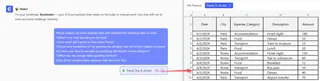
This is where the magic happens. Instead of writing formulas, you just ask for what you want. You can start broad and then get more specific.
Here are some example prompts you could use for your travel budget file:
- "What is my total spending for the trip?"
- "Show me a breakdown of my expenses by category and sort it from highest to lowest."
- "Create a pie chart to visualize my spending distribution across categories."
- "How much did I spend in Paris versus Rome?"
- "List all my transportation expenses that were over $50."
- "What was my average daily spending on food?"
3. Review and iterate on the results
Excelmatic will instantly generate the result—be it a summary table, a pivot table, a formula, or a chart. The best part is that you can continue the conversation to refine the analysis.
You don't have to start over to ask a new question. Just ask a follow-up.
- "Okay, now remove 'Flights' from that summary table."
- "Can you change that pie chart to a bar chart?"
- "Add a new column that calculates a 15% tip for all 'Restaurant' expenses."
This conversational approach makes data analysis incredibly flexible and powerful. You can explore your data from any angle without writing a single formula.
4. Export your results
Once you have the analysis or chart you need, you can download it as a new Excel file. This file will contain the generated tables and charts, which you can then share or use in a larger trip report. You can also copy the formulas or Pivot Table settings that Excelmatic generates and paste them into your own workbook.
Example Conversation with Excelmatic
Here’s how a typical interaction might look for analyzing a travel budget:
User: I've uploaded my expense log for my trip to Italy. Can you summarize my total spending by category?
Excelmatic: Of course. I've created a pivot table showing your total spending for each category. 'Accommodation' was your highest expense at €1,500, followed by 'Food' at €850.
User: Great. Now create a pie chart showing the percentage breakdown of these categories. And can you tell me the total I spent just in the city of 'Florence'?
Excelmatic: Here is the pie chart visualizing your expense distribution. Your total spending in Florence was €975. Would you like a detailed breakdown of your Florence expenses?
Traditional Method vs. Excelmatic: A Quick Comparison
| Aspect | Traditional Excel Method | Excelmatic AI Method |
|---|---|---|
| Time to Insight | 30-60 minutes (setup, data entry, formulas) | < 1 minute (upload and ask) |
| Flexibility | Low. New questions require new formulas or pivot tables. | High. Ask any follow-up question in plain language. |
| Required Skill | Intermediate (SUMIF, Pivot Tables, Charting) | Beginner (Can you ask a question?) |
| Error Rate | High risk of formula errors and incorrect ranges. | Low. The AI handles the complex logic. |
| Maintenance | Constant manual updates and checks required. | None. Just upload the latest data file. |
FAQ
Q1: Do I need to be an Excel expert to use Excelmatic?
No, not at all. Excelmatic is designed for everyone. If you can describe what you need in a sentence, you can use it. It completely removes the need to know specific Excel functions or formulas.
Q2: Is my financial data safe when I upload it to Excelmatic?
Yes. Excelmatic is built with data security as a priority. Your files are processed securely, and the platform does not store your data long-term without your permission. For specific details, always refer to the official privacy policy.
Q3: Will Excelmatic modify my original Excel file?
No. Excelmatic works on a copy of your data within the platform. Your original file on your computer remains untouched and safe.
Q4: What if my data is a bit messy?
For best results, it's good to have clean column headers. However, Excelmatic's AI is often capable of understanding slight inconsistencies. It can even help you with data cleaning tasks if you ask it, for example, "Find and remove any duplicate rows in my expense log."
Q5: Can I use the formulas and charts generated by Excelmatic in my own spreadsheets?
Absolutely. Excelmatic can provide you with the exact formula or Pivot Table configuration it used. You can copy this and paste it directly into your own Excel workbook, which is a great way to learn how advanced tasks are performed.
Q6: Is this better than just using a pre-made Excel travel budget template?
While templates provide a structure, they are just as rigid as a manual spreadsheet. You can only fill in the blanks they provide. With Excelmatic, your analysis is dynamic. You can ask any question about your data, making it far more powerful and flexible than a static template.
Take Action: Upgrade Your Travel Budget Workflow Today
Stop letting tedious spreadsheet management cast a shadow over your travels. The hours spent manually entering data, writing formulas, and struggling with charts are hours you'll never get back.
By embracing an Excel AI agent, you can transform your travel budget from a static, frustrating document into a dynamic, insightful financial co-pilot. Get instant answers, spot overspending before it becomes a problem, and make informed decisions on the fly.
Ready to experience the future of spreadsheet analysis? Try Excelmatic today. Upload your last trip's expense log and ask it one of the questions from this article. You'll be amazed at how much you can discover in just a few seconds.