Key takeaways:
- Manually tracking monthly expenses in Excel involves tedious formulas for calculating differences, complex conditional formatting rules, and manual chart creation, which is time-consuming and prone to error.
- Excel AI tools like Excelmatic automate this entire process. You can simply ask in plain language to "compare last month vs. this month's spending, highlight the differences, and create a summary chart."
- Using Excelmatic saves significant time each month, eliminates formula errors, and provides instant, dynamic visualizations of your budget, enabling faster and more accurate financial decisions.
The Problem: The Monthly Grind of Expense Reporting
For any small business owner, department head, or even a diligent freelancer, the end of the month brings a familiar task: budget reconciliation. You have a spreadsheet with your expenses, neatly categorized. There are two crucial columns: 'Last Month' and 'This Month'.
The fundamental questions are always the same:
- Where did our money go?
- Did we spend more or less than last month?
- Which categories saw the biggest changes?
Answering these questions isn't just about looking at the raw numbers. You need to calculate the variance for each category, visually distinguish overspending from savings, and create a summary that's easy to present and understand. This process, while critical, quickly becomes a repetitive and surprisingly manual chore in Excel. One small slip in a formula or a forgotten update to a chart's data range can lead to incorrect conclusions and poor financial planning.
The Traditional Excel Solution: Steps and Limitations
Traditionally, you would tackle this with a combination of formulas, conditional formatting, and the chart wizard. It’s a reliable method, but it's rigid and requires a multi-step, hands-on approach every single time.
Let's assume your data looks something like this, with expense categories in column A, 'Last Month' spending in column B, and 'This Month' in column C.
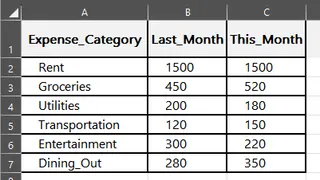
Here’s the manual workflow you'd follow:
Step 1: Calculate the Difference
First, you need a new column, let's call it 'Difference'. In the first data cell of this new column (e.g., D2), you'd type the formula to subtract last month's spending from this month's:
=C2-B2
Then, you grab the fill handle (the small square at the bottom-right of the cell) and drag it down to apply this formula to all your expense categories.
Step 2: Apply Conditional Formatting for Visual Cues
A column of numbers is hard to scan. You want to see overspending (positive numbers) in red and savings (negative numbers) in green.
- Select the entire 'Difference' column.
- Navigate to Home > Conditional Formatting > New Rule.
- Choose "Format only cells that contain".
- Set up a rule for
Cell Value > 0and format the font color to red. - Repeat the process to create another rule for
Cell Value < 0, formatting the font color to green. - To add more visual flair, you could go to Conditional Formatting > Icon Sets and choose a "traffic light" style.
This makes variances pop, but it requires navigating through several menus for each condition.
Step 3: Create a Summary Chart
A chart is essential for presentations. You'd typically create a column chart to compare the two months side-by-side.
- Select your data range, including the category names and the 'Last Month' and 'This Month' columns (e.g.,
A1:C7). - Go to Insert > Charts and select a Clustered Column Chart.
- Excel will generate a basic chart that you'll then need to clean up: add a title, adjust the legend, and perhaps tweak the colors.
The Limitations of the Manual Method
While this process works, it's fraught with inefficiencies that compound over time:
- Time-Consuming & Repetitive: This 15-30 minute process has to be repeated every month or every time you get a new data set.
- Error-Prone: A simple mistake, like dragging a formula incorrectly or selecting the wrong data range for the chart, can invalidate your entire report.
- Rigid & Hard to Update: What happens when you add a new expense category, like "Cloud Services"? You have to manually extend your formulas and, most annoyingly, go into the chart's settings to update its data source range. Forgetting this step is a common source of reporting errors.
- High Learning Curve: While the steps seem simple, mastering conditional formatting rules and dynamic chart ranges (using Excel Tables or OFFSET functions) are intermediate-to-advanced skills.
The New Solution: Using an Excel AI Agent (Excelmatic)
Instead of being an Excel operator, what if you could be a director? This is the promise of Excel AI agents like Excelmatic. You upload your data and simply tell the AI what you want to achieve, using plain language.

The entire multi-step manual process is condensed into a simple conversation.
Step 1: Upload Your Expense Sheet
Drag and drop your Excel or CSV file containing the expense data directly into Excelmatic. The AI will read your data and show you a preview. It works best with clean headers like 'Category', 'Last Month', and 'This Month'.

Step 2: Describe Your Goal in Plain Language
Now, instead of clicking through menus and typing formulas, you just ask for what you want. You can do it all in one go or step-by-step.
Here are some example prompts you could use:
"Create a new column named 'Variance' that is the value of 'This Month' minus 'Last Month'.""For the 'Variance' column, highlight all positive numbers with red font and all negative numbers with green font.""Generate a column chart that compares 'Last Month' and 'This Month' spending for each 'Category'."
Or, you can combine them into a single, powerful request:
"Calculate the difference between 'This Month' and 'Last Month' spending. Then, create a column chart to visualize the comparison for each category and highlight the differences, making increases red and decreases green."
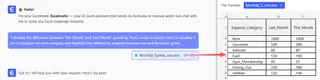
Step 3: Review and Iterate on the Results
Excelmatic will instantly perform the calculations, apply the formatting, and generate the chart. But the real power lies in the ability to continue the conversation. The AI remembers the context, allowing you to refine the results effortlessly.
- User:
"Sort the chart to show the categories with the highest spending this month at the top." - User:
"Filter the table to only show categories where the variance was greater than $100." - User:
"What is the total amount we overspent this month?"
This conversational approach makes ad-hoc analysis, which is incredibly cumbersome in traditional Excel, trivially easy.
A Sample Conversation with Excelmatic
Here’s how that workflow might look in a real-world dialogue:
User: Here's my monthly expense report. Can you show me the difference in spending for each category between this month and last month?
Excelmatic: Done. I've added a 'Difference' column showing 'This Month' - 'Last Month'. Positive values indicate an increase in spending. Would you like me to visually highlight these changes?
User: Yes, please. Make the increases red and the decreases green. Also, create a bar chart to compare the totals for last month and this month side-by-side for each category.
Excelmatic: Okay, I've applied the conditional formatting and generated the requested bar chart. It's clear that 'Marketing' and 'Software Subscriptions' saw the largest increases. The new Excel file with the table and chart is ready for you to download.
Traditional vs. Excelmatic: A Quick Comparison
| Aspect | Traditional Excel | Excelmatic (AI Agent) |
|---|---|---|
| Time to Complete | 15-30 minutes | Under 2 minutes |
| Required Skills | Formulas, Conditional Formatting menus, Chart Wizard | Ability to describe your goal in language |
| Flexibility | Low (Updates are manual and rigid) | High (Easily refine with follow-up questions) |
| Error Risk | Medium (Formula errors, incorrect range selection) | Low (AI handles the logic and data ranges) |
| Updates | Requires manual rework for new data | Simply upload a new file and repeat the prompt |
FAQ
1. Do I need to know any Excel formulas to use Excelmatic? No. The primary benefit of Excelmatic is that you can use natural language to get the results you want. The AI generates the necessary formulas, tables, or charts for you.
2. Is my financial data safe when I upload it to Excelmatic? Yes. Excelmatic is designed with security in mind. Files are processed in a secure, isolated environment and are not stored long-term or used for training models. Always refer to the official privacy policy for detailed information.
3. Can Excelmatic create conditional formatting like red and green cells? Absolutely. As shown in the examples, you can simply describe the formatting rule you want, such as "make positive values red and negative values green," and the AI will apply it to the specified column.
4. What if my column headers aren't perfect, like "Last Mo." instead of "Last Month"? The AI is generally very good at understanding synonyms and common abbreviations. However, for the most reliable results, it's always a best practice to use clear and descriptive column headers.
5. Can I export the chart and put it in my PowerPoint presentation? Yes. Excelmatic allows you to download the results as a new Excel file. This file will contain the generated chart, which you can then copy and paste into PowerPoint, Word, or any other application just like a normal Excel chart.
6. Does Excelmatic modify my original Excel file? No, your original file is never modified. Excelmatic works on a copy of your data in its secure environment and provides the output as a new file for you to download.
Take Action: Upgrade Your Excel Workflow Today
Every month you spend manually updating that expense report is time you could have spent analyzing the insights and making strategic decisions. The manual process isn't just slow; it's a recurring risk of error that can undermine your financial oversight.
By shifting to an Excel AI agent, you transform a tedious chore into a quick, interactive dialogue. You can get your monthly report done in minutes, not hours, and instantly ask follow-up questions that would have previously required a whole new set of formulas and charts.
Ready to reclaim your time and build better reports? Try Excelmatic for free today. Upload your expense spreadsheet and use one of the prompts from this article. See for yourself how a simple conversation can revolutionize your relationship with Excel.