Key takeaways:
- Traditional summing in Excel, from simple
SUMto complex nestedSUMIFs, is a manual, time-consuming process that's prone to errors, especially as your questions and data change. - Excel AI tools like Excelmatic replace formula writing with natural language. You can simply ask, "What are the total sales for the North region?" instead of manually constructing a
SUMIFformula. - Using Excelmatic for summing tasks provides instant results, handles complex conditions effortlessly, and allows for rapid "what-if" analysis by simply asking follow-up questions, dramatically boosting your productivity.
The Daily Grind of Manual Sums in Excel
Picture this: you're a sales manager, and it's the end of the month. You have a spreadsheet overflowing with raw sales data—every transaction listed with salesperson, region, product, and sale amount. Your first task is simple: find the grand total of all sales.
Easy enough, a quick =SUM() gets the job done.
But then the real questions start rolling in from your director:
- "What were the total sales for the 'North' region?"
- "Okay, but what about the 'North' region's sales for 'Product A' only?"
- "Can you give me the combined total for the 'North' and 'South' regions?"
- "I need to see a day-by-day running total of sales for the entire quarter."
Suddenly, your simple SUM function is no longer enough. Each question sends you back to your spreadsheet, not to find an answer, but to build a new, more complex formula. You find yourself wrestling with SUMIF, SUMIFS, and tricky combinations of absolute and relative cell references. And if your raw data contains a single error cell like #N/A, all your formulas break, returning a frustrating error of their own. This is the reality for millions of Excel users: what starts as a simple task quickly becomes a complex, error-prone, and time-consuming exercise in formula gymnastics.
The Traditional Excel Solution: A Library of SUM Functions
To answer these increasingly specific questions, Excel provides a family of SUM-related functions. While powerful, each comes with its own learning curve and set of limitations.
The Basic Toolkit: From SUM to SUMIFS
Let's break down the traditional approach to solving our sales reporting problem.
Simple Total Sales (
SUM): For the grand total, you use theSUMfunction.=SUM(D2:D8)This adds up all the numbers in the specified range (D2:D8). It's fast and simple.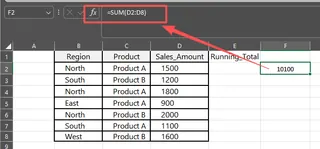
Conditional Sum with One Criterion (
SUMIF): To find the total sales for the "North" region, you needSUMIF.=SUMIF(B2:B8, "North", D2:D8)This formula tells Excel to look in the region column (B2:B8) for the word "North" and, for every match it finds, add up the corresponding value from the sales column (D2:D8).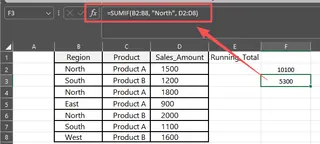
Conditional Sum with Multiple Criteria (
SUMIFS): To narrow it down to the "North" region and "Product A", you must graduate toSUMIFS.=SUMIFS(D2:D8, B2:B8, "North", C2:C8, "Product A")Notice the syntax is different. Here, the sum range (D2:D8) comes first, followed by pairs of criteria ranges (B2:B8, C2:C8) and their criteria ("North", "Product A").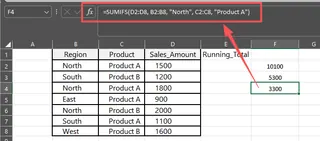
Handling "OR" Conditions (Multiple
SUMIFs): To get the total for "North" OR "South", there's no single function. You have to add twoSUMIFfunctions together.=SUMIF(B2:B8, "North", D2:D8) + SUMIF(B2:B8, "South", D2:D8)This is already getting clunky and hard to read.
Calculating a Running Total: To see a cumulative sum, you need to cleverly mix absolute and relative references. In a new column, your first formula would be:
=SUM($D$2:D2)When you drag this formula down, the starting cell$D$2stays locked, while the ending cellD2updates toD3,D4, and so on, creating an expanding range that calculates the total up to that point. It's a classic Excel trick, but it's not intuitive for beginners.
The Limitations of the Manual Approach
While these functions work, they create a rigid and fragile system.
- High Cognitive Load: You have to remember which function to use (
SUMIFvs.SUMIFS), the correct order of arguments, and how to write the criteria (e.g., putting text in quotes). - Time-Consuming & Repetitive: Every new question from your boss means writing and debugging a new formula. A simple request can turn into 15 minutes of formula crafting.
- Error-Prone: A misplaced comma, an incorrect cell range, or a typo in a criterion can break the entire calculation. Formulas involving array logic (like using
SUMwithIFERRORto ignore errors) are even more complex and require a special key combination (Ctrl+Shift+Enterin older Excel versions) that most users find confusing. - Poor Flexibility: These formulas are static. If you want to change the region from "North" to "East", you have to manually edit the formula. You can't just ask a follow-up question.
- Maintenance Nightmare: If you add new rows of data, you must remember to go back and manually update the ranges in all your formulas (e.g., changing
D1000toD1100). Forgetting to do this is a common source of inaccurate reports.
The New Solution: Using Excel AI with Excelmatic
What if you could skip the formulas entirely? What if you could get all these totals just by asking questions in plain language? That's exactly what an Excel AI Agent like Excelmatic is designed for.

Excelmatic acts as your personal data analyst. You upload your spreadsheet, and then you start a conversation with the AI, telling it what you need. It handles the analysis, generates the results, and lets you continue the conversation to refine your request.
Step-by-Step: From Raw Data to Instant Totals with AI
Let's solve the same sales reporting challenges using Excelmatic.
1. Upload Your Data File
First, simply drag and drop your Excel or CSV file into Excelmatic. The AI will read your data and show you a preview, understanding the headers and data types automatically.

2. Ask for the Totals in Natural Language
Instead of writing formulas, you just type your questions into the chat box.
For a simple
SUM:What's the total of the 'Sales Amount' column? or more simply, Sum all sales.
For a
SUMIFequivalent:Calculate the total sales for the 'North' region.
For a
SUMIFSequivalent:What are the total sales for the 'East' region for 'Product B'?
For an "OR" condition:
Show me the combined sales total for the 'North' and 'South' regions.
For a running total:
Add a new column that shows the running total of sales, sorted by date.
For handling errors:
Sum the sales column, but treat any cells with errors as 0.

The AI parses your request, performs the correct calculation behind the scenes, and gives you the answer instantly.
3. View and Iterate on the Results
Excelmatic doesn't just give you a number. It might present a summary table or a new column in your data preview. The real power lies in the ability to continue the conversation.
You can ask follow-up questions to dig deeper, something that's impossible with a static formula.
4. Export Your Results
Once you're happy with the analysis, you can download a new Excel file containing all the results—whether it's a summary table, a new column with running totals, or a cleaned-up version of your original data.
Example Conversation with Excelmatic
Here’s how a typical workflow might look:
User: I've uploaded my Q3 sales report. Can you calculate the total sales for the 'West' region where the deal size was over $5,000?
Excelmatic: Certainly. The total sales for the 'West' region with deals over $5,000 is $124,350. I have created a summary table for you. Would you like me to list the individual deals that make up this total?
User: Yes, and also create a pivot table that shows the sales breakdown by salesperson for just that region.
Excelmatic: Done. I've generated the list of qualifying deals. I have also created a pivot table showing the sales totals for each salesperson in the 'West' region. You can view it now and download the updated Excel file.
Traditional Formulas vs. Excelmatic: A Quick Comparison
| Feature | Traditional Excel | Excelmatic (Excel AI) |
|---|---|---|
| Method | Manually write SUM, SUMIF, SUMIFS formulas |
Ask a question in plain language |
| Flexibility | Rigid; a new formula is required for each new question | Conversational; ask follow-up questions to refine |
| Error Handling | Requires complex IFERROR or array formulas |
Often automatic, or handled with a simple request |
| Speed | Minutes to hours, depending on complexity | Seconds to minutes |
| Learning Curve | Steep for advanced functions and combinations | Minimal; if you can ask a question, you can analyze data |
FAQ
Q: Do I need to know Excel functions like SUMIF to use Excelmatic?
A: Absolutely not. The entire purpose of Excelmatic is to replace the need to remember and write formulas. You just need to be able to describe the business question you're trying to answer.
Q: What if my data has messy column headers like "Sales Rep Name" instead of "Salesperson"?
A: Excelmatic's AI is designed to understand context. It can usually figure out what you mean. If it's ever unsure, it will ask for clarification. You can also refer to columns by their letter (e.g., "sum column D").
Q: Can Excelmatic calculate totals from data spread across multiple sheets or files?
A: Yes. You can upload multiple files. Your first step would be to ask the AI to combine or merge the data. For example: "Combine the data from the 'January' and 'February' sheets into one table," and then you can perform your sum calculations on the unified dataset.
Q: Is my company's financial data safe when I upload it to Excelmatic?
A: Data security is a top priority. Excelmatic uses industry-standard encryption for data in transit and at rest. Your files are processed securely and are not used for training AI models. For specific compliance details, always refer to the official privacy policy.
Q: Can Excelmatic handle more than just summing?
A: Yes. Summing is just the beginning. You can ask Excelmatic to calculate averages, count items, create pivot tables, generate charts, clean data, reformat text, and even write complex formulas for you to use in your own spreadsheets.
Get Started: Upgrade Your Excel Workflow Today
Every minute you spend wrestling with SUMIF syntax or debugging a broken formula is a minute you're not spending on strategic analysis. The manual approach to data aggregation is a bottleneck that costs time, invites errors, and limits your ability to respond to questions quickly.
By embracing an Excel AI agent, you shift your focus from how to calculate something to what you want to find out. Let the AI handle the mechanics of summing, filtering, and aggregating.
Ready to stop being a formula writer and start being a data analyst? Try Excelmatic for free today. Upload one of the spreadsheets you're working on right now and ask it the question you've been trying to answer with a formula. You might be surprised at how fast you get your answer.