Key takeaways:
- The traditional Data Analysis ToolPak in Excel is a powerful but outdated add-in that requires manual activation, a rigid menu-driven process, and produces static reports that don't update when your data changes.
- Excel AI agents like Excelmatic replace this cumbersome workflow. You can perform complex statistical analysis, such as calculating descriptive statistics or creating histograms, by simply asking questions in plain language.
- Using an Excel AI tool eliminates the steep learning curve of statistical functions, delivers results in seconds, and allows for dynamic, conversational analysis that is impossible with the static ToolPak.
Problem Background & Pain Points
Imagine you're a marketing analyst who just finished a major campaign. You have a spreadsheet filled with thousands of rows of performance data: impressions, clicks, conversion rates, and cost per acquisition (CPA) across different channels and regions. Your manager asks for a quick summary: "What's the average, median, and standard deviation of our conversion rates? What's the overall range? I need a basic statistical overview ASAP."
For many Excel users, this request triggers a familiar wave of anxiety. You might start by manually writing formulas like AVERAGE(), MEDIAN(), STDEV.P(), one by one. Or you might vaguely remember a powerful, built-in feature for this, but where is it? You click through the ribbon tabs—Data, Formulas, Insert—but find nothing.
This hidden gem is the Data Analysis ToolPak, a legacy add-in that has been part of Excel for decades. The first and most significant pain point is that it's not even enabled by default. You have to navigate a maze of File > Options > Add-ins just to make it appear on your Data tab. For the average user, it’s a frustrating scavenger hunt before the real work even begins.
Even if you manage to activate it, you're faced with a wall of technical choices like "t-Test," "ANOVA," and "Fourier Analysis." The interface is a rigid, unforgiving dialog box. And worst of all, the output is a static block of values. If you spot a typo in your source data and correct it, your entire statistical summary is now obsolete. You have to delete the old report and run the entire process all over again. This manual, repetitive, and error-prone process is a major bottleneck in a world that demands speed and agility.
The Traditional Solution: The Data Analysis ToolPak
For years, the Data Analysis ToolPak has been the go-to method for performing complex statistical analysis in Excel without writing intricate formulas. It offers a suite of tools for everything from generating descriptive statistics to running regression analysis.
Let's walk through the traditional process to get the descriptive statistics for our marketing campaign data.
Step 1: Activate the Add-in
Before you can use it, you must first enable it. This is a one-time setup, but it's a common hurdle for many users.
- Navigate to
File > Options. - Select
Add-insfrom the left-hand menu. - At the bottom, ensure "Excel Add-ins" is selected in the
Managedropdown and clickGo.... - In the pop-up window, check the box for
Analysis ToolPakand clickOK.

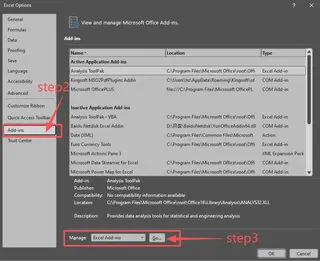

The Data Analysis command will now appear on the far right of your Data tab.

Step 2: Run the Descriptive Statistics Tool
With the ToolPak enabled, you can now generate your report.
- Go to the
Datatab and clickData Analysis. - From the list, select
Descriptive Statisticsand clickOK.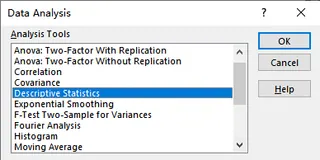
- In the dialog box, click into the
Input Rangefield and select the column of data you want to analyze (e.g., your 'Conversion Rate' column). - Check the
Labels in first rowbox if your column has a header. - Choose where you want the output: a new worksheet or a specific range on the current sheet.
- Crucially, check the
Summary statisticsbox. - Click
OK.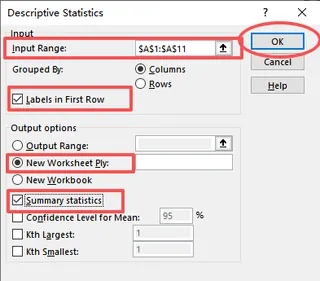
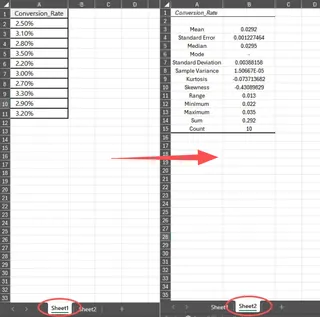
Excel will generate a table with the mean, median, mode, standard deviation, and other key statistical measures.
The Limitations of the Traditional Way
While functional, this method is fraught with limitations that feel glaringly outdated in a modern data-driven environment:
- Static and Unresponsive: The output is a dead block of text and numbers. If your source data changes, the report does not update. You must manually delete the old report and generate a new one.
- Rigid and Inflexible: Want to see the stats for just the "EMEA" region? You can't simply ask the ToolPak. You have to first manually filter your data, copy it to a new location, and then run the ToolPak on that new, smaller dataset.
- High Learning Curve: The list of 19 tools is intimidating. Unless you have a background in statistics, terms like "Anova: Two-Factor With Replication" or "heteroscedastic t-Test" are meaningless.
- Cumbersome Workflow: The entire process is a series of clicks, selections, and configurations. It pulls you out of your analytical flow and forces you into a rigid, mechanical procedure.
- Worksheet-Bound: The tool can only analyze data on a single worksheet at a time, making it difficult to work with data spread across multiple sheets.
The New Way: Using an Excel AI Agent (Excelmatic)
Instead of digging through menus and wrestling with static reports, what if you could just ask Excel for the analysis you need? This is exactly what Excel AI agents like Excelmatic are designed for. They transform data analysis from a manual chore into a simple conversation.

The Excelmatic Approach
Excelmatic is an AI agent that connects to your Excel or CSV files. You upload your data, and then you can use a chat interface to ask for analysis, formulas, charts, or reports. The AI handles the complex steps in the background.
Let's solve the same "descriptive statistics" problem using Excelmatic.
Step-by-Step with Excelmatic
Upload Your Data File
Simply drag and drop your Excel file (e.g.,
campaign-performance.xlsx) onto the Excelmatic dashboard. The AI will process the file and show you a preview.

Ask for What You Need in Plain Language
Instead of hunting for a tool, you just type your request into the chatbox.
You could ask:
- "Give me the descriptive statistics for the 'Conversion Rate' column."
- "Calculate the mean, median, mode, standard deviation, min, and max for my conversion rates."
- "Summarize the key stats for the conversion rate data."
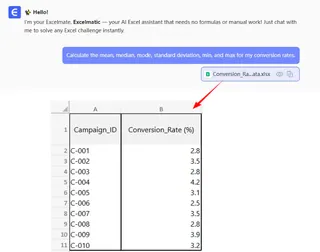
Get Instant Results and Iterate
Excelmatic will instantly generate the statistical summary, just like the ToolPak. But here's where the magic happens. Your manager now has a follow-up question: "Great. Now, what do those numbers look like just for the 'Social Media' channel?"
With the ToolPak, you'd be starting over. With Excelmatic, you just continue the conversation.
Export and Use Your Results
Once you're happy with the analysis, you can download the results as a new Excel file, copy the data, or even ask the AI to generate the underlying formulas for you to use in your own workbook.
A Sample Conversation with Excelmatic
Here’s how that entire interaction might look:
User: I've uploaded my campaign performance data. Can you give me the descriptive statistics for the 'Conversion Rate' column?
Excelmatic: Of course. Here are the descriptive statistics for the 'Conversion Rate' column:
- Mean: 3.15%
- Median: 2.98%
- Standard Deviation: 0.85%
- Minimum: 0.50%
- Maximum: 6.20%
- Count: 1,500 Would you like me to visualize this, perhaps with a histogram?
User: Yes, create a histogram. Also, can you re-calculate these stats but only for rows where the 'Channel' is 'Social Media'?
Excelmatic: Done. For the 'Social Media' channel, the descriptive statistics are:
- Mean: 3.85%
- Median: 3.75%
- Standard Deviation: 0.92% ...and so on. I have also generated a histogram showing the distribution of all conversion rates. You can view and download it from the results panel.
This conversational, iterative process is the core advantage of using an Excel AI. You stay in the flow of your analysis, asking follow-up questions as they arise, without ever touching a clunky dialog box.
Traditional ToolPak vs. Excelmatic: A Quick Comparison
| Feature | Data Analysis ToolPak | Excelmatic (Excel AI) |
|---|---|---|
| Setup | Manual activation required | None. Just upload your file. |
| Ease of Use | Rigid dialog boxes, requires statistical knowledge | Conversational, plain language prompts |
| Flexibility | Very low. Re-run for any change. | Very high. Ask follow-up questions. |
| Data Updates | Output is static; does not update | Can re-run analysis on updated data instantly |
| Learning Curve | Moderate to High | Almost zero |
| Speed | Minutes per analysis run | Seconds per request |
FAQ
Q: Do I need to be a statistician to use Excelmatic for analysis? A: Absolutely not. You don't need to know the name of the statistical test. You can describe what you're trying to find out, like "Are the sales from region A significantly different from region B?" and the AI will suggest and perform the appropriate analysis, such as a t-Test.
Q: Is my data safe when I upload it to Excelmatic? A: Data security is a top priority. Excelmatic uses secure protocols for data transfer and storage, and user data is kept private and is not used for training models. For specific details, always refer to the official privacy policy on the website.
Q: Can Excelmatic handle everything the ToolPak can, like Regression or ANOVA? A: Yes. You can ask Excelmatic to perform these advanced analyses. For example, you can say, "Run a linear regression to see how 'Ad Spend' and 'Website Visits' affect 'Total Sales'." The AI will generate the full regression output, including R-squared, coefficients, and p-values.
Q: What if my Excel data is messy or poorly formatted? A: Excelmatic is designed to handle common data imperfections. You can even ask it to help you clean the data first. For example: "Remove all duplicate rows" or "Fill in the blank cells in the 'Region' column with 'Unknown'."
Q: Will Excelmatic modify my original Excel file? A: No. Excelmatic works on a copy of your data in a secure environment. Your original file remains untouched on your computer. You can then download the new, analyzed results as a separate file.
Take Action: Upgrade Your Excel Workflow Today
For decades, we've been forced to adapt to the rigid logic of our tools. The Data Analysis ToolPak is a perfect example of this—powerful, but unintuitive and inflexible. Continuing to rely on it means accepting a workflow filled with friction, repetition, and a constant risk of working with outdated information.
With the rise of Excel AI, that paradigm is shifting. Now, the tools adapt to you. By simply describing your business questions in plain language, you can unlock deep statistical insights in a fraction of the time. You can spend your mental energy on interpreting results and making decisions, not on navigating menus and re-running reports.
Ready to leave the clunky ToolPak behind? Try Excelmatic today. Upload the very spreadsheet you're working on right now and ask it the question you were about to manually calculate. Start with one of the prompts from this article and see how quickly you can get from data to decision.