Key takeaways:
- Optimization tasks like employee scheduling or budget allocation in Excel traditionally rely on the powerful but complex Solver add-in, which involves a steep learning curve and rigid setup.
- An Excel AI agent like Excelmatic replaces the cumbersome Solver dialog boxes by allowing you to state your objective (e.g., "maximize profit") and constraints (e.g., "budget must not exceed $50,000") in plain language.
- Using Excelmatic for what-if analysis drastically reduces setup time, makes it effortless to test different scenarios via conversational follow-ups, and empowers any team member to find optimal solutions without being an Excel expert.
The Challenge: Finding the "Best" Solution in a Sea of Possibilities
Imagine you're a workforce manager responsible for creating the weekly employee schedule. You have a total of 1,065 project hours that need to be completed over the next three weeks, and you have 10 employees available. Your goal for next week is to schedule a third of those hours, so 355 in total.
This isn't just about randomly assigning hours. You have rules to follow:
- Union Rules: Every employee must be scheduled for at least 20 hours a week.
- Overtime Prevention: No employee can work more than 40 hours a week to avoid burnout and extra costs.
- Shift Length: Individual shifts cannot be longer than 8 hours.
- Practicality: You can't schedule someone for 3.75 hours. All shifts must be in whole numbers.
How do you create a schedule that meets the 355-hour target while respecting all these constraints? Doing this manually is a nightmare of trial and error. You might change one person's schedule, only to find it violates another's weekly total or pushes the grand total off target. This is a classic optimization problem, and for years, Excel's answer has been a tool called "Solver."
The Traditional Method: Navigating the Excel Solver Maze
Excel Solver is a powerful add-in designed for "what-if analysis" that can find an optimal (maximum, minimum, or specific value) for a formula in one cell—called the objective cell—by changing the values in other cells, subject to a set of rules, or constraints.
For our scheduling problem, the traditional approach using Solver looks something like this.
Step-by-Step with Solver
First, you need to make sure the Solver add-in is even enabled. It's not active by default. You have to find it in File > Options > Add-ins > Excel Add-ins > Go, check the "Solver Add-in" box, and click OK.
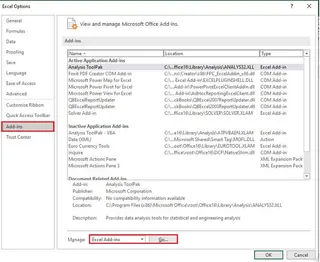
Once enabled, you'll find it on the Data tab. Here’s how you'd configure it for our scenario:
Set Up Your Spreadsheet: You need a clear layout where your variable cells (the daily shift hours for each employee) and your objective cell (the total hours for the week) are defined. The objective cell must contain a formula, like
SUM(B11:G20), that depends on the variable cells.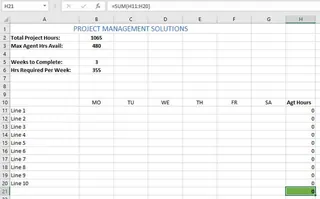
Open the Solver Parameters Window: You click the Solver button, and you're greeted with this dialog box. This is where the complexity begins.
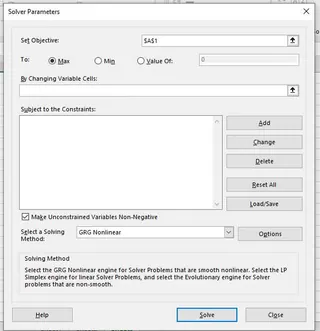
Define the Objective:
- Set Objective: You select the cell that contains your target formula (e.g.,
H21, the total weekly hours). - To: You choose "Value of" and enter
355. - By Changing Variable Cells: You select the entire range where the daily shifts will be entered (e.g.,
B11:G20).
- Set Objective: You select the cell that contains your target formula (e.g.,
Add Constraints (The Hard Part): Now you must manually add every single rule by clicking the "Add" button and building each constraint one by one.
Agt_Hrs >= 20(The total hours for each agent must be greater than or equal to 20)Agt_Hrs <= 40(The total hours for each agent must be less than or equal to 40)Shifts <= 8(The value in any individual shift cell must be less than or equal to 8)Shifts = integer(The value in any individual shift cell must be a whole number)
After adding them, your dialog box looks crowded and technical.
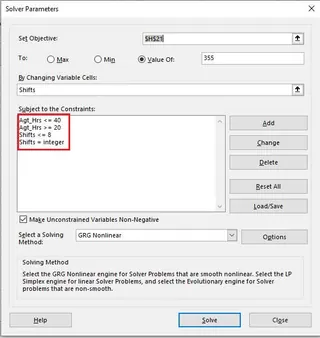
Choose a Solving Method and Solve: You have to pick between "Simplex LP," "GRG Nonlinear," and "Evolutionary." If you don't know what these mean (and most people don't), you're just guessing. Finally, you click "Solve" and hope for the best.
The Limitations of the Traditional Solver
While powerful, this process is fraught with issues that make it inaccessible for many and cumbersome for experts:
- Intimidating Interface: The Solver Parameters window is a relic of old software design. It’s not intuitive and feels more like programming than using a spreadsheet.
- Rigid and Tedious Setup: Every single constraint must be entered manually through clicks and cell selections. A small mistake in a cell reference can invalidate the entire model.
- Steep Learning Curve: To use Solver effectively, you almost need a degree in operations research. Understanding the difference between linear and non-linear problems is crucial for choosing the right method, and incorrect choices can lead to failed or suboptimal results.
- Difficult to Iterate: What if your manager asks, "Great, now what's the maximum number of hours we can schedule without anyone going over 40?" You have to go back into the Solver window, change the objective from "Value of" to "Max," and re-run everything. Every new "what-if" question requires a manual reconfiguration.
- Poor Error Handling: If Solver fails, it often gives a vague message like "Solver could not find a feasible solution." It doesn't tell you why, leaving you to debug your complex web of constraints on your own.
The New Way: Using an Excel AI Agent (Excelmatic)
Instead of forcing you to learn a complex tool, what if you could just tell Excel what you want to achieve? That's the promise of Excel AI agents like Excelmatic. You upload your file and use natural language to define your optimization problem.

Excelmatic acts as your data analyst, translating your plain language requests into the complex logic required to find the optimal solution, completely bypassing the Solver interface.
Step-by-Step with Excelmatic
Let's solve the exact same scheduling problem using a conversational approach.
1. Upload Your Data File
First, you drag and drop your Excel file containing the scheduling template into Excelmatic. The AI instantly reads your headers and understands the structure of your data.

2. Describe Your Objective and Constraints in Language
Instead of filling out a form, you simply type your request into the chatbox. You can state the entire problem in one go.
User: "I need you to fill out the schedule in the range B11:G20. The goal is to make the total hours in cell H21 equal to exactly 355.
Please follow these rules:
- The total weekly hours for each employee (in the range H11:H20) must be between 20 and 40.
- Each individual shift value in B11:G20 must be an integer.
- Each individual shift value must also be less than or equal to 8."
3. Review the Result and Iterate with Follow-up Questions
Excelmatic processes your request, runs the optimization in the background, and populates the schedule for you, presenting the final table directly in the interface. It will find a solution that satisfies all your conditions.
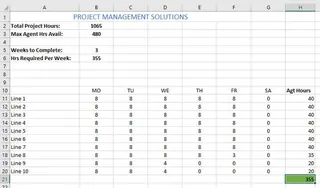
But here is where the magic really happens. You can now explore different scenarios just by asking questions.
User: That's perfect. Now, what's the absolute maximum number of hours we could schedule if we kept all the same constraints?
Excelmatic: Under the current constraints (each employee up to 40 hours/week, shifts up to 8 hours), the maximum total hours you can schedule is 400, where each of the 10 employees works exactly 40 hours. I have updated the schedule to reflect this.
User: Interesting. Okay, let's go back to the 355-hour target. But this time, can you make sure no single employee gets more than 35 hours?
Excelmatic: Of course. I have re-run the optimization with the 355-hour target and the new constraint that each employee's total hours must be less than or equal to 35. The new schedule is ready.
This conversational iteration is impossible with the traditional Solver. What took multiple trips back to a complex dialog box now takes a single sentence.
4. Download Your Results
Once you're happy with a scenario, you can download the completed schedule as a new Excel file, ready to be shared with your team.
Traditional Solver vs. Excelmatic: A Quick Comparison
| Feature | Traditional Excel Solver | Excelmatic (Excel AI) |
|---|---|---|
| Setup | Manual, rigid dialog box | Conversational, plain language |
| Flexibility | Low; requires re-opening and re-configuring for each scenario | High; iterate and explore scenarios with follow-up questions |
| Learning Curve | Steep; requires understanding of optimization models | None; just describe your business problem |
| Speed | Slow; minutes to hours of setup and tweaking | Fast; seconds to get an initial solution |
| Debugging | Difficult; cryptic error messages | Intuitive; the AI can help clarify ambiguous requests |
FAQ
Q: Do I need to understand algorithms like "Simplex LP" to use Excelmatic for optimization? A: Absolutely not. Excelmatic handles the choice of the correct algorithm behind the scenes based on your natural language description. You just focus on the "what," and the AI handles the "how."
Q: Is my sensitive company data, like employee schedules or financial models, safe when I upload it to Excelmatic? A: Yes. Excelmatic is built with data security as a priority. Your files are processed securely, are not used for training other AI models, and you retain full ownership of your data. For specific enterprise needs, security policies can be discussed.
Q: Can Excelmatic handle problems other than scheduling? A: Yes, any problem you'd use Solver for can be handled by Excelmatic. This includes budget allocation (e.g., "maximize marketing ROI with a $100k budget across 5 channels"), logistics planning (e.g., "find the cheapest shipping route"), or product mix optimization (e.g., "which products should we make to maximize profit given material constraints?").
Q: What if my request is unclear? Will the AI just fail? A: No. A key advantage of a conversational AI is that if your request is ambiguous, it will ask for clarification. For example, if you say "maximize profit" but haven't specified where the profit formula is, Excelmatic will ask, "Which cell or column represents profit?"
Q: Can I get the result back into my original Excel file? A: Yes, you can download a new Excel file containing the solution generated by Excelmatic. You can then copy and paste this data into your master workbooks.
Take Action: Upgrade Your Excel Workflow Today
For years, complex optimization has been the exclusive domain of Excel power users who were willing to wrestle with the Solver add-in. The time spent setting up, debugging, and re-running scenarios is time that could be spent on higher-value strategic thinking.
By embracing an Excel AI agent, you're not just finding a faster way to do an old task. You're fundamentally changing how you interact with your data. You can ask complex questions, test hypotheses in seconds, and unlock insights that were previously buried under layers of technical complexity.
Stop fighting with dialog boxes. Start a conversation with your data.
Try Excelmatic for free today and upload your first optimization problem. You can even start with the prompts from this article