Key takeaways:
- Calculating a running total (cumulative sum) in Excel with traditional formulas like
SUMis tedious and error-prone. Formulas often break with a#REF!error when you add or delete rows, forcing manual corrections. - An Excel AI agent like Excelmatic eliminates these manual steps. You can simply upload your data and ask in plain language, "Create a running total for the transaction amount," and the AI handles the calculation instantly.
- Using Excelmatic not only saves significant time but also ensures accuracy. It allows for dynamic analysis, such as calculating running totals for specific categories or time periods, just by asking follow-up questions.
Problem Background & Pain Points
Whether you're tracking your company's daily sales, managing a project budget, monitoring inventory levels, or simply keeping an eye on your personal credit card statement, you've likely needed to calculate a running total. A running total, also known as a cumulative sum, shows the accumulated value of a sequence of numbers up to a specific point. It's essential for understanding trends and balances over time.
For example, imagine you have a spreadsheet of your monthly expenses. You don't just want to see the total at the end of the month; you want to see how your balance changes after each and every transaction. This helps you understand your spending habits and know exactly when your balance dips.
The real headache isn't the initial calculation. It's the maintenance. You enter a new expense, and you have to drag the formula down. You find a duplicate entry and delete the row, and suddenly your entire column of calculations explodes with #REF! errors. You're forced to stop your analysis, find the broken cell, fix the formula, and carefully drag it down again. This repetitive, frustrating process is a classic Excel time-sink, turning a simple task into a recurring chore.
Traditional Excel Solutions: Steps and Limitations
For decades, Excel users have relied on a few standard methods to create running totals. While they get the job done, they each come with their own set of frustrations.
Method 1: The SUM Formula with Mixed Reference
This is a clever and common approach for creating a more robust running total formula. It involves locking the first cell of the sum range while allowing the last cell to be relative.
Let's say your transaction amounts are in column C, starting from cell C2. In the adjacent cell (D2), you would enter the following formula:
=SUM($C$2:C2)

Here's how it works:
$C$2: The dollar signs create an "absolute reference" to cell C2. This means as you drag the formula down, this starting point will never change.C2: This is a "relative reference". When you drag the formula down to cell D3, this part will automatically change toC3. The formula in D3 becomes=SUM($C$2:C3). In D4, it becomes=SUM($C$2:C4), and so on.
This creates a cumulative sum. However, it's not foolproof. If you delete row 2, the formula in all subsequent cells will break, showing a #REF! error because their locked reference is now gone.
Method 2: The Pivot Table "Running Total In" Feature
Pivot Tables are a powerful tool for summarizing data, and they have a built-in feature for running totals.
The steps are:
- Select your data and go to
Insert > PivotTable. - Drag your date or transaction field into the "Rows" area.
- Drag your amount field into the "Values" area twice.
- Right-click on the second value field, go to Value Field Settings.
- Navigate to the Show Values As tab.
- From the dropdown menu, select Running Total In.
- Choose your date or transaction field as the "Base Field" and click OK.

The Limitations of Traditional Methods
While these methods work, they are far from perfect in a dynamic business environment:
- Fragile and Error-Prone: As mentioned, formulas break easily when data is added or removed incorrectly. This forces you to constantly audit and fix your spreadsheet.
- Manual Refresh Required: A Pivot Table does not update in real-time. If you change your source data, you must remember to right-click the Pivot Table and hit "Refresh." Forgetting this simple step can lead to decisions based on outdated information.
- High Learning Curve: The Pivot Table method, while powerful, is not intuitive. The "Show Values As" option is buried in menus, making it a feature many users don't even know exists.
- Inflexible for Ad-Hoc Questions: What happens when your manager asks, "Great, now can you show me the running total for just our 'Marketing' expenses?" With traditional methods, you either have to rebuild your formulas on a filtered dataset or reconfigure your Pivot Table. There's no quick, conversational way to adapt your analysis.
The New Solution: Using Excel AI (with Excelmatic)
Instead of memorizing formulas or clicking through menus, what if you could just tell Excel what you want? That's the power of an Excel AI Agent like Excelmatic. It transforms the task from a manual procedure into a simple conversation.

The AI-Powered Workflow
The process is incredibly straightforward. You replace complex steps with plain language instructions.
Step 1: Upload Your Data File
Simply drag and drop your Excel or CSV file containing your transaction data into Excelmatic. The AI will read your data and show you a preview. It works best with clean column headers like "Date," "Description," and "Amount."

Step 2: Describe Your Goal in Natural Language
Instead of writing a formula, you just type your request in the chat box. Here are a few examples you could use for calculating a running total:
- "Add a new column named 'Running Balance' that calculates the cumulative sum of the 'Amount' column."
- "Calculate a running total for the 'Movement' column and show it in a new column."
- (If you have a starting value) "Starting with an initial balance of $5000, calculate the running balance after each transaction in the 'Amount' column."

Step 3: Review and Iterate on the Result
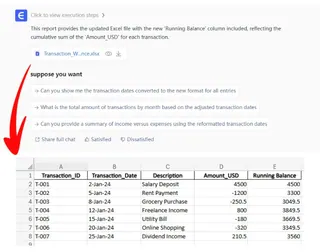
Excelmatic will instantly process your request and generate a new table with the "Running Balance" column perfectly calculated. No formulas to drag, no references to lock.
But the real power lies in iteration. You can continue the conversation to refine your analysis:
- "Now, filter this to only show transactions from January."
- "Great. Can you also create a line chart to visualize how the running balance changed over time?"
- "Can you calculate a separate running total for each expense category?"
This conversational approach makes complex analysis incredibly fast and flexible, allowing you to explore your data from different angles without starting from scratch each time.
Step 4: Export Your Results
Once you're happy with the analysis, you can download the results as a new, clean Excel file containing the table, formulas, or charts the AI generated for you.
Dialogue Example
Here’s how a typical conversation with Excelmatic might look:
User: I've uploaded my credit card statement for the month. It has 'Date', 'Description', and 'Amount' columns. Can you add a column to show the running balance? The starting balance was $5000.
Excelmatic: Done. I have added a new column named 'Running Balance' which calculates the cumulative sum of the 'Amount' column, starting from an initial value of $5000. The final balance is $4400.50.
User: Great. Now, could you create a line chart to visualize how the running balance changed throughout the month?
Excelmatic: Certainly. I have generated a line chart that plots the 'Running Balance' against the 'Date'. The chart is ready for you to view and download. Would you like to add it to the same Excel sheet?
Traditional Way vs. Excelmatic: A Quick Comparison
| Aspect | Traditional Excel Method | Excelmatic AI Method |
|---|---|---|
| Time to Create | 5-15 minutes, plus time for any fixes or updates. | Under 1 minute. |
| Skills Needed | SUM with mixed references or Pivot Table settings. |
Plain language skills. |
| Flexibility | Low. New questions often require starting over. | High. Adapt and refine with follow-up questions. |
| Error Risk | High (#REF! errors, forgetting to refresh). |
Very Low. The AI handles the calculation logic. |
FAQ
Q: Do I need to be an Excel expert to use Excelmatic?
A: Absolutely not. Excelmatic is designed for everyone. If you can describe what you want in a sentence, you can use it to perform complex analysis. It's perfect for both beginners who want to avoid formulas and experts who want to save time.
Q: Will Excelmatic modify my original Excel file?
A: No. Your original file remains untouched. Excelmatic works on a secure copy of your data in the cloud, and you can download the results as a new file.
Q: Can I use this for more than just a simple running total?
A: Yes! You can ask for grouped running totals (e.g., "calculate the running total of sales for each salesperson"), conditional running totals, and more. Just describe the logic you need.
Q: Is it safe to upload my financial data to Excelmatic?
A: Security is a top priority. Excelmatic uses industry-standard encryption to protect your data both in transit and at rest. For detailed information, always refer to the official privacy policy on the website.
Q: How is this better than just using a Pivot Table?
A: While Pivot Tables are powerful, Excelmatic is faster, more intuitive, and significantly more flexible. You don't need to hunt through menus, and you can instantly pivot your analysis by asking a new question, a task that would require a full reconfiguration of a Pivot Table.
Take Action: Upgrade Your Excel Workflow Today
Stop wasting valuable time manually creating and fixing running totals. The minutes you spend every week wrestling with fragile formulas and refreshing pivot tables add up, keeping you from more important strategic analysis.
By embracing an Excel AI agent, you can turn a tedious chore into a task that takes seconds. You can answer ad-hoc questions from your team instantly and produce more reliable reports with less effort.
Ready to see the difference? Try Excelmatic for free today. Upload an expense report or sales ledger and use one of the prompts from this article. Experience for yourself how a simple conversation can revolutionize your relationship with spreadsheets.