Key takeaways:
- Mastering traditional Excel productivity often means memorizing dozens of keyboard shortcuts, a time-consuming process with a steep learning curve that many users find frustrating.
- Excel AI tools like Excelmatic offer a new paradigm, allowing you to perform complex actions—from formatting and filtering to creating pivot tables—by simply describing what you want in plain language.
- This shift from memorization to conversation not only saves significant time but also makes advanced Excel capabilities accessible to everyone, reducing errors and eliminating the need to remember obscure key combinations.
The Quest for Speed: Why We Obsess Over Excel Shortcuts
We've all seen it: the Excel "wizard" in the office, their fingers flying across the keyboard, cells flashing, charts appearing as if by magic. They never touch the mouse. Their secret? A deep, almost encyclopedic knowledge of Excel keyboard shortcuts.
For decades, mastering these shortcuts has been the hallmark of a true Excel power user. The logic is simple and sound: moving your hand from the keyboard to the mouse and back again is a tiny but constant drain on your time and focus. Shortcuts streamline this process, turning multi-click operations into split-second keystrokes. Tasks like formatting a cell, inserting a row, or creating a table become muscle memory.
But this path to productivity has a dark side. The sheer volume of shortcuts is overwhelming. There are hundreds of them, covering everything from basic navigation to obscure dialog boxes. This creates a significant barrier for the average Excel user who just wants to get their report done without enrolling in a memory training course.
The Traditional Solution: Memorize, Practice, Repeat
The conventional wisdom for becoming faster in Excel is to build a personal library of essential shortcuts. Experts recommend starting with the basics and gradually adding more complex combinations.
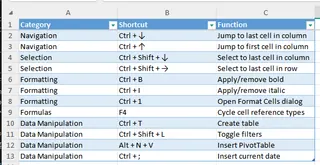
Typically, this involves learning shortcuts in categories:
- Navigation: Using
Ctrl + Arrow Keysto jump to the edge of a data range. - Selection: Adding
Shiftto the navigation keys (Ctrl + Shift + Arrow Keys) to select large blocks of data instantly. - Formatting: Common commands like
Ctrl + Bfor bold,Ctrl + Ifor italic, or the powerfulCtrl + 1to open the Format Cells dialog. - Formulas: Using
F4to cycle through absolute and relative cell references is a classic. - Data Manipulation: Shortcuts like
Ctrl + Tto create a table,Ctrl + Shift + Lto toggle filters, orAlt + N + Vto insert a PivotTable.
The Limitations of the Shortcut-Driven Approach
While undeniably powerful for those who achieve mastery, relying solely on keyboard shortcuts has several inherent problems in the modern workplace:
- The Steep Learning Curve: How many shortcuts are enough? 20? 50? 100? The initial investment in memorization is significant, and it's a constant battle to retain them.
- "Use It or Lose It": If you don't use a specific shortcut for a few weeks, it's easy to forget. This is especially true for less common but highly useful commands. You find yourself stopping your workflow to Google "shortcut for..."—defeating the entire purpose of being fast.
- Limited Scope: Shortcuts execute a predefined action. They can help you create a chart faster (
F11), but they can't help you decide which data to chart or how to summarize it first. They speed up the "how," but offer no help with the "what" or "why." - Rigidity: A shortcut does one thing.
Ctrl + Tcreates a table. It doesn't name the table, it doesn't remove the filter buttons, and it doesn't add a total row. Any variation requires more clicks or another shortcut. - Cognitive Overload: Juggling the logic of your analysis and trying to recall the right key combination adds a layer of mental friction. It pulls you away from the strategic part of your work and keeps you focused on the mechanics of the software.
What if there was a way to get the speed of shortcuts without the burden of memorization?
The New Solution: Command Excel with Natural Language Using Excelmatic
Enter the era of Excel AI Agents. Tools like Excelmatic are fundamentally changing our interaction with spreadsheets. Instead of memorizing a rigid set of commands, you can now have a conversation with your data. You simply state your goal in plain language, and the AI handles the execution.

This approach bypasses the entire shortcut memorization process. Your intent is the command.
How to Replace Shortcuts with Excelmatic: A Step-by-Step Guide
Let's revisit the same goal—improving productivity—but with an AI-powered workflow.
1. Upload Your Data
Start by uploading your Excel or CSV file to Excelmatic. The AI instantly reads your headers and data structure, preparing it for your commands.

2. Describe Your Goal in Plain Language
Instead of reaching for a key combination, you just type what you want to do in the chat prompt. Think of it as a universal command palette that understands intent, not just predefined instructions.
Here are some examples of how natural language replaces common shortcuts:
Instead of
Ctrl + T(Create Table):Turn the data in range A1:G500 into a formatted table and name it 'SalesData'.
Instead of
Ctrl + Shift + L, then clicking dropdowns (Filter Data):Filter this table to only show me records from the 'East' region with sales over $50,000.
Instead of
Alt + N + V(Insert PivotTable):Create a pivot table that sums up 'Revenue' by 'Sales Rep' and 'Product Category'.
Instead of
Ctrl + 1and navigating tabs (Formatting):Highlight all cells in the 'Profit' column that are less than zero in red. Format the 'Order Date' column to show the month and year, like 'Jan-2024'.
For complex tasks with no single shortcut:
Find and delete all duplicate rows based on the 'Order ID' column." Add a new column that calculates the commission, which is 5% of the 'Sales' column.

3. Review and Iterate on the Results
This is where Excel AI truly outshines shortcuts. Excelmatic doesn't just execute a command; it starts a conversation. After it generates a table, chart, or formula, you can immediately ask for refinements.
- Great. Now sort that pivot table to show the top 5 sales reps.
- Can you change that bar chart to a line chart?
- Add a slicer to this pivot table for the 'Year'.
This iterative process is fluid and intuitive, allowing you to explore your data without getting bogged down in menus and dialog boxes.
4. Export Your Finished Work
Once you're satisfied, you can download the results as a new Excel file, containing the AI-generated tables, charts, and formulas. You can also copy the generated formulas or PivotTable configurations to use directly in your original workbook.
Dialogue Example: From Raw Data to Insight in Seconds
Imagine you've just been given a raw data export. Here's a typical conversation with Excelmatic:
User: I've uploaded my sales data for the year. First, turn the entire sheet into a proper table and get rid of any duplicate order entries.
Excelmatic: Done. I have converted your data into a table and removed 37 duplicate rows based on the 'Order ID' column. The table is now ready for analysis. What's next?
User: Awesome. Now, create a pivot table to show the total sales for each month.
Excelmatic: I've created the pivot table summarizing sales by month. It looks like sales peaked in November. Would you like me to visualize this with a chart?
User: Yes, please generate a column chart for that pivot table. And highlight the highest month's sales number in the table.
Excelmatic: Okay, a column chart has been added to visualize the monthly sales trend, and the peak sales value for November is now highlighted in your pivot table. You can download the new Excel file with these results.
In under a minute, you've accomplished a task that would have involved multiple shortcuts, mouse clicks, and menu navigations—all while staying focused on the analytical outcome.
Traditional Shortcuts vs. Excelmatic: A Quick Comparison
| Aspect | Traditional Shortcuts | Excelmatic (Excel AI) |
|---|---|---|
| Learning Curve | High: Requires memorizing dozens of key combinations. | Low: Requires only the ability to describe your goal in plain language. |
| Flexibility | Rigid: Each shortcut performs one specific, unchangeable action. | High: Commands can be nuanced and results can be iteratively refined. |
| Task Scope | Narrow: Limited to executing actions, not performing analysis. | Broad: Handles everything from simple formatting to complex data analysis and report generation. |
| Cognitive Load | High: You must remember the shortcut and manage the analytical task. | Low: You only need to focus on your analytical goal. |
| Accessibility | Favors experienced "power users" who have invested the time. | Democratic: Empowers users of all skill levels to perform advanced tasks. |
FAQ
1. Do I still need to learn any Excel shortcuts at all?
Basic, universal shortcuts like Ctrl+C (Copy), Ctrl+V (Paste), Ctrl+Z (Undo), and Ctrl+S (Save) are still incredibly useful and part of general computer literacy. However, for complex, Excel-specific operations, AI is the new, more powerful shortcut.
2. Is using Excelmatic actually faster than a power user who knows all the shortcuts? For a single, simple action (e.g., making text bold), a power user's muscle memory might be a fraction of a second faster. For any multi-step or analytical task (e.g., "create a filtered pivot table and then chart the top 10 results"), the AI-driven conversational approach is almost always significantly faster and less prone to error.
3. Can Excelmatic handle complex formatting that usually requires the Format Cells dialog (Ctrl+1)?
Yes. You can describe complex formatting rules, such as conditional formatting ("highlight rows where status is 'Complete'"), custom number formats ("format this column to show numbers in thousands with a 'K'"), and more.
4. My company has a strict data privacy policy. Is it safe to upload our files to Excelmatic? Excelmatic is designed with data security as a top priority. All data is encrypted in transit and at rest, and we adhere to strict privacy protocols. We never train our models on customer data. For specific compliance details, always refer to the official privacy policy on the website.
5. Does Excelmatic replace Microsoft Excel?
No, Excelmatic acts as an intelligent assistant for Excel. It helps you process, analyze, and prepare your data far more efficiently. The final output is a standard .xlsx file that you can continue to use in your familiar Excel environment.
Take Action: Upgrade Your Productivity Beyond Keystrokes
The pursuit of productivity is timeless, but the tools are evolving. While learning keyboard shortcuts was once the only way to break free from the slow pace of the mouse, it's no longer the only—or even the best—path.
Spending hours memorizing key combinations is an investment with diminishing returns. That time is better spent analyzing your data and deriving insights. Let an Excel AI Agent handle the mechanical execution.
Stop trying to be a faster typist and start being a faster thinker. Upload a spreadsheet you're working on to Excelmatic today and ask it the very question you were about to Google a shortcut for. The answer might just change the way you work with data forever.