Key takeaways:
- Manually looking up data in Excel with VLOOKUP is restrictive, while its successor, INDEX MATCH, is powerful but notoriously complex and error-prone.
- Excel AI, through tools like Excelmatic, eliminates the need to write these formulas. You can merge tables and find specific values by simply describing what you need in plain language.
- Using Excelmatic for data lookups transforms a tedious, multi-step process into a quick conversation, drastically improving speed, accuracy, and flexibility for any data analysis task.
The Universal Headache: Looking Up Data in Excel
If you've spent any significant time in Excel, you've felt the pain of trying to combine data from two different lists. Imagine you have a list of sales transactions with a ProductID, and a separate product master list with the ProductID, ProductName, and Price. Your manager asks for a report showing total sales by ProductName. How do you get the ProductName into your sales table?
This is the classic data lookup problem, and it's a daily reality for sales analysts, HR professionals, and financial planners. For decades, the go-to tool was VLOOKUP. But as anyone who has used it knows, VLOOKUP comes with a crippling limitation: it can only look for a value in the first column of a data range and return a value to its right.
What if your ProductID is not the first column in the master list? You're forced to either painstakingly rearrange your source data (a risky move that can break other parts of your workbook) or search for a better way. This frustration leads many advanced users to the "better way": a powerful but complex combination of functions known as INDEX MATCH.
The Traditional Solution: The Power and Problem of INDEX MATCH
For Excel power users, INDEX MATCH is a badge of honor. It's the superior alternative to VLOOKUP that overcomes its biggest flaws. By combining two separate functions, it can perform lookups in any direction—left, right, up, or down.
Let's break down how it works.
MATCH(lookup_value, lookup_array, 0): This function finds the position of a value in a list. For example,MATCH("Product-114125", C2:C100, 0)would search for "Product-114125" in the rangeC2:C100and return its row number, say,5.INDEX(array, row_num, column_num): This function returns the value at a specific coordinate within a table. For example,INDEX(A2:D100, 5, 1)would return the value from the 5th row and 1st column of the tableA2:D100.
When you nest them together, you get a dynamic lookup formula:
=INDEX(return_column, MATCH(lookup_value, lookup_column, 0))
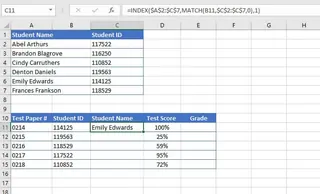
In the scenario above, we're looking up a student's name using their ID. Since the Student ID is to the right of the Student Name, VLOOKUP would fail. The INDEX MATCH formula solves this:
=INDEX($A$2:$C$7, MATCH(B11, $C$2:$C$7, 0), 1)
This formula tells Excel: "Find the value from cell B11 within the range C2:C7. Once you find its row number, give me the value from that same row in the 1st column of the table A2:C7."
The Limitations of the "Better" Way
While INDEX MATCH is undeniably more flexible than VLOOKUP, it introduces its own set of problems:
- High Complexity: The formula is long, nested, and intimidating for anyone who isn't an Excel expert. Debugging it when you get a
#N/Aor#REF!error is a frustrating process of checking each part of the formula. - Difficult to Maintain: A spreadsheet filled with
INDEX MATCHformulas is a nightmare to hand over to a colleague. Explaining the logic takes time, and the risk of someone accidentally breaking it is high. - Rigid Structure: The formula relies on hardcoded column numbers (
1in the example above). If you or a teammate inserts a new column in your source data, theINDEXfunction will return the wrong information, silently corrupting your report. - Poor Scalability: What if you need to match on two criteria (e.g.,
ProductIDandStoreLocation)? The formula becomes an even more monstrous array formula, pushing it further out of reach for most users.
Mastering INDEX MATCH feels like learning a secret handshake. But in today's fast-paced environment, should you really have to be a formula wizard just to merge two lists?
The New Solution: Using Excel AI (with Excelmatic)
Instead of memorizing complex syntax, what if you could just tell Excel what you want to achieve? This is the promise of Excel AI Agents like Excelmatic. You upload your data, describe your goal in plain language, and the AI does the heavy lifting—no formulas required.

Let's revisit our student lookup problem and solve it with Excelmatic.
Step 1: Upload Your Data File(s)
First, you simply drag and drop your Excel or CSV file(s) into Excelmatic. Let's assume you have one file with two sheets: Students (containing Student Name, Class, Student ID) and Scores (containing Student ID, Test Score).

A good practice is to ensure your columns have clear headers, as this helps the AI understand your data structure instantly.
Step 2: Describe Your Goal in Natural Language
Now, instead of writing a formula, you just type your request in the chat box. You can be conversational and specific.
Here are a few example prompts to solve the lookup problem:
- "I have two sheets, 'Students' and 'Scores'. Merge them using the 'Student ID' column. I want to see the 'Student Name' next to their 'Test Score'."
- "Join my 'Students' and 'Scores' tables. The final table should include 'Student Name', 'Test Score'."
- "For each 'Student ID' in the 'Scores' sheet, find the corresponding 'Student Name' from the 'Students' sheet and add it as a new column."
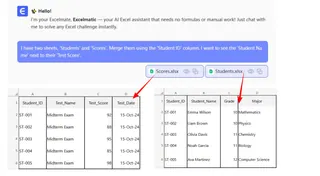
The AI will parse your request, identify the correct columns to join on, and perform the merge operation automatically.
Step 3: Review and Iterate on the Result
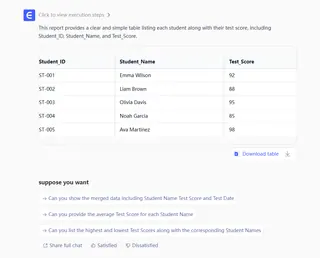
Excelmatic will present you with a new table showing the merged data. But the real power lies in the ability to continue the conversation.
You can now easily perform tasks that would have required more complex formulas or manual filtering:
- User: "Great. Now add a 'Letter Grade' column based on the 'Test Score'. Use this scale: A for 90+, B for 80-89, C for 70-79, and F for below 70."
- User: "Filter this list to only show me students who scored an 'A'."
- User: "Can you sort this table by 'Test Score' in descending order?"
This conversational approach makes complex data manipulation incredibly intuitive and fast. You're no longer fighting with syntax; you're simply refining your results.
Dialogue Example: Solving the Problem in Seconds
Here’s how that entire workflow might look in Excelmatic:
User: I've uploaded a file with a 'Students' sheet and a 'Scores' sheet. Please merge them using 'Student ID' so I have the Student Name and their Test Score in one table.
Excelmatic: Done. I have created a new table joining the two sheets on 'Student ID'. The new table contains 'Student Name', 'Class', 'Student ID', and 'Test Score'.
User: Perfect. Now, can you add a new column called 'Grade'? If the score is 90 or above, it's an 'A'. If it's 80 or above, it's a 'B'. Otherwise, it's a 'C'.
Excelmatic: I have added the 'Grade' column with the specified logic. Would you like to visualize the distribution of grades with a chart?
User: Yes, create a bar chart showing the count of students for each grade.
Excelmatic: Here is the bar chart. You can download the updated Excel file with the merged data, the new 'Grade' column, and the chart.
Step 4: Export Your Final Result
Once you're satisfied, you can download the completed workbook with one click. It will contain a new sheet with your perfectly merged and graded data, ready to be shared or used in a presentation. You didn't write a single VLOOKUP or INDEX MATCH.
Traditional vs. Excelmatic: A Quick Comparison
| Feature | INDEX MATCH (Manual) |
Excelmatic (AI-Powered) |
|---|---|---|
| Time to Implement | 5-15 minutes (for experts) | < 1 minute |
| Required Skill | Advanced Excel functions, syntax | Basic language communication |
| Flexibility | Low. Changes require formula rewrites. | High. Adjust with follow-up questions. |
| Error Rate | High. Prone to syntax and reference errors. | Low. AI handles the logic. |
| Collaboration | Difficult. Hard for others to understand. | Easy. The chat history is the documentation. |
FAQ
1. Do I need to know any Excel formulas to use Excelmatic? No, not at all. The entire purpose of Excelmatic is to replace the need for complex formulas. You only need to be able to describe the outcome you want in plain language.
2. Can Excelmatic handle lookups with multiple criteria?
Yes, easily. You can simply state all your conditions in your request. For example: "Merge the sales data with the employee data where Employee ID matches AND the Sale Date is in Q4 2025."
3. Is my data secure when I upload it to Excelmatic? Excelmatic is built with data security as a top priority, employing enterprise-grade security standards. Your data is encrypted in transit and at rest, and is not used for training models. For specific compliance details, always refer to the official privacy policy.
4. What if my data isn't perfectly clean?
Excelmatic's AI is designed to handle common data imperfections. However, for best results, it's always good practice to have clear, descriptive column headers (e.g., First Name instead of FN). If the AI is unsure, it may ask you for clarification.
5. Can I still get the formula from Excelmatic if I want it? Yes. For many operations, Excelmatic can provide the exact Excel formula it used to generate the result. This is a great way to learn or to apply the formula directly in your own workbook if needed.
Start Working Smarter, Not Harder
Learning INDEX MATCH was once a rite of passage for becoming an Excel pro. But technology has evolved, and so should our workflows. Spending your valuable time building and debugging brittle formulas is an opportunity cost. That's time you could be spending on actual analysis, finding insights, and making strategic decisions.
An Excel AI agent like Excelmatic automates the tedious mechanics of data preparation, freeing you to focus on what truly matters. Stop wrestling with formulas and start having a conversation with your data.
Ready to ditch INDEX MATCH for good? Try Excelmatic for free and solve your next data lookup problem in seconds.