Key takeaways:
- Manually merging data with
VLOOKUPorHLOOKUPis tedious, error-prone, and restrictive, requiring complex syntax and breaking easily when columns change. - Excel AI agents like Excelmatic eliminate the need for these formulas. You can simply upload your files and use natural language to ask the AI to merge data based on a common key.
- Using Excelmatic saves significant time, prevents common
#N/Aand#REF!errors, and handles any data layout (vertical or horizontal) without needing different functions, allowing you to focus on analysis rather than formula mechanics.
The All-Too-Familiar Problem: Merging Data Across Excel Sheets
Picture this: you have two separate Excel files. One is your monthly sales report, containing Transaction ID, Date, and Member ID. The other is your master member list, with columns for Member ID, First Name, Last Name, and Join Date.
Your manager asks for a simple report: a list of all recent transactions with the member's full name included. Your heart sinks a little. You know this means diving into the world of VLOOKUP.
This is a classic Excel challenge. We often have data scattered across multiple tables, and we need to bring it together for comprehensive analysis. Whether it's matching product details to a sales log, employee names to a project sheet, or financial codes to a transaction list, the core task is the same: look up a value in one table and pull in related information from another. For decades, the go-to tools for this have been the VLOOKUP and HLOOKUP functions. But as any seasoned Excel user knows, they are far from perfect.
The Traditional Excel Solution: The VLOOKUP & HLOOKUP Maze
The classic approach involves writing a lookup formula. Depending on how your data is structured, you'll choose one of two functions:
VLOOKUP: Used when your lookup table is organized vertically (i.e., data is in columns). This is the most common scenario.HLOOKUP: Used when your lookup table is organized horizontally (i.e., data is in rows).
Let's stick with our example of adding member names to a sales log. Since the member list is likely a standard table with headers at the top and data in rows, we'd use VLOOKUP.
The formula looks like this:
=VLOOKUP(lookup_value, table_array, col_index_num, [range_lookup])
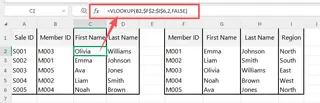
To make it work, you would follow these manual steps:
- Identify the Common Key: In our case, it's the
Member IDcolumn, which exists in both tables. - Write the Formula: In the first empty cell of your "First Name" column in the sales report, you'd start typing
=VLOOKUP(. - Select the
lookup_value: This is theMember IDin the current row of your sales report. - Select the
table_array: This is the entire range of your member list table, starting with theMember IDcolumn. You must also remember to pressF4to make the reference absolute (e.g.,$H$4:$K$14), so it doesn't shift when you drag the formula down. - Determine the
col_index_num: You have to manually count the columns in your member list. IfFirst Nameis the 2nd column in your selected range, you'd type2. - Specify the
range_lookup: You'll almost always typeFALSEfor an exact match. - Drag and Drop: You press Enter, cross your fingers, and if it works, you drag the formula down for all the other rows.
- Repeat: You then have to repeat the entire process for the
Last Namecolumn, this time changing thecol_index_numto3.
The Limitations of the Manual Way
While VLOOKUP gets the job done, it's a brittle and unforgiving process fraught with potential issues:
- Complex and Unintuitive Syntax: Remembering the order of the four arguments, especially the difference between
TRUEandFALSE, is a common stumbling block. - The Dreaded
col_index_num: The column index is a "magic number." If someone inserts or deletes a column in your source data table, yourVLOOKUPwill break or, worse, pull the wrong data without you noticing. - The "Can't Look Left" Problem:
VLOOKUPcan only find the lookup value in the first column of yourtable_arrayand return a value from a column to its right. If you need to look up a value and return data from a column to its left,VLOOKUPis useless. You'd have to either rearrange your data or use a more complexINDEX/MATCHcombination. - Error Handling is Clunky: If a
Member IDfrom your sales log doesn't exist in the member list,VLOOKUPreturns an ugly#N/Aerror. To make your sheet look clean, you have to wrap your formula in anIFERRORfunction, making it even longer and more complicated. VLOOKUPvs.HLOOKUP: You first have to analyze your data's orientation to even know which function to use. It adds another layer of mental overhead to a simple task.
The New Way: Using an Excel AI Agent (like Excelmatic)
What if you could skip the formulas entirely? What if you could just tell Excel what you want to achieve, and it would do the heavy lifting for you? That's exactly what Excel AI agents like Excelmatic are designed for.

Instead of being a "formula mechanic," you become a "business director." You simply provide the instructions in plain language, and the AI handles the complex execution.
Step-by-Step: Merging Data with Excelmatic
Let's solve the same problem—adding member names to the sales log—using Excelmatic. The process is radically simpler.
1. Upload Your Data
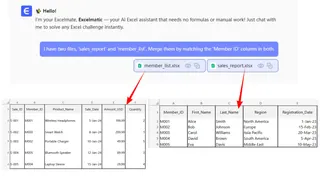
First, you upload your Excel files to Excelmatic. You can upload multiple files at once. For our example, you would upload sales_report.xlsx and member_list.xlsx.

2. Describe Your Goal in Plain Language
Next, you open the chat interface and simply type what you want to do. You don't need to know any functions. You can just describe the logic.
Here are a few examples of prompts you could use:
- "I have two files, 'sales_report' and 'member_list'. Merge them by matching the 'Member ID' column in both."
- "For each row in the sales report, find the matching 'Member ID' in the member list and bring over the 'First Name' and 'Last Name' columns."
- "Join my two tables using the Member ID as the key."
3. Review and Refine the Result
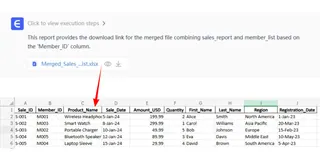
Excelmatic will instantly process your request and show you a preview of the newly merged table. It will have the original sales data plus the new First Name and Last Name columns.
The best part is that this is a conversation. If the result isn't quite right or if you have a new idea, you can continue the dialogue:
- "Great. Now can you combine the 'First Name' and 'Last Name' into a new column called 'Full Name'?"
- "Actually, I don't need the 'Join Date' column. Please remove it."
- "Filter this new table to only show me members who joined after January 1, 2025."
4. Export Your Finished File
Once you're happy with the result, you can download the newly created table as a clean, ready-to-use Excel file with a single click. No formulas, no errors, just the data you need.
A Sample Conversation
Here’s how a typical interaction might look in Excelmatic:
User: I've uploaded two sheets: 'transactions-nov-2025.csv' and 'customer-database.xlsx'. Can you add the 'Customer Name' from the customer sheet to the transactions sheet? The common column is 'Cust_ID' in one and 'Customer ID' in the other.
Excelmatic: Done. I've merged the two files by matching 'Cust_ID' with 'Customer ID' and added the 'Customer Name' column to your transaction data. Is there anything else you'd like to add from the customer database?
User: Yes, please also add the 'City' column. Then, create a pivot table that shows the total transaction amount for each city.
Excelmatic: Of course. I've added the 'City' column and generated a pivot table summarizing the total transaction amount by city. You can view the pivot table below or download the updated Excel file which contains both the merged data and the pivot table in separate sheets.
Traditional VLOOKUP vs. Excelmatic: A Quick Comparison
| Feature | Traditional VLOOKUP |
Excelmatic (Excel AI) |
|---|---|---|
| Method | Manual formula writing | Conversational prompts in plain language |
| Skill Level | Requires memorizing syntax & function logic | Requires knowing your business goal |
| Flexibility | Rigid; can't look left, breaks with column changes | Highly flexible; handles any column order or data layout |
| Time to Complete | 5-20 minutes, plus debugging time | Under a minute |
| Error Rate | High (e.g., #N/A, #REF!, wrong column index) |
Near zero; AI handles the matching logic |
| Maintenance | Formulas must be manually updated if data changes | Just re-run the prompt on new data |
FAQ
Do I need to know VLOOKUP or HLOOKUP to use Excelmatic for this?
Not at all. You only need to be able to describe the relationship between your data files (e.g., "match using the ID column"). The AI handles the technical execution.
What if my column names are slightly different, like 'ProductID' in one sheet and 'Product_ID' in another? Excelmatic's AI is often smart enough to recognize these as the same thing. If it's unsure, you can easily clarify in your prompt, for example: "Merge the tables by matching the 'ProductID' column in the first sheet with the 'Product_ID' column in the second."
Is uploading my company's sales data to Excelmatic secure? Data privacy and security are top priorities. Excelmatic uses industry-standard encryption for data in transit and at rest. For specific details on enterprise-level security and data handling policies, always refer to the official website's privacy and security documentation.
Can Excelmatic handle non-matches? What happens if an ID is not found?
By default, the AI will typically leave the cells for the missing data blank, which is much cleaner than an #N/A error. You can also give it specific instructions, such as, "If a match isn't found, write 'Unknown Member' in the name column."
Can I use the formulas generated by Excelmatic in my own sheets? Yes. In addition to providing the final data, Excelmatic can also generate the exact Excel formula needed to perform the task. You can copy this formula and paste it into your own workbook, making it a great tool for learning and applying advanced formulas without having to write them from scratch.
Take Action: Upgrade Your Excel Workflow Today
For years, mastering VLOOKUP was a rite of passage for any serious Excel user. But the time spent wrestling with its rigid syntax and debugging #N/A errors is time you could be spending on actual analysis and decision-making.
An Excel AI agent like Excelmatic represents a fundamental shift. It empowers you to focus on the what—your business objective—instead of the how—the arcane formula syntax. Merging data should be a simple instruction, not a complex technical chore.
Stop being a formula mechanic and start being a data strategist. Upload your spreadsheets and let AI handle the lookups.
Try Excelmatic for free today and merge your first set of files in under a minute.