Key takeaways:
- Manually joining data in Excel with VLOOKUP is time-consuming and error-prone, requiring complex formulas, absolute references ($), and a rigid data structure where the lookup column must be first.
- An Excel AI agent like Excelmatic eliminates these challenges by allowing you to merge tables and look up data using simple, natural language commands, without writing a single formula.
- Using Excelmatic to automate data lookups drastically reduces manual work, prevents common #N/A errors, and offers superior flexibility to handle changing data and ad-hoc questions in seconds.
The Daily Grind of Data Lookups in Excel
If you work with data in Excel, you've almost certainly spent hours of your life performing one of the most common tasks: combining data from two different tables. Imagine you have a list of sales transactions with a ProductID, but the product's Name, Category, and Price are in a separate master product sheet. To create a meaningful report, you need to bring that information together.
For decades, the go-to tool for this job has been the VLOOKUP function. It's powerful, but let's be honest, it's also a major source of frustration. One small mistake in the formula—a forgotten dollar sign, an incorrect column index, or data in the wrong order—and your entire report is filled with dreaded #N/A errors.
The pain points are all too familiar:
- Complex Syntax: The formula
VLOOKUP(lookup_value, table_array, col_index_num, [range_lookup])is not intuitive for beginners and can become unwieldy. - Fragile References: When you copy the formula down a column, you must remember to "lock" the lookup table array with
$signs (e.g.,$A$2:$C$100). Forgetting this simple step breaks your results. - The "First Column" Rule:
VLOOKUP's biggest limitation is that it can only search for your lookup value in the first column of the data range you provide. This often forces you to awkwardly rearrange or duplicate columns. - Maintenance Nightmare: If you need to look up data from multiple tables, you end up with monstrous nested formulas using
IFNAorIFERROR, which are nearly impossible for a colleague (or even your future self) to decipher.
While newer functions like XLOOKUP have solved some of these issues, they still require you to live inside the formula bar. But what if you could skip writing formulas altogether?
The Manual Method: A Deep Dive into VLOOKUP's Limitations
To understand why an AI approach is so revolutionary, let's quickly recap the traditional, manual process of using VLOOKUP to combine a list of course codes with their corresponding subject names.
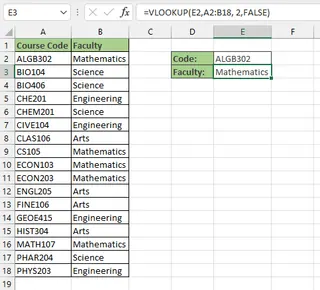
You have two tables: a main table where you want to fill in the Subject, and a lookup table that contains the Code and Subject.
Step 1: Writing the Basic Formula
Your first instinct is to write the formula:
=VLOOKUP(E2, A2:B18, 2, FALSE)
E2is the course code we're looking for.A2:B18is our lookup table.2tells Excel to return the value from the second column of that table.FALSEensures we only get an exact match.
It works for the first row. Success!
Step 2: The Absolute Reference Trap
Now, you drag the fill handle down to apply the formula to the other cells. Suddenly, you see #N/A errors.
This happens because Excel automatically shifts the table_array reference. The formula in the second row becomes =VLOOKUP(E3, A3:B19, 2, FALSE), which is incorrect. The lookup table is no longer A2:B18.
The fix is to manually edit the formula and add dollar signs to create an absolute reference: =VLOOKUP(E2, $A$2:$B$18, 2, FALSE). It's a small detail, but it's one of the most common points of failure for Excel users.
Step 3: The "First Column" Headache
Now, imagine your lookup table is structured differently, with the Employee Name in the first column and the ID you want to look up in the second.
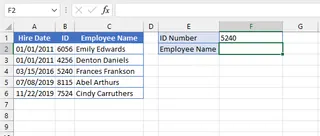
VLOOKUP is useless here unless you physically move the ID column to be before the Name column. The common workaround is to change your table_array to start from the ID column (e.g., B2:C6), but this is clunky and counter-intuitive.
Step 4: The Nested Formula Nightmare
What if the course code you're looking for could be in one of two different lists? With the traditional method, you have to "nest" VLOOKUP formulas inside an IFNA function.
=IFNA(VLOOKUP(H2,A3:B8,2,FALSE), VLOOKUP(H2,D3:E7,2,FALSE))
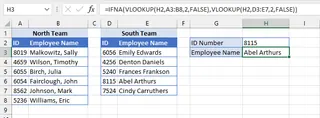
This formula tells Excel: "Try to find the value in the first table. If you get an #N/A error, try finding it in the second table." It works, but it's incredibly difficult to read, debug, and scale. What if you had three or four tables to check? The formula becomes a monster.
These limitations demonstrate that even for a "simple" data lookup, the manual process is rigid, fragile, and time-consuming.
A Smarter Way: Automating Data Lookups with Excel AI (Excelmatic)
Instead of wrestling with formulas, an Excel AI Agent like Excelmatic lets you accomplish the same goal by simply describing what you want to do in plain language. It acts as your data analyst assistant, understanding your intent and performing the steps for you.

The process is simple: upload your data, chat with the AI, and download the finished result.
Step 1: Upload Your Data File(s)
First, upload your Excel or CSV file(s) to Excelmatic. You can upload a single workbook with multiple sheets (e.g., a "Sales" sheet and a "Products" sheet) or two separate files (transactions.csv and customer_details.xlsx). For best results, ensure your columns have clear headers like Product ID or Customer Name.

Step 2: Ask in Plain language
Instead of typing a formula, you type a request in the chatbox. You can be conversational and specific. Here are a few examples of prompts that replace VLOOKUP:
- For a simple lookup: "In my 'Sales' sheet, I have a 'ProductID'. Please add a new column with the 'ProductName' from the 'Products' sheet. Match them using the 'ProductID' column."
- To merge multiple columns: "I've uploaded two files,
transactions.csvandcustomer_details.xlsx. Can you add the 'State' and 'Join Date' from the customer file to my transactions file? The matching key is the 'Customer ID' column in both files." - When column names differ: "Merge my two sheets. Match the 'SKU' column from the sales data with the 'ItemCode' column in the product list."
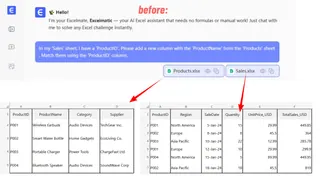
The AI handles the logic of matching the correct rows, regardless of column order.
Step 3: Review and Refine the Results
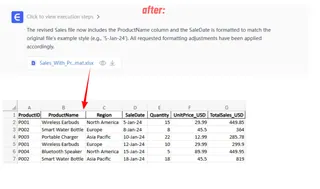
Excelmatic won't just spit out a file. It will show you a preview of the newly merged table and confirm what it has done. From here, you can continue the conversation to refine the data further—something that would require entirely new formulas or pivot tables in traditional Excel.
- "Great. Now, can you filter this new table to only show me sales from the 'Electronics' category?"
- "Add a new column named 'Total Revenue' that is 'Quantity' multiplied by 'Unit Price'."
- "Perfect. Now create a pivot table summarizing total revenue by State."
This iterative, conversational workflow is impossible with static formulas.
Step 4: Export Your Finished File
Once you're happy with the result, you can download the fully merged and cleaned data as a new Excel file, ready for reporting or presentation.
Dialogue Example: VLOOKUP vs. Conversation
Here’s how a typical data-merging task looks in Excelmatic:
User: I've uploaded an Excel file with two sheets: 'Orders' and 'Customers'. I need to add the customer's 'City' and 'Segment' to the 'Orders' sheet. Please match them using the 'Customer ID' column, which exists in both sheets.
Excelmatic: Done. I have merged the two sheets by matching 'Customer ID'. The 'City' and 'Segment' columns have been added to your 'Orders' data. The new table is ready for review. Would you like to proceed with another action?
User: Yes, please filter this merged table to only show orders from the 'Corporate' segment in 'New York'.
Excelmatic: I have filtered the data as requested. There are 152 orders matching your criteria. You can now download the resulting Excel file.
No formulas, no #N/A errors, and no worries about column order. Just a straightforward conversation.
VLOOKUP vs. Excelmatic: A Quick Comparison
| Feature | Manual VLOOKUP | Excelmatic (Excel AI) |
|---|---|---|
| Time to Merge | 5-20 minutes, depending on complexity | Under 1 minute |
| Required Skill | Knowledge of VLOOKUP, absolute refs ($) |
Ability to describe your goal in language |
| Flexibility | Rigid. Lookup column must be first. | Highly flexible. Column order doesn't matter. |
| Error Rate | High (typos, wrong range, forgetting $) |
Low. AI handles the matching logic. |
| Handling Multiple Tables | Complex nested IFNA(VLOOKUP(...)) formulas |
Simple prompt: "Check table A, then table B." |
| Follow-up Analysis | Requires new formulas or pivot tables | Just ask a follow-up question in the chat. |
FAQ
Do I need to know VLOOKUP or XLOOKUP to use Excelmatic? No. That's the beauty of it. You only need to describe the outcome you want, and the AI will handle the underlying logic. It's perfect for both beginners who are intimidated by formulas and experts who want to save time.
Is my data safe when I upload it to Excelmatic? Data privacy and security are top priorities. Excelmatic is designed with enterprise-grade security protocols to ensure your data is handled responsibly. For specific details, always refer to the official privacy policy on the website.
What if my column names don't match exactly (e.g., 'Cust ID' vs. 'Customer ID')? The AI is often smart enough to identify similarly named columns as the matching key. If it's unsure, you can simply clarify in your prompt: "Match the 'Cust ID' column in the first sheet with the 'Customer ID' column in the second."
Can Excelmatic handle lookups from more than two tables? Yes. You can describe a multi-table join in your prompt. For example, "Merge my Orders, Customers, and Products tables" and specify the relationships. The AI will perform the sequential joins for you.
What happens if no match is found? Will I get an #N/A error? Excelmatic handles this gracefully. By default, it will leave the cells for the missing data blank, so your dataset remains clean. You can also give the AI instructions on how to handle missing matches, such as "If a product is not found, fill the category column with 'Discontinued'."
Stop Manually Looking Up Data and Start Automating
For years, mastering VLOOKUP was a rite of passage for any serious Excel user. But that era is ending. The time spent writing, debugging, and explaining complex formulas is a hidden cost that drains productivity from your team.
By embracing an Excel AI agent like Excelmatic, you shift your focus from how to perform a task to what you want to achieve. Instead of being a "formula writer," you become a true data analyst, asking questions and getting insights in seconds.
Ready to ditch VLOOKUP for good? Try Excelmatic for free today. Upload one of the spreadsheets you're working on right now and ask it to merge your data. You'll be amazed at how much time you save.