Key takeaways:
- Manually cleaning text in Excel with the
SUBSTITUTEfunction often requires writing complex, nested formulas that are difficult to build and maintain, especially for multiple replacements. - An Excel AI tool like Excelmatic eliminates the need for formulas. You can perform single or multiple text replacements by simply describing your requirements in plain language.
- Using Excelmatic for data cleaning drastically reduces the time spent on tedious tasks, minimizes the risk of formula errors, and makes powerful text manipulation accessible to users of all skill levels.
The Hidden Grind of Data Cleaning in Excel
Picture this: you've just received a data dump of thousands of product descriptions, customer addresses, or log entries. Your task is to standardize it for a report. But the data is a mess. You have inconsistent abbreviations like "St." and "Street," old product codes mixed with new ones, and unwanted text cluttering up important information.
For many Excel users, this scenario triggers a familiar headache. You know the data you need is in there, but getting it into a usable format feels like a monumental chore. You might need to:
- Replace multiple abbreviations at once (e.g., "m" to "meters", "cm" to "centimeters").
- Remove a specific, recurring word or phrase from every cell in a column.
- Update a year or a specific part of a date across hundreds of rows.
Each of these tasks, while seemingly simple, can quickly spiral into a time-consuming and error-prone process when done manually in Excel. You're not just analyzing data; you're fighting it.
The Traditional Solution: Wrestling with the SUBSTITUTE Function
For seasoned Excel users, the go-to tool for this fight is the SUBSTITUTE function. It's designed to replace specific text within a string.
The basic syntax is straightforward:
=SUBSTITUTE(text, old_text, new_text, [instance_num])
text: The cell containing the original text.old_text: The specific text you want to find.new_text: The text you want to replace it with.[instance_num]: An optional argument to specify which occurrence to replace (e.g., only the 2nd one). If you leave it blank, it replaces all of them.
How It Works in Practice
1. Simple Replacement:
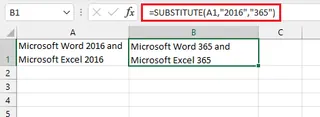
To replace an old product code "2016" with "365" in cell A1, you'd use:
=SUBSTITUTE(A1, "2016", "365")
2. Removing Text:
To remove the word "Microsoft" completely, you replace it with an empty string "":
=SUBSTITUTE(A1, "Microsoft", "")

The Limitations of the Manual Method
This approach works fine for one or two simple changes. But the moment your needs become more complex, the SUBSTITUTE function reveals its limitations.
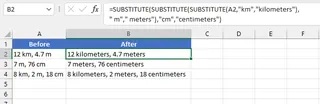
The Nested Formula Nightmare: What if you need to replace "km" with "kilometers", "m" with "meters", and "cm" with "centimeters" all in the same cell? You have no choice but to nest SUBSTITUTE functions inside each other. The formula quickly becomes a monster:
=SUBSTITUTE(SUBSTITUTE(SUBSTITUTE(A1,"km","kilometers")," m"," meters"),"cm","centimeters")
This leads to several real-world problems:
- Hard to Read and Debug: One misplaced comma or parenthesis in that long formula, and the whole thing breaks. Finding the error is a frustrating game of hide-and-seek.
- Poor Scalability: What if you have ten different words to replace? The formula becomes practically unmanageable.
- High Maintenance: When a new cleaning rule is required, you have to carefully edit this complex formula, risking new errors.
- Steep Learning Curve: You have to know the function, its syntax, and the concept of nesting. This is not intuitive for beginners or even intermediate users.
Other methods like Find and Replace (Ctrl+H) exist, but they permanently alter your original data and don't create a dynamic, formula-based new column, which is often what's needed for reporting.
The New Solution: Automate Text Replacement with Excel AI
Instead of memorizing syntax and building fragile formulas, what if you could just tell Excel what you want to do? This is exactly what an Excel AI agent like Excelmatic enables. It replaces the tedious process of writing formulas with a simple, conversational interface.
The Excelmatic Approach: From Formula to Conversation
Excelmatic is an AI assistant that understands your data goals described in natural language. You upload your spreadsheet, and then you simply chat with the AI to get the analysis, charts, or data cleaning done for you.

Here’s how you can solve the same text replacement problems in a fraction of the time.
Step-by-Step Guide to AI-Powered Text Replacement
1. Upload Your Data
First, drag and drop your Excel or CSV file into Excelmatic. The AI will read your data and show you a preview. Ensure your columns have clear headers (e.g., "Product Description," "Address") so the AI can easily understand your requests.

2. Describe Your Goal in Plain Language
Instead of writing a formula, you just type a request in the chatbox.
Here are some examples based on the challenges we discussed:
For a single replacement:
In the 'Product Code' column, replace '2016' with '365'.
For removing text:
In the 'Company Name' column, remove the word 'Microsoft'.
For multiple replacements (the game-changer):
In the 'Description' column, make the following replacements: change 'm' to 'meters', 'cm' to 'centimeters', and 'km' to 'kilometers'.

Notice how this single, clear sentence achieves the same result as that complex nested SUBSTITUTE formula.
3. Review and Iterate on the Results

Excelmatic will process your request and present the cleaned data in a new table. The beauty of this approach is that it's a conversation. You can continue to refine the data.
- "Great. Now, in the same column, also change 'Inc.' to 'Incorporated'."
- "Can you create a new column that counts the characters in the 'Description' column, but without spaces?"
This iterative process allows you to build complex cleaning workflows step-by-step, without ever touching a formula bar.
4. Export Your Cleaned Data Once you're satisfied, you can download the result as a new, clean Excel file with a single click. Your original file remains untouched.
Dialogue Example in Excelmatic
Here’s what a typical data cleaning conversation might look like:
User: I uploaded my customer list. The 'Address' column is messy. Can you help me clean it? First, replace all instances of 'St.' with 'Street' and 'Ave' with 'Avenue'.
Excelmatic: Done. I have created a new column named 'Address_Cleaned' with those replacements. I also see some entries contain 'Rd.'. Would you like me to replace that with 'Road' as well?
User: Yes, please do that. And also remove any extra spaces between words.
Excelmatic: Understood. The 'Address_Cleaned' column has now been updated to replace 'Rd.' with 'Road' and to consolidate multiple spaces into single spaces. You can review the changes in the table below or download the file now.
SUBSTITUTE vs. Excelmatic: A Quick Comparison
| Feature | Traditional SUBSTITUTE |
Excelmatic (Excel AI) |
|---|---|---|
| Method | Manual formula writing | Natural language conversation |
| Multiple Replacements | Requires complex, nested formulas | Achieved with one simple sentence |
| Learning Curve | High (must learn syntax, nesting) | Low (must be able to describe goal) |
| Flexibility | Rigid; any change requires a formula rewrite | High; easily iterate with follow-up requests |
| Error Proneness | High (typos, incorrect nesting) | Low (AI handles the complex logic) |
| Time to Complete | Minutes to hours, depending on complexity | Seconds to minutes |
FAQ
1. Do I need to know any Excel formulas to use Excelmatic? No, not at all. The entire purpose of Excelmatic is to free you from writing formulas. You only need to know what you want to achieve and be able to describe it in plain language.
2. Is it safe to upload my company's data to Excelmatic? Excelmatic is built with data security in mind. All data is encrypted in transit and at rest. For specific details on security and privacy policies, it's always best to consult the official website. Your original file is never modified.
3. What if my text replacement rules are very complex? Excelmatic's AI is capable of understanding complex, multi-step instructions. You can either write a more detailed prompt or build up the logic conversationally, step by step. This often proves more reliable than trying to write one giant, perfect formula from the start.
4. Can Excelmatic only replace text?
No, text replacement is just one small part of what it can do. You can use Excelmatic to create pivot tables, generate complex formulas (like VLOOKUP or SUMIFS), build charts and graphs, and generate full data analysis reports—all through natural language.
5. Can I use the formulas generated by Excelmatic in my own sheets? Yes. In many cases, Excelmatic can provide the exact formula it used to perform an operation. You can copy this formula and paste it into your own Excel workbook if you wish to integrate it into an existing workflow.
Take Action: Upgrade Your Excel Workflow Today
Every hour you spend deciphering nested formulas or manually cleaning text is an hour you could have spent on more valuable analysis. The traditional methods, while powerful, represent a ceiling on your productivity.
By embracing an Excel AI agent like Excelmatic, you're not just finding a shortcut; you're fundamentally changing your relationship with your data. You move from being a "technician" who writes code to a "strategist" who asks questions.
Ready to stop fighting your spreadsheets? Try Excelmatic for free and upload one of your messy files. Start with a simple prompt like the ones in this article and watch your most tedious task get done in seconds.