Key takeaways:
- Manually cleaning text in Excel often requires complex, nested formulas like
REPLACE,SUBSTITUTE, andSEARCH, which are difficult to write, debug, and maintain. - An Excel AI agent like Excelmatic allows you to perform these same data cleaning tasks using simple, natural language commands, completely removing the need to memorize formula syntax.
- With Excelmatic, you can replace text, insert characters, remove unwanted parts of a string, and reformat data across thousands of rows in seconds, saving significant time and dramatically reducing the risk of manual errors.
Problem Background & Pain Points
Every Excel user has faced it: a spreadsheet full of messy, inconsistent text data. You've just imported a list of customer contacts, product IDs, or log entries, and it's a disaster.
- Product SKUs have an outdated year code:
SKU-2023-A5Bneeds to becomeSKU-2024-A5B. - Customer IDs have an inconsistent prefix you need to remove:
CUST-90145andID_90146should both just be the number. - Phone numbers are just a string of digits (
5551234567) and need to be formatted into a readable(555) 123-4567. - Notes or descriptions contain a recurring typo or an old project name that needs to be updated across hundreds of cells.
Cleaning this data manually is not just tedious; it's a minefield of potential errors. You spend hours writing, testing, and dragging formulas, only to find you missed an edge case. This "data janitor" work is one of the biggest productivity drains for anyone working with spreadsheets.
The Traditional Excel Solution: Steps & Limitations
For decades, the go-to solution for this problem has been a combination of Excel's built-in text functions. The primary tool for position-based changes is the REPLACE function.
How the REPLACE Function Works
The REPLACE function swaps out a part of a text string based on its starting position and length. Its syntax is:
=REPLACE(old_text, start_num, num_chars, new_text)
old_text: The cell containing the original text (e.g.,A2).start_num: The position of the first character you want to replace (e.g., to start at the 5th character, you'd use5).num_chars: How many characters you want to replace (e.g.,4to replace four characters).new_text: The new text you want to insert.
Let's see it in action. To change "My old car" in cell A2 to "My new car", you'd use:
=REPLACE(A2, 5, 3, "new")

You can even get creative:
- To insert text: Set
num_charsto0. For example,=REPLACE(A2, 1, 0, "ID-")inserts "ID-" at the beginning of the text in A2. - To delete text: Set
new_textto""(an empty string). For example,=REPLACE(A2, 1, 4, "")removes the first four characters.
The Problem Gets Complicated
This works fine if your data is perfectly structured. But what if the text you want to replace doesn't always start at the same position?
This is where the "formula spaghetti" begins. You have to nest functions. To find the word "song" and replace it with "poem," you can't just use REPLACE because "song" could be anywhere. You first need the SEARCH function to find its starting position.
=REPLACE(A2, SEARCH("song", A2), 4, "poem")

But wait! What if "song" isn't in the cell? The SEARCH function returns a #VALUE! error, and your whole formula breaks. Now you need to wrap it in an IFERROR function to handle that case.
=IFERROR(REPLACE(A2, SEARCH("song", A2), 4, "poem"), A2)
This formula now reads: "Try to find 'song' and replace it with 'poem'. If you can't find it and get an error, just return the original text from cell A2."
The Limitations of the Manual Approach
While powerful, this method has serious drawbacks in a real-world business context:
- High Complexity: The formulas quickly become long, nested, and nearly impossible for a colleague (or even yourself, a week later) to decipher.
- Prone to Errors: A single misplaced comma or incorrect number in the
REPLACEfunction can lead to incorrect data across thousands of rows, which can be hard to spot. - Time-Consuming: For each unique cleaning task, you have to design, write, and test a new formula. This process can take hours.
- Inflexible: If a new data variation appears, you have to go back and adjust your complex formula. It doesn't adapt easily.
- Steep Learning Curve: Mastering functions like
REPLACE,SUBSTITUTE,SEARCH,FIND,LEFT,RIGHT, andMID, plus knowing how to nest them correctly, requires significant Excel expertise.
The New Solution: Using an Excel AI (Excelmatic)
Instead of becoming a formula guru, what if you could just tell Excel what you want to do? That's the promise of Excel AI agents like Excelmatic. You upload your file and use plain language to command the AI to perform the cleaning tasks for you.

How It Works
Excelmatic streamlines the entire process into a simple, conversational workflow.
- Upload Your Data: Drag and drop your Excel or CSV file into Excelmatic. The AI analyzes your data structure, identifying columns and data types.

- Describe Your Goal in Plain Language: Instead of writing formulas, you type your request into a chat box.
- Review and Iterate: The AI performs the task and shows you the result instantly. If it's not quite right, you can ask for adjustments in a follow-up message.
- Download Your Clean File: Once you're happy, you can download the fully cleaned Excel file with the changes applied.
Step-by-Step: Solving the Same Problems with Excelmatic
Let's revisit our initial pain points and see how we'd solve them with Excelmatic.
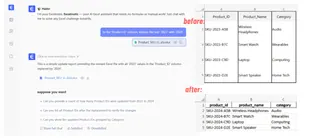
Scenario 1: Updating Product SKUs
- Problem: Change
SKU-2023-A5BtoSKU-2024-A5Bin the 'Product ID' column. - Traditional Formula:
=REPLACE(A2, 5, 4, "2024") - Excelmatic Prompt:
In the 'Product ID' column, replace the text '2023' with '2024'.
Scenario 2: Removing Inconsistent Prefixes
- Problem: Remove
CUST-andID_from the 'Customer ID' column. - Traditional Formula: This would require two separate, complex formulas or a very long nested one.
- Excelmatic Prompt:
In the 'Customer ID' column, remove the text 'CUST-' and 'ID_' from all cells.

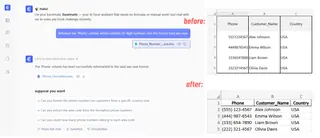
Scenario 3: Formatting Phone Numbers
- Problem: Convert
5551234567to(555) 123-4567. - Traditional Formula:
=REPLACE(REPLACE(REPLACE(A2,1,0,"("),5,0,") "),9,0,"-")(This is already getting hard to read!) - Excelmatic Prompt:
Reformat the 'Phone' column, which contains 10-digit numbers, into the format (xxx) xxx-xxxx.
Example Dialogue with Excelmatic
Here's how a real conversation might look:
User: Hi, I've uploaded my sales data. In the 'UserID' column, I need to remove the first 3 characters from every cell. They are junk prefixes like 'XX-' or 'AB|'.
Excelmatic: Understood. I have created a new column named 'Cleaned_UserID' where the first three characters from the original 'UserID' column have been removed. Would you like me to replace the original column with this new data?
User: Yes, please replace the original column. Also, in the 'OrderDate' column, all the years are wrong. They all say 2023 but should be 2024. Can you fix that?
Excelmatic: Certainly. I have replaced the original 'UserID' column and have now updated the 'OrderDate' column to change the year from 2023 to 2024 for all entries. The table is updated. You can download the new file now.
Traditional Formulas vs. Excelmatic: A Quick Comparison
| Aspect | Traditional Formulas (REPLACE, etc.) |
Excelmatic (AI Agent) |
|---|---|---|
| Time to Implement | 15-60 minutes per complex task | 1-2 minutes per task |
| Complexity | High. Requires nested functions and error handling. | Low. Requires only clear language instructions. |
| Flexibility | Low. Formulas must be rewritten for new variations. | High. Can handle new requests conversationally. |
| Error Rate | High. Easy to make syntax or logic mistakes. | Low. The AI handles the logic and syntax. |
| Learning Curve | Steep. Requires memorizing multiple functions. | Minimal. If you can describe the problem, you can use it. |
FAQ
Q: Do I need to know any Excel formulas to use Excelmatic? A: No. You only need to be able to describe the outcome you want in plain language. The AI translates your request into the necessary actions, whether that's generating a formula, a pivot table, or cleaning data directly.
Q: Will Excelmatic modify my original Excel file? A: No. Excelmatic works on a copy of your data in a secure cloud environment. Your original file remains untouched on your computer. You can download the modified version as a new file.
Q: What if my data is extremely messy and inconsistent? A: Excelmatic's AI is designed to handle a high degree of variation. You can start with a broad command and then refine it with follow-up instructions. For example, after a first pass, you could say, "Now also remove any trailing spaces" or "For any cells that are now blank, fill them with 'N/A'."
Q: Can I get the Excel formula from Excelmatic to use myself? A: Yes. You can ask Excelmatic to "generate the Excel formula to do this," and it will provide you with the exact formula it would use. This is a great way to learn how to solve complex problems in Excel without the initial frustration.
Q: Is it safe to upload my company's data to Excelmatic? A: Excelmatic prioritizes data security. All data is encrypted in transit and at rest, and is processed in a secure environment. For specific details on data handling and privacy, always refer to the official privacy policy on the website.
Take Action: Upgrade Your Excel Workflow Today
Stop wasting hours on the frustrating, error-prone task of manual data cleaning. The time you spend wrestling with REPLACE and SEARCH is time you could be spending on actual analysis and decision-making.
By embracing an Excel AI agent, you're not just getting a tool; you're getting a tireless assistant who handles the tedious work for you. You can clean datasets in minutes, not hours, and respond to new data-cleaning requests with confidence and speed.
Ready to see for yourself? Try Excelmatic today. Upload one of the messy spreadsheets you're currently working on and use one of the prompts from this article. Experience the difference when you can simply ask for what you need and get it done.