Key takeaways:
- The traditional Excel Ribbon, while powerful, is a complex interface that forces users to memorize the location of hundreds of commands, slowing down even simple tasks.
- Excel AI tools like Excelmatic offer a revolutionary alternative: instead of clicking through menus, you simply describe your goal in plain language, and the AI executes the task for you.
- By using an AI agent, you can dramatically reduce the time spent on creating pivot tables, charts, and formulas, minimize the learning curve for new users, and focus on your data insights rather than on navigating software.
The Problem: Lost in a Sea of Clicks
For decades, the Excel Ribbon has been the command center for millions of users. It's that familiar row of tabs at the top of your screen: Home, Insert, Data, Formulas... Each tab opens up a new set of buttons, menus, and options.

Let's be honest: it's overwhelming. Imagine you need to create a simple sales summary. You know you need a pivot table and a chart, but where do you start?
- "Is the PivotTable button under the
Datatab or theInserttab?" - "How do I change this chart from a bar to a line graph? I have to find the
Chart Designcontext tab first." - "I need to filter for the top 5 products. I remember there's a filter option somewhere, but which menu is it in?"
This constant "button hunting" is a major productivity killer. You spend more time trying to remember how to do something in Excel than actually doing it. The cognitive load is high, the process is slow, and for anyone who doesn't live in Excel 8 hours a day, it's a frustrating experience. You're forced to work the way the software dictates, not the way you think.
The Traditional Solution: Mastering the Ribbon Maze
The conventional approach to overcoming this is simple but time-consuming: memorization and practice. An expert Excel user has spent hundreds of hours learning the exact location of every essential command.
Let's walk through the "Ribbon way" of creating a basic sales report.
Step-by-Step with the Excel Ribbon
Suppose you have a raw data table of sales transactions with columns for Date, Region, Product, and Sales Amount. Your goal is to create a pivot table and a column chart showing total sales by region.
- Select Your Data: Click anywhere inside your data range.
- Navigate to the Insert Tab: Move your mouse to the top of the screen and click the
Inserttab. - Find and Click PivotTable: On the far left of the Ribbon, click the
PivotTablebutton. A dialog box appears.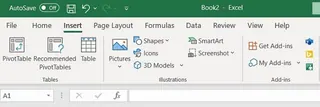
- Configure the PivotTable: A new sheet is created. You must now drag the
Regionfield into the "Rows" area and theSales Amountfield into the "Values" area of the PivotTable Fields pane. - Create the Chart: With your pivot table selected, go back to the
Inserttab. - Find the Chart Type: Locate the "Charts" group and click on the
Recommended Chartsor the specific column chart icon. - Format the Chart: Now, two new "contextual" tabs appear:
PivotChart AnalyzeandFormat. You have to click through these to hide field buttons, add a title, or change colors.
This process involves at least 7-8 distinct steps across multiple tabs and panes. If your boss then asks, "Can you show me this by product instead of region?", you have to go back to the PivotTable Fields pane and start dragging and dropping all over again.
The Limitations of the Ribbon-First Approach
- High Learning Curve: It takes significant time to become proficient. New team members can't be productive immediately.
- Slow and Inefficient: Clicking through menus is inherently slower than simply stating your intent.
- Rigid Workflow: The Ribbon forces you into a linear, step-by-step process. Quick, exploratory analysis is cumbersome.
- Easy to Forget: If you don't use a feature regularly (like
SparklinesorConditional Formatting), you'll likely forget where it is and have to search for it again.
The New Solution: Using Excel AI with Excelmatic
What if you could skip the menus entirely? What if you could just tell Excel what you want, and it would do the work for you? That's the promise of Excel AI agents like Excelmatic.

Excelmatic acts as your personal data analyst. You upload your file and start a conversation in plain language. Instead of hunting for buttons, you simply describe the outcome you need.
How to Build the Same Report with Excelmatic
Let's solve the exact same problem—creating a sales summary by region—using a conversational AI approach.
Step 1: Upload Your Data
First, you drag and drop your Excel or CSV file directly into the Excelmatic chat interface. The AI instantly reads your data and understands its structure.

Step 2: Describe Your Goal in Plain Language
Now, instead of navigating the Ribbon, you just type your request into the chat box.
You could ask:
Create a pivot table that sums up the sales for each region.
Or, more directly:
Show me the total sales by region and then create a column chart for it.

Step 3: Review and Iterate on the Result
Excelmatic will process your request in seconds and present the result directly in the interface. It might generate the pivot table, create the chart, and even provide a brief summary.
The real power comes from the ability to iterate. You can continue the conversation to refine the results.
- "Okay, now sort the chart from highest to lowest sales."
- "Can you add the product category as a filter?"
- "Change this to a pie chart and add data labels."
Each request is a simple follow-up, not a new multi-step process.
Step 4: Export Your Finished Work
Once you're happy with the result, you can download a new Excel file containing the AI-generated pivot table, chart, and any other analysis. You can also copy the formulas or configurations to use in your existing workbooks.
Dialogue Example: From Raw Data to Insight
Here’s what a typical conversation with Excelmatic might look like:
User: Here is my Q2 sales data. Please create a pivot table to show the total sales for each product, broken down by month.
Excelmatic: I've created the pivot table with 'Product' in the rows, 'Month' in the columns, and the sum of 'Sales' in the values. Would you like to visualize this?
User: Yes, make a stacked column chart. Also, highlight any monthly sales figures below $5,000 in red.
Excelmatic: Done. I have generated a stacked column chart from the pivot table and applied conditional formatting to highlight all values under $5,000. The updated file is ready for download.
Traditional Ribbon vs. Excelmatic AI: A Quick Comparison
| Feature | Traditional Excel Ribbon | Excelmatic AI |
|---|---|---|
| Speed | Slow; requires multiple clicks and menu navigation. | Fast; results in seconds from a single command. |
| Ease of Use | Difficult for beginners; requires memorization. | Intuitive; if you can describe it, you can do it. |
| Flexibility | Rigid; changes require re-navigating menus. | Highly flexible; iterate and refine through conversation. |
| Learning Curve | Steep. Can take months or years to master. | Almost flat. Start getting results in minutes. |
FAQ
Q: Do I need to be an Excel expert to use Excelmatic?
A: Not at all. Excelmatic is designed for everyone, from absolute beginners to seasoned experts. If you know what you want to achieve with your data, you can use it. It dramatically lowers the barrier to performing powerful data analysis.
Q: Will Excelmatic change my original Excel file?
A: No. Your original file remains untouched. Excelmatic works on a copy of your data in a secure environment and allows you to download the results as a new file.
Q: Can Excelmatic handle all the functions found in the Ribbon?
A: Excelmatic can perform the vast majority of data-related tasks: data cleaning, transformation, creating complex formulas, building pivot tables, generating charts, and writing analysis summaries. For highly specific document formatting like print layouts or theme colors, you might still use the Ribbon in the final exported file.
Q: Is it safe to upload my company's data to Excelmatic?
A: Excelmatic is built with data security as a top priority. All data is encrypted and handled according to strict privacy policies. For specific compliance questions, it's always best to consult the official website's terms of service and privacy policy.
Q: What if I don't know what to ask the AI?
A: Start simple! Try requests like "summarize this data," "find the average of the 'Revenue' column," or "sort this table by date." The AI is designed to be a helpful partner and can often suggest next steps.
Get Started: Free Yourself from the Ribbon Today
Every minute you spend hunting for a button in the Excel Ribbon is a minute you're not spending on valuable analysis. The traditional, click-heavy approach is no longer the only way—or the best way—to work with your data.
By embracing an Excel AI agent like Excelmatic, you can transform your workflow from a frustrating scavenger hunt into a seamless conversation. Focus on your business questions, not on the software's quirks.
Ready to see the difference? Try Excelmatic for free today. Upload one of your own spreadsheets and ask it to do the very task you were dreading. You'll be amazed at how much time you can save.