Key takeaways:
- Building dynamic ranges in Excel for tasks like moving averages or auto-updating dropdown lists traditionally requires the complex, volatile
OFFSETfunction, which is difficult to write and can slow down your workbook. - An Excel AI agent like Excelmatic replaces these manual formula-building efforts. You can simply describe your goal, such as "calculate the 3-month rolling average for sales," and the AI handles the entire process.
- Using Excelmatic not only saves hours of tedious formula work but also eliminates errors, increases flexibility for ad-hoc analysis, and makes your reports far easier to update and maintain.
The Problem: Why Are Dynamic Reports in Excel So Hard?
Imagine you're a sales manager, and every month you update a crucial Excel report. Your workbook tracks monthly sales figures, and you need to monitor performance trends. To do this, you want to calculate a "3-month rolling average" to smooth out monthly fluctuations.
Additionally, you have a separate dashboard where you want a dropdown list of all your sales representatives. This list needs to automatically update whenever a new team member is added to your master data sheet.
This sounds simple, but in practice, it's a source of constant frustration for many Excel users.
- Static Formulas Break: If you use a simple
=AVERAGE(B2:B4)for your first rolling average, you have to manually drag it down. When next month's data is added, you have to remember to adjust the ranges, or your formulas will be referencing the wrong cells. - Manual Updates are Tedious: Every time a new sales rep joins, you have to go into the 'Data Validation' settings and manually expand the source range for your dropdown list. It's a small task, but it's easy to forget, leading to incomplete or outdated reports.
You know there must be a way to make these ranges "dynamic" so they expand and contract automatically with your data. And there is, but the traditional solution is often more trouble than it's worth.
The Traditional Solution: The Complicated OFFSET Function
For years, the go-to solution for creating dynamic ranges has been the OFFSET function. The purpose of OFFSET is to return a reference to a range that is a specified number of rows and columns from a starting cell or range.
Its syntax is: =OFFSET(reference, rows, cols, [height], [width])
reference: Your starting point.rows&cols: How many rows and columns to move from the start.height&width: The dimensions of the final range you want to grab.
To solve our two problems, the traditional approach would look something like this.
1. Creating a 3-Month Rolling Average
To calculate the average of the last 3 months of sales ending in the current row (let's say sales are in column B, starting from B2), the formula would be a combination of AVERAGE and OFFSET:
=AVERAGE(OFFSET(B3, -2, 0, 3, 1))
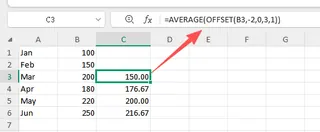
This formula tells Excel: "Start at cell B2, go up 2 rows, stay in the same column, then create a range that is 3 rows high and 1 column wide, and finally, calculate the average of that range."
2. Creating a Dynamic Dropdown List
To create a dropdown list of sales reps that updates automatically, you'd first need to create a Dynamic Named Range. This involves going to the Formulas tab > Name Manager and entering a formula like this:
=OFFSET(Sheet1!$A$2, 0, 0, COUNTA(Sheet1!$A:$A)-1, 1)
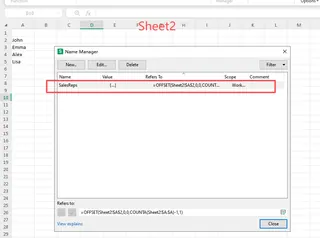
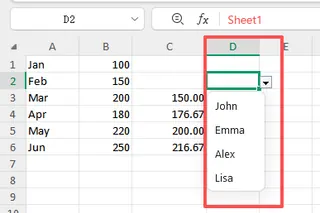
This formula uses COUNTA to count all non-empty cells in column A to determine the height of the list. You then use this named range as the source for your data validation dropdown.
The Limitations of the OFFSET Method
While powerful, this approach is deeply flawed for modern business users:
- It's Incredibly Complex: The formulas are cryptic. Looking at
=OFFSET(B2, -2, 0, 3, 1), can you immediately tell what it does? It requires mental gymnastics to decode and is a nightmare for colleagues to understand or debug. - It's Volatile:
OFFSETis a "volatile function." This means it recalculates every time any cell in the workbook changes, not just when its precedent cells change. In large workbooks with manyOFFSETformulas, this can dramatically slow down performance. - It's Brittle and Error-Prone: The
COUNTAtrick fails if there are gaps in your data or other text in the same column, leading to an incorrect range size. A simple mistake in the arguments can lead to a#REF!error if the offset points outside the worksheet. - High Maintenance: Managing these formulas within the Name Manager is a clunky, multi-step process hidden away from the main worksheet grid. It's not intuitive or user-friendly.
You spend more time fighting with the formula than analyzing your data. There has to be a better way.
The New Solution: Using an Excel AI Agent (Excelmatic)
Instead of manually constructing fragile formulas, you can now use an Excel AI agent like Excelmatic. It acts as your personal data analyst. You simply upload your spreadsheet and tell it what you want in plain language.

Let's see how we can solve the exact same problems in a fraction of the time.
Step 1: Upload Your Sales Data
First, drag and drop your Excel or CSV file containing your monthly sales data directly into Excelmatic. The AI will instantly read your data and show you a preview. Ensure your columns have clear headers like "Month", "Sales Rep", and "Sales Amount".

Step 2: Ask for Your Analysis in Natural Language
Now, instead of writing formulas, you just type your request into the chatbox.
For the 3-Month Rolling Average:
Simply ask:
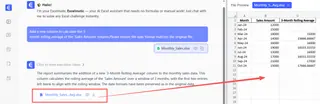
Add a new column to calculate the 3-month rolling average of the 'Sales Amount' column.
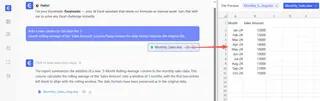
Excelmatic understands the concept of a "rolling average" and will generate a new table with the calculation already done for you. No OFFSET, no AVERAGE, no dragging formulas.
For the Dynamic List of Sales Reps:
Just ask:
Create a new sheet with a unique, sorted list of all names in the 'Sales Rep' column.
The AI will instantly generate a clean list of all your sales reps, with duplicates removed and sorted alphabetically. You can then copy this list or use the resulting file.
Step 3: Review, Iterate, and Export
Excelmatic doesn't just give you a final answer; it's a conversation.
- See the Result: The AI will display the new table with the "3-Month Rolling Average" column.
- Ask Follow-up Questions: You can continue the analysis. For example:
- "Now, create a line chart comparing the original 'Sales Amount' and the '3-Month Rolling Average'."
- "Filter the table to only show results for the 'East' region."
- "Highlight all months where the sales were below the rolling average."
- Export Your Work: Once you're happy, you can download the results as a new, clean Excel file, ready to be shared or integrated into your main report.
Dialogue Example: From Raw Data to Insight in Seconds
Here’s how a typical conversation with Excelmatic would look:
User: I've uploaded my sales data. Can you add a column that shows the 3-month rolling average for sales?
Excelmatic: Done. I've added a '3-Month Rolling Average' column to your data. The first two entries are empty as there is insufficient prior data for the calculation. Would you like me to visualize this trend?
User: Yes, plot the original sales and the rolling average on the same line chart.
Excelmatic: I have generated a line chart for you. It clearly shows how the rolling average smooths out the monthly sales fluctuations. You can download the Excel file with the chart included.
User: Great. Now, on a separate tab, please give me a unique list of all sales reps, sorted alphabetically.
Excelmatic: Certainly. I've created a new sheet named 'Unique_Reps' containing a sorted list of 42 unique sales representatives from your data.
Traditional OFFSET vs. Excelmatic: A Quick Comparison
| Task | Traditional OFFSET Method |
Excelmatic AI Method |
|---|---|---|
| Time to Implement | 15-30 minutes (researching, writing, debugging) | Less than 1 minute |
| Complexity | High (Requires knowledge of OFFSET, COUNTA, Name Manager) |
Low (Requires ability to describe your goal in language) |
| Flexibility | Low (Changing the logic requires rewriting complex formulas) | High (Easily adjust with follow-up prompts) |
| Error Risk | High (Prone to #REF! errors and logic mistakes) |
Low (AI handles the technical implementation) |
| Maintainability | Poor (Difficult for others to understand and update) | Excellent (The conversation history serves as documentation) |
FAQ about Using Excel AI for Dynamic Analysis
1. Do I need to know any Excel formulas to use Excelmatic?
No. You don't need to know OFFSET, VLOOKUP, or any other function. You just need to be able to describe the business outcome you want. Excelmatic translates your language request into the correct analysis.
2. Will Excelmatic modify my original Excel file?
No. Your original file is never modified. Excelmatic works on a copy of your data in a secure environment and allows you to download the results as a new file.
3. What if my data isn't perfectly clean?
Excelmatic can handle many common data cleaning tasks. You can ask it to "remove blank rows," "trim extra spaces from the 'Sales Rep' column," or "convert the 'Date' column to a standard date format" before you begin your analysis.
4. Can I get the Excel formula from the AI?
Yes. While the primary goal is to get the result directly, you can also ask Excelmatic, "What Excel formula would you use to calculate this rolling average?" It can provide the formula for you to learn from or use in your own sheets.
5. Is it safe to upload my company's financial data?
Excelmatic is built with enterprise-grade security. Data is encrypted in transit and at rest, and we have a strict privacy policy. We never train our AI models on customer data. For specific compliance needs, always refer to the official security documentation.
Get Started: Upgrade Your Excel Workflow Today
Stop wasting time wrestling with volatile, complicated functions like OFFSET. The era of manually building every formula is over. By embracing an Excel AI agent, you can shift your focus from how to do something in Excel to what you want to achieve with your data.
You can get back hours each week, produce more accurate reports, and answer ad-hoc questions from your team in seconds, not hours.
Ready to try it for yourself? Try Excelmatic for free today. Upload the very spreadsheet you're working on right now and ask it to perform the task you were dreading. You'll be amazed at how simple it can be.