Key takeaways:
- Building traditional nested formulas like
IF(OR(...))orINDEX(MATCH(...))is complex, time-consuming, and highly prone to syntax errors. - An Excel AI agent like Excelmatic allows you to replace these convoluted formulas by simply describing your business logic in plain language, such as "If credit score is >700 or income is >$40k, mark as 'Approved'."
- Using Excelmatic drastically reduces the time spent on formula creation and debugging, eliminates syntax errors, and provides the flexibility to instantly modify logic or ask follow-up questions.
Problem Background & Pain Points
Every seasoned Excel user has hit "the wall." You have a clear business rule in your head, but there's no single Excel function that can do the job. For example, you might be a loan officer reviewing applications. The approval rule isn't a simple check; it's a compound condition: "The applicant is approved if their credit score is above 700 OR if their annual income is over $40,000."
Alternatively, you could be a logistics coordinator trying to pull a specific ticket price from a master list. A simple VLOOKUP might not work if your data isn't structured perfectly. You need to find the row that matches "Stormhaven" and then pull the price from the second column.
In these common scenarios, the traditional answer is to create "nested formulas"—formulas inside other formulas. This is where the simple, grid-like world of Excel suddenly becomes a complex puzzle of nested parentheses, commas, and function names. For many, this process is intimidating, frustrating, and a massive time sink. One wrong character, and you're staring at a dreaded #N/A, #VALUE!, or #REF! error, with no clear idea of where you went wrong.
The Traditional Fix: Wrestling with Nested Formulas
To solve these problems manually, you have to become a formula architect, carefully building multi-layered functions. Let's look at the classic solutions for our scenarios.
The Old Way 1: Combining IF and OR for Conditional Logic
To implement the loan approval rule, you can't just use IF. You need to first evaluate the multiple conditions. This requires nesting the OR function inside an IF function.
The logic is to first check if Credit Score > 700 or Income > 40000. The OR function does this and returns a simple TRUE or FALSE. Then, the outer IF function takes this result and returns "Approved" if it's TRUE and "Not Approved" if it's FALSE.
The final formula looks like this:
=IF(OR(B2>700,C2>40000),"Approved","Not Approved")
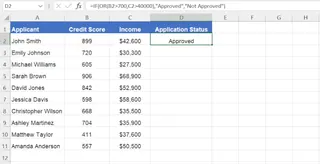
While effective, you have to construct it from the inside out, making sure every parenthesis and comma is perfectly placed.
The Old Way 2: The INDEX/MATCH Power Duo for Advanced Lookups
When VLOOKUP isn't flexible enough (for instance, it can't look to its left), the go-to solution for advanced users is the INDEX/MATCH combination. It's a powerful but notoriously unintuitive duo.
To find the ticket price for "Stormhaven" in our list, you would:
- Use
MATCH("Stormhaven", A2:A11, 0)to find the row number where "Stormhaven" appears. In this case, it returns7. - Nest that result inside the
INDEXfunction to retrieve the value from the 2nd column of that 7th row.
The complete nested formula is:
=INDEX(A2:B11, MATCH(B15,A2:A11,0), 2)
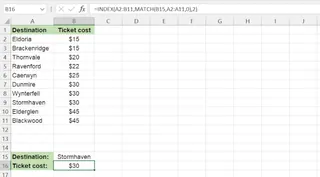
This is a classic example of a formula that, while correct, is difficult for most people to read, write, or debug.
The Limitations of Manual Nesting
The manual approach comes with significant baggage:
- High Learning Curve: You need to deeply understand multiple functions and how they interact.
- Error-Prone: A single misplaced parenthesis or comma can break the entire formula, leading to minutes or even hours of frustrating debugging.
- Difficult to Maintain: If a business rule changes (e.g., "add a third approval condition"), you must carefully dissect and rebuild the entire formula.
- Poor Collaboration: Handing off a spreadsheet filled with complex nested formulas to a colleague is often a recipe for confusion and errors.
The Modern Solution: Using an Excel AI Agent (Excelmatic)
Instead of forcing you to translate your business logic into Excel's rigid syntax, an Excel AI Agent like Excelmatic lets you work the other way around. You state the logic in plain language, and the AI handles the complex implementation.

A New Way of Thinking: From Formulas to Conversations
With Excelmatic, you stop thinking, "Which functions do I need to nest?" and start thinking, "What is the business question I want to answer?" The process is simple:
- Upload your Excel or CSV file.
- Start a conversation with the AI, describing what you need.
- The AI analyzes your data, generates the result (whether it's a new column, a summary, a pivot table, or a chart), and shows it to you.
- You can then ask follow-up questions to refine the results.
Step-by-Step: Solving Complex Logic with Excelmatic
Let's revisit our two scenarios and solve them with Excelmatic.
1. Upload Your Data File
First, you upload your spreadsheet—the loan applicant list or the bus ticket price sheet—directly to Excelmatic. The AI will read your headers and data, preparing it for analysis.

2. Ask in Plain Language
Instead of writing formulas, you type your request into the chat.
For the IF/OR Loan Approval Scenario:
You can simply ask:
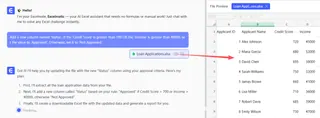
Add a new column named 'Status'. If the 'Credit Score' is greater than 700 OR the 'Income' is greater than 40000, set the value to 'Approved'. Otherwise, set it to 'Not Approved'.

For the INDEX/MATCH Lookup Scenario:
Your request is even simpler:
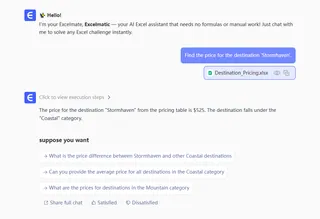
Find the price for the destination 'Stormhaven'.
Or, if the destination is in a cell:
Look up the price for the destination listed in cell B15.
3. Review and Iterate on the Results
Excelmatic will instantly process your request and display the updated table with the new 'Status' column or show you the specific price you asked for. The magic doesn't stop there. This is a conversation, so you can continue to refine your analysis.
- "Great. Now, can you filter this table to only show the 'Approved' applicants?"
- "What is the average income of the 'Not Approved' group?"
- "Create a pie chart showing the breakdown of Approved vs. Not Approved."
This iterative, conversational approach is impossible with static, traditional formulas.
4. Export Your Results
Once you're satisfied, you can download a new Excel file containing the results. You can also ask Excelmatic to provide the exact formula it used, which you can then copy and paste into your original workbook if needed.
Sample Conversation
Here’s how a typical interaction for the loan approval task might look in Excelmatic:
You: I have a list of loan applicants with credit scores and income. I need to determine their approval status. The rule is: if their credit score is over 700 or their annual income is over $40,000, they are 'Approved'. Otherwise, 'Not Approved'. Can you add a 'Status' column with this logic?
Excelmatic: Done. I've added a 'Status' column to your data and categorized each applicant as 'Approved' or 'Not Approved' based on your rules. The updated table is ready for you to view.
You: Thanks. How many applicants were approved?
Excelmatic: I've calculated the total. There are 8 'Approved' applicants in your list.
You: Now create a bar chart comparing the average income for the 'Approved' group versus the 'Not Approved' group.
Excelmatic: I've generated a bar chart visualizing the average income for both groups. You can see that the 'Approved' group has a significantly higher average income. You can download the chart or the updated Excel file below.
Traditional Nesting vs. Excelmatic: A Quick Comparison
| Aspect | Traditional Nested Formulas | Excelmatic AI Agent |
|---|---|---|
| Effort | Manually build and debug complex syntax. | Describe business logic in plain language. |
| Speed | Minutes to hours. | Seconds to minutes. |
| Error Rate | High risk of syntax and logic errors. | AI handles syntax, minimizing errors. |
| Flexibility | Rigid. Changes require a full rewrite. | Highly flexible. Refine with follow-ups. |
| Learning | Requires deep knowledge of many functions. | Requires no formula knowledge. |
FAQ
Do I need to know any Excel formulas to use Excelmatic?
No. The primary benefit of Excelmatic is that you can accomplish complex tasks by describing your goal in natural language. You don't need to know the names or syntax of functions like IF, OR, INDEX, or MATCH.
Will Excelmatic modify my original Excel file? No. Your original file is never modified. Excelmatic works on a secure copy of your data in the cloud, and you can download a new file with the results.
Is it safe to upload confidential company data to Excelmatic? Excelmatic is built with security in mind, employing industry-standard encryption and privacy protocols. For specific details on data handling and privacy, it's always best to consult the official security policy on the website.
Can Excelmatic tell me which formula it used? Yes. You can ask the AI, "What formula did you use to create that column?" and it will provide the exact Excel formula. This is a great way to learn how complex formulas are constructed without the initial frustration.
What if my business logic is even more complex, involving multiple ANDs and ORs? That's where Excel AI truly shines. You can describe very complex rules like, "Mark as 'High Priority' if (Status is 'Pending' AND Value > 10000) OR (Age > 90 days)," and the AI will parse and apply the logic correctly.
Is this better than using XLOOKUP?
XLOOKUP is a fantastic modern function that simplifies many lookups. However, you still need to learn its syntax. With Excelmatic, you don't need to know whether the task requires VLOOKUP, INDEX/MATCH, or XLOOKUP. You just ask for the lookup, and the AI uses the best method.
Get Started: Upgrade Your Excel Workflow with Excelmatic
Stop spending your valuable time as a "formula mechanic," wrestling with parentheses and debugging cryptic error messages. Your expertise lies in understanding your business data and its rules, not in memorizing Excel's function library.
By embracing an Excel AI agent, you can shift your focus from how to build the calculation to what insights you want to uncover. You can answer complex questions faster, adapt to changing requirements instantly, and finally make Excel work for you, not the other way around.
Ready to leave nested formulas behind? Try Excelmatic today. Upload the very spreadsheet that's giving you trouble and ask it the question you're trying to solve. You can even start by copying one of the prompts from this article