Key takeaways:
- Traditional sales analysis in Excel requires creating and manually configuring multiple PivotTables for different metrics like ranking, year-over-year change, and cumulative totals, which is complex and time-consuming.
- An Excel AI agent like Excelmatic automates this entire process. You can simply describe the desired analysis in plain language, and the AI generates the correctly configured PivotTables or reports for you.
- Using Excelmatic drastically reduces analysis time from hours to minutes, eliminates manual errors in PivotTable settings, and provides the flexibility to instantly answer follow-up questions without rebuilding reports from scratch.
Problem Background & Pain Points
As a business analyst, sales manager, or data professional, one of your most common tasks is analyzing sales performance. You're given a raw data file, typically an Excel sheet with columns for Sales Manager, Product, Order Date, and Sales Amount. Your manager then asks for a "quick" performance review.
But "quick" is rarely the reality. The request isn't just for a simple sum of sales. It's a multi-faceted analysis:
- "How did each sales manager's performance contribute to their yearly total?"
- "Can you rank the managers by sales for each year?"
- "I need to see the year-over-year growth for each product, both in dollar amount and percentage."
- "Show me the cumulative sales trend throughout the year."
Each of these questions requires a different view of the same dataset. In traditional Excel, this means one thing: a deep dive into the world of PivotTables. While powerful, creating multiple, slightly different PivotTables for a single report is a tedious, repetitive, and surprisingly error-prone process. You find yourself spending more time clicking through menus and configuring fields than actually interpreting the data.
The Traditional Excel Solution: Steps and Limitations
The standard approach to this challenge is to use PivotTables. They are the workhorse of Excel data analysis for a reason. However, getting the specific metrics your manager wants requires navigating the often-confusing "Show Values As" menu.
Here’s a summary of the manual workflow you'd typically follow.
The Manual PivotTable Configuration Marathon
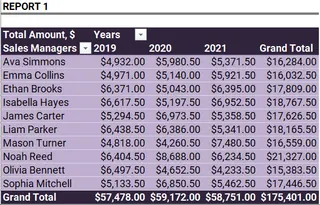
Let's assume you start with a base PivotTable: Sales Manager in Rows, Years in Columns, and Sum of Sales Amount in Values.
To Calculate Share of Sales: You need to see each manager's sales as a percentage of their total.
- You'd copy your base PivotTable.
- Right-click on a value, navigate to
Show Values As->% of Parent Row Total. This transforms the absolute numbers into the requested percentages.
To Rank Sales Managers: You need a separate view to rank them.
- Copy the PivotTable again.
- Right-click, go to
Show Values As->Rank Largest to Smallest. You must then ensure the "Base field" is correctly set toSales Manager. One wrong click and the ranking is meaningless.
To Analyze Year-over-Year (YoY) Product Performance: This requires a new PivotTable with
Productin the Rows.- Drag
Sales Amountinto the Values area three times. - Leave the first as is (
Sum of Sales Amount). - For the second, right-click,
Show Values As->Difference From.... Set the "Base Field" toYearsand "Base Item" to(previous). This gives you the absolute dollar change. - For the third, right-click,
Show Values As->% Difference From...with the same settings. This gives you the percentage change.
- Drag
To Compute Cumulative Sales: Another PivotTable copy is needed.
- Right-click the values,
Show Values As->Running Total In.... Set the "Base Field" toYearsto see the cumulative sum year by year.
- Right-click the values,
The Limitations of the Manual Approach
While this method works, it's far from efficient. The key limitations are:
- High Complexity: Do you remember the difference between
% of Parent Row Totaland% of Grand Totaloff the top of your head? Or the exact settings for a YoY difference? This knowledge is highly specific and easy to forget. - Repetitive and Tedious: You have to create, copy, and re-configure at least four separate PivotTables for one comprehensive report. This is manual, repetitive work that drains your time and focus.
- Inflexibility: What happens when your manager sees the report and asks, "This is great, but can we see it by quarter instead of by year?" You have to go back and manually reconfigure every single PivotTable. There's no easy way to adapt.
- Prone to Errors: A single wrong selection in the
Show Values Asdialog (e.g., choosing the wrong "Base Item") can skew your entire analysis, leading to incorrect insights and bad business decisions. - Difficult to Maintain: When new sales data comes in next month, you have to refresh each PivotTable individually and ensure the data ranges are updated correctly.
The New Solution: Using an Excel AI Agent (Excelmatic)
Instead of wrestling with endless menus, what if you could just ask for the analysis you need? This is exactly what Excel AI agents like Excelmatic are designed for. You upload your data and use plain language to describe the report, and the AI handles the complex configuration for you.

Here's how you can solve the exact same business problem in a fraction of the time.
Step 1: Upload Your Sales Data
First, drag and drop your Excel or CSV file containing the sales data directly into the Excelmatic interface. The AI will instantly parse the data and show you a preview, understanding the columns like Sales Manager, Product, and Sales Amount.

Step 2: Describe Your Analysis in Plain Language
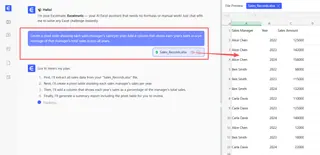
Now, instead of building PivotTables manually, you simply chat with the AI. You can ask for each piece of the analysis one by one, or even combine them into a single request.
Here are some example prompts you could use:
- For manager's sales share:
Create a pivot table showing each sales manager's sales per year. Add a column that shows each year's sales as a percentage of that manager's total sales across all years. - For ranking:
Rank sales managers by their sales for each year, with 1 being the highest. - For YoY analysis:
For each product, show the total sales per year. Also add columns for the year-over-year change in sales amount and the year-over-year percentage change. - For cumulative totals:
Show the cumulative running total of sales for each year.
Step 3: Review and Iterate on the Results
Excelmatic will generate the requested table or PivotTable in seconds. The result isn't static; it's the beginning of a conversation. You can easily refine or expand your analysis with follow-up questions.
This conversational approach is where AI truly outshines the traditional method.
Dialogue Example
Here’s how a typical conversation might look in Excelmatic:
User: I've uploaded my sales data. Can you create a report that analyzes performance by sales manager for 2023 and 2024?
Excelmatic: Of course. I've created a PivotTable showing the total sales for each manager in 2023 and 2024. What specific metrics would you like to see?
User: Great. First, rank the managers within each year from highest to lowest sales.
Excelmatic: Done. The table now includes a rank for each manager for both 2023 and 2024. Would you like to add any other calculations?
User: Yes, also add a column showing the percentage growth in sales from 2023 to 2024 for each manager.
Excelmatic: I've added a "YoY Growth %" column to the report. The final table now shows sales, rank per year, and percentage growth. You can download the new Excel file containing this PivotTable.
Step 4: Export Your Finished Report
Once you are satisfied with the analysis, you can download the result as a new Excel file. The file will contain the fully functional, perfectly configured PivotTable or data table that the AI created. You don't have to copy-paste values or worry about broken formulas.
Traditional vs. Excelmatic: A Quick Comparison
| Aspect | Manual PivotTables | Excelmatic (Excel AI) |
|---|---|---|
| Time to Create | 30-60 minutes | 2-5 minutes |
| Complexity | High (Requires knowing many specific settings) | Low (Requires only describing the goal) |
| Flexibility | Low (Changes require full reconfiguration) | High (Easily adapt with follow-up questions) |
| Error Rate | Moderate (Easy to misclick a setting) | Very Low (AI handles configuration) |
| Learning Curve | Steep | Minimal |
FAQ
Q: Do I need to be a PivotTable expert to use Excelmatic?
A: Absolutely not. You only need to know what business question you want to answer. You describe the "what" (e.g., "rank managers by sales"), and Excelmatic handles the "how" (configuring the PivotTable).
Q: Is my company's sales data secure when I upload it to Excelmatic?
A: Excelmatic is built with data security as a priority, using industry-standard encryption and privacy protocols. Your data is used only to perform the analysis you request. For specific compliance details, always refer to the official privacy policy.
Q: Can Excelmatic handle all the complex calculations found in "Show Values As"?
A: Yes. Calculations like % of Grand Total, Difference From, Running Total In, and Rank can all be requested using natural language. For instance, just ask for a "running total" or "year-over-year difference."
Q: Can I export the PivotTable that Excelmatic creates?
A: Yes. You can download a new Excel file containing the fully functional PivotTable generated by the AI. You can then use it in your own workbooks or share it with colleagues.
Q: What if my data isn't perfectly clean?
A: Excelmatic includes data cleaning capabilities. You can ask it to perform tasks like removing duplicates, filling in missing values, or standardizing formats before you begin your analysis. For best results, it's always good to start with clear column headers.
Take Action: Upgrade Your Excel Workflow Today
Every hour you spend wrestling with PivotTable settings is an hour you're not spending on strategic thinking and interpreting data. The manual process is not only slow but also fragile—one small change request can undo your work.
By embracing an Excel AI agent, you transform your workflow from one of tedious clicks to one of insightful conversation. You can build complex, multi-layered sales performance reports in minutes, not hours. You can answer ad-hoc questions from your manager instantly, without a sigh and a "let me get back to you."
Ready to stop the manual grind? Try Excelmatic for free today. Upload your sales data and use one of the prompts from this article to see how quickly you can get the answers you need.