Key takeaways:
- Creating calculated fields in Excel pivot tables traditionally involves navigating complex menus and manually writing formulas, which is slow and prone to errors.
- Excel AI tools like Excelmatic completely eliminate this manual work. You can create complex calculations, like adding a tax or commission column, simply by describing what you need in plain English.
- By using Excelmatic, you can build and modify pivot tables with custom calculations in seconds, dramatically improving your reporting efficiency and ensuring accuracy.
The Frustration of Adding Custom Calculations to Pivot Tables
Picture this: you've just finished compiling a month's worth of sales data. You've neatly organized it into a pivot table that summarizes total sales by product category. It looks great. But then, your manager asks, "Can you add a column showing the 8% sales tax for each category? And another one for the projected 15% commission?"
Your heart sinks a little. You know this isn't a simple "add column" task. It means diving back into the labyrinth of pivot table options, trying to remember the exact steps to create a "Calculated Field."
This scenario is a common headache for many Excel users. Pivot tables are fantastic for summarizing data, but the moment you need a calculation that doesn't exist in your source data—like a tax, a bonus, a forecast, or a variance—you hit a wall. You're forced to wrestle with a clunky, non-intuitive interface that feels like it was designed in another era.
The Traditional Way: Navigating the Calculated Field Maze
For those who brave the journey, creating a calculated field manually looks something like this. It’s a powerful feature, but it’s buried deep within Excel's interface.
First, you create your basic pivot table. In our example, we have a list of baked goods with their total sales price.
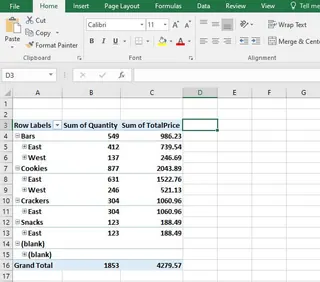
To add a calculated sales tax column, you have to perform the following ritual:
- Click anywhere inside your pivot table.
- Go to the PivotTable Analyze tab on the ribbon.
- Find and click on Fields, Items, & Sets.
- From the dropdown, select Calculated Field....
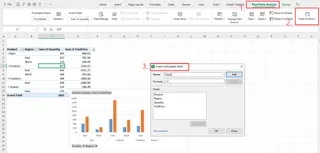
This opens the "Insert Calculated Field" dialog box, where the real "fun" begins.
- Name your field: You type a name, like
Sales Tax. - Write the formula: Here, you must manually type the formula. You can't just click on the column in the pivot table. You have to find the correct field name in the list (
TotalPricein this case), click "Insert Field," and then type the rest of the formula, like* 0.14for a 14% tax.
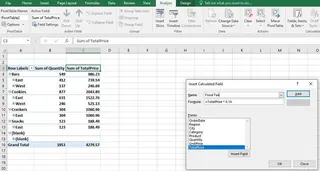
If you get the field name wrong or make a typo in the formula, it fails. If you succeed, the new column appears.
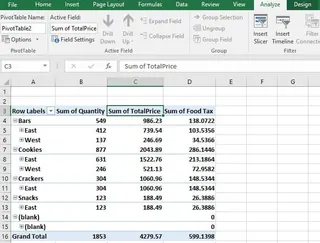
Limitations of the Manual Method
While functional, this process is riddled with problems that slow you down and invite errors:
- It's Slow and Clunky: The constant need to navigate through multiple menus and dialog boxes is a significant drag on productivity.
- Error-Prone Formulas: Manually typing formulas and field names is a recipe for typos. Forgetting a single quote or using the wrong field name leads to frustrating
#NAME?or#VALUE!errors. - Difficult to Modify: What if the tax rate changes from 14% to 15%? You have to repeat the entire menu-diving process to find and edit the formula.
- Confusing Totals: A notorious issue with calculated fields is how they handle Grand Totals. Excel re-applies the formula to the sum of the source data, rather than summing the results of the calculated field column. This can lead to incorrect and confusing grand totals, especially with non-additive formulas (like ratios or percentages).
- Low Discoverability: Many Excel users don't even know this feature exists because it's so well-hidden.
The New Way: Using Excel AI with Excelmatic
What if you could skip all those steps? What if you could just tell Excel what you want, and it would build the pivot table and the calculated field for you? That's exactly what an Excel AI Agent like Excelmatic does.

Excelmatic transforms data analysis from a series of clicks and formulas into a simple conversation. You upload your data and use plain English to ask for the insights you need.
Let's solve the same problem using Excelmatic.
Step 1: Upload Your Data
First, drag and drop your Excel or CSV file containing the sales data into Excelmatic. The AI will instantly read and understand your data structure.

Step 2: Describe Your Goal in Plain Language
Instead of building a pivot table manually, you start by asking for the initial summary. Then, you ask for the calculated field.
You could start with a simple request to create the base pivot table:
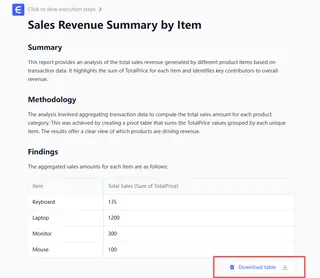
Create a pivot table that shows the sum of TotalPrice for each Item.
Excelmatic will generate this table for you instantly. Now for the magic. To add the calculated field, you simply ask:
Add a new column named 'Food Tax' that is 14% of the 'TotalPrice'.

That's it. No menus, no formula builder, no typos.
Step 3: Review and Iterate with Follow-up Questions
Excelmatic will update the pivot table with the new "Food Tax" column, correctly calculated. The beauty of this conversational approach is that you can easily refine or expand your analysis.
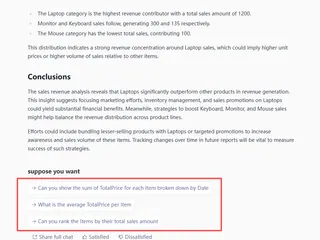
Want to add the commission? Just ask:
Now add another column named 'Commission' calculated as 20% of the 'TotalPrice'.
What if the tax rate changes?
Update the 'Food Tax' to be 15% instead of 14%.
Need a final price?
Create a 'Final Price' column that is the sum of 'TotalPrice' and 'Food Tax'.
Each request is handled in seconds, allowing you to explore your data at the speed of thought.
Step 4: Export Your Finished Report
Once you're happy with the result, you can download the completed workbook as a new Excel file. It will contain a perfectly formatted pivot table with all your AI-generated calculated fields, ready to be shared with your team.
Dialogue Example: From Raw Data to Insight in Seconds
Here’s how a typical conversation with Excelmatic might look:
User: I've uploaded my sales data. Can you create a pivot table to summarize the total price by item, and sort it from highest to lowest price?
Excelmatic: Done. I've created a pivot table showing the sum of 'TotalPrice' for each 'Item', sorted in descending order. Croissants have the highest total sales.
User: Perfect. Now, add a calculated field called 'Sales Tax' which is 8% of the 'TotalPrice'.
Excelmatic: I've added the 'Sales Tax' column to your pivot table, calculated as 8% of the 'Sum of TotalPrice' for each item.
User: Great. Can you also add a 'Net Price' column that subtracts the 'Sales Tax' from the 'TotalPrice'? And then create a bar chart comparing the 'Net Price' for the top 5 items.
Excelmatic: Understood. The 'Net Price' column has been added. I've also generated a bar chart showing the 'Net Price' for the top 5 items. You can view the chart and download the updated Excel file below.
Traditional Method vs. Excelmatic: A Quick Comparison
| Aspect | Traditional Calculated Fields | Excelmatic AI Agent |
|---|---|---|
| Process | Navigate Analyze > Fields, Items, & Sets, then manually type formula. |
Describe the desired calculation in a chat prompt. |
| Time to Create | 2-5 minutes, depending on familiarity. | 10-20 seconds. |
| Flexibility | Rigid. Editing requires repeating the entire process. | Highly flexible. Modify calculations with simple follow-up questions. |
| Error Risk | High (typos, incorrect field names, syntax errors). | Very low. The AI handles the syntax and logic for you. |
| Learning Curve | Moderate. Requires memorizing specific Excel features. | Minimal. If you can describe your business need, you can use it. |
FAQ
1. Do I need to know any Excel formulas to use Excelmatic for calculated fields? No. That's the main advantage. You just need to describe the calculation in plain language (e.g., "15% of the sales column" or "Revenue minus Costs"). The AI translates your words into the correct formula.
2. Can Excelmatic handle more complex, multi-step calculations? Yes. You can describe calculations that involve multiple fields, conditions, or steps. For example, "Add a bonus column that is 5% of sales, but only for sales over $10,000."
3. Will Excelmatic get the Grand Totals right? Excelmatic's AI is designed to understand the context of calculations. In most cases, it correctly sums the calculated results in the Grand Total row, avoiding the common pitfall of the manual method. If it ever misinterprets, you can easily clarify with a follow-up prompt.
4. Is my data secure when I upload it to Excelmatic? Yes. Excelmatic is built with enterprise-grade security. Your data is encrypted in transit and at rest, and is not used for training any models. For specific compliance details, always refer to the official privacy policy.
5. Can I use the pivot table created by Excelmatic in my desktop Excel?
Absolutely. You can download the result as a standard .xlsx file. The pivot table, including the calculated fields, will be fully functional and editable in any version of Microsoft Excel.
6. What if the AI misunderstands my request? Just like talking to a human analyst, you can simply rephrase your request or provide more context. For instance, if you say "add tax" and the AI asks for the rate, you can reply "use a rate of 8.5%." The conversational interface makes it easy to correct and refine.
Take Action: Upgrade Your Pivot Table Workflow Today
Stop letting tedious menu navigation and manual formula writing slow you down. The time you spend wrestling with calculated fields is time you could be spending on actual analysis and decision-making.
By embracing an Excel AI agent, you're not just creating a column faster; you're fundamentally changing your relationship with your data. You can ask complex questions, test different scenarios, and generate reports in a fraction of the time.
Ready to see for yourself? Try Excelmatic for free. Upload one of your own spreadsheets and try asking it to create a calculated field. Start with one of the prompts from this article and watch the magic happen.