Key takeaways:
- Filtering data in Excel with multiple "OR" criteria traditionally requires writing and nesting functions like
IFandOR, which is complex, time-consuming, and prone to errors. - Excel AI tools like Excelmatic replace manual formula creation. You can simply describe your conditions in plain language, such as "Show me employees from the 'North' team or those with over 30 sales."
- Using Excelmatic not only saves significant time but also increases accuracy and flexibility, allowing you to instantly adapt your criteria and get updated results without rewriting a single formula.
The Common Challenge: Filtering Data with Multiple "OR" Conditions
Imagine you're a sales manager preparing a bonus list for the end of the quarter. Your company's bonus policy isn't straightforward. It states that an employee is eligible if they meet at least one of the following conditions:
- They are part of the high-performing "North" team.
- They achieved more than 30 sales in the quarter, regardless of their team.
You have a spreadsheet with employee names, their sales figures, and their assigned team. How do you efficiently create this bonus list? A simple filter won't work, because you're not looking for rows that meet all conditions (an "AND" logic), but rather rows that meet any of them (an "OR" logic).
This scenario is incredibly common across various departments. You might be a marketer identifying high-engagement campaigns ("clicks > 500 OR conversion rate > 5%"), a logistics coordinator flagging shipments for review ("delivery status is 'Delayed' OR destination is 'International'"), or a financial analyst reviewing transactions ("amount > $10,000 OR category is 'Unclassified'"). In all these cases, the core task is to apply conditional logic with multiple "OR" rules.
The Traditional Excel Solution: Nested Formulas and Manual Steps
For experienced Excel users, the go-to solution involves a combination of logical functions, primarily OR and IF.
The OR function in Excel is designed specifically for this. Its syntax is =OR(logical1, [logical2], ...). It checks if any of the conditions you provide are true. If at least one is true, it returns TRUE; otherwise, it returns FALSE.
Step 1: Using the OR Function
For our sales bonus example, you would create a new helper column, let's say "Bonus Check". In the first data row (e.g., row 3), you'd enter the formula:
=OR(B3>30, C3="North")
Here, B3 is the cell with the sales count and C3 is the cell with the team name.
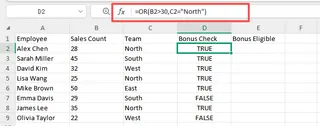
You would then drag this formula down the entire column. The result is a series of TRUE and FALSE values, which correctly identifies the eligible employees.
Step 2: Making the Output User-Friendly with IF
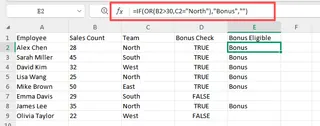
A column of TRUE/FALSE values isn't very presentable. To make it clearer, you typically nest the OR function inside an IF function. The IF function allows you to specify what to display when a condition is true and what to display when it's false.
The formula now becomes more complex:
=IF(OR(B3>30, C3="North"), "Bonus", "")
This formula reads: "If the sales in B3 are greater than 30 OR the team in C3 is 'North', then display the text 'Bonus'. Otherwise, leave the cell blank."
Step 3: Filtering the Final List
After dragging this new, nested formula down the column, you still need to perform one final action: apply a filter to your "Bonus" column to show only the rows containing the word "Bonus".
The Limitations of the Traditional Method
While this approach works, it's far from ideal, especially in a fast-paced business environment.
- High Learning Curve: You need to be comfortable with at least two different functions (
IF,OR) and the concept of nesting them. A single misplaced comma or quote can break the entire formula. - Rigid and Hard to Maintain: What if the bonus criteria change next quarter? "Sales > 35 OR Team is 'North' OR Customer Satisfaction Score > 4.5". The formula quickly becomes a long, unreadable monster:
=IF(OR(B3>35, C3="North", D3>4.5), "Bonus", ""). Editing it is a recipe for errors. - Time-Consuming: The process isn't instant. It involves writing the formula, carefully dragging it down, and then applying a filter. If your dataset is large, this can be slow and tedious.
- Not Scalable for Exploration: If your manager asks a follow-up question like, "Okay, now what if we only give bonuses to the North team OR people with over 40 sales?", you have to go back, edit the formula, and repeat the entire process. This discourages ad-hoc data exploration.
The New Solution: Using an Excel AI Agent (Excelmatic)
Instead of teaching Excel how to perform the logic with functions, what if you could just tell it what you want to achieve? This is the promise of Excel AI agents like Excelmatic. They act as your data analyst, understanding plain language commands and handling the complex steps behind the scenes.

Let's solve the same bonus problem with Excelmatic.
Step 1: Upload Your Data
First, you simply upload your Excel or CSV file containing the sales data to the Excelmatic platform. There's no need to prepare the file or add helper columns.

Step 2: Describe Your 'OR' Condition in Plain Language
Once your data is loaded, you interact with it through a chat interface. To get your bonus list, you just ask:
Show me all employees who are on the 'North' team or who have more than 30 sales.
Alternatively, if you want to create the "Bonus" column directly:
Add a new column named 'Status'. If the 'Team' is 'North' or 'Sales' are greater than 30, set the value to 'Bonus'. Otherwise, leave it blank.

Excelmatic's AI understands the "OR" logic in your sentence and immediately applies it to the dataset.
Step 3: Review and Iterate on the Results
Excelmatic will instantly display a new table with only the rows that meet your criteria. There are no formulas to check or filters to apply. The result is clean and immediate.

The real power comes from the conversational nature of the tool. You can easily refine your request or ask follow-up questions:
- "Great. Now sort this list by sales, from highest to lowest."
- "Out of this bonus list, how many are from each team?"
- "What's the average sales for the people getting a bonus versus those who are not?"
Each question is a simple language sentence, and each answer is an instantly updated table, chart, or summary.
Dialogue Example: From Request to Insight
Here’s how a typical conversation might look in Excelmatic:
User: I've uploaded my quarterly sales data. I need to find everyone who qualifies for a bonus. The rule is: they are either on the 'North' team, or they made more than 30 sales.
Excelmatic: Done. I have filtered your data to show the 15 employees who meet these criteria. This includes all members of the 'North' team and other employees with sales exceeding 30.
User: Perfect. Can you add a column called 'Bonus Status' with the text 'Eligible' for these rows?
Excelmatic: I've added the 'Bonus Status' column with the value 'Eligible' for all filtered rows. The updated table is ready for you to view or download.
User: Now, can you create a bar chart showing the number of eligible employees by team?
Excelmatic: Certainly. Here is a bar chart visualizing the distribution of bonus-eligible employees across the different teams.
Traditional Method vs. Excelmatic: A Quick Comparison
| Feature | Traditional Excel (IF/OR Formula) | Excelmatic (AI Agent) |
|---|---|---|
| Method | Write, nest, and drag formulas (IF, OR) |
Describe the outcome in plain language |
| Time to Result | 5-15 minutes (writing, debugging, filtering) | < 1 minute (typing a sentence) |
| Flexibility | Low. Requires manual formula edits for changes | High. Ask a new question to change criteria |
| Skill Required | Intermediate Excel (functions, nesting) | Beginner (can describe a business rule) |
| Error Risk | High (typos, incorrect cell references) | Low (AI handles the implementation) |
FAQ
1. Do I need to know any Excel functions like OR or IF to use Excelmatic? No, not at all. The entire point of an Excel AI agent is to abstract away the formulas. You only need to describe the logic you want to apply in plain language.
2. Can Excelmatic handle more than two 'OR' conditions? Absolutely. You can make your request as complex as needed. For example: "Show me rows where the team is 'North' or 'East', or sales are over 50, or the customer rating is above 4.5." The AI will parse and apply all conditions correctly.
3. Will Excelmatic modify my original Excel file? No. Excelmatic works on a copy of your data within its secure environment. Your original file remains untouched. You can download the new, modified data as a separate Excel file.
4. Can I ask Excelmatic to generate the formula for me?
Yes. If you want to learn or apply the formula in your own sheet, you can ask, "What Excel formula would I use to do this?" Excelmatic can provide the correct nested IF(OR(...)) formula for you to copy.
5. Is it safe to upload sensitive company data to Excelmatic? Excelmatic is built with data security in mind, employing industry-standard encryption and privacy protocols. For specific compliance and security details, it's always best to refer to the official privacy policy on their website.
Start Working Smarter, Not Harder
Spending time wrestling with complex nested formulas is a drain on productivity. It pulls you away from your actual job—analyzing information and making decisions—and turns you into a part-time formula debugger.
By leveraging an Excel AI agent like Excelmatic, you shift your focus from the "how" to the "what." You can test hypotheses, explore data from different angles, and generate reports in a fraction of the time.
Ready to stop fighting with formulas? Try Excelmatic for free today. Upload one of your own spreadsheets and ask it a question with "or" logic. You'll be amazed at how quickly you get the answer you need.