Key takeaways:
- Building dynamic calculation tables in Excel (e.g., pricing matrices, commission calculators) traditionally requires mastering mixed cell references (
$A1orA$1), a process that is notoriously difficult and prone to errors. - Excel AI tools like Excelmatic completely eliminate the need to manually write these complex formulas. You can generate the entire calculation table by describing your goal in plain language.
- By using Excelmatic, you can save significant time, prevent common formula mistakes, and create spreadsheets that are easily understood and maintained by colleagues, regardless of their Excel skill level.
The Problem: The Dreaded Dollar Sign in Dynamic Excel Tables
Imagine you're a financial analyst tasked with creating a tax projection model. You have a list of employees, their annual incomes over several years, and their individual tax rates. Your goal is to create a table that calculates the tax payable for each person, for each year.
Or perhaps you're a sales manager building a commission calculator. You have sales figures for different products across multiple regions, and you need to apply varying commission rates to create a final payout summary.
In both scenarios, you need to create a grid or matrix of calculations. When you write the first formula, you want to drag it across the entire table to auto-fill the rest. But you immediately run into a problem. As you drag the formula, the cell references shift, and your calculations break. You know the solution involves the dollar sign ($), but where does it go? Before the column letter? Before the row number? Both?
This is the classic headache of mixed cell references in Excel. It's a powerful feature, but for most users, it's a source of frustration, trial-and-error, and time-consuming debugging. Getting it wrong can lead to silent, hard-to-spot errors that corrupt your entire analysis.
The Traditional Solution: Manually Crafting Mixed References
To solve this, experienced Excel users learn the difference between relative, absolute, and mixed references.
- Relative Reference (
A1): When you drag the formula, both the column and row change. This is the default. - Absolute Reference (
$A$1): Both the column and row are locked. The reference never changes, no matter where you drag the formula. - Mixed Reference (
$A1orA$1): This is the key to our problem. You lock either the column ($A1) or the row (A$1), but not both.
A Step-by-Step Example: The Tax Calculation Table
Let's revisit the tax calculation scenario. Here's our source data: a table of annual incomes and a column with each person's tax rate.
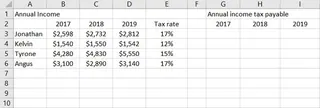
Our goal is to fill in the "Income Tax" table on the right. The formula is simple: Income * Tax Rate.
Write the First Formula: In cell
F3, for Jonathan's 2017 tax, the formula would be=B3*E3. This gives the correct result, $441.66.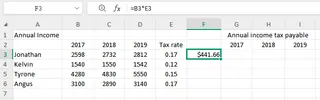
The Problem with Dragging: If you drag this formula to the right into cell
G3(for 2018), Excel helpfully changes the formula to=C3*F3. The income part (C3) is correct, but the tax rate part has shifted toF3, which is empty! The calculation is wrong.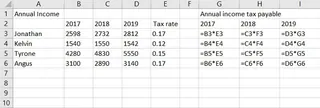
Applying the Mixed Reference: The solution is to tell Excel that the tax rate is always in column E. We lock the column by adding a dollar sign before the 'E'. The correct formula in
F3becomes=B3*$E3.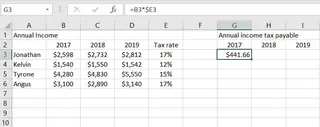
Filling the Table: Now, when you drag this formula across the row to
G3andH3, theB3part changes toC3andD3(correct), but the$E3part remains$E3(also correct for that row). You can then drag all the formulas down, and they will adjust correctly for each person.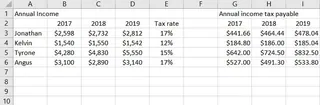
The Limitations of the Manual Method
While this works, it's far from ideal:
- High Cognitive Load: You have to stop and think about which part of the reference to lock. Is it the row or the column? It's easy to get it backward.
- Error-Prone: A single misplaced
$can create thousands of incorrect calculations that are difficult to notice. - Poor Readability: For a colleague (or your future self), a formula like
=VLOOKUP($A5, 'Data'!$B$2:$Z$100, MATCH(C$4, 'Data'!$B$1:$Z$1, 0), FALSE)is cryptic and hard to maintain. - Inflexible: If the structure of your data changes, you have to go back and manually edit these complex formulas.
There has to be a better way. And now, there is.
The New Solution: Using Excel AI (with Excelmatic)
Instead of manually constructing formulas and wrestling with dollar signs, you can now use an Excel AI Agent like Excelmatic to do the heavy lifting. You simply provide your data and describe the desired outcome in plain language.

Excelmatic acts as your personal data analyst. It understands the structure of your spreadsheet and the logic of your request, then generates the correct formulas, tables, or charts for you.
How to Build the Tax Table with Excelmatic in 4 Steps
Let's solve the exact same tax calculation problem using Excelmatic.
1. Upload Your Data
First, simply drag and drop your Excel or CSV file containing the income and tax rate data into Excelmatic. The AI will instantly read and display your data.

2. Describe Your Goal in Plain Language
Next, in the chat interface, type a prompt describing what you want to calculate. You don't need to know any Excel functions or syntax.
For our example, you could type:
For each person, calculate their income tax for 2017, 2018, and 2019. The tax is calculated by multiplying their income for that year by their tax rate in column E.
Or more concisely:
Create a new table calculating the income tax for each year. The formula should be the income for that year multiplied by the 'Tax Rate'.

3. Review the AI-Generated Result
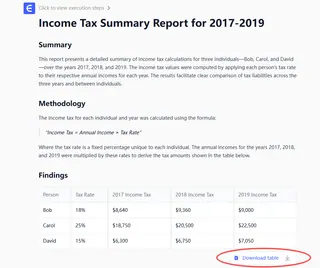
In seconds, Excelmatic will process your request and generate the complete, accurate tax table. It handles all the cell reference logic behind the scenes, so you don't have to think about it. The result is a clean table with all the calculations done for you.
4. Export Your Results
Once you're happy with the result, you can download the new table in a fresh Excel file. You can also ask Excelmatic to show you the formula it used, which you can then copy and paste into your original workbook if you prefer.
Example AI Conversation
Here’s how a typical interaction might look in Excelmatic:
User: Here is my employee income data. I need to calculate the income tax for each person for each year from 2017 to 2019. The tax rate for each person is in the 'Tax Rate' column.
Excelmatic: Understood. I will create a new table with columns for 2017 Tax, 2018 Tax, and 2019 Tax. For each cell, I will multiply the income from the corresponding year by the tax rate in column E. Is that correct?
User: Yes, that's perfect.
Excelmatic: I have generated the table with the calculated income tax for each employee and each year. You can view it below. Would you like to add a column for the total tax paid over the three years?
User: Great idea. Please add a 'Total Tax' column that sums the tax for the three years.
Excelmatic: Done. The table now includes a 'Total Tax' column. You can download the updated Excel file now.
Traditional Method vs. Excelmatic: A Quick Comparison
| Feature | Manual Mixed References | Excelmatic AI |
|---|---|---|
| Time to Create | 10-20 minutes of careful work | Under 1 minute |
| Required Skill | Deep understanding of $A1 vs. A$1 |
Ability to describe a business goal |
| Error Potential | High (wrong $ placement, drag-fill errors) |
Very Low (AI handles the logic) |
| Flexibility | Low (changes require manual formula edits) | High (easily adjust with a new prompt) |
| Readability | Poor (formulas are cryptic to non-experts) | Excellent (the prompt is self-documenting) |
FAQ
1. Do I need to know about mixed references at all to use Excelmatic? No. That's the beauty of it. You just need to explain the logic of your calculation (e.g., "multiply this column by that row"), and the AI handles the complex syntax for you.
2. Is my company's financial data safe if I upload it to Excelmatic? Data privacy is a top priority. Excelmatic uses secure protocols for data handling, and files are not stored permanently. For specific details on security and compliance, always refer to the official privacy policy on the website.
3. What if my data isn't perfectly clean or structured? Excelmatic is designed to handle common data imperfections. You can even ask it to perform data cleaning tasks first, such as "remove any rows where the income is zero" or "standardize the column headers," before you perform your main analysis.
4. Can Excelmatic explain the formula it generated so I can learn? Yes! After Excelmatic generates a result, you can ask a follow-up question like, "What formula did you use for that table?" It will provide the exact formula and often an explanation of how it works, making it a great learning tool.
5. Is Excelmatic only for complex calculations like this? Not at all. It's designed for a wide range of Excel tasks, from simple sorting and filtering to creating complex pivot tables, generating charts, cleaning data, and writing sophisticated formulas. Any repetitive or complex Excel task is a good candidate for automation with Excelmatic.
Get Started: Upgrade Your Excel Workflow Today
Stop wasting time wrestling with dollar signs and debugging formulas. The mental energy you spend trying to remember the rules of mixed references is better spent on analyzing your results and making strategic decisions.
By embracing an Excel AI agent, you're not just getting a tool; you're getting a tireless assistant who handles the tedious parts of your job, allowing you to focus on what matters. You can build more complex models, respond to ad-hoc requests faster, and produce more accurate work with less stress.
Ready to see it in action? Try Excelmatic for free today. Upload the very spreadsheet you're working on right now and ask it to perform the calculation you've been struggling with. You'll be amazed at how much time you can get back.