Key takeaways:
- Organizing marathon runners traditionally involves complex, multi-step formulas for time calculation, bib generation, sorting, and wave assignment, which is time-consuming and prone to errors.
- Excel AI tools like Excelmatic streamline this entire workflow, allowing you to use simple language prompts to perform all these tasks—from calculating finish times to assigning start waves.
- Using Excelmatic drastically reduces manual effort, eliminates formula errors, and provides a flexible, conversational way to manage event data, saving hours of work for race organizers.
The Challenge: Organizing Marathon Runners in Excel
If you've ever managed an event like a local 10k or a full-scale marathon, you know the real race begins long before the starting gun fires. The logistics behind the scenes are a marathon in themselves, and a huge part of that is managing participant data in Excel.
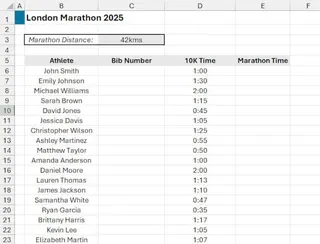
Imagine this scenario: You have a list of registered athletes for the upcoming London Marathon. Your spreadsheet contains their names and their qualifying 10-kilometer race times. Your task is to prepare the final start list, which involves several critical steps:
- Project Finish Times: Calculate each athlete's estimated marathon completion time based on their 10k performance.
- Assign Bib Numbers: Generate a unique, random bib number for every single participant.
- Sort Participants: Rank all athletes from fastest to slowest based on their projected marathon time.
- Assign Start Waves: Divide the sorted athletes evenly into three start waves (e.g., Blue for the fastest, Red for the middle group, and Green for the slowest) to ensure a smooth and safe race start.
Doing this for a handful of runners is manageable. But for hundreds or thousands? The process becomes a daunting, error-prone task that can consume an entire afternoon. One wrong formula, one accidental drag-and-fill error, and you could have your elite runners starting at the back of the pack.
The Traditional Excel Solution: A Maze of Formulas and Manual Steps
For a seasoned Excel user, tackling this problem involves a sequence of functions, data manipulation, and careful cross-checking. Let's break down the manual approach.
Step 1: Calculate Estimated Marathon Time
First, you need to project the full marathon time (42km) from the provided 10km time. The logic is straightforward: take the 10km time, divide by 10 to get the pace per kilometer, and multiply by 42.
If an athlete's 10km time is in cell B2, the formula would be:
=(B2 / 10) * 42
You'd then need to format this new column to display time correctly (e.g., h:mm) and drag the formula down for all athletes.
Step 2: Generate Unique Random Bib Numbers
This is where it gets tricky. Your first instinct might be to use the RANDBETWEEN(10000, 99999) function. However, this function doesn't guarantee uniqueness; you'll likely end up with duplicate bib numbers, a critical error for any race.
A proper solution requires more advanced dynamic array formulas, such as combining SEQUENCE, RANDARRAY, and SORTBY to generate a truly unique list of random numbers. This is a complex formula that most users are not familiar with.
Furthermore, these functions are "volatile," meaning they recalculate every time you make a change to the worksheet. To prevent this, you must copy the generated bib numbers and "Paste as Values" to lock them in place—an extra manual step that's easy to forget.
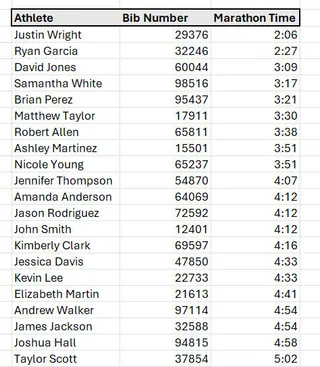
Step 3: Sort and Reorganize the Data
Once your calculations are done, you need a clean, sorted list for wave assignment. You could use the SORT function to create a new dynamic array based on your data, sorting by the 'Marathon Time' column.
For example: =SORT(Marathon2025, 3, 1) would sort your table named Marathon2025 by the 3rd column (Marathon Time) in ascending order (1).
Step 4: Assign Athletes to Start Waves
This is the final, and often most complex, step. With your athletes sorted, you need to divide them into three equal groups. This typically involves:
- Calculating the total number of athletes using
COUNTA. - Determining the size of each wave (Total Athletes / 3).
- Writing a nested
IForIFSformula that checks the row number or rank of each athlete and assigns 'Blue', 'Red', or 'Green' accordingly.
A formula might look something like IF(ROW(A1)<=TotalAthletes/3, "Blue", IF(ROW(A1)<=TotalAthletes*2/3, "Red", "Green")). This is fragile and depends heavily on how your data is structured.
The Limitations of the Manual Method
While possible, this traditional approach is fraught with challenges:
- High Complexity: It requires knowledge of time calculations, advanced dynamic arrays, sorting functions, and complex logical formulas.
- Error-Prone: A single mistake in a formula or a copy-paste action can corrupt the entire dataset.
- Time-Consuming: For a large list, this process can take hours of focused, tedious work.
- Inflexible: What if a few more athletes register at the last minute? You have to manually adjust ranges, re-run calculations, and re-check everything.
The New Solution: Using Excel AI with Excelmatic
What if you could accomplish all of the above by simply describing what you need in plain English? That's the power of an Excel AI Agent like Excelmatic. Instead of building a chain of complex formulas, you have a conversation with an AI that does the heavy lifting for you.

Here’s how you can solve the same marathon assignment problem in a fraction of the time.
Step 1: Upload Your Data File
First, navigate to Excelmatic and upload your spreadsheet containing the athlete names and their 10km times. Excelmatic accepts Excel (.xlsx), CSV, and other common file formats. It works on a secure copy of your data, so your original file remains untouched.

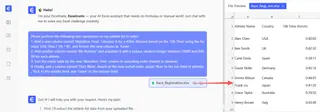
Step 2: Describe Your Tasks in Natural Language
Instead of writing formulas, you simply chat with the AI. You can break down the problem into a series of simple requests.
Here are some example prompts you could use:
- "Add a new column named 'Marathon Time'. Calculate it based on the '10k Time' for a 42km distance. The formula should be
(10k Time / 10) * 42. Please format this column ash:mm." - "Next, create another column called 'Bib Number'. Populate it with a unique random integer for each athlete between 10000 and 99999."
- "Now, sort the entire table by 'Marathon Time' in ascending order."
- "Finally, add a column named 'Start Wave'. Based on the current sort order, assign 'Blue' to the top third of athletes, 'Red' to the middle third, and 'Green' to the bottom third."
Step 3: Review and Iterate on the Results
Excelmatic will process each request and show you the updated table. The beauty of this conversational approach is that you can easily make adjustments.
Want to change the wave names? Or perhaps sort by athlete name as a secondary criterion? Just ask.
- "Also sort by 'Athlete' name in ascending order as a second-level sort."
- "Change the wave names to 'Wave 1', 'Wave 2', and 'Wave 3'."
- "Can you create a pivot table summarizing the number of athletes in each wave?"
This iterative dialogue is impossible with traditional formulas, where a small change often requires rebuilding your logic from scratch.
A Sample Conversation with Excelmatic
Here’s what that entire workflow might look like in a real conversation:
User: I've uploaded my list of marathon runners with their 10km times. First, please add a column 'Marathon Time' by projecting their time for a 42km race and format it as hours and minutes.
Excelmatic: Done. I've added the 'Marathon Time' column with the projected times. Here is a preview of the updated table.
User: Great. Now add a 'Bib Number' column with a unique random number between 10000 and 99999 for each runner.
Excelmatic: I have generated and assigned unique bib numbers to every athlete.
User: Perfect. Please sort the data by 'Marathon Time' from fastest to slowest. Then, add a 'Start Wave' column. The fastest third should be in the 'Blue' wave, the middle third in the 'Red' wave, and the slowest third in the 'Green' wave.
Excelmatic: The table is now sorted, and I've assigned the 'Blue', 'Red', and 'Green' start waves as requested. Would you like me to create a summary chart showing the count for each wave?
Step 4: Export Your Completed File
Once you're satisfied with the result, you can download the fully prepared and formatted Excel file with a single click. The entire process, which could have taken an hour manually, is now completed in minutes.
Traditional Excel vs. Excelmatic: A Quick Comparison
| Task | Traditional Excel | Excelmatic (Excel AI) |
|---|---|---|
| Time Calculation | Manual formula =(B2/10)*42, drag down, format cells. |
"Calculate marathon time based on 10km time." |
| Bib Numbers | Complex RANDARRAY or RANDBETWEEN + manual de-duplication. |
"Assign unique random bib numbers." |
| Sorting | SORT function or manual data sorting feature. |
"Sort by marathon time, fastest first." |
| Wave Assignment | Nested IFs with ROW() or RANK.EQ and COUNTA. |
"Assign top third to 'Blue', middle to 'Red', bottom to 'Green'." |
| Flexibility | Low. Changes require re-doing formulas and steps. | High. Just ask for adjustments in the chat. |
| Time to Complete | 30-60 minutes | 2-5 minutes |
Frequently Asked Questions (FAQ)
1. Do I need to be an Excel expert to use Excelmatic? Not at all. If you can describe your business problem in plain language, you can use Excelmatic. It's designed for everyone, from beginners to advanced users who want to work faster.
2. Will Excelmatic modify my original Excel file? No. Excelmatic works on a secure copy of your data in the cloud. Your original file remains on your computer, completely untouched.
3. Is it safe to upload my company's data to Excelmatic? Yes. Excelmatic is built with data security as a top priority. All data is encrypted in transit and at rest. For specific details, you can always refer to the official privacy policy and security documentation on the website.
4. What if my data isn't perfectly clean? Excelmatic is great for data cleaning. You can ask it to perform tasks like "remove duplicate rows," "find and replace all instances of 'N/A' with 0," or "split the 'Full Name' column into 'First Name' and 'Last Name'."
5. Can I use the formulas generated by Excelmatic in my own spreadsheets? Yes. In many cases, Excelmatic can provide the exact formula it used to perform a calculation. You can copy this formula and paste it into your own Excel workbook for reuse.
Get Started: Supercharge Your Excel Workflow Today
Stop wrestling with complex formulas and repetitive manual tasks. The next time you're faced with a data organization challenge like preparing a race day roster, a sales report, or a financial summary, let an Excel AI agent do the work for you.
By shifting from manual formula-building to conversational instructions, you not only save hours of valuable time but also reduce the risk of costly human errors. You can focus on analyzing the results, not on the tedious process of getting there.
Ready to experience the future of spreadsheets? Try Excelmatic for free today. Upload your file, and try using some of the prompts from this article to see how quickly you can transform your data.