Key takeaways:
- Building a traditional Excel lookup form is a multi-step, error-prone process involving complex formulas like
VLOOKUP, error handling withIFERROR, and rigid Data Validation rules. - Excel AI tools like Excelmatic replace this manual setup by allowing you to simply describe your needs in plain language. The AI handles the data lookup, validates user input, and provides clean, human-readable results automatically.
- With Excelmatic, you can create a flexible and robust lookup system in minutes, eliminating
#N/Aerrors and saving hours of setup and maintenance time, while ensuring data integrity.
Problem Background & Pain Points
Imagine you're managing a busy warehouse. Your team constantly needs to check the details of various parts—part name, price, and stock availability—using a massive parts catalogue stored in an Excel sheet. To make their job easier, you decide to build a simple lookup form in Excel. The idea is simple: a team member enters a part's catalogue number, and Excel instantly pulls up all the relevant information.
In theory, this is a great solution. In reality, it quickly becomes a source of frustration. If a user types in a catalogue number that doesn't exist, or even makes a small typo, the form breaks, displaying ugly #N/A errors across the cells.
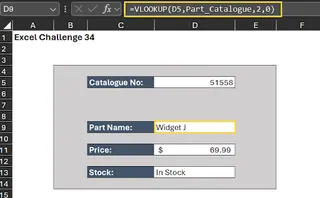
Furthermore, there are no guardrails. A user could enter a number that's too long, too short, or in the wrong format, leading to confusion and incorrect lookups. You realize you need a more robust system—one that not only finds the data but also prevents errors before they happen. This leads you down the rabbit hole of complex Excel features, turning a "simple" task into a time-consuming project.
The Traditional Excel Solution: Steps and Limitations
To build a truly reliable lookup form the old-fashioned way, you need to become a mini-developer, combining several different Excel features. The process typically looks something like this.
Your data is split into two sheets: the lookup form and the parts catalogue.
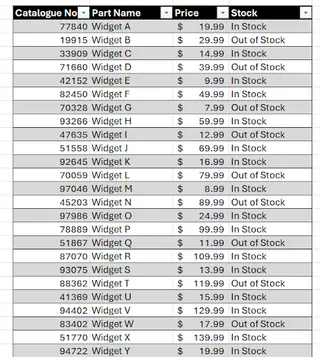
Here are the manual steps required to make the form robust:
Step 1: Handling Errors with IFERROR and VLOOKUP
Your first line of defense is the VLOOKUP function, which searches for the catalogue number and returns the corresponding information. But as we've seen, VLOOKUP returns an #N/A error if it can't find a match. To make this user-friendly, you must wrap every VLOOKUP formula inside an IFERROR function.
The formula looks like this:
=IFERROR(VLOOKUP(D5, Parts_Catalogue, 2, FALSE), "Part Not Found")
You have to repeat this for every piece of information you want to retrieve (Part Name, Price, Stock Status), carefully adjusting the column index number (2, 3, 4, etc.) in each formula.
Step 2: Restricting Input with Data Validation
Next, you want to prevent users from entering invalid catalogue numbers in the first place. Let's say all valid catalogue numbers are exactly 5 characters long. You need to use Excel's Data Validation feature.
- Select the input cell (e.g.,
D5). - Go to the Data tab and click Data Validation.
- Under the Settings tab, choose "Text length" from the "Allow" dropdown.
- Select "equal to" and enter
5as the length.
Step 3: Adding User-Friendly Messages
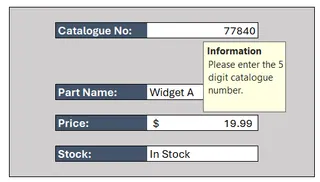
A good form guides the user. Within the same Data Validation dialog box, you need to configure two more things:
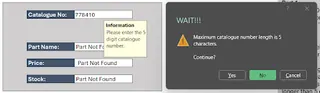
- Input Message: A helpful tip that appears when the user clicks the cell, like "Please enter the 5-digit catalogue number."
- Error Alert: A warning message that pops up if they enter invalid data, such as "Maximum catalogue number length is 5 characters."
Step 4: Protecting the Worksheet
Finally, to prevent anyone from accidentally deleting your complex formulas or changing the layout, you must protect the worksheet. This involves:
- Unlocking the single input cell (
D5) by going toFormat Cells > Protectionand unchecking "Locked." - Protecting the entire sheet via the Review tab, which locks all other cells by default.
The Limitations of the Traditional Method
While this manual approach works, it's fraught with problems:
- Complexity: It requires knowledge of
VLOOKUP,IFERROR, Data Validation, and Worksheet Protection. A single mistake in any step can break the form. - Rigidity: The system is completely inflexible. If the business decides to change catalogue numbers to 6 characters, you have to manually find and update the Data Validation rule. If you add a new validation rule (e.g., must start with "P"), you have to build a complex custom formula.
- Time-Consuming: The initial setup takes significant time and focus. Maintaining and updating it becomes a recurring chore.
- Poor Scalability: This approach is fine for one form, but what if you need ten different lookup tools for different datasets? The setup effort multiplies.
The New Solution with Excel AI (e.g., Excelmatic)
Instead of manually building this fragile house of cards, what if you could just tell an assistant what you need? This is exactly what an Excel AI Agent like Excelmatic does. It transforms the entire process from a technical configuration task into a simple conversation.

Overall Approach
With Excelmatic, the workflow is radically simplified:
- Upload your data file (the
Parts_Catalogue.xlsx). - Chat with the AI in plain language, asking it to perform lookups and validate data.
- Review the results, which can be a simple answer, a table, or even a pre-configured formula.
- Export the final result back to Excel if needed.
The AI understands the context of your data and can infer rules, handle errors, and respond intelligently without you writing a single formula.
Step-by-Step: Building the Lookup Form with Excelmatic
Let's rebuild our warehouse lookup form using Excelmatic.
1. Upload Your Data File Start by uploading your Excel or CSV file containing the parts catalogue to Excelmatic. The AI will instantly read and understand your data structure, including the column headers like "Catalogue Number," "Part Name," and "Price."

2. Use Natural Language to Perform Lookups
Instead of writing a VLOOKUP, just ask a question. You can be direct and specific.
For example, type this into the chat:
Look up catalogue number PN-101 in my data and tell me the Part Name, Price, and if it's In Stock.

Excelmatic will scan the data and provide a clean, direct answer:
Part Name: Heavy-Duty Widget Price: $19.99 Stock Status: In Stock
3. Let the AI Handle Errors and Validation Automatically
Here’s where the magic happens. You don't need to pre-configure IFERROR or Data Validation. The AI handles it conversationally.
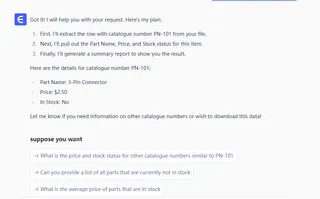
See what happens when you provide invalid input:
User: Find the details for part number 999.
Excelmatic: The catalogue number '999' does not appear to be in the standard 5-character format. Could you please provide the full 5-character number?
Now, let's try a valid format but a non-existent number:
User: Okay, please look up part PN-999.
Excelmatic: I could not find any part with the catalogue number "PN-999" in your catalogue. Would you like me to search for similar part numbers or list all parts starting with "PN"?
Notice the difference. There are no cryptic #N/A errors. The AI not only identifies the issue (invalid format or not found) but also offers helpful next steps. It has effectively created a dynamic and intelligent validation system on the fly.
4. Export Your Results
Once you're happy with the lookup, you can easily export the data. You can ask Excelmatic to "create a table with these results" and then download it as a new Excel file. You can even ask it to generate the VLOOKUP or XLOOKUP formula for you, which you can then copy and paste into your own spreadsheet.
Traditional vs. Excelmatic: A Quick Comparison
| Feature | Traditional Excel Method | Excelmatic AI Method |
|---|---|---|
| Setup Time | 30-60 minutes | < 2 minutes |
| Required Skills | VLOOKUP, IFERROR, Data Validation, Sheet Protection |
Ability to describe your goal in plain language |
| Error Handling | Manual setup with IFERROR for each formula |
Automatic, conversational, and user-friendly |
| Flexibility | Rigid. Changes require manual rework of rules and formulas | Highly flexible. Just change your question to change the logic |
| User Experience | Can be confusing, with cryptic errors (#N/A) |
Intuitive and interactive, like talking to a human assistant |
FAQ
1. Do I need to know VLOOKUP or other advanced functions to use Excelmatic? No, not at all. Excelmatic is designed for users of all skill levels. You just need to describe what you want to achieve in plain language, and the AI will generate the necessary logic or results.
2. How does Excelmatic know my validation rules, like the 5-character limit? The AI analyzes your existing data. If it sees that all catalogue numbers in your sheet are 5 characters long, it will infer that as a likely rule. You can also explicitly state rules in your prompts, such as "Ensure the catalogue number is always 5 characters long before searching."
3. Is my company's data safe when I upload it to Excelmatic? Data privacy and security are top priorities. Excelmatic uses enterprise-grade encryption for data in transit and at rest. Files are processed securely and are not used for training models without explicit consent. For specific compliance details, always refer to the official privacy policy.
4. Will Excelmatic modify my original Excel file? No. Excelmatic works on a copy of your data in a secure environment. Your original file remains untouched on your computer. You can choose to download the results as a new Excel file.
5. Can I use the formulas generated by Excelmatic in my own spreadsheets?
Yes. You can ask Excelmatic to "write the Excel formula to do this," and it will provide a formula (like XLOOKUP or SUMIFS) that you can copy and paste directly into your own workbook. This is a great way to learn and apply powerful formulas without having to write them from scratch.
6. Is this tool suitable for absolute beginners? Absolutely. In fact, it's an ideal tool for beginners. It bypasses the steep learning curve of traditional Excel functions and allows new users to become productive with their data immediately.
Take Action: Upgrade Your Excel Workflow with Excelmatic
Stop wrestling with nested formulas and confusing dialog boxes. The hours spent building and debugging a "simple" lookup form are better spent analyzing your data and making decisions.
The traditional way forces you to be a technician. The AI-powered way allows you to be a strategist. By handling the tedious mechanics of data lookup and validation, Excelmatic frees you to ask bigger questions. Instead of "How do I fix this #N/A error?", you can ask, "Which parts are most expensive but out of stock?" or "Show me a trend of our inventory levels over the last quarter."
Ready to build a better, smarter lookup form in a fraction of the time?
Try Excelmatic for free today and upload your parts catalogue or any other lookup table. Use the prompts from this article and see how quickly you can get clean, reliable answers from your data.