Key takeaways:
- Manually inserting check marks in Excel using fonts like Wingdings, symbol menus, or ALT codes is inefficient and not scalable for tracking tasks or statuses.
- While Conditional Formatting is a more dynamic solution, its multi-step setup is often complex and confusing for many users, making it difficult to create and maintain rules.
- Excel AI tools like Excelmatic replace these manual steps entirely. You can simply describe the condition in plain language, and the AI will automatically generate a new column with the correct check marks or other status symbols.
- Using Excelmatic not only automates the process in seconds but also makes it incredibly easy to modify rules or apply them to new data, dramatically improving the efficiency of creating status reports and task trackers.
Problem Background & Pain Points
Imagine you're a project manager, and your week starts with updating a master task list in Excel. You have columns for the task description, assignee, due date, and a crucial "Status" column. Your job is to go through each row and mark completed tasks with a check mark (✓) and overdue tasks with a cross mark (✗).
For many Excel users, this seemingly simple action becomes a surprisingly tedious chore. You find yourself digging through menus, trying to remember which font contains the check mark symbol, or worse, copying and pasting it from another cell over and over again.
This scenario isn't limited to project management. Sales managers need to track if monthly targets are met, compliance officers need to verify checklist items, and event planners need to confirm logistics. In all these cases, the goal is the same: visually represent a "yes/no" or "complete/incomplete" status. The manual process is not only slow but also prone to human error. What if you accidentally paste a check mark on the wrong line? The entire report's integrity is compromised.
Traditional Excel Solutions: Steps & Limitations
Over the years, resourceful Excel users have developed several methods to insert check marks. While they get the job done, each comes with its own set of frustrations.
The "Manual Symbol" Methods
These are the most common quick-and-dirty approaches:
- The Wingdings Font Trick: Type a capital 'P' in a cell and change the font to "Wingdings 2". This magically transforms the letter into a check mark. Similarly, a capital 'O' becomes a cross mark. This relies on you remembering the specific character and font combination.
- Insert Symbol Menu: Navigate to
Insert > Symbol, find the "Wingdings" font in the dialog box, scroll until you find the check mark, and click "Insert". It's a multi-click process for every single symbol. - ALT Code Shortcut: Hold down the
ALTkey and type0252on your numeric keypad (while the cell's font is set to Wingdings) to get a check mark. This is fast if you have a numeric keypad and can memorize the code, but it's not intuitive for most. - The UNICHAR Function: Using the formula
=UNICHAR(10003)will insert a check mark. This is a step up as it's a formula, but again, it requires you to know the specific Unicode number for the character you want.
The "Smarter" but Complicated Method: Conditional Formatting
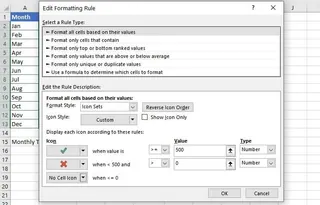
For a more dynamic solution, advanced users turn to Conditional Formatting. This feature can automatically display an icon based on a cell's value. For example, you can set a rule to show a check mark if a sales figure is above 500.
The Limitations of Traditional Methods:
- High Cognitive Load: You have to remember font names, character codes, or complex menu paths.
- Tedious & Repetitive: Manually inserting symbols for dozens or hundreds of rows is a significant time sink.
- Prone to Errors: Copy-pasting or manual entry can easily lead to mistakes.
- Difficult to Maintain: Conditional Formatting rules are powerful but buried in menus. Editing a rule requires navigating multiple dialog boxes, which can be intimidating for less experienced users or colleagues who inherit your workbook.
- Lack of Flexibility: What if your logic changes? "Now show a yellow flag if sales are within 10% of the target." This requires a complete overhaul of your Conditional Formatting rules.
The New Way: Using an Excel AI Agent (Excelmatic)
Instead of forcing you to learn Excel's arcane rules, what if you could just tell the spreadsheet what you want in plain language? This is exactly what Excel AI agents like Excelmatic are designed for. You can solve the same problem without touching a single formula or complex menu.

The Excelmatic Approach: A Simple Conversation
The workflow is radically simpler:
- Upload your Excel or CSV file.
- Describe the outcome you want using natural language.
- Review the result generated by the AI.
- Export the updated file or copy the generated formula.
Step-by-Step: Adding Check Marks with Excelmatic
Let's revisit the sales manager scenario. You have a sheet with "Month" and "Unit Sales" columns, and you want to mark any month that met the 500-unit target.
1. Upload Your Data
First, upload your sales report spreadsheet to Excelmatic. The AI will instantly read and understand your data structure, including the column headers.

2. Describe Your Goal in Plain Language
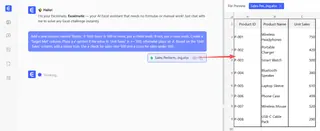
Now, instead of hunting for menus, you simply type your request into the chatbox. Here are a few examples of prompts you could use:
- "Add a new column named 'Status'. If 'Unit Sales' is 500 or more, put a check mark. If not, put a cross mark."
- "Create a 'Target Met' column. Place a ✓ symbol if the value in 'Unit Sales' is >= 500, otherwise place an ✗."
- "Based on the 'Unit Sales' column, add a status icon. Use a check for sales over 500 and a cross for sales under 500."
3. Review and Refine the AI's Work
Excelmatic will process your request and instantly generate a new table with the "Status" column you asked for. It intelligently understands that "check mark" and "cross mark" refer to the standard symbols (✓ and ✗) and creates the logic to apply them correctly.
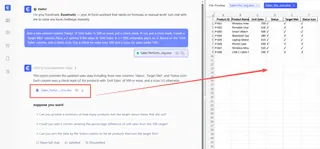
You can then continue the conversation to refine the results:
- "Great. Now, can you also add a yellow flag emoji 🚩 for sales between 450 and 499?"
- "Only show me the months where the target was met."
- "Create a summary table counting how many months met the target and how many did not."
This conversational iteration is impossible with traditional methods, which would require you to start over with new formulas or complex rule edits.
Dialogue Example: Excelmatic in Action
Here’s how a typical conversation might look:
User: I've uploaded my monthly sales data. I need to add a status column to see which months hit our target of 500 units.
Excelmatic: Understood. I see columns for "Month" and "Unit Sales". What symbols would you like to use for months that met the target versus those that did not?
User: Use a check mark for meeting the target and an X for missing it. Call the new column "Target Met".
Excelmatic: Done. I have added the "Target Met" column. It contains a '✓' for any month where 'Unit Sales' is 500 or greater, and an '✗' otherwise. You can now download the updated Excel file.
User: Perfect. Now, could you create a bar chart showing the 'Unit Sales' for each month and color the bars green for months that met the target?
Excelmatic: Certainly. I have generated a bar chart visualizing the monthly sales. The bars for months with 500 or more units sold are colored green. The chart is ready for you to view and download.
Traditional vs. Excelmatic: A Quick Comparison
| Aspect | Traditional Manual Method | Excelmatic AI Method |
|---|---|---|
| Time to Implement | 5-15 minutes (for Conditional Formatting) | 30 seconds |
| Required Skills | Knowledge of IF, UNICHAR, or Conditional Formatting menus |
Ability to describe a business rule in language |
| Flexibility | Low. Changing rules is cumbersome. | High. Simply ask for a change in the chat. |
| Error Rate | Moderate. Easy to make mistakes in formulas or rules. | Very Low. The AI handles the technical implementation. |
| Maintainability | Difficult. New users struggle to understand existing rules. | Easy. The conversation history serves as documentation. |
FAQ
1. Do I need to know any formulas to use Excelmatic for this?
No. You don't need to know IF, UNICHAR, or any other function. You just need to describe the logic in plain language, and Excelmatic will generate the correct formula or result for you.
2. Can Excelmatic use other symbols or even emojis? Yes. You can ask for any standard text symbol or emoji. For example, you could say "use a green circle emoji for 'pass' and a red square emoji for 'fail'".
3. Is this better than using the interactive checkbox feature in Excel? They serve different purposes. An interactive checkbox is a form control object used for manual input. The method described here is for automatically displaying a status symbol based on a logical condition in your data. Excelmatic is perfect for the latter, which is more common in reporting and analysis.
4. Will Excelmatic modify my original file? No. Excelmatic works on a copy of your data in a secure environment. Your original file remains untouched on your computer. You can download the new, modified file at the end of the process.
5. What if my condition is more complex, like checking two columns at once? Excelmatic handles complex logic easily. You could ask, "Add a check mark if 'Unit Sales' > 500 AND 'Profit Margin' > 0.15." The AI will correctly interpret the multi-condition logic.
6. Is my company's data safe when I upload it to Excelmatic? Excelmatic is designed with data security in mind, employing industry-standard encryption and privacy protocols. For specific details on data handling and enterprise-grade security, it's always best to consult the official privacy policy on the website.
Take Action: Upgrade Your Excel Workflow Today
Think about the time you've spent wrestling with symbols, fonts, and conditional formatting menus. That time could have been spent analyzing the data, not just formatting it. Continuing with manual methods means accepting a workflow that is slow, fragile, and unnecessarily complex.
By embracing an Excel AI agent, you transform tedious tasks into a simple conversation. You can build dynamic, error-free status reports in seconds, respond to new requests with agility, and empower your entire team to work smarter with data.
Ready to leave the manual work behind? Try Excelmatic today. Upload the very task list or sales report you're working on now and ask it to add status indicators for you. Start with a simple prompt from this article and see the magic for yourself.