Key takeaways:
- Applying business rules in Excel often requires complex nested IF formulas or learning VBA's
If-Then-Elsesyntax, which is time-consuming and error-prone for most users. - Excel AI tools like Excelmatic replace this entire coding process, allowing you to describe conditional logic—like categorizing data or flagging values—in simple, natural language.
- By using an AI agent for these tasks, you can implement and update business rules in minutes instead of hours, ensure greater accuracy, and make your workflows understandable to any team member, regardless of their technical skill.
The Challenge: Applying Business Logic in Excel
Imagine you're an HR manager finalizing a quarterly bonus report. You have a spreadsheet with employee names, sales figures, and tenure. Your task is to add a "Bonus Tier" column based on a set of rules:
- An employee with sales over $100,000 gets "Tier 1".
- Sales between $50,000 and $100,000 get "Tier 2".
- Anyone else gets "Tier 3", but only if they've been with the company for more than a year.
This kind of conditional logic is at the heart of countless business processes, from sales commission calculations and inventory management to project status tracking. While Excel is the tool of choice, implementing these rules often leads to frustration. Your first instinct might be to write a long, nested IF formula, which quickly becomes a tangled mess that's impossible to read or update.
When the logic gets even more complex, someone on your team might suggest a "more powerful" solution: using Visual Basic for Applications (VBA). But this opens a new can of worms, forcing you to move from the familiar grid of cells into a world of code, syntax, and debugging.
The Traditional Solution: Writing VBA If-Then-Else Macros
For decades, VBA has been the go-to method for automating complex conditional tasks in Excel. The If-Then-Else statement is the cornerstone of this approach. It allows you to write a script that tests a condition and then executes different actions based on whether that condition is true or false.
In its simplest form, the logic is straightforward:
Sub CheckExamScore()
Dim Score As Integer, Result As String
Score = 85
If Score >= 80 Then
Result = "Pass"
Else
Result = "Fail"
End If
' The variable 'Result' now holds "Pass"
End Sub
Expanding to Complex Scenarios
To handle more intricate business rules like our bonus calculation, you need to "nest" these statements using ElseIf. This lets you check multiple conditions in sequence.
For example, categorizing a score into different grades would look like this in VBA:
Sub AssignGrade()
Dim Score As Integer, Grade As String
Score = 81
If Score >= 90 Then
Grade = "A"
ElseIf Score >= 80 Then
Grade = "B"
ElseIf Score >= 70 Then
Grade = "C"
Else
Grade = "F"
End If
' The variable 'Grade' now holds "B"
End Sub
The Limitations of the VBA Approach
While powerful, relying on VBA for conditional logic creates significant bottlenecks for modern teams:
- Steep Learning Curve: VBA is a programming language. To use it effectively, you must learn about the Visual Basic Editor, variables, syntax rules (like when to use
End If), and debugging. This is a major hurdle for the vast majority of Excel users. - Rigid and Hard to Maintain: What happens when the bonus tiers change next quarter? If you're not the person who wrote the macro, you'll have to dig through the code to make updates. A small mistake can break the entire process. This makes your spreadsheet fragile and dependent on a single "VBA expert."
- Error-Prone: A missing
Thenkeyword or a misplacedEnd Ifcan trigger cryptic error messages. Debugging this code takes time and expertise, pulling you away from the actual business task. - Lack of Transparency: The logic is hidden within a macro. A colleague looking at your report can see the final "Tier 1" label but has no immediate way of knowing how that was calculated without inspecting the code. This lack of clarity can lead to mistrust in the data.
Essentially, every time a business rule changes, you're forced into a software development cycle instead of simply updating a spreadsheet. There has to be a better way.
The New Solution: Using Excel AI (with Excelmatic)
Instead of forcing you to become a programmer, modern Excel AI agents like Excelmatic allow you to stay focused on the what (your business logic) and let the AI handle the how (the execution). You can perform the same complex conditional tasks by simply describing them in plain language.

Here’s how you would solve the same problems using Excelmatic, with no coding required.
Step 1: Upload Your Data
First, you upload your Excel or CSV file containing the raw data directly to the Excelmatic platform. This could be your sales report, employee list, or any other dataset. Excelmatic reads your data in a secure, read-only environment, so your original file remains untouched.

Step 2: Describe Your Conditional Logic in Plain Language
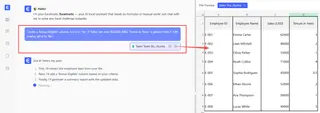
This is where the magic happens. Instead of writing code, you just type your instructions into a chat interface. The AI agent understands the context of your data based on the column headers.
Here are some examples of prompts you could use:
- Simple If-Then: "Create a new column named 'Status'. If the 'Score' column is 80 or higher, set the value to 'Pass', otherwise set it to 'Fail'."
- Nested If-Then (ElseIf): "Add a 'Grade' column. If 'Score' is 90 or more, the grade is 'A'. If it's between 80 and 89, it's 'B'. If it's between 70 and 79, it's 'C'. Otherwise, the grade is 'F'."
- Multiple Conditions (And/Or): "Create a 'Bonus Eligible' column. Set it to 'Yes' if 'Sales' are over $50,000 AND 'Tenure in Years' is greater than 1. Otherwise, set it to 'No'."
- Data Validation: "Flag all rows where the 'Email' column is empty or does not contain an '@' symbol."
Step 3: Review and Iterate on the Results
Excelmatic will process your request in seconds and display the result—typically a new table with the requested columns added.
The true power lies in the conversational nature of the tool. If the result isn't quite right or the business rules change, you don't need to rewrite a script. You just continue the conversation.
- "Actually, change the threshold for an 'A' grade to 95."
- "Good. Now also create a pie chart showing the percentage of students in each grade."
- "Can you highlight all the rows with an 'F' grade in red?"
This iterative process of refining your analysis is incredibly fast and intuitive, making it easy to explore data and adapt to new requirements on the fly.
Step 4: Export Your Finalized Spreadsheet
Once you're satisfied with the results, you can download a new Excel file containing all the changes. The new file will have the new columns, formatting, charts, or pivot tables you requested, ready to be shared with your team.

A Sample Conversation with Excelmatic
Here’s how a typical workflow for our HR bonus scenario might look:
User: I've uploaded my sales report. I need to add a 'Bonus Tier' column. If 'Quarterly Sales' is over $100,000, the tier is 'Tier 1'. If it's between $50,000 and $100,000, it's 'Tier 2'. For everyone else, it's 'Tier 3'.
Excelmatic: Done. I've added the 'Bonus Tier' column with the logic you specified. I see there are 15 employees in 'Tier 1', 42 in 'Tier 2', and 88 in 'Tier 3'.
User: Great. Now, can you modify that? For 'Tier 3', the employee must also have a 'Tenure in Years' greater than 1. If not, their tier should be 'Not Eligible'.
Excelmatic: Understood. I've updated the logic for the 'Bonus Tier' column. The rules are now correctly applied. Would you like me to create a summary pivot table showing the total sales for each tier?
Traditional VBA vs. Excelmatic: A Quick Comparison
| Aspect | Traditional VBA If-Then |
Excelmatic AI |
|---|---|---|
| Skill Required | VBA programming knowledge | Ability to describe a business rule in language |
| Implementation Time | Hours to days (including learning/debugging) | Minutes |
| Flexibility | Low. Changes require editing code. | High. Changes are made via conversation. |
| Maintainability | Difficult for anyone but the original coder. | Easy for any business user on the team. |
| Transparency | Logic is hidden in code modules. | Logic is explicit in the chat history. |
FAQ
1. Do I need to know any programming to use Excelmatic? No, not at all. Excelmatic is designed for business users. If you can explain your goal in a sentence, you can use the tool. It completely eliminates the need for VBA or complex formulas for these tasks.
2. Can Excelmatic handle very complex, nested conditional logic?
Yes. You can describe multi-level conditions, including combinations of AND and OR logic, just as you would explain them to a human colleague. The AI is trained to parse these instructions and apply them correctly.
3. Is my data safe when I upload it to Excelmatic? Yes. Excelmatic is built with enterprise-grade security. Your data is encrypted in transit and at rest, and it is never used for training AI models. Your original file is not modified.
4. What if my instructions are a bit vague? If the AI is unsure about your request, it will ask for clarification. For example, if you say "find the top performers," it might ask, "By 'top performers,' do you mean based on sales, profit, or another metric? And should I show the top 10 or the top 10%?"
5. Can Excelmatic just give me the formula to use in my own sheet?
Yes. In many cases, you can ask Excelmatic to "give me the Excel formula to do this," and it will generate the IF, IFS, or other relevant formula for you to copy and paste into your own workbook.
6. Is this better than just using Excel's built-in IFS function?
For simple conditions, the IFS function is great. But when you need to combine data cleaning, transformations, and conditional logic in multiple steps, an AI agent is far more efficient. You can chain commands like "First, clean the 'Sales' column by removing dollar signs. Then, apply the grading logic. Finally, create a pivot table." This multi-step workflow is where AI truly shines.
Get Started: Upgrade Your Excel Workflow Today
Stop wasting time wrestling with VBA syntax or untangling monstrous IF formulas. The future of advanced Excel work is not about becoming a part-time developer; it's about leveraging intelligent tools that understand your business intent.
By embracing an Excel AI agent, you empower yourself and your team to focus on analysis and decision-making, not on the tedious mechanics of spreadsheet manipulation. You can implement and adapt business rules faster, reduce errors, and make your entire workflow more transparent and agile.
Ready to see it in action? Try Excelmatic for free today. Upload a spreadsheet you're working on and try one of the prompts from this article. You'll be amazed at how much time you can save.