Key takeaways:
- Traditional Excel
IFfunctions, especially when nested or combined withAND/OR, quickly become complex, error-prone, and difficult to maintain for common business rules like calculating shipping fees or assigning student grades. - Excel AI tools like Excelmatic eliminate the need for manual formula writing. You can apply sophisticated conditional logic simply by describing the rules in plain language, such as "If Subtotal > $500, shipping is 'Free', otherwise calculate 10% of the subtotal."
- Using Excelmatic to handle conditional logic drastically reduces time spent on formula creation and debugging, minimizes errors, and empowers users who aren't Excel experts to implement and update business rules with ease.
Problem background & pain points
Almost every Excel user, from financial analysts to small business owners, eventually needs to make decisions based on their data. You have a list of sales orders, and you need to apply a specific shipping fee. You have a roster of students, and you need to assign a "Pass" or "Fail" status based on their grades.
The go-to tool for this has always been the IF function. It’s the fundamental building block of logic in Excel: if a condition is true, do one thing; if it's false, do another.
This works beautifully for simple choices. But what happens when your business rules aren't so simple?
Consider a common e-commerce scenario:
- "If a customer's order subtotal is over $500, shipping is free."
- "If the subtotal is not over $500, but they've requested delivery, the shipping fee is 10% of the subtotal."
- "If they haven't requested delivery, there's no fee applicable."
Suddenly, you're not dealing with a single choice but a chain of them. This is where the dreaded "nested IF" formula comes in, and with it, a host of problems. These formulas become long, confusing, and incredibly fragile. A single misplaced comma or parenthesis can break the entire sheet, and good luck asking a colleague to decipher what you've built.
Traditional Excel Solution: Steps & Limitations
The classic approach to implementing conditional logic relies on manually crafting formulas using IF, and often combining it with AND and OR for more complex criteria.
The basic syntax is straightforward: =IF(logical_test, [value_if_true], [value_if_false]).
Let's see how this plays out with a couple of common business scenarios.
Scenario 1: Calculating a Dynamic Delivery Fee
Imagine you have an order summary. You need to calculate a delivery fee in cell D19. The rules depend on whether the customer requested delivery (cell C19 = "Yes") and the order subtotal (cell D18).
Step 1: The Simple IF
For a basic fixed fee, the formula is simple. If delivery is requested, the fee is 40.
=IF(C19="Yes", 40, "N/A")

Step 2: The Nested IF for Complex Rules Now, let's implement the more realistic logic we described earlier: the fee is waived for subtotals over 500, otherwise it's 10% of the subtotal if delivery is requested.
To do this, you have to "nest" one IF function inside another:
=IF(D18>500, "Fee Waived", IF(C19="Yes", D18*0.10, "N/A"))
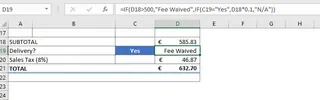
This formula works, but it's already hard to read. The logic—"check the subtotal first, then check the delivery request"—is buried in the structure. If you wanted to add a third condition (e.g., a different rate for international orders), the formula would become even more convoluted.
Scenario 2: Assigning Student Status with IF, AND, and OR
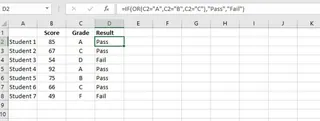
Let's look at a student grade sheet. We want to assign a "Pass" or "Fail" status based on their letter grade.
Using IF with OR
A student passes if their grade is 'A', 'B', or 'C'. This requires combining IF with the OR function.
=IF(OR(C2="A", C2="B", C2="C"), "Pass", "Fail")
Using IF with AND
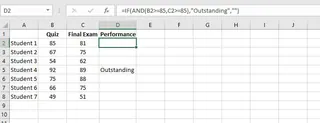
To identify top performers, you might want to mark students as "Outstanding" if they scored 85 or higher on both their quiz and their final exam. This requires the AND function.
=IF(AND(B2>=85, C2>=85), "Outstanding", "")
The Limitations of the Manual Approach
While powerful, this manual method has significant drawbacks:
- Complexity Overload: As rules stack up, nested formulas become nearly impossible to read, debug, or explain.
- High Risk of Errors: A single syntax error—a missing quote, a misplaced comma—can lead to incorrect results that are hard to spot.
- Difficult to Maintain: When business rules change (e.g., the passing grade criteria or the free shipping threshold is adjusted), you must carefully dissect and edit the long formula, risking new errors.
- Steep Learning Curve: This approach requires you to not only understand the business logic but also master the specific syntax of
IF,AND,OR, and how to nest them correctly. It's not intuitive for most people.
Using Excel AI (with Excelmatic) for a New Solution
What if you could skip the formula syntax entirely and just describe your business rules to Excel? That’s exactly what Excel AI agents like Excelmatic are designed for. You provide the data and the logic in plain language, and the AI does the heavy lifting.

The Overall Idea
With Excelmatic, the process is simple:
- Upload your Excel or CSV file.
- Use the chat interface to describe the new column you want to create and the logic it should follow.
- The AI analyzes your request, applies the logic to your data, and generates the new column instantly.
- You can review the results, ask for modifications, or export the finished file.
Step-by-Step: Applying Conditional Logic with Excelmatic
Let's solve the same problems from before, but this time with Excelmatic.
1. Upload Your Data File
First, upload your spreadsheet containing the order details or student grades to Excelmatic. The AI will read your data and display a preview. Ensure your columns have clear headers like "Subtotal," "Delivery Requested," or "Final Exam Score."

2. Describe Your Logic in Plain Language
Instead of writing formulas, you'll type your instructions into the chat box.
For the Dynamic Delivery Fee:
Create a new column named 'Delivery Fee'. If the 'Subtotal' column is greater than 500, its value should be 'Fee Waived'. Otherwise, check the 'Delivery Requested' column. If it is 'Yes', calculate the fee as 10% of the 'Subtotal'. In all other cases, the value should be 'N/A'.
For the Pass/Fail Status:
Add a new column called 'Status'. If the 'Grade' is 'A', 'B', or 'C', set the status to 'Pass'. For all other grades, set it to 'Fail'.
For Identifying Outstanding Students:
Generate a column named 'Recognition'. If 'Quiz Score' is 85 or higher AND 'Final Exam' is 85 or higher, the value should be 'Outstanding'. Otherwise, leave the cell blank.

3. Review and Iterate on the Results
Excelmatic will instantly add the new column to your data grid, with all the logic correctly applied. The best part is that this is a conversation. If you want to make a change, you don't have to edit a formula. You can just ask.
For example, you could follow up with:
- "Actually, for the delivery fee, if the subtotal is under $100, make the fee a flat $15."
- "For the student status, also include 'D' as a passing grade."
This conversational approach makes complex logic incredibly flexible and easy to manage.
4. Export Your Finished File
Once you're happy with the results, you can download the new Excel file with the added column. Excelmatic can also provide the underlying Excel formula it generated, which is a great way to learn or to use the formula in your original workbook.
Dialogue Example
Here’s how a typical conversation might look in Excelmatic for the delivery fee scenario:
User: I've uploaded my sales data. I need to calculate the delivery fee based on a few rules.
Excelmatic: Understood. I see columns for 'Subtotal' and 'Delivery Requested'. Please describe the rules you'd like to apply.
User: Create a new column called 'Delivery Fee'. If 'Subtotal' is > 500, the fee is 'Fee Waived'. Otherwise, if 'Delivery Requested' is 'Yes', the fee is 10% of the subtotal. If 'Delivery Requested' is 'No', it should say 'N/A'.
Excelmatic: Done. I have added the 'Delivery Fee' column with your logic applied. I see 15 orders now have the 'Fee Waived' status and 42 have a calculated fee. Would you like to make any adjustments?
User: This looks great. Please also add a 'Total' column that sums the 'Subtotal' and the calculated 'Delivery Fee', ignoring the text values.
Excelmatic: Of course. The 'Total' column has been added. You can now download the updated file.
Traditional IF vs. Excelmatic: A Quick Comparison
| Feature | Traditional IF Formulas |
Excelmatic AI |
|---|---|---|
| Time to Implement | 10-30 minutes for complex logic | 1-2 minutes |
| Error Rate | High (syntax, logic order) | Very low (AI handles syntax) |
| Flexibility | Low (editing formulas is risky) | High (adjust logic with chat) |
| Learning Curve | Steep (requires function mastery) | Minimal (describe what you want) |
FAQ
Do I need to know any Excel formulas to use Excelmatic?
No, not at all. The entire purpose of Excelmatic is to let you accomplish tasks by describing them in plain language. You don't need to know IF, VLOOKUP, or any other function.
Will Excelmatic modify my original Excel file? No. Your original file is never altered. Excelmatic works on a secure copy of your data in the cloud, and you can download a new file with the results.
Is it safe to upload my company's data to Excelmatic? Excelmatic is built with data security in mind, employing industry-standard encryption and privacy protocols. For specific details on data handling and compliance, please refer to the official privacy policy on the website.
Can Excelmatic generate the formula for me to use in my own spreadsheet? Yes. In addition to performing the analysis, you can ask Excelmatic to provide the exact Excel formula it used. This is a great feature for learning or for applying the logic in an offline workbook.
What if my business logic is even more complex than the examples?
That's where an AI agent shines. You can chain as many conditions as you need in your natural language prompt. The AI is designed to parse complex, multi-step instructions that would result in impossibly long nested IF formulas.
How is this different from asking ChatGPT to write a formula? While ChatGPT can generate a formula as text, Excelmatic is an integrated AI agent. It directly interacts with your data grid, applies the logic, shows you the live result, and allows for immediate, iterative changes to the data itself—not just the formula text.
Take Action: Upgrade Your Excel Workflow with Excelmatic
Every minute you spend deciphering a tangled IF formula is a minute you're not spending on analyzing your data and making decisions. The manual approach is not only slow but also a constant source of potential errors that can compromise your reports.
By shifting to an Excel AI tool like Excelmatic, you transform the task from "writing code" to "stating business rules." You can implement complex pricing, grading, or categorization logic in seconds, update it just as quickly, and be confident in the accuracy of the results.
Ready to leave nested formulas behind? Try Excelmatic for free today. Upload one of the spreadsheets you're working on right now and use one of the prompts from this article to see the magic for yourself.