Key takeaways:
- Traditional Excel conditional analysis relies on learning and writing complex, nested formulas like
IFS,SUMIFS, andCOUNTIFS, which is time-consuming and highly prone to errors. - Excel AI tools like Excelmatic replace manual formula writing with natural language. You can perform the same conditional logic by simply asking questions like, "Count sales over $5,000 in the East region."
- Using Excelmatic eliminates formula syntax errors, makes data analysis incredibly flexible, and empowers any team member to get complex answers from data without being an Excel formula expert.
Problem background & pain points
If you've ever worked with data in Excel, you've inevitably faced the "what if" questions. A sales manager needs to analyze a massive transaction log. An HR specialist has to sift through employee records. A marketing analyst is trying to make sense of campaign performance. The raw data is all there, but the real value lies in asking questions based on specific conditions.
Consider a typical sales report. You have columns for Sales Rep, Region, Product, Sale Amount, and Date. Your boss comes to you with a list of requests:
- "Can you add a column to label sales as 'Large' or 'Small' based on a $2,000 threshold?"
- "How many sales did our top rep, Jane, make in the North region last quarter?"
- "What was our total revenue from the 'West' region, but only for sales over $1,000?"
- "I need a performance tier for each sale: 'Gold' for over $5k, 'Silver' for $2k-$5k, and 'Bronze' for everything else."
Each question requires conditional logic. For many Excel users, this means diving into a world of complex formulas. You start by trying to write a simple IF statement, but it quickly snowballs into a nested IFS or a multi-condition SUMIFS. One misplaced comma, one incorrect cell range, or one typo in a criterion, and you're staring at a dreaded #VALUE! or #N/A error, wasting precious time debugging a formula that looks more like a line of code.
The Traditional Excel Solution: A Library of "IF" Functions
The classic approach to solving these problems in Excel is to master the "IF family" of functions. These are powerful tools that allow you to build decision-making rules directly into your cells.
The most common functions you'd use for our sales scenario include:
IF: For basic binary decisions. To label sales, you'd write a formula in a new column like=IF(D2>2000, "Large", "Small")and drag it down for thousands of rows.
IFS: For multiple tiers of logic. That "Gold/Silver/Bronze" request requires a more complexIFSformula, which is essentially a chain ofIFconditions. For example:=IFS(D2>5000, "Gold", D2>2000, "Silver", TRUE, "Bronze").
COUNTIFS: For counting rows that meet several criteria. To find Jane's sales in the North region, you'd write:=COUNTIFS(A:A, "Jane", B:B, "North"), where column A is the sales rep and B is the region.
SUMIFS: For summing values based on multiple conditions. To calculate the revenue from the West region for sales over $1,000, the formula would be:=SUMIFS(D:D, B:B, "West", D:D, ">1000").
The Limitations of the Manual Approach
While these functions are the backbone of Excel analysis, they come with significant drawbacks:
- High Learning Curve: Mastering the syntax, argument order (e.g.,
sum_rangeis the first argument inSUMIFSbut the last inSUMIF), and quirks of each function takes time and practice. - Formula Complexity: Nested
IFstatements are notoriously difficult to read, edit, and debug. A formula with 5 or 6 levels of nesting is a maintenance nightmare. - Rigidity and Inflexibility: A formula is built to answer one specific question. If your manager asks a follow-up—"Great, now can you do the same but exclude 'Product C'?"—you have to start over, carefully editing the complex formula and hoping you don't break it.
- Error-Prone: Manual data entry and formula writing are magnets for human error. A simple typo in a text criterion (e.g., "West " with a trailing space) or an incorrect range selection can silently lead to wrong results.
- Time-Consuming: The cycle of writing, testing, debugging, and then re-writing formulas for each new query consumes hours that could be spent on higher-value strategic analysis.
The New Solution: Using Excel AI (with Excelmatic)
What if you could skip the formulas entirely? What if you could just ask your spreadsheet the questions you have, in plain language, and get the answers instantly? That's the power of an Excel AI agent like Excelmatic.

Excelmatic transforms your relationship with data. Instead of being a formula writer, you become a business analyst who simply has a conversation with your data.
Step-by-Step: Answering Conditional Questions with Excelmatic
Let's revisit the sales manager's requests and see how they are handled in Excelmatic.
1. Upload Your Sales Data
First, you just drag and drop your Excel or CSV sales report directly into the Excelmatic web app. The AI parses your data and displays it, ready for your questions.

2. Ask Questions in Natural Language
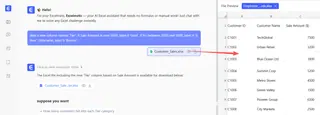
Instead of writing formulas, you type your requests into the chat prompt.
For categorization:
Add a new column named 'Tier'. If Sale Amount is over 5000, label it 'Gold'. If it's between 2000 and 5000, label it 'Silver'. Otherwise, label it 'Bronze'.
For conditional counting:
Count how many sales were made by Jane in the North region.
For conditional summing:
Calculate the total sales amount from the West region for all sales over $1000.
For conditional averaging:
What is the average sale amount for each product in the East region?
3. Review and Iterate on the Results
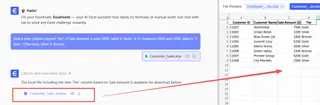
Excelmatic doesn't just give you a single number. It often generates a new table, adds a column to your existing data, or creates a summary PivotTable. The best part is the ability to iterate. After it answers one question, you can immediately ask a follow-up.
This conversational flow is where the AI approach truly shines over static formulas.
A Sample Conversation with Excelmatic
Here’s how a typical workflow might look:
User: I've uploaded my quarterly sales data. Can you add a column called 'Performance' and label any sale over $2,500 as 'High Value' and the rest as 'Standard'?
Excelmatic: Done. I've added the 'Performance' column with the requested labels. 1,254 sales were marked as 'High Value'. Would you like me to summarize the total revenue for each category?
User: Yes, and also count how many 'High Value' sales were made in the "North" region.
Excelmatic: The total revenue for 'High Value' sales is $4,890,120 and for 'Standard' is $1,987,345. There were 312 'High Value' sales in the "North" region. I can display this as a summary table or a bar chart. Which would you prefer?
User: A bar chart sounds great. Then export the sheet with the new 'Performance' column.
4. Export Your Results
Once you're satisfied, you can download the results as a new Excel file, containing all the new columns, pivot tables, or charts generated by the AI. You can also ask Excelmatic to give you the exact formula it used, which is a great way to learn or to implement the logic in an existing offline workbook.
Traditional Formulas vs. Excelmatic: A Quick Comparison
| Feature | Traditional Excel (IF, SUMIFS) | Excelmatic (AI Agent) |
|---|---|---|
| Time to Answer | 15-60 minutes for a new, complex query | < 1 minute per query |
| Required Skill | Intermediate to Advanced Excel formula knowledge | Ability to describe a business question in plain language |
| Flexibility | Low. Formulas are rigid and hard to modify. | High. Effortlessly iterate with follow-up questions. |
| Error Rate | High risk of syntax, logic, and range errors. | Extremely low. AI handles the formula generation. |
| Core Action | Writing and debugging complex formulas. | Asking simple, conversational questions. |
FAQ
Q: Do I need to know functions like SUMIFS or VLOOKUP to use Excelmatic?
A: Not at all. The entire purpose of Excelmatic is to abstract away the formulas. You only need to know what you want to find out from your data and describe it in plain language.
Q: Will Excelmatic modify my original Excel file? A: No. Your original file is never altered. Excelmatic operates on a secure copy of your data in the cloud, and you can download the modified version as a new file.
Q: My data is sometimes messy, with typos or extra spaces. Can Excelmatic handle that? A: Yes. Excelmatic has powerful data cleaning capabilities. You can give it commands like "trim all whitespace from the 'Region' column" or "standardize the names in the 'Product' column by making them all uppercase" before you start your analysis.
Q: Can I see the formula that Excelmatic generates? A: Absolutely. You can ask Excelmatic, "What formula did you use to get that result?" It will provide you with the exact Excel formula, which is a great way to learn advanced techniques or copy the logic for use elsewhere.
Q: Is it safe to upload my company's sensitive data to Excelmatic? A: Excelmatic is built with enterprise-grade security in mind. All data is encrypted in transit and at rest. For specific details on compliance and data handling, always refer to the official privacy policy and security documentation on the website.
Q: Is this tool only for sales data? A: No, it's data-agnostic. It works with any tabular data, whether it's financial statements, HR payroll records, marketing campaign results, project management logs, or inventory lists.
Take Action: Upgrade Your Excel Workflow Today
Think about the last time you spent an hour trying to get a nested IF formula to work correctly. How much time could you have saved if you could have just asked for what you wanted? Continuing with the manual, formula-heavy approach means accepting that lost time and frustration as part of the job.
By embracing an Excel AI agent, you shift your focus from being a "formula mechanic" to being a true data analyst. You can answer more questions, explore more scenarios, and deliver insights to your team faster than ever before.
Ready to stop fighting with formulas? Try Excelmatic today. Upload one of the spreadsheets you're working on right now, and ask it your toughest "what if" question. It's time to let AI handle the syntax so you can focus on the strategy.