Key takeaways:
- Manually auditing complex Excel sheets with tools like Trace Precedents is time-consuming and creates a confusing web of arrows, making it hard to understand the underlying logic.
- Excel AI tools like Excelmatic replace this manual process by allowing you to ask in plain language, "Explain this formula" or "Show me how this cell is calculated," getting instant, clear explanations.
- Using Excelmatic not only speeds up formula debugging from hours to minutes but also reduces the risk of errors and makes it easy for anyone to understand and safely modify complex spreadsheets without deep Excel expertise.
The Problem: Inheriting a "Black Box" Excel File
You've just been handed the quarterly financial projection model. It's a masterpiece of interconnected sheets and cryptic formulas built by your predecessor. Your boss asks for a simple tweak: "What happens if we increase our Q3 marketing spend by 15%?"
You stare at the final "Net Income" cell, which proudly displays a single number. You have no idea which of the hundreds of other cells feed into it. It's a "black box." You're afraid to touch anything, knowing that one wrong change could cascade into a series of #VALUE! or #REF! errors, breaking the entire model.
This scenario is all too common. Whether it's a sales commission calculator, a project budget tracker, or a complex data analysis report, we often spend more time trying to understand existing formulas than building new things. The core challenges are always the same:
- Understanding cell relationships: Where does this number come from? Which other cells will be affected if I change this one?
- Debugging errors: Why is this formula returning an error? What does
#DIV/0!even mean in this context? - Validating business logic: Does this complex nested
IFstatement correctly reflect our company's commission tiers?
The Traditional Approach: Excel's Built-in Formula Auditing Tools
For years, savvy Excel users have relied on a set of built-in tools found under the "Formulas" tab to tackle these problems. These are the classic "formula auditing" features.
Let's take a simple salary calculation sheet as an example. The goal is to figure out how "Net Income" is calculated.
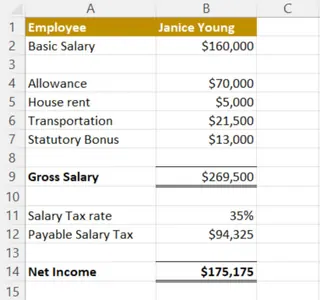
Here’s how you’d traditionally investigate it:
Trace Precedents: To find out which cells are used to calculate the
Net Incomein cellB14, you click onB14and then go toFormulas > Trace Precedents. Excel draws blue arrows pointing from the source cells (B9andB12) to your target cell. This tells youNet Income=Gross Salary-Payable Salary Tax.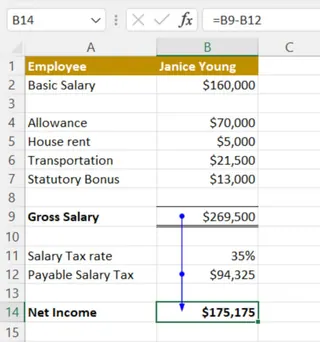
Trace Dependents: To see which cells are affected by the
Gross SalaryinB9, you clickB9and selectFormulas > Trace Dependents. Arrows now point fromB9to both thePayable Salary Tax(B12) and theNet Income(B14), showing they both rely on this value.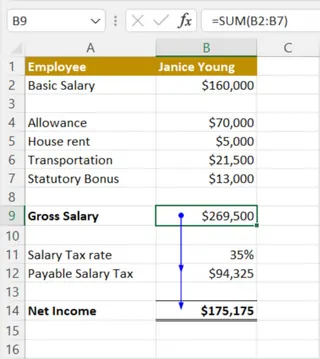
Evaluate Formula: If a formula is complex, like
=B9 * (1 - VLOOKUP(C2, TaxTable, 2, FALSE)), you can useEvaluate Formulato click through the calculation one step at a time. It's a slow, manual process of watching Excel solve each part of the formula.Show Formulas (
Ctrl + ~): This command reveals all the formulas in the sheet at once, turning your clean report into a wall of text that you have to manually decipher.
The Limitations of the Traditional Way
While these tools are better than nothing, they have serious limitations in a real-world business context:
- Visual Clutter: On a truly complex sheet, the
Trace Precedents/Dependentsarrows quickly become a "spaghetti diagram," overlapping and crossing each other until the view is more confusing, not less. - Lack of Context: The arrows show you what cells are connected, but they don't explain the why. They don't tell you that
B9is Gross Salary or that the formula inB12represents a tax calculation. You still have to figure out the business logic yourself. - Tedious and Repetitive: You have to click, click, click for every single cell you want to investigate. Then, you have to click
Remove Arrowsto clean up the screen before starting on the next cell. - Error Debugging is Painful: When you see a
#VALUE!error, theError Checkingtool tells you there's a "wrong data type," but it doesn't always pinpoint the root cause efficiently or suggest a practical fix.
You're still the detective, and these tools are just a magnifying glass. You need a partner.
The Modern Solution: Using an Excel AI Agent like Excelmatic
Imagine instead of being a detective, you had an expert analyst sitting next to you. You could simply point to a cell and ask, "What's going on here?" That's the power of an Excel AI Agent like Excelmatic.

Excelmatic is a tool where you upload your spreadsheet and then use a chat interface to ask questions in plain language. It analyzes your data, formulas, and structure to give you instant, clear answers, replacing the manual auditing process entirely.
Step-by-Step: Auditing Formulas with Excelmatic
Let's solve the same salary calculation problem using Excelmatic.
1. Upload Your Spreadsheet
First, you securely upload your Excel or CSV file to the Excelmatic platform. The tool doesn't modify your original file; it works on a copy in a secure environment. Make sure your columns have clear headers like "Employee," "Gross Salary," etc., as this helps the AI understand your data's context.

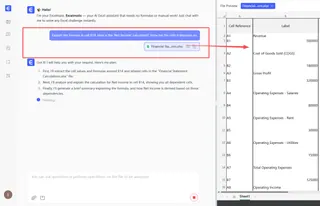
2. Ask Questions in Plain Language
Instead of navigating menus, you just type your questions into the chat.
Here are some prompts you could use to replace the traditional tools:
To replace
Trace Precedents:Explain the formula in cell B14. How is the 'Net Income' calculated? Show me the cells it depends on.
To replace
Trace Dependents:Which cells use the value from cell B9 ('Gross Salary')? If I change the value in B9, what other cells will be affected?"
To replace
Evaluate Formula:Break down the calculation for cell B14 step-by-step.
To replace
Error Checking:I'm getting a #VALUE! error in cell B12. Why is this happening and how can I fix it?
3. Get Instant, Clear Answers & Iterate
Excelmatic doesn't respond with confusing arrows. It gives you clear, written explanations. You can then have a conversation to dig deeper.
Here's what a typical conversation might look like:
User: I've uploaded my team's salary calculation sheet. Can you explain how the 'Net Income' in cell B14 is calculated?
Excelmatic: Certainly. The 'Net Income' in cell B14 is calculated by the formula =B9-B12.
B9represents the 'Gross Salary' ($269,500).B12represents the 'Payable Salary Tax' ($94,325). The formula simply subtracts the tax from the gross salary.
User: Okay, but I see a #VALUE! error in B12 in another row. Why is that?
Excelmatic: The error in B12 is because its formula, =B9*B11, is trying to multiply a number (the value in B9) with a non-numeric text value in cell B11. To fix this, please ensure B11 contains a numerical percentage.
User: Can you suggest a better formula for B12 that won't show an error if B11 is empty or contains text?
Excelmatic: Of course. You can use the IFERROR function. Here is an improved formula for cell B12:
=IFERROR(B9*B11, 0)
This formula will calculate the tax if B11 is a valid number, and return 0 if an error occurs, preventing the #VALUE! error from breaking your downstream calculations.
4. Export Your Results
Once you're satisfied, you can copy the AI-generated formulas directly back into your own spreadsheet or download a new Excel file with the updated logic.
Traditional Auditing vs. Excelmatic: A Quick Comparison
| Task | Traditional Excel Method | Excelmatic (AI-Powered) Method |
|---|---|---|
| Understand a Formula | Click cell, use Trace Precedents, follow arrows. |
Ask in plain language: "Explain this formula." |
| Debug an Error | Use Error Checking & Evaluate Formula step-by-step. |
Ask: "Why is there an error here and how do I fix it?" |
| See Dependencies | Click Trace Dependents, add more arrows to the screen. |
Ask: "What cells depend on this one?" |
| Clarity | A confusing web of arrows. | Clear, contextual explanations in plain language. |
| Speed | Minutes to hours, depending on complexity. | Seconds. |
| Skill Requirement | Requires knowledge of specific Excel features. | Requires the ability to describe your question. |
FAQ
Q: Do I need to be an Excel expert to use Excelmatic?
A: Not at all. The entire premise of Excelmatic is to bridge the skill gap. If you can describe your business problem or question in plain language, the AI can translate that into the correct Excel action, whether it's explaining a formula, writing a new one, or creating a pivot table.
Q: Is it secure to upload my company's financial data to Excelmatic?
A: Security is a top priority. Excelmatic is designed with enterprise-grade security protocols. Your data is encrypted, processed in a private and isolated environment, and is never used for training AI models. For specific details, always refer to the official privacy policy on the website.
Q: Can Excelmatic actually fix the errors in my spreadsheet for me?
A: Excelmatic can identify the root cause of an error and provide you with a corrected or improved formula. You can then copy this new formula and paste it into your spreadsheet. It empowers you to make the fix with confidence, rather than modifying your file directly.
Q: Can Excelmatic understand formulas that link to other worksheets or even other files?
A: Yes, Excelmatic can analyze formulas and relationships across multiple worksheets within the same workbook you upload. This is a huge advantage over traditional tools, which struggle to display cross-sheet dependencies clearly.
Q: Is this different from Excel's built-in "Analyze Data" feature?
A: Yes. "Analyze Data" is primarily for automatically generating high-level insights, charts, and pivot tables from a dataset. Excelmatic is a conversational AI agent that acts as your personal analyst. You can ask it to perform a much wider range of tasks, including debugging formulas, cleaning data, generating complex reports, and iterating on analysis through conversation.
Get Started: Upgrade Your Excel Workflow Today
Stop spending your valuable time being an Excel detective. The hours spent untangling cryptic formulas are hours you could be spending on strategic analysis and making data-driven decisions. By continuing with the manual auditing process, you're not just losing time; you're increasing the risk of errors and making your work difficult for others to inherit.
With an Excel AI agent like Excelmatic, you gain a partner that handles the tedious work for you. You can understand complex models faster, debug errors in seconds, and build more robust and reliable spreadsheets.
Ready to see the difference? Try uploading one of your most confusing spreadsheets and ask it a simple question.
Try Excelmatic for free today and experience the future of spreadsheet analysis.