Key takeaways:
- Manually correcting number formats in Excel for dates, currencies, and percentages across large datasets is a repetitive, slow, and error-prone process that hinders quick analysis.
- Excelmatic, an Excel AI agent, transforms this task by allowing you to apply complex formatting rules using simple natural language prompts, like "Format the 'Sales' column as USD currency with two decimal places."
- Using an Excel AI for formatting not only saves significant time but also ensures data consistency, reduces manual errors, and frees you up to focus on meaningful analysis rather than tedious clicks.
Problem background & pain points
Imagine this: you've just downloaded a raw sales report or a data export from your CRM. You need to prepare it for a presentation, but the numbers are a complete mess. The 'Date' column is a mix of MM/DD/YYYY and raw serial numbers. The 'Revenue' column just shows plain numbers like 54321.9 instead of $54,321.90. The 'Growth' column displays 0.05 when it should clearly be 5%.
For anyone who works with data in Excel, this scenario is painfully familiar. Your data is technically correct, but its presentation is misleading and unprofessional. Before you can even begin to analyze trends or build a chart, you're forced to spend precious time cleaning and reformatting cell after cell.
This manual formatting process is more than just an annoyance; it's a major bottleneck. It involves navigating through menus, remembering shortcuts, and applying settings one column at a time. Do it for a small table, and it's a minor hassle. Do it for a dataset with thousands of rows and dozens of columns every week, and it becomes a significant drain on your productivity and a prime source of potential errors.
The traditional Excel solution: Steps and limitations
To fix these formatting issues manually, Excel provides a powerful but cumbersome tool: the Format Cells dialog box. The typical workflow looks something like this.
First, you need to locate the formatting options. You can find them on the Home tab of the ribbon, within the "Number" group. This dropdown shows the current format and lets you pick from a few common options.
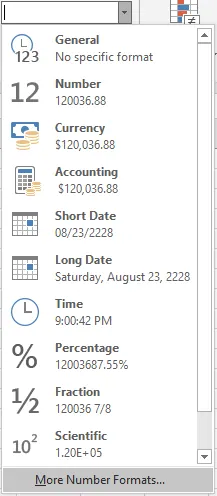
For more control, you'll inevitably need to open the main Format Cells dialog box, either by clicking "More Number Formats..." at the bottom of the dropdown or by using the classic shortcut Ctrl+1 (Command+1 on Mac).
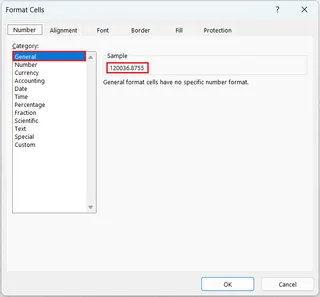
From here, the manual process begins, column by column:
- Fixing Currencies: Select the 'Revenue' column, press
Ctrl+1, choose the "Currency" or "Accounting" category, select the correct symbol (e.g., $, €, £), and specify the number of decimal places. - Fixing Dates: Select the 'Date' column, open the dialog box, go to the "Date" category, and scroll through a long list of locale-specific formats to find the one that matches your company's standard (e.g.,
YYYY-MM-DD). - Fixing Percentages: Select the 'Growth' column, open the dialog again, choose "Percentage," and set the desired decimal places.
- Special Cases: For things like ZIP codes or phone numbers where you need to preserve leading zeros, you have to remember to format the cells as "Text" before entering the data, or go back and fix them using the "Special" or "Custom" format categories.
The limitations of the manual approach
While this method works, it's fraught with inefficiencies and risks:
- Highly Repetitive: Applying formats to multiple columns is a tedious cycle of selecting, right-clicking, and configuring. It's mindless work that steals time from valuable analysis.
- Prone to Error: It's easy to accidentally select the wrong format, choose the wrong currency symbol, or apply a format to the wrong range of cells, leading to inconsistent and misleading reports.
- Hard to Scale: As your dataset grows, the time required for manual formatting increases linearly. What takes 5 minutes for 100 rows can take an hour for 100,000 rows.
- Poor Maintainability: If you add new data to your table, you often have to remember to re-apply the formatting. If a colleague takes over your workbook, they have no easy way of knowing the exact formatting rules you applied without inspecting each column.
- High Cognitive Load: You have to remember where each option is located and the specific differences between formats like "Currency" and "Accounting."
The new solution: Using Excel AI (with Excelmatic)
Instead of being an expert in Excel's menus, what if you could just tell Excel what you want in plain English? This is the new reality with Excel AI agents like Excelmatic. You can solve the exact same formatting problems by simply describing the desired outcome in a chat.

The overall approach with Excelmatic
The workflow is radically simplified:
- Upload your file: Drag and drop your Excel or CSV file with the messy data into Excelmatic.
- Describe your formatting needs: In a chat-like interface, type simple commands to format your data.
- Review and export: Excelmatic instantly applies the changes to the data table. You can then download the perfectly formatted file.
Step-by-step: Fixing our messy report with AI
Let's take our previous example of the messy sales report and fix it using Excelmatic.
1. Upload the data file
First, upload your .xlsx or .csv file. Excelmatic will display your data in a familiar spreadsheet view. It's a good practice to ensure your columns have clear headers (like 'Date', 'Revenue', 'Growth') so you can refer to them easily in your prompts.

2. Describe the result you want with natural language
Now, instead of clicking through menus, you simply type your instructions. To fix our entire report, you could issue these commands one by one:
- For the currency column:
"Format the 'Revenue' column as US dollars, showing two decimal places and a thousands separator." - For the date column:
"Make sure the 'Date' column is in the YYYY-MM-DD format." - For the percentage column:
"Convert the 'Growth' column to a percentage with one decimal place."
You can even combine requests into a single, more complex prompt:
Please format my table. The 'Revenue' and 'Costs' columns should be in Euros with no decimals. The 'Order Date' column should be formatted as 'dd-mmm-yyyy'. The 'CTR' column should be a percentage with two decimal places.

Excelmatic's AI parses your request and applies the correct formatting rules instantly.
3. Review, iterate, and export
The formatted data appears immediately. But what if you change your mind? The conversational interface makes iteration effortless. You can simply follow up with another request.
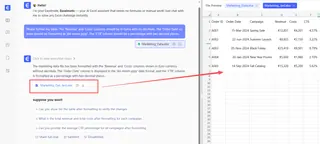
This back-and-forth dialogue is a game-changer compared to the traditional method, where changing your mind means navigating back through the Format Cells dialog box and undoing/redoing your work.
Dialogue example: Formatting on the fly
Here’s how a typical conversation might look in Excelmatic:
User: I've uploaded my campaign data. The 'Spend' column needs to be formatted as currency.
Excelmatic: Done. The 'Spend' column is now formatted as currency with a '$' symbol and two decimal places. How does this look?
User: Perfect. Now, can you also format the 'Campaign Start Date' column to look like "January 1, 2025"?
Excelmatic: Understood. I have updated the 'Campaign Start Date' column to the 'Month Day, Year' format. Is there anything else I can help you format?
User: Yes, please convert the 'Conversion Rate' column, which is currently a decimal, into a percentage.
Excelmatic: The 'Conversion Rate' column is now displayed as a percentage. You can now download the cleaned Excel file.
Traditional method vs. Excelmatic: A quick comparison
| Aspect | Traditional Manual Formatting | Excelmatic AI Formatting |
|---|---|---|
| Time to Complete | Minutes to hours, depending on complexity | Seconds to a few minutes |
| Process | Repetitive clicking, menu navigation | Simple, conversational text commands |
| Error Rate | High risk of inconsistency and mistakes | Low risk, as AI applies rules uniformly |
| Flexibility | Rigid; changes require re-doing steps | Highly flexible; iterate with follow-up questions |
| Learning Curve | Requires memorizing menus and options | Just describe what you want in plain English |
FAQ
1. Does Excelmatic modify my original Excel file? No, your original file remains untouched. When you upload a file to Excelmatic, it works on a secure copy in the cloud. You can then download the newly formatted data as a separate Excel file.
2. What if my column headers are unclear, like "Column1" or "Data_Field_A"? While Excelmatic's AI is smart, it works best with clear, descriptive headers (e.g., "Sales Revenue," "Transaction Date"). Using clear headers allows you to write more intuitive prompts and get more accurate results.
3. Can Excelmatic handle custom formats, like for phone numbers or specific ID codes? Yes. You can describe the custom format you need. For example, you could ask, "Format the 'Phone' column as (XXX) XXX-XXXX" or "Ensure the 'Employee ID' column always shows 5 digits with leading zeros."
4. Is it safe to upload sensitive company data to Excelmatic? Excelmatic is built with data security as a top priority. All data is encrypted in transit and at rest. For specific details on security and privacy compliance, it's always best to consult the official privacy policy on the website.
5. Can I use the formats generated by Excelmatic in my own desktop Excel? Absolutely. When you download the file from Excelmatic, all the formatting is applied using standard Excel properties. The cells will be correctly formatted and fully functional when you open the file in Microsoft Excel.
6. Is Excelmatic just for formatting numbers? No, formatting is just the beginning. Excelmatic is a full-featured Excel AI Agent. You can also use it to generate complex formulas, create pivot tables, build charts, clean data, and even write summary reports—all using natural language.
Get started: Upgrade your Excel workflow with Excelmatic
Stop wasting your valuable time on the tedious, repetitive task of formatting numbers. The manual clicks and menu-hunting of the past are being replaced by a smarter, faster, and more intuitive conversational approach.
Instead of fighting with the Format Cells dialog box the next time you get a messy spreadsheet, give Excelmatic a try. Upload that file, and use the simple prompts from this article to see how quickly you can achieve a clean, professional, and analysis-ready report.
Try Excelmatic for free today and turn hours of manual formatting into a few seconds of conversation.