Key takeaways:
- Traditional text extraction in Excel requires complex, nested formulas using
SEARCH,MID,LEFT, andRIGHT, which are difficult to write, debug, and maintain. - An Excel AI agent like Excelmatic allows you to perform the same text manipulation tasks—like extracting usernames from emails or splitting full names—using simple natural language prompts.
- Using Excelmatic drastically reduces time spent on data cleaning, eliminates formula errors, and makes powerful text manipulation accessible even to users who don't know any Excel formulas.
The Problem: Messy Text Data is an Excel Nightmare
Imagine you're a marketing analyst who just downloaded a contact list of 10,000 potential customers. The data is a mess. You have a single Full Name column with first, middle, and last names, and an Email column. Before you can even begin your analysis or import this list into your CRM, you need to clean and structure it.
Your to-do list looks something like this:
- Split the
Full Namecolumn into separateFirst Name,Middle Name, andLast Namecolumns. - Extract the
UsernameandDomainfrom each email address to analyze which companies your leads come from. - Find all contacts with a "gmail.com" or "hotmail.com" domain and flag them as "Personal Email".
- Standardize product codes within a description column by replacing an old code with a new one.
Doing this manually for thousands of rows is out of the question. The standard Excel approach involves using text functions. But as you start, you quickly find yourself in a tangled web of SEARCH, LEFT, MID, RIGHT, and LEN functions. A single misplaced parenthesis or an unexpected data format (like a name with no middle name) breaks your entire formula, leading to hours of frustrating debugging.
The Traditional Solution: A Labyrinth of Nested Formulas
For decades, savvy Excel users have relied on a powerful, albeit complex, set of text functions to solve these problems. The SEARCH function is often the star of the show.
The basic syntax is =SEARCH(find_text, within_text). It finds the starting position of a piece of text inside another. For example, =SEARCH("@", "[email protected]") would return 9, because the "@" is the 9th character.
While simple on its own, its real power (and complexity) comes from nesting it with other functions.
How It's Done (The Hard Way)
Let's take the common task of splitting an email address into a username and domain.
1. Extracting the Username
To get the text before the "@", you combine LEFT and SEARCH. The formula looks like this:
=LEFT(A2, SEARCH("@", A2) - 1)
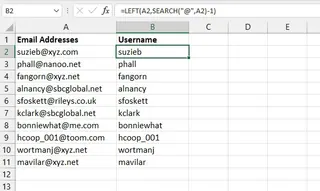
SEARCH("@", A2)finds the position of the "@".- We subtract
1to exclude the "@" itself. LEFT(A2, ...)extracts that many characters from the beginning of the text.
2. Extracting the Domain
To get the text after the "@", it gets more complicated. You need to combine RIGHT, LEN (which calculates total length), and SEARCH.
=RIGHT(A2, LEN(A2) - SEARCH("@", A2))
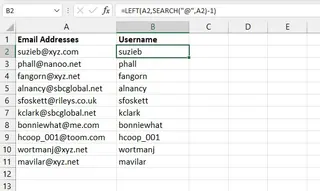
LEN(A2)gets the total length of the email address.SEARCH("@", A2)gets the position of the "@".- Subtracting the two gives you the exact number of characters in the domain name.
RIGHT(A2, ...)extracts that many characters from the end of the text.
Where It All Falls Apart: The "Nightmare" Scenario
These formulas work, but what about extracting a middle name from "John Fitzgerald Kennedy"? This is where the traditional method becomes a true monster. The formula required is:
=MID(A2, SEARCH(" ", A2) + 1, SEARCH(" ", A2, SEARCH(" ", A2) + 1) - SEARCH(" ", A2) - 1)
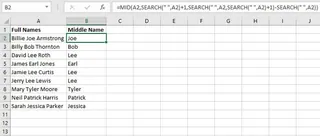
This formula is nearly impossible to read, a nightmare to write, and incredibly fragile. If a name has no middle name (e.g., "John Kennedy"), it returns a #VALUE! error. You then need to wrap it in an IFERROR function, making it even longer.
Limitations of the Traditional Approach
- Extreme Complexity: The formulas are long, confusing, and require deep knowledge of how to nest multiple functions.
- High Error Rate: A single mistake in logic or syntax can lead to incorrect results that are hard to spot.
- Brittleness: Formulas break when they encounter data that doesn't fit the expected pattern (e.g., extra spaces, missing middle names).
- Time-Consuming: Writing, testing, and debugging these formulas for each specific need takes a significant amount of time and mental energy.
- Poor Maintainability: If you hand this spreadsheet to a colleague (or look at it yourself in six months), it's nearly impossible to understand what the formula is doing without deconstructing it piece by piece.
The New Solution: Using an Excel AI Agent (Excelmatic)
Instead of forcing you to become a formula-writing expert, an Excel AI agent like Excelmatic lets you be an expert in what you actually want to achieve. You simply describe the outcome you need in plain language, and the AI handles the complex logic for you.

Excelmatic is an AI agent designed for spreadsheet users. You upload your Excel or CSV file, and then you can chat with your data. You ask it to perform tasks, and it generates the results—new columns, tables, charts, or even the formulas themselves—directly for you.
Let's revisit the same text-cleaning tasks and see how it's done in Excelmatic.
Step-by-Step: From Messy Text to Clean Data in Minutes
1. Upload Your Data File
First, you simply drag and drop your Excel or CSV file containing the messy contact list into Excelmatic. The AI will read your data and show you a preview.

2. Describe What You Want in Natural Language
Instead of writing formulas, you just type your request into the chatbox.
To solve our initial problems, you could use these prompts:
To extract the username:
From the 'Email' column, create a new column called 'Username' containing the text before the '@' symbol.
To extract the domain:
Create another column called 'Domain' with the text after the '@' symbol from the 'Email' column.
To extract the middle name (the "nightmare" scenario):
From the 'Full Name' column, extract the middle name into a new column named 'Middle Name'. If there is no middle name, leave the cell blank.
To replace text:
In the 'Description' column, find every cell containing 'song' and replace it with 'poem'."
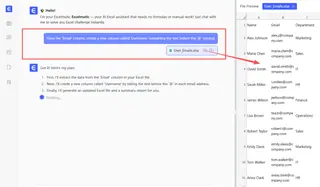
The AI understands your intent and automatically generates the new columns with the correctly extracted or modified data.
3. Review and Iterate
Excelmatic will display the new table with the columns you requested. The beauty of this conversational approach is that you can easily refine the results. You could follow up with:
Great. Now add another column called 'Email Type'. If the 'Domain' is 'gmail.com' or 'yahoo.com', set the value to 'Personal'. Otherwise, set it to 'Business'.
This kind of iterative analysis is incredibly difficult with static formulas but effortless in a chat-based interface.
4. Export Your Cleaned Data
Once you're satisfied, you can download the new, cleaned dataset as a fresh Excel file with a single click. All the new columns you created are included, ready for your analysis or import into another system.
Dialogue Example: Solving the Middle Name Problem
Here’s how a conversation to solve the most complex task might look in Excelmatic:
User: I have a 'Full Name' column with names like 'John Fitzgerald Kennedy'. I need to extract the middle name into a new column. Some names, like 'Joe Biden', don't have a middle name.
Excelmatic: Understood. I have created a new column named 'Middle Name'. For names with more than one space, I've extracted the word(s) between the first and last space. For names with only one space or no spaces, the 'Middle Name' cell is now blank.
User: Perfect! Now can you also create 'First Name' and 'Last Name' columns?
Excelmatic: Done. I've added a 'First Name' column containing the text before the first space, and a 'Last Name' column with the text after the last space. The table is updated. You can now download the result.
Traditional Formulas vs. Excelmatic: A Quick Comparison
| Aspect | Traditional Excel (SEARCH, MID, etc.) | Excelmatic (AI Agent) |
|---|---|---|
| Time to Complete | 15-30 minutes (for complex tasks) | < 1 minute |
| Required Skill | Expert-level knowledge of nested functions | Basic language proficiency |
| Flexibility | Very low; formulas are rigid | Very high; just ask for changes |
| Error Risk | High; prone to syntax and logic errors | Low; AI handles the logic |
| Maintainability | Poor; formulas are hard to decipher later | Excellent; chat history is easy to read |
FAQ
1. Do I need to know any Excel formulas like SEARCH to use Excelmatic? No, not at all. The entire purpose of Excelmatic is to free you from writing formulas. You only need to describe the business logic or the final result you want in plain language.
2. Will Excelmatic modify my original Excel file? No. Excelmatic works on a copy of your data in a secure cloud environment. Your original file remains untouched on your computer. You can download the modified data as a new file.
3. What if my text data is very inconsistent, with extra spaces or varied formats? Excelmatic is often more robust at handling inconsistencies than rigid formulas. You can also give it explicit instructions to clean the data first, such as, "First, trim all leading and trailing whitespace from the 'Full Name' column."
4. Is it safe to upload my company's contact list to Excelmatic? Data privacy and security are top priorities. Excelmatic uses industry-standard encryption and security protocols. For specific details, always refer to the official privacy policy on the website. Your data is not used to train models for other customers.
5. Can Excelmatic handle tasks other than text manipulation? Absolutely. Text cleaning is just one use case. You can use Excelmatic to create complex formulas, generate pivot tables, build interactive charts, analyze data trends, and write summary reports—all through natural language.
6. How is this different from Excel's built-in "Flash Fill" feature? Flash Fill is a fantastic tool for simple, clear patterns. However, it often fails when patterns become complex or inconsistent (like extracting middle names). Excelmatic doesn't just guess patterns; it understands your explicit instructions, making it far more powerful and reliable for complex data transformation tasks.
Take Action: Upgrade Your Excel Workflow Today
Stop spending your valuable time wrestling with cryptic text formulas. The hours you spend debugging #VALUE! errors and trying to remember the difference between SEARCH and FIND could be spent on what truly matters: analyzing your data and driving business insights.
By embracing an Excel AI agent, you're not just finding a shortcut; you're adopting a fundamentally faster, more intuitive, and more powerful way to work with your data.
Ready to give it a try? Try Excelmatic today. Upload that messy spreadsheet you've been avoiding and use one of the prompts from this article. You'll be amazed at how much you can accomplish in just a few minutes.