Key takeaways:
- Manually filtering data in Excel with the
FILTERfunction becomes complex and error-prone, especially when dealing with multiple AND/OR conditions. - Excel AI tools like Excelmatic replace cumbersome formulas with simple, natural language commands, allowing you to ask for the data you need directly.
- Using Excelmatic not only saves significant time but also increases flexibility, allowing you to instantly adapt your filters and perform follow-up analysis without rewriting a single formula.
Problem background & pain points
Imagine you're a sales manager staring at a spreadsheet with thousands of rows. Each row represents a single sale, with columns for the sales representative, the region, the product sold, and the sale amount. Your director just walked over and asked for a quick breakdown: "Who are our top performers in the US region for sales over $10,000 this quarter?"
A simple request, but in Excel, it triggers a mental checklist. You could use the standard table filters, but that's a temporary, manual process. If you want a dynamic, separate report, you might turn to Excel's powerful FILTER function.
However, this is where the headaches begin for many users. What was the exact syntax? How do you combine an "AND" condition (Region is "US" and Sales > $10,000)? What if the director follows up with, "Okay, now show me everyone in the US or Canada"? This requires a completely different formula structure.
This constant need to build, debug, and rewrite formulas for ad-hoc data requests is a major productivity killer. It's not just about knowing the function; it's about the mental overhead of translating a business question into Excel's rigid syntax, dealing with potential errors like #SPILL! or #CALC!, and starting over every time the criteria change.
The Traditional Approach: Mastering the FILTER Function
For users with a Microsoft 365 subscription, the FILTER function is the modern, "manual" way to extract a dynamic subset of data from a larger table. Unlike the old-school AutoFilter, its results automatically update if the source data changes.
The function's syntax is: =FILTER(array, include, [if_empty])
array: The range of data you want to filter (e.g.,A2:C11).include: The logical test or condition that determines which rows to keep.[if_empty]: An optional value to display if no records match the criteria (e.g., "No results found").
Let's see how this works with a sample sales dataset.

Step-by-Step with the FILTER Function
1. Basic Filtering (Single Criterion)
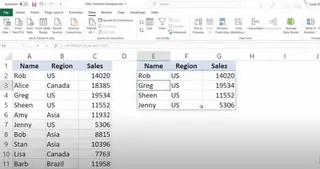
To get all sales records from the "US" region, you would write:
=FILTER(A2:C11, B2:B11="US")
Excel will "spill" the results into the cells below and to the right of where you entered the formula.
2. Filtering with Multiple "AND" Criteria
Now for the director's first request: sales in the "US" and with an amount greater than $10,000. To create an "AND" condition, you must wrap each logical test in parentheses and multiply them.
=FILTER(A2:C11, (B2:B11="US") * (C2:C11>10000), "No results")
The multiplication * acts as the AND operator. This syntax is powerful but not intuitive for most users.

3. Filtering with Multiple "OR" Criteria
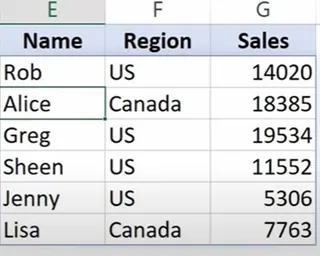
What if the request changes to sales from the "US" or "Canada"? You need to rewrite the formula using a plus sign + instead of multiplication.
=FILTER(A2:C11, (B2:B11="US") + (B2:B11="Canada"), "No results")
The + acts as the OR operator.
Limitations of the Traditional Method
While the FILTER function is a huge step up from manual filtering, it comes with its own set of challenges:
- Complex Syntax: The
()*()for AND and()+()for OR logic is confusing and easy to forget. Adding more conditions makes the formula exponentially harder to read and debug. - High Learning Curve: Business users who need answers from data don't want to become formula experts. This creates a barrier to self-service analytics.
- Rigidity: Each new question requires a new, carefully constructed formula. There's no easy way to have a "conversation" with your data.
- Error-Prone: A small mistake in the range or syntax can lead to frustrating errors like
#VALUE!,#CALC!, or the dreaded#SPILL!error if the output area isn't empty. - Maintenance Burden: If you add new columns to your source data, you have to manually update all your
FILTERformulas to include them in thearrayargument.
The Modern Solution: Using an Excel AI like Excelmatic
Instead of forcing you to learn a machine's language (Excel formulas), an Excel AI Agent like Excelmatic learns to understand yours. It flips the entire workflow on its head. You stay focused on the business question, and the AI handles the technical execution.

The process is simple: upload your file, ask questions in plain language, and get immediate results—be it a filtered table, a summary, a pivot table, or a chart.
Step-by-Step with Excelmatic
Let's solve the same sales data challenges using Excelmatic.
1. Upload Your Data File
First, you simply upload your Excel or CSV file containing the sales data to Excelmatic. The AI will instantly parse the headers and understand the data structure.

2. Ask in Plain Language
Instead of writing formulas, you just type your request into the chat interface.
To replicate our previous examples, you would ask:
For US sales:
Show me all sales records from the US.
For US sales over $10,000:
Filter for sales in the US region where the sales amount is greater than 10000.
For US or Canada sales:
Get all records for either the US or Canada region.
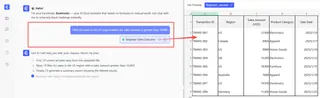
Notice how the request is a direct translation of the business question. There's no special syntax to learn.
3. Review and Iterate on the Results
Excelmatic will instantly display the filtered data as a table. But the real power lies in the conversational follow-up. You can continue refining the results without starting from scratch.
Imagine the director's follow-up questions. You can just ask:
Now sort this by sales, highest to lowest. Of these, who are the top 3 sales reps? Add a new column that calculates a 5% commission on the sales amount.
This iterative, conversational analysis is impossible with static formulas.
4. Export Your Results
Once you have the exact data you need, you can download the resulting table as a new, clean Excel file with a single click. No more copy-pasting values or worrying about breaking formulas.
Dialogue Example: User vs. Excelmatic
Here’s how a typical analysis session might look in Excelmatic:
User: I've uploaded my sales data. Can you show me all sales from the US region where the sales amount was over $10,000?
Excelmatic: Sure. I have filtered your data to show 2 records that match these criteria. The results are displayed in the table below.
User: Great. Now, can you sort them by sales amount in descending order and add a column showing the sales rep's first name only?
Excelmatic: Done. The table is now sorted by 'Sales' from highest to lowest, and I've added a 'First Name' column by extracting it from the 'Sales Rep' column.
User: Perfect. Please create a bar chart comparing the sales for these two reps.
Excelmatic: I have generated a bar chart comparing the sales of the filtered reps. You can view the chart below and download the entire analysis as an Excel file.
Traditional FILTER vs. Excelmatic: A Quick Comparison
| Feature | Traditional FILTER Function |
Excelmatic (Excel AI) |
|---|---|---|
| Time to Result | Minutes to hours (writing, testing, debugging) | Seconds to minutes |
| Required Skill | Deep knowledge of Excel syntax, operators | Ability to describe your business need |
| Flexibility | Low. New questions require new formulas. | High. Instantly adapt with follow-up questions. |
| Error Handling | Prone to #SPILL!, #CALC!, #VALUE! errors. |
AI handles parsing; errors are rare. |
| Learning Curve | Steep, especially for complex logic. | Virtually flat. |
FAQ
Q: Do I need to know any Excel formulas to use Excelmatic? A: Absolutely not. Excelmatic is designed for users of all skill levels. You only need to describe what you want to do with your data in plain language.
Q: Is my data safe when I upload it to Excelmatic? A: Excelmatic prioritizes data security. Files are encrypted during transit and at rest. For specific details on privacy and security policies, please refer to the official website. Your original file is never modified.
Q: Can Excelmatic handle more complex filtering, like on dates or text that contains certain words? A: Yes. Excelmatic's natural language processing can understand a wide range of conditions, including date ranges ("show me sales from Q1 2024"), text searches ("find all reps whose names start with 'J'"), and even more complex, multi-step logic.
Q: What if my data isn't perfectly clean? A: Excelmatic can often handle minor inconsistencies. You can also ask the AI to perform data cleaning tasks first, such as "trim leading and trailing spaces from the Region column" or "convert the sales column to a number format."
Q: Can I get the filtered data back into my own Excel sheet? A: Yes. You can download any table, chart, or report generated by Excelmatic as a new Excel file, allowing you to easily integrate the results back into your workflow.
Take Action: Upgrade Your Excel Workflow with Excelmatic
Every minute you spend deciphering FILTER syntax or debugging a #SPILL! error is a minute you're not spending on actual analysis. The traditional way of manipulating data in Excel is powerful, but it's no longer the most efficient.
By embracing an Excel AI like Excelmatic, you shift your focus from how to get the data to what the data means. You can answer complex questions faster, respond to ad-hoc requests with confidence, and unlock insights that were previously buried under a mountain of formula complexity.
Stop being a formula mechanic and start being a data analyst.
Try Excelmatic today and see how quickly you can filter your next dataset—no formulas required.