Key takeaways:
- Traditional Excel text extraction relies on complex, nested formulas like
FIND,LEFT,RIGHT, andMID, which are time-consuming to write and prone to errors. - Excel AI tools like Excelmatic replace these manual formulas with natural language commands, allowing you to simply describe how you want to split, extract, or replace text.
- Using Excelmatic dramatically reduces the time spent on data cleaning, eliminates formula-related errors, and provides the flexibility to handle inconsistent text patterns without complex logic.
The All-Too-Common Problem: Messy Text in Your Excel Cells
Imagine this scenario: you've just received a data dump for your weekly marketing report. It's a single column containing customer information, but it's a complete mess. Each cell is a jumble of a name and an email address, like "John Doe ([email protected])".
Your task is to prepare this data for an email campaign, which means you need separate columns for "First Name," "Last Name," and "Email." For a list of a few dozen contacts, you might consider doing it by hand. But for thousands of rows? Manual copy-pasting is not an option.
This is a classic data cleaning challenge in Excel. Your data contains valuable information, but it's trapped inside unstructured text strings. You need a way to parse this text systematically, but the process is far from straightforward for the average Excel user. The frustration builds as you realize you'll have to become a formula wizard just to get the clean data you need.
The Traditional Excel Solution: A Maze of Nested Formulas
For seasoned Excel users, the go-to solution involves a combination of text functions. These functions are powerful, but they demand a deep understanding of how they work and interact with each other.
The core of this method is the FIND function. Its job is to locate the position of a specific character or text string within another text string.
The syntax is: =FIND(find_text, within_text, [start_num])
find_text: The character you're looking for (e.g., "@" or a space).within_text: The cell containing the text.[start_num]: An optional argument to start searching from a specific position.
FIND only returns a number—the position. To actually extract the text, you must combine it with other functions like LEFT, RIGHT, MID, and LEN.
Example: Extracting Usernames and Domains from Emails
Let's say you have a list of email addresses in column A, and you want to extract the username (the part before the "@").
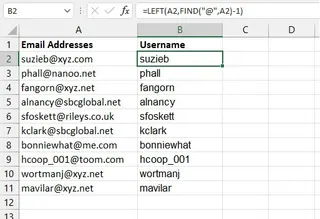
The traditional formula would be:
=LEFT(A2, FIND("@", A2) - 1)
How it works:
FIND("@", A2)locates the position of the "@" symbol.- We subtract
1to exclude the "@" itself. LEFT(A2, ...)extracts that number of characters from the beginning of the cell.
Now, what about extracting the domain name (the part after the "@")? It gets more complicated.
=RIGHT(A2, LEN(A2) - FIND("@", A2))
How it works:
LEN(A2)calculates the total length of the email address.FIND("@", A2)finds the position of the "@".- Subtracting the
FINDresult from theLENresult gives you the number of characters in the domain name. RIGHT(A2, ...)extracts that many characters from the end of the string.
The Limitations of the Manual Formula Approach
While this method works, it's fraught with challenges that cost time and create headaches:
- High Complexity: The formulas quickly become long, nested, and difficult to read. If you need to handle errors (e.g., a cell without an "@" symbol), you have to wrap everything in an
IFERRORfunction, making it even more convoluted. - Rigidity: These formulas are brittle. They are built for a single, consistent pattern. If some of your data is formatted slightly differently (e.g.,
[email protected]vs.[email protected]), your formula might fail or return incorrect results. - Case-Sensitivity Trap: The
FINDfunction is case-sensitive. If you're looking for "Apple" but the cell contains "apple",FINDwon't see it. You have to remember to use theSEARCHfunction instead, which has its own nuances. - Steep Learning Curve: To be proficient, you need to master not just one function, but a whole library of them (
FIND,SEARCH,LEFT,RIGHT,MID,LEN,REPLACE,SUBSTITUTE,IFERROR). This is a significant time investment. - Difficult to Maintain: Imagine handing your spreadsheet to a colleague. Would they be able to understand, debug, or modify your complex formulas? Probably not, which makes collaboration a challenge.
The New Solution: Using an Excel AI Agent (Excelmatic)
Instead of forcing you to think like a computer, what if you could just tell your spreadsheet what you want in plain language? That's the promise of Excel AI Agents like Excelmatic.

Excelmatic is a tool that integrates directly with your spreadsheets. You upload your file, and then you can chat with an AI assistant to perform complex tasks—including text manipulation—without writing a single formula.
Here’s how you would solve the same text extraction problem using Excelmatic.
Step 1: Upload Your Excel File
First, you sign in to Excelmatic and upload your spreadsheet containing the messy data. The AI will read your data and show you a preview, ready for your instructions.

Step 2: Describe Your Goal in Natural Language
Instead of building a formula, you simply type what you want to achieve in the chat box. Here are some examples based on our problem:
- "From the 'Email' column, create a new column called 'Username' that contains all the text before the '@' symbol."
- "Now, create another column called 'Domain' with the text after the '@' symbol."
- "I have a 'Full Name' column. Split it into two new columns: 'First Name' and 'Last Name'."
- "In the 'Description' column, replace every instance of 'Corp.' with 'Corporation'."
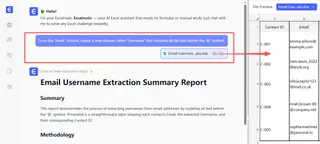
The AI understands the context of your request and executes it across the entire dataset instantly.
Step 3: Review and Iterate on the Results
Excelmatic will generate the new columns for you immediately. The best part is that this is a conversation. If the result isn't quite right or if you have a new request, you just keep talking to the AI.
For example, you might notice some names don't have a space. You can follow up:
- "For rows where there was no space in the name, put the entire name into the 'First Name' column and leave 'Last Name' blank."
This kind of flexible, iterative analysis is nearly impossible with rigid formulas but is effortless in a conversational interface.
Step 4: Download Your Cleaned Data
Once you're satisfied, you can download the fully cleaned and structured data as a new Excel file, ready for your email campaign, report, or analysis. You can also ask Excelmatic for the formula it used, which is a great way to learn for future use.
Dialogue Example: From Messy Data to Insights
Here’s how a typical conversation in Excelmatic might look:
User: I've uploaded a file with a 'Customer Info' column. It contains a name and an email in parentheses, like "Jane Smith ([email protected])". Can you help me clean this up?
Excelmatic: Of course. I see the pattern. What would you like to do?
User: Please create two new columns. One called 'Full Name' with just the name, and another called 'Email' with just the email address.
Excelmatic: Done. I have created the 'Full Name' and 'Email' columns by extracting the relevant parts from the 'Customer Info' column. Is there anything else?
User: Great! Now, from the new 'Email' column, can you count how many customers are from the 'example.com' domain?
Excelmatic: I have analyzed the 'Email' column. There are 2,418 customers with an 'example.com' domain. I've added a summary for you.
Traditional Formulas vs. Excelmatic: A Quick Comparison
| Feature | Traditional Excel Formulas | Excelmatic (Excel AI) |
|---|---|---|
| Method | Writing complex, nested formulas like =LEFT(A2, FIND("(", A2)-2) |
Typing simple instructions like "Extract the name before the parenthesis." |
| Time to Execute | 5-20 minutes of building, testing, and debugging. | Less than 30 seconds. |
| Flexibility | Very rigid. A small change in the data pattern requires a new formula. | Highly flexible. Handle variations with follow-up commands. |
| Error Handling | Requires manual IFERROR wrappers to prevent #VALUE! errors. |
The AI automatically handles most inconsistencies and errors. |
| Skill Required | Intermediate to Advanced Excel knowledge. | Basic English proficiency. |
FAQ
1. Do I need to know any Excel formulas like FIND to use Excelmatic?
No, not at all. The entire point of Excelmatic is to replace the need for complex formulas. You only need to be able to describe the outcome you want in plain language.
2. What if my text data is very inconsistent and messy? Excelmatic's AI is designed to recognize and handle many common inconsistencies. You can guide it with more specific instructions, such as "If there is no space, use the whole text" or "Ignore any leading or trailing spaces." It's far more adaptable than a single formula.
3. Is it safe to upload my company's data to Excelmatic? Excelmatic is built with data security in mind, using industry-standard encryption and security protocols. Your data is processed to answer your questions and is not used for any other purpose. For specific compliance details, always refer to the official privacy policy.
4. Can Excelmatic just give me the formula to use in my own spreadsheet? Yes. After the AI performs a task, you can ask it, "What formula did you use to do that?" It will provide you with the exact formula, which you can then copy and use in your own Excel sheets. This makes it a powerful learning tool as well.
5. How does the AI handle case-sensitive searches? By default, the AI often performs case-insensitive searches for better results. However, you can specify your preference in the prompt, for example: "Find the exact text 'USA' (case-sensitive) and replace it with 'United States'."
Get Started: Transform Your Excel Workflow Today
Stop wasting valuable time deciphering and debugging cryptic text functions. The era of wrestling with FIND, LEFT, and LEN is over. By embracing an Excel AI agent, you can shift your focus from how to get the data clean to what you want to achieve with it.
You can get back hours of your week, reduce data-entry errors, and finally tackle those messy datasets you've been avoiding.
Ready to see it in action? Try Excelmatic today and upload your first file. Use one of the prompts from this article and watch your most tedious text-cleaning tasks get done in seconds.