Key takeaways:
- Extracting specific text from cells in Excel, like a first name or a product code, traditionally requires complex, nested formulas using
LEFT,SEARCH, andLENthat are difficult to write and maintain. - Excel AI tools like Excelmatic replace these fragile formulas with simple, natural language commands. You just describe the text you want to extract, and the AI does the work for you.
- Using Excelmatic not only saves you from memorizing function syntax but also drastically reduces errors, handles inconsistencies in your data gracefully, and lets you clean and transform text in seconds, not hours.
The All-Too-Common Problem: Trapped Text in Your Excel Cells
Picture this: you've just received a data dump for your weekly report. It could be a list of customer contacts, product SKUs, or file logs. The problem? The data is a mess. A single column contains information that should be split into several.
You have cells with:
- Full names like "John Smith" when you need separate "First Name" and "Last Name" columns.
- Product codes like
WIDGET-A123-USwhen you need to analyze by category (WIDGET), model (A123), and region (US). - File names like
Q3_Sales_Report_Final.xlsxwhen all you need is the base nameQ3_Sales_Report_Final.
Manually re-typing this information for hundreds or thousands of rows is out of the question. It's tedious, mind-numbing, and a guaranteed way to introduce typos. So, you turn to Excel formulas, and that's where the real headache begins.
The Traditional Solution: A Maze of Nested Formulas
For decades, the go-to solution for extracting text in Excel has been a family of text functions: LEFT, RIGHT, MID, SEARCH, FIND, and LEN. While powerful, they are far from intuitive. To solve even a simple problem, you often have to become a "formula programmer," nesting functions inside one another to get the desired result.
Let's take a classic example: extracting the file name (without the extension) from a list of files.
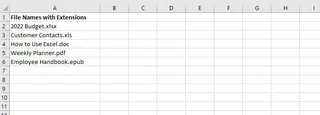
Here, the file names and extensions have different lengths. You can't just tell the LEFT function to grab the first 10 or 12 characters. The only consistent thing is the . (period) that separates the name from the extension.
To solve this traditionally, you'd write a formula like this:
=LEFT(A2,SEARCH(".",A2)-1)
Let's break down what you're forced to tell Excel:
SEARCH(".",A2): First, find the position of the "." character within cell A2. For "SalesData.xlsx", this returns the number10.... -1: Since you don't want the period itself, you subtract 1 from the position. So,10 - 1 = 9.LEFT(A2, ...): Finally, you instruct theLEFTfunction to extract the first 9 characters from the left of cell A2.
This works, but it's brittle and comes with several limitations:
- High Mental Load: You have to think like a computer, breaking down your goal into a sequence of character-counting and position-finding steps. It's not how a human naturally thinks.
- Prone to Errors: A simple mistake, like forgetting the
-1, will give you the wrong output. UsingFINDinstead ofSEARCHcan lead to errors if the case doesn't match. - Difficult to Adapt: What if a filename is
Project.Report.v2.docx? The formula will incorrectly stop at the first period, returning just "Project". You'd need an even more complex formula to find the last period. - Hard to Maintain: If you share this workbook, a colleague has to spend time deciphering your nested formula to understand what it does. It’s not self-explanatory.
- Doesn't Handle Edge Cases: What about cells with leading spaces? You'd need to wrap everything in a
TRIMfunction:=LEFT(TRIM(A2),SEARCH(".",TRIM(A2))-1). The complexity snowballs.
This is just one example. Splitting a full name or a product SKU involves even more convoluted combinations of LEFT, MID, RIGHT, and SEARCH. There has to be a better way.
The New Solution: Use an Excel AI Agent (Excelmatic)
Instead of teaching yourself to think like a machine, what if you could use a tool that understands human language? That's the promise of Excel AI agents like Excelmatic.

Excelmatic is an AI assistant that you can talk to. You upload your spreadsheet, describe the task in plain language, and the AI handles the complex logic of data manipulation, including text extraction.
Let's solve the same "file name extraction" problem with Excelmatic.
Step 1: Upload Your Data
First, drag and drop your Excel or CSV file into Excelmatic. The AI will read your data and display a preview. It's always a good practice to have clear column headers (e.g., "FileName" or "Product SKU").

Step 2: Describe What You Want in Plain Language
Now, instead of writing a formula, you simply type your request into the chatbox.
For our file name example, you could ask:
- "Create a new column called 'Base Name' by taking the text before the period in the 'FileName' column."
- "From the FileName column, extract everything to the left of the '.' and put it in a new column."
- "Remove the file extension from the FileName column."

The AI understands the intent behind your words.
Step 3: Review the Instant Result
Excelmatic will process your request and immediately generate a new column with the cleaned-up file names. There's no need to write, debug, or drag-fill any formulas. The result is instant and accurate.
Step 4: Iterate or Export
The beauty of a conversational AI is that you can keep refining. You could follow up with more requests:
- "Now, make all the base names uppercase."
- "Filter this list to only show files that contain the word 'Report'."
- "Split the 'FullName' column into 'First Name' and 'Last Name' columns based on the space."
Once you're satisfied, you can download the new, cleaned-up spreadsheet with a single click. Or, you can even ask Excelmatic to generate the traditional formula for you, which you can then copy and use in your original workbook.

Dialogue Example: From Messy SKU to Clean Data
Here’s a practical conversation you could have with Excelmatic to clean up complex product codes.
User: My sheet has a column named 'Product_Code' with values like 'ELEC-HDTV-55-US'. I need to split this into four new columns: Category, Type, Size, and Region.
Excelmatic: Understood. I have created four new columns: 'Category', 'Type', 'Size', and 'Region' by splitting the 'Product_Code' column using the hyphen as a delimiter. The results are ready for you to review.
User: Perfect. Now can you create a pivot table to count how many products we have in each Region?
Excelmatic: Of course. I've generated a pivot table that shows the count of products for each region. The 'US' region has the highest count. Would you like to visualize this as a chart?
User: Yes, show me a bar chart.
Excelmatic: Done. A bar chart comparing the product counts by region has been created. You can download the new Excel file containing the split data, the pivot table, and the chart.
Traditional Method vs. Excelmatic: A Quick Comparison
| Aspect | Traditional Excel (Formulas) | Excelmatic (AI Agent) |
|---|---|---|
| Effort | Write, debug, and combine LEFT, SEARCH, LEN, etc. |
Write one simple sentence in plain language. |
| Time | Minutes to hours, depending on complexity. | Seconds. |
| Skill Level | Intermediate to Advanced formula knowledge required. | Basic language skills and knowledge of your goal. |
| Flexibility | Fragile. A new data pattern requires a new formula. | Highly flexible. Just describe the new pattern. |
| Error Rate | High. Off-by-one errors and syntax mistakes are common. | Extremely low. The AI handles the logic. |
FAQ
1. Do I need to know any Excel formulas to use Excelmatic? No, not at all. The entire purpose of Excelmatic is to free you from writing formulas. You only need to be able to describe the outcome you want in plain language.
2. Is my data safe when I upload it to Excelmatic? Yes. Excelmatic is built with security in mind. Data is encrypted in transit and at rest. For specific details on data privacy and enterprise-grade security, you can always refer to the official website's policies. Your files are not shared or used for training other models.
3. What if my data is really messy, with extra spaces or inconsistent patterns? Excelmatic is designed to handle messy data. You can ask it to "trim whitespace from all cells" or describe multiple patterns. For example, "Split the column by a comma, but if there's no comma, split it by a space." The AI is much better at handling these variations than a rigid formula.
4. Can Excelmatic do more than just split text? Absolutely. Text extraction is just one of its many capabilities. You can use it to create complex pivot tables, generate charts, write formulas, merge datasets, clean data, perform statistical analysis, and much more—all through conversation.
5. Is this better than Excel's built-in "Flash Fill" feature? Flash Fill is a great feature for simple, one-off tasks. However, it can be unreliable with complex patterns and offers no transparency into its logic. Excelmatic provides a more robust, repeatable, and conversational experience. You can see exactly what the AI did and easily ask for modifications, making it far more powerful for serious data work.
Take Action: Upgrade Your Excel Workflow Today
Stop wasting valuable time and mental energy trying to untangle nested text formulas. The manual way is not only slow but also a constant source of frustration and potential errors that can compromise your reports.
By embracing an Excel AI agent, you can shift your focus from "how do I write this formula?" to "what insights do I need from this data?". You'll complete your data cleaning and preparation tasks in a fraction of the time, with higher accuracy and less stress.
Ready to see it for yourself? Try Excelmatic for free today. Upload one of the messy spreadsheets sitting on your desktop and ask it to extract the text you need. You'll be amazed at how simple it can be.