Key takeaways:
- Creating a traditional dynamic dropdown list in Excel often requires knowledge of Excel Tables, structured references, or complex functions like
OFFSET, making it difficult to build and maintain. - Excel AI tools like Excelmatic completely bypass the need for dropdown lists and lookup formulas. You simply upload your data and ask for the information you need in plain language.
- This AI-driven approach not only saves hours of setup time but also provides far greater flexibility, allowing you to query your data by any criteria, not just a single ID from a list.
Problem Background & Pain Points
Imagine you're managing an inventory system for a bookstore, a parts warehouse, or even a client database. Your data is neatly organized in an Excel sheet with columns for ID, name, author, price, and so on. To make life easier for your team, you want to create a simple lookup tool. The idea is straightforward: an employee selects a Book ID from a dropdown list, and all the corresponding book details instantly appear.
This is a fantastic way to reduce typos and speed up data entry. You set up a dropdown list using Excel's Data Validation feature and a trusty XLOOKUP or VLOOKUP formula to pull the data. It works perfectly... for about a day.
The very next morning, new books are added to your inventory. Suddenly, your "perfect" tool is broken. The new Book IDs aren't in the dropdown list. A week later, some books are removed, but their IDs still linger in the list, leading to #N/A errors and confusion.
This is the core frustration of static Excel tools. Your data is dynamic, but your solution is rigid. You're now stuck in a cycle of manually updating the dropdown's source range, a tedious and error-prone task that defeats the whole purpose of automation. How can you build a lookup system that is as dynamic as the data itself?
The Traditional Excel Solution: Steps and Limitations
In classic Excel, solving the dynamic dropdown problem is possible, but it's a multi-step process that requires a solid understanding of intermediate to advanced features. The goal is to make the dropdown list's source automatically expand or shrink as your master data table changes.
The most common modern approach involves two main parts:
Part 1: Creating the Dynamic Dropdown List
- Format as Table: First, you must convert your data range into an official Excel Table (select your data and press
Ctrl + T). This is the key, as Tables automatically expand to include new rows. - Set Up Data Validation: Go to the cell where you want the dropdown (e.g.,
A2). Navigate toData > Data Tools > Data Validation. - Use a Structured Reference: In the Data Validation dialog, choose "List" from the "Allow" dropdown. In the "Source" box, instead of a fixed range like
$A$2:$A$100, you use a structured reference that points to theBook IDcolumn in your table. The formula would look something like this:=INDIRECT("Database[Book ID]"). (TheINDIRECTis often needed to ensure Data Validation handles the table reference correctly).
This tells Excel to use all the values currently in the "Book ID" column of the "Database" table as the source for your dropdown. When you add a new book to the table, the dropdown list automatically includes the new ID.
Part 2: Looking Up the Data
Once the dropdown is working, you write a lookup formula in the cells below it to pull the corresponding data. The XLOOKUP function is ideal for this.
=XLOOKUP(A2, Database[Book ID], Database)
This formula takes the Book ID selected in cell A2, finds it in the Database[Book ID] column, and returns the entire matching row from the Database table.
The Limitations of the Traditional Method
While this solution is a significant improvement over a static list, it's far from perfect. It introduces several new challenges:
- Hidden Complexity: The setup isn't intuitive. A user who didn't build it would have no idea how it works. They wouldn't know to look in the Data Validation source box to understand the
INDIRECT("Database[Book ID]")logic. - Brittleness: The entire system relies on the table and column names remaining exactly the same. If someone accidentally renames the table from "Database" to "Book_Data", the dropdown will break.
- Rigid Querying: This tool is a one-trick pony. It can only look up data by
Book ID. What if a user wants to find a book by its title? Or list all books by a specific author? They can't. You would need to build an entirely new, equally complex tool for that. - Maintenance Burden: While "dynamic," it still requires someone with Excel expertise to troubleshoot and maintain it. It’s not a truly hands-off solution for the average team member.
You've essentially built a fragile, single-purpose application inside a spreadsheet. There has to be a better way.
The New Approach with Excel AI (Using Excelmatic)
Instead of building a complex web of formulas and references inside Excel, what if you could just have a conversation with your data? This is the paradigm shift offered by Excel AI Agents like Excelmatic.

Excelmatic acts as your data analyst assistant. You upload your file, and then you can ask questions in plain language. It handles the lookups, filtering, and analysis for you, completely eliminating the need for manual setup of dropdowns or formulas.
Here's how you'd solve the exact same bookstore problem in Excelmatic.
Step-by-Step: From Complex Formulas to Simple Conversation
1. Upload Your Data File
First, log in to Excelmatic and upload your Excel workbook or CSV file containing the book inventory. The platform processes your data and prepares it for analysis. It's best practice to have clear column headers (like "Book ID," "Title," "Author"), as this helps the AI understand your data structure.

2. Ask Your Question in Plain Language
Forget about Data Validation and XLOOKUP. Just type your request into the chatbox as if you were talking to a human assistant. The beauty is that you are no longer limited to searching by just one field.
Here are a few example prompts you could use:
- "Find the book with Book ID 'B-1087'."
- "Show me the details for the book titled 'The Midnight Library'."
- "List all books written by 'James Clear' and sort them by publication date."
- "What are the top 5 most expensive books in the 'Science Fiction' genre?"
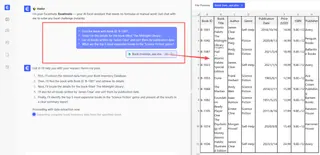
3. Review and Iterate on the Results
Excelmatic will instantly analyze your data and present the answer in a clean, structured table. It doesn't just give you a single row; it filters your entire dataset based on your request.
The real power lies in the conversational flow. You can continue to refine your query.
- "From that last result, only show the ones published after 2020."
- "Add a new column that calculates a 10% discount on the price."
- "Create a bar chart showing the prices of these books."
This iterative process of discovery is nearly impossible with a rigid XLOOKUP-based tool.
4. Export Your Results
Once you have the exact data you need, you can download the results as a new, clean Excel file with a single click. You can also ask Excelmatic to generate the formula it used, which you can then copy and paste into your own workbook if needed.
Dialogue Example: Bookstore Inventory Query
Here’s what a typical interaction looks like in Excelmatic:
User: I've uploaded my bookstore's inventory file. Can you find the information for Book ID 'B-1087'?
Excelmatic: Certainly. The book with ID 'B-1087' is "The Midnight Library" by Matt Haig, published in 2020, in the Fiction genre, with a price of $15.99. Here is the full data row.
User: Great. Now, can you show me all books in the 'Science Fiction' genre published after 2018?
Excelmatic: Of course. I have filtered the data to show 12 books from the 'Science Fiction' genre published after 2018. The results are sorted by publication date. Would you like me to create a chart of their prices?
Traditional Method vs. Excelmatic: A Quick Comparison
| Aspect | Traditional Excel Method | Excelmatic AI Method |
|---|---|---|
| Setup Time | 30-60 minutes of setup and testing. | Seconds to upload and ask the first question. |
| Skill Required | Intermediate Excel (Tables, Data Validation, XLOOKUP). | Basic English and the ability to ask a question. |
| Flexibility | Extremely rigid. Only queries by one pre-defined key. | Highly flexible. Query by any column or combination of criteria. |
| Maintenance | Prone to breaking if names change; needs manual checks. | Zero maintenance. Always uses the latest uploaded file. |
| Error Rate | High risk of formula errors or broken references. | Low risk. The AI handles the logic, ensuring consistency. |
FAQ
1. Do I need to know any Excel formulas to use Excelmatic? No. The entire purpose of Excelmatic is to replace complex formulas with natural language. You just describe the outcome you want, and the AI does the work.
2. Is my company's data safe when I upload it to Excelmatic? Data privacy and security are top priorities. Excelmatic uses secure protocols for data transfer and storage and has a strict privacy policy. For specific compliance questions, it's always best to consult the official documentation on the website.
3. Does Excelmatic modify my original Excel file? No, your original file is never altered. Excelmatic works on a secure copy of your data in its environment, so you can experiment freely without any risk to your source document.
4. Can Excelmatic handle messy or unstructured data? Excelmatic is designed to be robust and can often interpret data even if the formatting isn't perfect. It can also be used for data cleaning tasks—for example, you can ask it to "trim all leading/trailing spaces from the 'Title' column."
5. Can I get the actual Excel formula from Excelmatic?
Yes. After Excelmatic performs an analysis, you can ask it, "What formula would you use to do this in Excel?" It will generate the corresponding formula (e.g., FILTER, SUMIFS, XLOOKUP), which you can then use in your own spreadsheets.
6. How is this different from just using the Filter button in Excel? While Excel's built-in Filter is great for simple, single-column filtering, Excelmatic allows for much more complex and natural queries. You can ask for "the top 3 sales reps in the East region for Q2" without a multi-step filtering and sorting process. It's about speed and the ability to handle compound, conversational logic.
Take Action: Upgrade Your Excel Workflow with Excelmatic
Continuing to build and maintain fragile, formula-based tools in Excel is a significant time sink. Every hour spent troubleshooting a broken VLOOKUP or updating a dropdown list is an hour you could have spent on more strategic analysis.
With an Excel AI agent, you shift your focus from how to get the data to what questions you want to ask. The tedious mechanics of data lookup and manipulation are handled for you, empowering every member of your team to get answers from data instantly.
Stop wrestling with formulas. Upload your inventory list, sales report, or any other dataset to Excelmatic today and experience a truly dynamic way to interact with your data.
Try Excelmatic for free and ask your first question in seconds.