Key takeaways:
- Calculating descriptive statistics in Excel traditionally requires enabling the Data Analysis ToolPak, a multi-step process that produces a static, non-updatable report.
- Excel AI tools like Excelmatic replace this rigid workflow. Simply upload your data and ask in plain language for a statistical summary, getting results for mean, median, standard deviation, and more in seconds.
- With an AI agent, you can instantly ask follow-up questions, filter data on the fly, and regenerate statistics without ever touching a complex dialog box, dramatically improving speed and analytical flexibility.
Problem background & pain points
Imagine you're a business analyst, product manager, or researcher. You've just received a dataset with hundreds or thousands of rows—perhaps sales figures, customer survey results, or experimental readings. Your first task is to get a "feel" for the data. What's the average value? What's the range from minimum to maximum? How spread out are the data points?
This process is called descriptive statistics. It involves calculating a set of key metrics like the mean (average), median (middle value), mode (most frequent value), and standard deviation (a measure of data spread). These numbers are the foundation of any serious data analysis, providing a high-level summary before you dive into more complex modeling or visualization.
For many Excel users, the immediate challenge is figuring out how to generate this summary efficiently. You could type out individual formulas like =AVERAGE(A:A), =MEDIAN(A:A), =STDEV.P(A:A), but doing this for multiple metrics and multiple data columns is tedious and error-prone. This leads many to the "official" solution: the Data Analysis ToolPak. But as you'll soon see, this legacy tool comes with its own set of frustrations that make a seemingly simple task far more complicated than it needs to be.
The Traditional Excel Solution: Steps & Limitations
For decades, the go-to method for this task in Excel has been the Data Analysis ToolPak. It’s a built-in add-in (though not enabled by default) that bundles various statistical analysis tools.
To get your descriptive statistics summary, you'd typically follow this manual process:
Step 1: Enable the Add-in
First, you have to check if the ToolPak is even active. You'll navigate through a series of menus: File > Options > Add-ins > Manage: Excel Add-ins > Go.... In the pop-up, you check the box for "Analysis ToolPak" and click OK. For many users, just finding this setting is a challenge.
Step 2: Open the Tool
Once enabled, a "Data Analysis" button appears on the Data tab. Clicking this opens a dialog box listing all the available tools. You scroll to find and select "Descriptive Statistics."
Step 3: Configure the Analysis
This opens yet another dialog box. Here, you must manually configure the analysis:
- Input Range: You carefully select the range of cells containing your data (e.g.,
$A$1:$C$35). - Labels: You have to specify if your first row contains headers.
- Output Options: You choose whether to put the results in a new worksheet, a new workbook, or a specific range in the current sheet.
- Statistics to Calculate: You must check the boxes for the metrics you want, like "Summary statistics."
Step 4: Generate the Static Report
After clicking OK, Excel generates a plain, static table with the results.
The Limitations of the Traditional Way
While functional, this process is deeply flawed for modern, fast-paced work environments:
- Static and Lifeless Output: This is the biggest drawback. The generated table of statistics is a dead-end. If you correct a typo in your source data, add new sales records, or remove an outlier, the statistics report will not update. You have to delete the old report and repeat the entire multi-step process from scratch. This is a huge time sink and a major source of potential errors.
- Clunky, Rigid Interface: The workflow is entirely based on clicking through nested menus and filling out a rigid form. There's no flexibility. You can't ask a simple follow-up question like, "Okay, now what are the stats for just the North region?" without first manually filtering your data and running the tool all over again.
- Hidden and Inconsistent Availability: The ToolPak isn't enabled by default, causing confusion for new users. Worse, it's not available in Excel Online, making it useless for teams that rely on cloud-based collaboration.
- No Analytical Insight: The tool just dumps a block of numbers. It doesn't help you interpret them, visualize them, or suggest next steps. It's a calculator, not an analyst.
The New Solution: Using Excel AI (with Excelmatic)
Instead of navigating a maze of menus, what if you could just ask for what you want? This is the promise of Excel AI Agents like Excelmatic. You stay focused on your analytical questions, not on the tool's mechanics.

Here’s how you can solve the same problem in a fraction of the time.
Step 1: Upload Your Data
First, sign in to Excelmatic and simply drag and drop your Excel or CSV file onto the dashboard. Your data appears in a familiar spreadsheet interface, ready for analysis.

Step 2: Describe What You Need in Plain Language
Now, instead of hunting for a tool, you just type your request into the chat prompt. You can be general or specific.
Here are a few examples of prompts you could use for a sales dataset:
"Calculate the descriptive statistics for the 'Suggested Retail Price' and 'Units Sold' columns.""Give me a full summary statistics report for all numeric columns.""What are the mean, median, mode, standard deviation, min, and max for 'Units Sold'?"
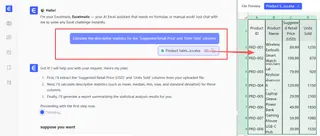
Excelmatic's AI understands your intent and instantly generates the requested statistical summary.
Step 3: View and Iterate on the Results
The AI doesn't just produce a static table. It presents the results and often provides the underlying formula or Python code it used, ensuring transparency.
But the real power lies in iteration. The analysis is now a conversation. You can immediately ask follow-up questions to dig deeper:
"Okay, now recalculate that but only for items where 'Units Sold' is greater than 100.""Can you create a histogram to show the distribution of the 'Suggested Retail Price'?""Compare the average 'Units Sold' between items priced above and below $50."
Each new request is handled instantly, without ever needing to go back to the source data and manually filter or re-run a tool.
A Quick Dialogue Example
Here’s how a typical workflow might look in Excelmatic:
You: I've uploaded my sales data. Can you generate the descriptive statistics for all columns?
Excelmatic: Of course. I've calculated the summary statistics for the 'Suggested Retail Price' and 'Units Sold' columns. The mean price is $48.50 with a standard deviation of $15.20. The median units sold is 88. The full table is below. Would you like to visualize any of these distributions?
You: Yes, create a box plot for the 'Suggested Retail Price'. Also, what are the statistics for only the top 10 most expensive items?
Excelmatic: Done. The box plot visualizing the price distribution has been generated. I've also filtered the data for the top 10 most expensive items and recalculated the statistics for that subset. The average units sold for this group is 55.
Traditional Method vs. Excelmatic: A Quick Comparison
| Feature | Data Analysis ToolPak (Traditional) | Excelmatic (AI Agent) |
|---|---|---|
| Setup | Manual, multi-step add-in installation. | None. Just upload your file. |
| Process | Navigating rigid menus and dialog boxes. | Typing a single sentence in a chat prompt. |
| Flexibility | Zero. Each new query requires a full manual restart. | Infinite. Ask follow-up questions conversationally. |
| Updating Data | Requires deleting the old report and re-running the tool. | Simply ask the AI to re-run on the updated data. |
| Learning Curve | Memorizing clicks and settings. | Knowing how to describe your business question. |
| Accessibility | Not available on Excel Online. | Accessible from any web browser. |
FAQ
Q1: Do I need to know the names of statistical functions like STDEV.P to use Excelmatic?
No, not at all. You can simply ask for "standard deviation" or even more general terms like "the spread of the data." The AI translates your natural language into the correct statistical calculations.
Q2: Is my company's data safe when I upload it to Excelmatic?
Data security is a top priority. Excelmatic uses enterprise-grade security protocols to protect your data during transit and at rest. Your files are processed for analysis and are not shared or used for training other AI models. Always refer to the official privacy policy for detailed commitments.
Q3: What if my data is messy or has blank cells?
The traditional ToolPak often fails with messy data. Excelmatic is more robust and can often handle imperfections. You can also ask the AI to help you clean the data first, with prompts like "Remove all rows where 'Units Sold' is blank" before you run the statistical analysis.
Q4: Can I get the results back into my own Excel file?
Yes. Excelmatic allows you to download the results of any analysis, including tables, charts, and new datasets, as a new Excel (.xlsx) file. You can then integrate it back into your existing reports.
Q5: Is this better than just using individual Excel formulas?
For a single calculation, a formula is fine. But for a comprehensive summary, the AI approach is far superior. It saves you from typing multiple formulas, automatically handles data ranges, and, most importantly, allows for rapid iteration and follow-up questions that would be incredibly time-consuming with manual formulas.
Take Action: Upgrade Your Excel Workflow Today
Stop wasting time wrestling with outdated tools. The minutes you spend every day enabling add-ins, clicking through menus, and re-running static reports add up to hours of lost productivity every month.
By embracing an Excel AI agent, you shift your focus from how to do something in Excel to what you want to discover from your data. You can answer complex business questions as fast as you can type them, test hypotheses on the fly, and deliver insights in a fraction of the time.
Ready to see the difference? Try Excelmatic for free. Upload the last spreadsheet you struggled with and ask it to calculate the descriptive statistics. You'll never go back to the Data Analysis ToolPak again.