Key takeaways:
- Creating traditional dependent dropdowns in Excel requires manually setting up numerous Named Ranges and using the complex, error-prone
INDIRECTfunction. - Excel AI tools like Excelmatic can generate these dynamic, cascading lists automatically just by understanding a natural language request, such as "create a dropdown for states and a dependent one for their cities."
- Using Excelmatic eliminates the need for VBA macros to clear selections, makes the entire setup instantly scalable, and dramatically reduces both development time and maintenance effort.
Problem Background & Pain Points
Imagine you're building an interactive form or dashboard in Excel. You want to make data entry as smooth and error-free as possible for your colleagues. A common requirement is to have one dropdown list's choices depend on the selection made in another.
For instance, you might be creating a sales logging tool where a user first selects a "State" and then a second dropdown should only show the "Cities" within that chosen state. Or perhaps a product catalog where selecting a "Category" (like 'Electronics') filters a second list to show only relevant "Products" (like 'Laptop', 'Smartphone').
This is called a dependent or cascading dropdown list. While it sounds simple, anyone who has tried to build this in Excel knows the process can be surprisingly complex and fragile. You start by neatly organizing your data, maybe with states as column headers and the cities listed below them.
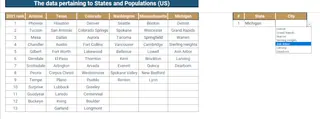
But then the real work begins. How do you tell Excel to dynamically link the second dropdown to the first? This is where the manual, multi-step process begins, and it's fraught with potential headaches that make the solution difficult to build and even harder to maintain.
The Traditional Excel Solution: Steps & Limitations
The classic method for creating dependent dropdowns relies on a combination of Named Ranges and the INDIRECT function. While clever, it's a rigid and time-consuming approach.
Here's a breakdown of the manual process:
Step 1: Create Named Ranges for Each List
First, you must create a separate "Named Range" for each list of dependent items. Using our State/City example, if you have data for Arizona, Texas, and Colorado, you would need to:
- Select the cells containing the cities in Arizona (e.g.,
B4:B6). - Go to the Formulas tab, click Define Name.
- Name the range
Arizona. The name must exactly match the text in your primary dropdown list. - Repeat this tedious process for
Texas,Colorado, and every other state.
If you have dozens of states or product categories, this step alone can take a significant amount of time and is highly susceptible to typos.
Step 2: Create the Primary Dropdown List
This is the easy part. You select the cell where you want the first dropdown (e.g., L4) and use Data Validation.
- Go to
Data > Data Validation. - Under Allow, choose List.
- For the Source, select the range containing your state names (e.g.,
B3:G3).
Step 3: Create the Dependent Dropdown with INDIRECT
Now for the tricky part. Select the cell for the second dropdown (e.g., M4) and open Data Validation again.
- Choose List under Allow.
- In the Source box, you don't enter a range. Instead, you enter a formula:
=INDIRECT(L4).
The INDIRECT function takes the text value from cell L4 (e.g., "Arizona") and tells Excel to treat it as a reference to the Named Range Arizona. This is what dynamically populates the city list.
The Limitations of the Traditional Method
This solution works, but it comes with significant drawbacks:
- High Maintenance: Adding a new state? You have to remember to create a new Named Range. Adding a city to an existing state? You must manually edit the corresponding Named Range to expand it.
- Fragile and Error-Prone: A simple typo in a state name or a Named Range will break the
INDIRECTfunction, resulting in a validation error. Spaces in names (e.g., "New York") require special handling (New_York) which adds another layer of complexity. - Hidden Data Integrity Issues: If a user selects "Arizona" and then "Phoenix", and later changes the state to "Texas", the cell for the city will still say "Phoenix"—an invalid combination. The only way to automatically clear the second field is by writing a VBA macro, a skill far beyond the average Excel user.
- Poor Scalability: This method is manageable for 5 states, but a nightmare for 50 states or 200 product categories. It simply doesn't scale.
The New Solution: Using an Excel AI (Excelmatic)
Instead of wrestling with Named Ranges, formulas, and VBA, what if you could just describe what you want in plain language and have it built for you? That's exactly what an Excel AI Agent like Excelmatic does. It transforms this complex, multi-step task into a simple conversation.

Overall Idea
With Excelmatic, you upload your data file and use a chat interface to tell the AI what you need. It analyzes your data structure, understands your intent, and generates the final, fully functional Excel file for you—complete with the dependent dropdowns and the logic to keep them clean.
Step-by-Step with Excelmatic
Let's solve the exact same problem in a fraction of the time.
1. Upload Your Data File
Start by logging into Excelmatic and uploading your Excel or CSV file that contains the organized lists of states and cities. The AI will read and understand the layout of your data.

2. Describe Your Desired Outcome in Natural Language
Next, you simply tell the AI what you want to achieve. No formulas, no special syntax. Just type your request in the chat box.
Here are a few examples of effective prompts:
- "I want to create two dropdown lists in a new sheet. The first, in cell A2, should let me select a state from row 3 of my 'Dataset' sheet. The second, in cell B2, should then show a dropdown of only the cities that belong to the selected state."
- "Create a dependent dropdown. The parent list should be the states, and the child list should be the cities for each state."
- "Based on my data, build a form where I can pick a state, and a second cell automatically gives me a dropdown of the correct cities. Also, make sure the city selection clears if I change the state."
The last prompt is key—you can ask the AI to solve the data integrity problem that normally requires VBA.
3. Review and Iterate on the Result
Excelmatic will process your request and generate a solution. It will typically provide a new, downloadable Excel file with the dependent dropdowns already configured. It will also explain the steps it took, which might include generating the necessary VBA code behind the scenes to handle the automatic clearing of the city field.
You can continue the conversation to refine the result:
- "Can you add a title 'Data Entry Form' in cell A1?"
- "Apply some formatting to the dropdown cells to make them stand out."
This conversational approach allows for rapid iteration without ever touching a formula or a line of code.
4. Download Your Ready-to-Use File
Once you're satisfied, you can download the new Excel file. It's ready to be used by your team immediately. The complex setup of Named Ranges, INDIRECT formulas, and VBA scripts is all handled for you.
Dialogue Example
Here’s how a typical conversation with Excelmatic might look:
User: I've uploaded a file with states and their corresponding cities. Can you create a dependent dropdown system on a new sheet called 'Form'? The state selection should be in B2 and the city selection in C2.
Excelmatic: Of course. I have created a new 'Form' sheet. Cell B2 now contains a dropdown list of all states. Cell C2 contains a dependent dropdown that updates based on your selection in B2. I have also added functionality so that changing the state in B2 will automatically clear the value in C2 to prevent data mismatches.
User: Perfect! That's exactly what I needed.
Excelmatic: Great! You can now download the updated workbook. The dependent lists are fully configured and ready for use.
Traditional Method vs. Excelmatic: A Quick Comparison
| Aspect | Traditional Method (Manual) | Excelmatic Method (AI) |
|---|---|---|
| Time | 30 minutes to several hours, depending on scale. | 1-2 minutes. |
| Skills Required | Data Validation, Named Ranges, INDIRECT function, and often VBA. |
Ability to describe the problem in language skills. |
| Scalability | Poor. Adding new categories is a tedious manual task. | Excellent. Simply update your source data and run the same prompt again. |
| Robustness | Fragile. Prone to errors from typos or incorrect range updates. | High. The AI handles the complex logic, ensuring consistency. |
| Maintenance | High. Any change to the source data requires manual updates. | Low. The process is easily repeatable with updated data. |
FAQ
Do I need to know the INDIRECT function or VBA to use Excelmatic for this?
No, not at all. You only need to describe the outcome you want. Excelmatic handles the underlying technical implementation, whether it's using formulas or generating a script.
Will Excelmatic modify my original Excel file? No. Excelmatic works on a copy of your data in a secure environment. Your original file remains untouched. You download a new file with the generated solution.
What if my category names have spaces, like "New York"?
This is a common headache for the manual INDIRECT method. Excelmatic automatically handles these cases, creating valid references without requiring you to manually replace spaces with underscores.
Is my data secure when I upload it to Excelmatic? Yes, Excelmatic is designed with data security as a priority. Data is encrypted and processed in a secure environment. For specific details, always refer to the official privacy policy.
Can Excelmatic create multi-level dependent dropdowns (e.g., Country > State > City)? Yes. You can describe more complex, multi-level dependencies in your prompt. For example: "Create three dependent dropdowns for Country, State, and City. The State list should depend on the selected Country, and the City list should depend on the selected State."
Can I see the formula or code Excelmatic used? Yes. Excelmatic can explain its work, showing you the formulas, Named Ranges, or VBA code it generated. This makes it a great tool for learning advanced Excel techniques while getting your work done faster.
Get Started: Automate Your Excel Workflows with Excelmatic
Stop wasting hours wrestling with fragile formulas and tedious manual setups. Building user-friendly, error-proof data entry forms in Excel shouldn't be a complex technical challenge.
By leveraging an Excel AI like Excelmatic, you can focus on the "what" instead of the "how." You can build in minutes what used to take hours, all while ensuring your solution is robust, scalable, and easy to maintain.
Ready to transform your Excel workflow? Try Excelmatic today and see for yourself. Upload a file with your list data and use one of the prompts from this article to build your first AI-powered dependent dropdown list.