Key takeaways:
- Traditional Excel data cleaning, even with advanced tools like Power Query, involves a complex, multi-step process of splitting columns, unpivoting tables, and fixing formats, which is time-consuming and error-prone.
- Excel AI tools like Excelmatic revolutionize this process by allowing users to perform these same data transformations using simple, natural language commands, eliminating the need to learn Power Query's interface.
- Using Excelmatic for data cleaning not only cuts preparation time from hours to minutes but also increases accuracy and makes the entire workflow more flexible and accessible to users of all skill levels.
Problem Background & Pain Points
If you work with data, you know the universal truth: data is rarely, if ever, clean. You're a marketing analyst tasked with creating a quarterly performance report. You receive three separate Excel files from regional offices.
The first file from the US office has customer names formatted as LastName, FirstName. The second, from the German office, uses a different number format (10.500,75 instead of 10,500.75) and DD.MM.YYYY dates, which your Excel workbook reads as text. The third file is a summary table where each month's sales figures are in their own separate column—a "wide" format that's impossible to use in a Pivot Table.
Before you can even begin your analysis, you're facing hours of tedious, manual "data janitor" work. You need to split names, correct number and date formats, fill in blank cells, and completely restructure the summary table. Each step is a potential source of error, and the entire process has to be repeated next quarter. This is the frustrating reality of data preparation in Excel.
The Traditional Excel Solution: Power Query's Steps and Limitations
For experienced Excel users, the go-to tool for these repetitive cleaning tasks is Power Query (now integrated as "Get & Transform Data"). It’s an incredibly powerful engine that allows you to record a sequence of transformation steps and re-apply them to new data.
Let's look at how you'd tackle some of our messy data problems using Power Query.
The Power Query Workflow
To solve the issues described above, you would typically follow a series of precise, click-based steps inside the Power Query Editor.
1. Unpivoting Data: Your sales data is in a "wide" format, with a column for each month. To make it usable for a Pivot Table, you need it in a "long" format.
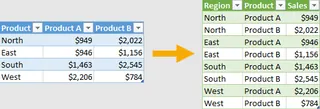
- Action: You'd select the columns you want to keep as they are (e.g., 'Region', 'Sales Rep'), then navigate to the Transform tab, click the Unpivot Columns dropdown, and select "Unpivot Other Columns".
- Result: This creates two new columns, typically named
AttributeandValue. You then have to manually rename them to something meaningful, likeMonthandSales.

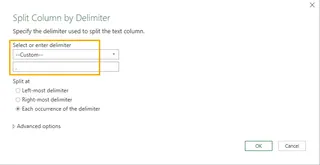
2. Splitting a Column by Delimiter:
The customer names are formatted as Smith, John. You need separate "First Name" and "Last Name" columns.
- Action: Select the name column, go to the Transform tab, click Split Column, and choose By Delimiter.
- Dialog Box: You'd specify the delimiter as a comma, and potentially handle the space that follows. This creates two new columns.
3. Filling Down Missing Data: Often, in data exported from other systems, category names only appear on the first row of a group, leaving subsequent rows blank.
- Action: Select the column with the blank cells, go to the Transform tab, click the Fill command, and select Down. Power Query will populate the
nullcells with the value from the cell above.

The Limitations of the Traditional Approach
While Power Query is a huge step up from manual copy-pasting, it has its own set of challenges:
- Steep Learning Curve: You need to know the specific terminology ("unpivot," "delimiter," "transpose") and remember where to find each command within the crowded ribbon interface.
- Rigidity: The recorded steps are brittle. If the source file's column names change (e.g., "Mar" becomes "March"), the query can break, forcing you to go back and debug the applied steps.
- Low Discoverability: How would you know that you can fix the German number format by changing the "locale"? Or that the "Column From Examples" feature even exists? Many of Power Query's best features are hidden.
- Time-Consuming for One-Off Tasks: Setting up a query for a simple, one-time cleaning task can sometimes feel like more effort than it's worth.
The New Solution: Using an Excel AI Agent (Excelmatic)
Instead of navigating menus and dialog boxes, what if you could just tell Excel what you want? This is the promise of Excel AI agents like Excelmatic. You upload your messy file and use plain language to direct the entire data cleaning and transformation process.

The Excelmatic Workflow: From Messy Data to Clean Insights
Here’s how you can solve the exact same problems in a fraction of the time using Excelmatic.
1. Upload Your Data File
Simply drag and drop your Excel (.xlsx), CSV, or Google Sheets file into Excelmatic. The AI will analyze the data structure and display a preview.

2. Describe Your Desired Outcome in Natural Language
Instead of hunting for buttons, you just type your request into the chat prompt.
Here are some prompts you could use to fix our messy data:
- For unpivoting: "Unpivot the columns from 'Jan' to 'Dec'. Name the new columns 'Month' and 'Sales'."
- For splitting names: "Split the 'Customer Name' column by the comma. Put the text after the comma in a new column called 'First Name' and the text before it in 'Last Name'. Then, trim any leading or trailing spaces from both new columns."
- For filling blanks: "In the 'Region' column, find all the blank cells and fill them with the value from the cell directly above."
- For fixing formats: "The 'Revenue' column is formatted using a German locale with a comma as the decimal separator. Please convert it to a standard US number format."
- For complex transformations: "Create a new column called 'Employee ID' by taking the first letter of the 'First Name' column and concatenating it with the 'Last Name' column, all in lowercase."

3. Review and Iterate on the Results
Excelmatic will process your request and show you the transformed data table. The beauty of this conversational approach is that you can continue to refine it.
You can follow up with more requests:
- "Great. Now remove the original 'Customer Name' column."
- "Filter the data to only show sales from the 'North' region."
- "Create a pivot table to show the total sales by Region and Month."
This iterative, dialogue-based workflow is far more flexible and intuitive than editing a rigid list of applied steps in Power Query.
4. Export Your Cleaned Data
Once you're satisfied, you can download the cleaned data as a new Excel file with a single click. Or, you can ask Excelmatic to generate a formula or a pivot table, and copy it directly into your existing workbook.
Dialogue Example: Cleaning Data with Excelmatic
Here's how a typical conversation might look:
User: I've uploaded a sales report. The data is pivoted, with columns for each month from Jan to Dec. Can you unpivot it so I have one column for 'Month' and one for 'Sales'?
Excelmatic: Done. I have unpivoted the data. The new columns are currently named 'Attribute' and 'Value'.
User: Please rename the 'Attribute' column to 'Month' and the 'Value' column to 'Sales'.
Excelmatic: The columns have been renamed. The cleaned data is ready. Is there anything else?
User: Yes, the 'Rep Name' column is formatted as 'LastName, FirstName'. Split it into two columns, 'First Name' and 'Last Name'.
Excelmatic: I have split the 'Rep Name' column and created the 'First Name' and 'Last Name' columns. The cleaned data is updated and ready for you to preview or download.
Power Query vs. Excelmatic: A Quick Comparison
| Feature | Traditional (Power Query) | AI-Powered (Excelmatic) |
|---|---|---|
| Speed | Minutes to hours, depending on complexity. | Seconds to minutes. |
| Learning Curve | High. Requires learning a new interface and terminology. | Low. Just describe what you want in plain language. |
| Flexibility | Rigid. Changes require editing a sequence of steps. | High. Easily iterate and adjust with follow-up commands. |
| Process | Click-heavy, navigating menus and dialog boxes. | Conversational, using natural language prompts. |
FAQ
1. Do I need to know Power Query or advanced formulas to use Excelmatic? Not at all. Excelmatic is designed for users of all skill levels. If you can describe the problem in plain English, you can use the tool. It completely abstracts away the complexity of Power Query or writing formulas.
2. Is my data safe when I upload it to Excelmatic? Yes. Excelmatic is built with enterprise-grade security. Data is encrypted in transit and at rest. For specific details on data handling and privacy, always refer to the official privacy policy on the website.
3. What if the AI misunderstands my request? The conversational interface makes it easy to correct misunderstandings. If the AI doesn't get it right the first time, you can rephrase your request or provide a more specific instruction, just like you would with a human assistant. The AI learns from these interactions to improve.
4. Can Excelmatic handle very complex, multi-step cleaning tasks? Absolutely. You can chain commands together in a conversation. For example, you can unpivot data, then split a column, then remove duplicates, and finally create a new calculated column, all in one continuous dialogue.
5. Can I use the cleaned data to create charts and pivot tables directly in Excelmatic? Yes. After your data is clean, you can immediately ask Excelmatic to perform analysis. For example: "Create a pivot table showing sales by region" or "Generate a bar chart comparing the total sales for each sales rep."
6. Does Excelmatic replace Excel? No, it complements it. Excelmatic is an AI agent designed to automate the most tedious and time-consuming parts of working in Excel—data cleaning, formula generation, and reporting. You can do the heavy lifting in Excelmatic and then export the polished result back into a standard Excel file for final touches or distribution.
Take Action: Upgrade Your Excel Workflow Today
Stop wasting valuable hours on manual data cleanup. Every minute you spend splitting columns, unpivoting tables, or fixing formats is a minute you're not spending on strategic analysis and generating insights. The opportunity cost of sticking with manual methods is too high.
By embracing an Excel AI agent like Excelmatic, you can transform your workflow, eliminate mundane tasks, and reduce the risk of manual errors. Focus on what truly matters—the story your data is trying to tell.
Ready to see it in action? Try Excelmatic for free. Upload one of your messy spreadsheets and use the prompts from this article to experience the future of data cleaning.