Key takeaways:
- Customer segmentation in Excel using traditional methods, even with advanced dynamic arrays, requires complex, hard-to-maintain formulas that are prone to error and difficult for teams to understand.
- An Excel AI agent like Excelmatic completely replaces the need for formula writing. You can simply describe your segmentation rules (e.g., Gold, Silver, Bronze tiers) in plain language.
- Using Excelmatic for this task dramatically reduces analysis time from hours to minutes, increases accuracy, and provides the flexibility to instantly modify criteria or create visualizations with simple follow-up questions.
Problem Background & Pain Points
Imagine you're a marketing analyst at a growing e-commerce company. Your manager walks over with a seemingly simple request: "I need a quick breakdown of our top customers from last quarter. Can you show me how much each person spent and group them into 'Gold', 'Silver', and 'Bronze' tiers? We need this to plan our new loyalty program."
This is a classic customer segmentation task. You have a massive spreadsheet filled with thousands of individual transactions. Each row contains a Customer Name, Product, Sales Amount, and Date. Your job is to distill this raw data into a clean, actionable summary.
For many Excel users, this request triggers a familiar sense of dread. Your mind immediately starts racing through the manual steps:
- How do I get a unique list of all customers without duplicates?
- How do I sum up the sales for each specific customer from the giant transaction list?
- How do I then apply the classification logic (e.g., spend > $22,000 = Gold) to each customer's total?
- How do I combine all this into a single, neat report?
The process is tedious, time-consuming, and notoriously prone to copy-paste errors or incorrect cell references. One small mistake can skew your entire analysis, potentially leading to the wrong customers being targeted in your expensive new loyalty campaign.
The Traditional Excel Solution: Steps and Limitations
For the advanced Excel user, the challenge is different but no less complex. The goal becomes "How can I build this entire report using a single, elegant formula?" This is a great intellectual exercise, but is it a practical business solution?
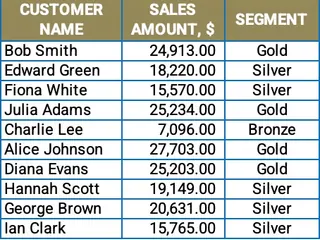
The modern approach involves using dynamic array functions. A single formula, entered in one cell, can "spill" the entire three-column report: Customer Name, Total Spend, and Segment.
The Logic Behind the "One-Formula" Method
To achieve this, you need to nest several advanced functions together. The logic typically looks something like this:
- Get Unique Customers: Use the
UNIQUE()function on the 'Customer Name' column to generate a spillable list of all unique customers. - Calculate Total Spend: Use
SUMIFS()to sum the 'Sales Amount' for each customer in the unique list generated in step 1. This creates a second dynamic array of total spend values. - Assign Segments: Use a nested
IF()or theIFS()function to create a third array that assigns a text label ("Gold", "Silver", "Bronze") based on the spend thresholds for each value in the total spend array. For example:IFS(TotalSpend > 22000, "Gold", TotalSpend >= 12000, "Silver", TRUE, "Bronze"). - Combine the Arrays: Use a function like
HSTACK()to horizontally stack the three separate arrays (Customer Names, Total Spends, Segments) into a single, three-column table. - (Optional) Improve Readability: Wrap the entire construction in a
LET()function. This allows you to define variables for each step (e.g.,customers = UNIQUE(...),spends = SUMIFS(...)), making the final formula slightly easier to read, though still very long.
A simplified version of the final formula might look like this:
=LET(
    customers, UNIQUE(Transactions[Customer Name]),
    total_spend, SUMIFS(Transactions[Sales Amount], Transactions[Customer Name], customers),
    segments, IFS(total_spend > 22000, "Gold", total_spend >= 12000, "Silver", TRUE, "Bronze"),
    HSTACK(customers, total_spend, segments)
)
The Limitations of This "Advanced" Approach
While impressive, this solution has significant practical drawbacks:
- High Skill Requirement: This isn't for the average Excel user. It requires a deep understanding of dynamic arrays, vectorized calculations, and functions like
LET,UNIQUE, andHSTACK. - Difficult to Debug: If the formula returns a
#VALUE!or#SPILL!error, finding the source of the problem within the long, nested structure can be a nightmare. - Inflexible and Rigid: What if your manager comes back and asks, "Great, now can you sort this by the highest spenders?" or "Can we add a 'Platinum' tier for anyone over $50,000?" Each new request requires a significant and careful rewrite of the core formula.
- Poor for Collaboration: If you go on vacation, can a colleague easily take over this report? If they aren't an Excel formula expert, they will be completely unable to modify or troubleshoot it. The report becomes a "black box" that only one person understands.
Ultimately, this method prioritizes formula elegance over practical business agility.
The New Approach: Using an Excel AI Agent (Excelmatic)
What if you could skip the formulas entirely? What if you could get the same, or even better, results simply by describing what you need in plain language? This is the power of an Excel AI Agent like Excelmatic.

The Core Idea: From Formulas to Conversation
Excelmatic transforms your relationship with data. Instead of you translating your business logic into Excel's rigid formula language, you tell the AI your goal, and it handles the heavy lifting.
The workflow is simple:
- Upload your raw transaction data (Excel or CSV).
- Start a conversation with the AI, asking for what you need.
- The AI analyzes the data and generates the tables, charts, or formulas you requested.
- You can ask follow-up questions to refine, filter, or visualize the results.
- Once you're happy, you can download the results as a new Excel file.
Step-by-Step Guide to AI-Powered Customer Segmentation
Let's solve the exact same problem using Excelmatic.
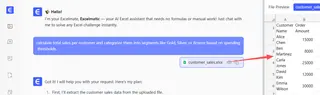
1. Upload Your Transaction Data
First, simply drag and drop your Excel file containing the customer transactions onto the Excelmatic platform. The AI will read your data and show you a preview. It's good practice to ensure your columns have clear headers like Customer Name, Sales Amount, etc.

2. Ask for the Analysis in Plain Language Now, instead of opening the formula bar, you open the chat prompt. You can break down your request into simple steps or ask for it all at once.
Start by asking for the core aggregation:
For each customer, calculate their total sales amount.
Excelmatic will instantly generate a two-column table with unique customer names and their total spend.
Next, ask for the segmentation:
Now, add a new column called 'Segment'. If total sales is above $22,000, label it 'Gold'. If it's between $12,000 and $22,000, label it 'Silver'. Otherwise, label it 'Bronze'.
The AI will update the table with the new 'Segment' column, correctly applying your business logic.
3. Iterate and Refine with Follow-up Questions This is where the AI approach truly shines. Your manager's follow-up requests are no longer a problem.
- Sorting: "Sort this table by total sales in descending order."
- Filtering: "Show me only the 'Gold' customers."
- Visualization: "Create a bar chart showing the total sales for the top 10 customers."
- Further Analysis: "What's the average purchase value for each segment?"
Each question is handled instantly, allowing you to explore your data at the speed of thought.
4. Export Your Final Report Once you have the perfect view, just click "Download." You'll get a clean, formatted Excel file containing the final report or chart, ready to be shared with your manager.
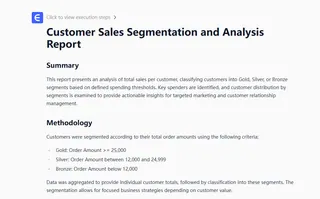
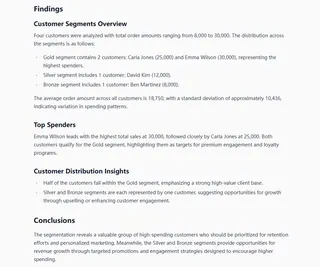
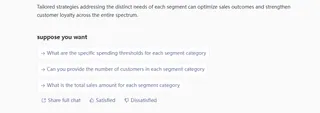
Sample Conversation with Excelmatic
Here’s what that entire interaction might look like:
User: I've uploaded our sales data. Can you create a summary report showing the total sales for each customer?
Excelmatic: Sure. I have created a table with two columns: 'Customer Name' and 'Total Sales'. The table is sorted alphabetically by customer name. Would you like me to sort it differently?
User: Great. Now add a third column named 'Segment'. Classify customers as 'Gold' for sales over $22,000, 'Silver' for sales between $12,000 and $22,000, and 'Bronze' for anything below $12,000.
Excelmatic: Done. The 'Segment' column has been added with the specified logic. I see there are 15 Gold customers, 28 Silver customers, and 57 Bronze customers.
User: Perfect. Please sort the entire report by 'Total Sales' from highest to lowest. And then create a pie chart that shows the percentage of customers in each segment.
Excelmatic: I have re-sorted the table as requested. I have also generated a pie chart visualizing the distribution of customers across the Gold, Silver, and Bronze segments. You can download the Excel file with both the sorted table and the chart.
Traditional Method vs. Excelmatic: A Quick Comparison
| Aspect | Traditional Formula Method | Excelmatic AI Method |
|---|---|---|
| Time to Result | 30 minutes - 1 hour (for an expert) | 2 - 5 minutes |
| Skill Level | Advanced (Dynamic Arrays, LET) |
Beginner (Plain language) |
| Flexibility | Low (Requires complex formula edits) | High (Instant changes via chat) |
| Error Rate | High (Syntax errors, logic flaws) | Low (AI handles formula generation) |
| Collaboration | Difficult (Hard for others to understand) | Easy (Chat history is self-documenting) |
FAQ
1. Do I need to know any Excel formulas to use Excelmatic? No. The primary benefit of Excelmatic is that you don't need to write formulas. You describe the outcome you want in plain language, and the AI generates the result, including any necessary formulas behind the scenes.
2. Is my company's data safe when I upload it to Excelmatic? Data security is a top priority. Excelmatic uses industry-standard encryption for data in transit and at rest. For specific details on compliance and data handling policies, it's always best to consult the official privacy policy on the website. Your original file is not modified.
3. Can Excelmatic handle messy or poorly structured data? Excelmatic is designed to be robust and can often interpret data even if it's not perfectly clean (e.g., inconsistent naming, extra spaces). For best results, it's recommended to have clear column headers. You can also ask the AI to help clean your data, for instance, by asking it to "trim whitespace from the customer name column."
4. Can I see and use the formulas that Excelmatic creates? Yes. Excelmatic can show you the formulas it used to generate a result. This is a fantastic way to learn advanced Excel techniques or to copy a specific formula for use in your own spreadsheets outside the platform.
5. What happens if the AI misunderstands my request? Because it's a conversational tool, you can simply clarify or rephrase your request. If the first result isn't quite right, you can say, "That's not what I meant, please calculate the average instead of the sum," and the AI will correct its course.
6. Is Excelmatic just for customer segmentation? Not at all. Customer segmentation is just one example. You can use Excelmatic for a wide range of Excel tasks, including financial reporting, data cleaning, creating complex dashboards, merging files, and much more. If you can do it in Excel, you can likely automate it with Excelmatic.
Get Started: Revolutionize Your Excel Workflow with Excelmatic
Stop spending your valuable time wrestling with complex formulas and manually manipulating spreadsheets. The goal of data analysis is to uncover insights, not to become a formula-writing machine.
By switching to an AI-powered workflow with Excelmatic, you can turn a task that used to take an hour of frustrating work into a quick, five-minute conversation. You'll deliver reports faster, respond to new requests with agility, and eliminate the risk of costly manual errors.
Ready to see for yourself? Try Excelmatic today. Upload the very transaction file you're working on right now and ask it to build your first customer segmentation report. You'll be amazed at how much time you get back.