Key takeaways:
- Creating custom logic in Excel, like extracting comment text or checking if a file exists, traditionally required writing complex User-Defined Functions (UDFs) in VBA, which has a steep learning curve.
- Excel AI tools like Excelmatic eliminate the need for coding. You can now generate custom calculations and data manipulations by simply describing your requirements in natural language.
- Using an AI-powered approach not only saves hours of coding and debugging but also makes your workflows more flexible, shareable, and less prone to errors compared to macro-enabled workbooks.
The Problem: When Excel's Built-in Functions Aren't Enough
You're an Excel power user. You live and breathe VLOOKUP, SUMIFS, and Pivot Tables. But every so often, you hit a wall. You need to perform a calculation or a data manipulation task for which there is simply no built-in function.
Consider these common scenarios:
- You've received a workbook where important context is buried inside cell comments, and you need to extract all that text into a separate column for analysis.
- You have a list of file paths in a spreadsheet and need to create a new column that verifies whether each file actually exists on your network drive.
- You're managing a workbook with dozens of sheets and need a dynamic way to reference the name of a specific sheet in a formula.
In these cases, you can't just type =EXTRACTCOMMENT() and hope for the best. For decades, the only answer was to roll up your sleeves and dive into the world of Visual Basic for Applications (VBA) to create your own "User-Defined Functions" (UDFs). This meant becoming a part-time programmer just to solve an Excel problem, a path filled with complexity, errors, and maintenance headaches.
The Traditional Solution: VBA User-Defined Functions (UDFs)
A User-Defined Function (UDF) is a custom function you write using VBA code. Once created, it can be used in your worksheet cells just like a standard Excel function like SUM or AVERAGE.
On the surface, this sounds like the perfect solution. But the process is far from simple for the average business user.
The Steps to Create a VBA UDF
Let's take the example of creating a function to check if a file exists. Here's the traditional workflow:
Enable the Developer Tab: First, you have to find and enable the hidden "Developer" tab in Excel's ribbon settings.
Open the Visual Basic Editor (VBE): You then navigate to the VBE, a separate, intimidating interface that looks more like a 90s software development tool than modern Excel. You can open it by clicking an icon or using the
Alt + F11shortcut.Insert a Module: Inside the VBE, you need to know to insert a "Module," which is essentially a blank canvas for your code.
Write the VBA Code: Here comes the hardest part. You must write the function with precise syntax. To check if a file exists, the code would look something like this:
Function DoesFileExist(FilePath As String) As Boolean
    'This function returns TRUE if the file exists, FALSE otherwise
    DoesFileExist = Not (Dir(FilePath) = vbNullString)
End Function
Save as a Macro-Enabled Workbook: Your file must now be saved as an
.xlsmfile. If you forget and save it as a standard.xlsx, all your code will be wiped out.
After all that, you can finally use your new function in a cell: =DoesFileExist("C:\Reports\Q1_Sales.xlsx").
The Limitations of the VBA Approach
While powerful, this method is riddled with practical problems that make it a poor choice for modern, collaborative teams:
- Steep Learning Curve: You need to learn a programming language (VBA). This is a significant barrier for the 99% of Excel users who are not developers.
- Security Concerns:
.xlsmfiles often trigger security warnings for users, and many corporate IT policies block them entirely. - Sharing is a Nightmare: If you send your
.xlsmfile to a colleague, they can use the function. But what if you want to use that function in all your workbooks? You'd save it to your "Personal Macro Workbook." The problem? Now if you send a file that uses this function to a colleague, they will see a#NAME?error because the function's code lives only on your computer. - Maintenance and Debugging: If the function doesn't work, you have to go back into the VBE and debug the code. This can be incredibly frustrating for non-programmers.
- Lack of Flexibility: What if you need a slight variation of the function? You have to go back, copy, paste, and edit the code, creating yet another function to manage.
This process is slow, brittle, and isolates your work. There has to be a better way.
The New Solution: Using Excel AI with Excelmatic
Instead of becoming a programmer, what if you could just tell Excel what you want to do? This is the promise of Excel AI Agents like Excelmatic. You can solve the exact same problems that once required complex VBA, but by using simple, plain language.

Excelmatic works as your personal data analyst. You upload your spreadsheet, and then you start a conversation, telling the AI what analysis, formula, or report you need.
Step-by-Step: Solving Custom Function Problems with AI
Let's revisit our original problems and see how we'd solve them in Excelmatic in just a few clicks.
1. Upload Your Data
First, sign in to Excelmatic and upload your Excel or CSV file. The AI will instantly read your data and show you a preview, understanding your columns and data types.

2. Describe Your Goal in Plain Language
Instead of opening the VBE and writing code, you simply type your request into the chatbox.
Problem 1: Extracting Text from Comments
- Old Way (VBA):
Function ExtractComment(CellReference As Range) As String On Error Resume Next 'In case there is no comment ExtractComment = CellReference.Comment.Text On Error GoTo 0 End Function - New Way (Excelmatic Prompt):
Create a new column named 'Comment Text' that contains the text from the comments in the 'Product Name' column. If a cell has no comment, leave it blank.
Problem 2: Checking if a File Exists
- Old Way (VBA):
Function DoesFileExist(FilePath As String) As Boolean DoesFileExist = Not (Dir(FilePath) = vbNullString) End Function - New Way (Excelmatic Prompt):
I have a column named 'Document Path'. Create a new column called 'Status' that shows TRUE if the file exists and FALSE if it does not.
Problem 3: Getting the Worksheet Name
- Old Way (VBA):
Function SheetName(CellReference As Range) SheetName = CellReference.Parent.Name End Function - New Way (Excelmatic Prompt):
Add a new column called 'Source Sheet' and fill it with the name of the worksheet this data came from.

3. Review and Iterate on the Results
Excelmatic will instantly process your request and generate the result, often presenting it as a new table. It will also explain the steps it took. The best part? You can continue the conversation to refine the outcome.
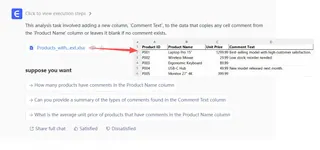
Here’s a sample dialogue that shows this power:
User: I've uploaded my sales data. Can you extract the text from the comments in the 'Client ID' column?
Excelmatic: Sure. I have created a new table with a column named 'Client_Notes' which contains the extracted comment text. I noticed some comments are missing. Would you like to filter for only the rows that have notes?
User: Yes, please. And also, for the rows with notes, can you create another column that counts the number of words in each note?
Excelmatic: Done. The table is now filtered, and I've added a 'Note Word Count' column. You can now download the updated Excel file.
This conversational approach to refining analysis is impossible with static VBA functions.
4. Export Your Finalized Data
Once you're happy with the result, you can download the data as a new, clean .xlsx file. There are no macros, no .xlsm warnings, and no dependencies. It's just a standard Excel file that anyone can open and use immediately.
Traditional VBA vs. Excelmatic: A Quick Comparison
| Feature | Traditional VBA UDF | Excelmatic (Excel AI) |
|---|---|---|
| Learning Curve | High (Requires VBA programming) | None (Requires plain language) |
| Speed | Slow (Code, debug, test) | Instant (Type a sentence) |
| Flexibility | Low (Code must be rewritten for changes) | High (Iterate through conversation) |
| Sharing | Difficult (Requires .xlsm or Personal Workbook) |
Easy (Export a standard .xlsx file) |
| Error Handling | Manual (Requires On Error statements) |
Automatic (AI handles exceptions gracefully) |
| Accessibility | Limited to advanced users | Accessible to everyone |
FAQ
1. Do I need to know any coding to use Excelmatic? No, not at all. Excelmatic is designed for business users. If you can describe your goal in a sentence, you can use the tool.
2. Is my data secure when I upload it to Excelmatic? Yes. Excelmatic is built with enterprise-grade security. Your data is encrypted in transit and at rest, and it is not used to train models for other customers. Always refer to the official privacy policy for detailed information.
3. Does Excelmatic change my original Excel file? No. Your original file remains untouched. Excelmatic works on a copy of your data in a secure cloud environment and allows you to download the results as a new file.
4. What if my data is messy? Can the AI still understand it? Excelmatic is designed to handle real-world, imperfect data. You can even ask it to help you clean the data as a first step. For example: "Please trim all leading and trailing spaces from the 'Product SKU' column and convert it to uppercase."
5. Can Excelmatic generate the VBA code for me if I still want it? While the primary goal of Excelmatic is to eliminate the need for code, it can sometimes provide formulas or explain the logic it used. For generating complex VBA scripts, it's best to use the AI to perform the task directly and export the result.
6. Is this only for simple tasks, or can it handle complex, multi-step logic? Excelmatic can handle highly complex, multi-step workflows. You can chain commands together, such as: "First, merge the data from the 'Q1' and 'Q2' sheets. Then, create a pivot table to show total sales by region and month. Finally, highlight the top-performing region for each month."
Get Started: Upgrade Your Excel Workflow Today
Stop spending hours wrestling with the Visual Basic Editor or searching for obscure VBA code snippets online. The era of needing to be a programmer to extend Excel's capabilities is over.
With an Excel AI agent like Excelmatic, you can focus on the "what" and let the AI handle the "how." You can solve complex data challenges, automate repetitive tasks, and generate insights in a fraction of the time.
Ready to see it for yourself? Try Excelmatic today. Upload one of the spreadsheets that has you stuck, and ask it in plain English to solve your problem. You'll be amazed at how much time you get back.