Key takeaways:
- Manually creating Excel pivot tables by dragging and dropping fields is time-consuming, error-prone, and inflexible when your analysis needs change.
- Excel AI tools like Excelmatic replace this manual setup, allowing you to generate complex pivot tables, apply filters, and sort data simply by describing your needs in natural language.
- Using Excelmatic for pivot tables drastically cuts down analysis time, improves accuracy, and allows for rapid, conversational iteration on your reports, making you more responsive to new questions.
The Challenge: Summarizing Large Datasets in Excel
Imagine you have a spreadsheet with thousands of rows of subscriber data. It contains columns like First Name, Last Name, City, State, Email, and Phone Number. Your manager asks a simple question: "How many subscribers do we have in each city?"
Answering this requires summarizing your raw data. While charts are great for small datasets and formulas can work, they become cumbersome and slow for large-scale analysis. This is where Pivot Tables have traditionally been the go-to tool in Excel. They are powerful, but let's be honest—they aren't always intuitive.
You find yourself navigating menus, dragging fields into confusing boxes, and constantly re-adjusting when a follow-up question comes in: "Great, now can you show me the top 5 cities by email sign-ups?" or "Filter this for just the East coast states." Each new query sends you back to the drawing board.
The Traditional Way: Building a Pivot Table Manually
A Pivot Table is a summary tool that lets you "pivot" or reorganize your data to see it from different angles without altering the source data. For decades, it has been a cornerstone of Excel analysis.
Let's walk through the classic method for creating a pivot table for our subscriber list.
Step-by-Step Manual Creation
Here’s the typical workflow to count subscribers by city:
Ensure Data Quality: First, you must have a clean dataset with clear headers and no blank rows. Inconsistent data can lead to incorrect summaries.
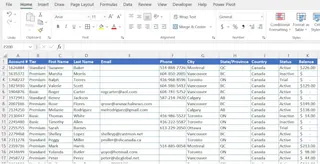
Insert PivotTable: Select any cell within your data, go to the
Inserttab, and clickPivotTable. This opens a dialog box where you confirm your data range and choose whether to place the table in a new or existing worksheet.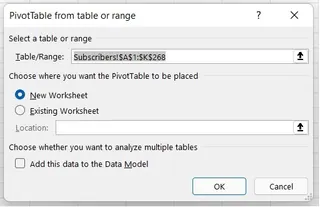
Arrange Fields: This is the core of the manual process. An empty pivot table frame appears, along with the
PivotTable Fieldspane. You must drag and drop the correct fields into four different areas:- Rows: For categories you want to list vertically (e.g.,
City). - Columns: For categories you want to list horizontally.
- Values: For the data you want to calculate (e.g.,
Count of CityorCount of Email). - Filters: To apply a top-level filter to the entire table.
To count subscribers by city, you would drag
Cityto the Rows area and then dragCityagain to the Values area, ensuring it's set to "Count".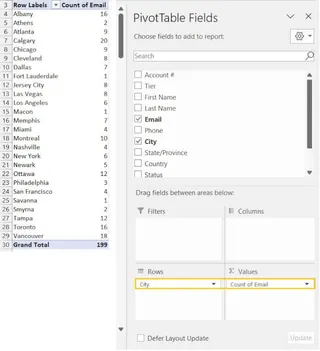
- Rows: For categories you want to list vertically (e.g.,
Sort and Filter: To find the cities with the most subscribers, you'd right-click a value in the count column, select
Sort, and thenSort Largest to Smallest. To filter for specific cities, you'd use the dropdown arrow on the "Row Labels" header.
The Limitations of the Manual Approach
While powerful, this method is riddled with friction points that slow down modern data analysis:
- Clunky Interface: The drag-and-drop field list is not user-friendly. It’s easy to drop a field in the wrong box or forget which combination of rows and columns you need.
- Rigid and Iteration-Hostile: What if you want to see a count of emails and phone numbers side-by-side? You have to go back to the field list, find those fields, and drag them into the Values area. Every change is a manual reconfiguration.
- Time-Consuming for Complex Queries: Answering a multi-layered question like "Show me the top 3 cities by subscriber count, but only for states with more than 100 total subscribers" requires several manual steps, filters, and potentially custom settings.
- High Learning Curve: Mastering advanced features like Slicers, Timelines, Calculated Fields, and Conditional Formatting requires significant training and practice.
- Prone to Errors: A simple mistake, like choosing SUM instead of COUNT for a text field, can lead to incorrect results that are hard to spot.
The New Way: Creating Pivot Tables with Excel AI (Excelmatic)
What if you could skip the menus, the dragging, and the clicking? What if you could just tell Excel what you want? That's the promise of an Excel AI Agent like Excelmatic.

Excelmatic transforms the process. You upload your file and use natural language to ask for the analysis you need. The AI handles the complex steps of creating, sorting, and filtering the pivot table for you.
Step-by-Step with Excelmatic
Let's solve the same subscriber analysis problem using Excelmatic.
1. Upload Your Data
First, sign in to Excelmatic and upload your subscriber Excel or CSV file. The AI will read your data and headers, preparing it for analysis. Ensure your columns have clear names like "City" and "Email" so the AI can easily understand them.

2. Describe the Pivot Table You Want in Plain Language
Instead of dragging fields, you simply type your request in the chatbox. Here are a few examples of prompts you could use:
- To create the basic summary:
Create a pivot table that counts the number of subscribers for each city.
- To add more detail:
Add columns to the pivot table to also show the count of emails and the count of phone numbers for each city.
- To sort the results:
Now, sort the pivot table to show the cities with the most subscribers at the top.
- To apply a filter:
Filter the table to only show data for 'New York', 'Los Angeles', and 'Chicago'.

Excelmatic will instantly generate the corresponding pivot table based on your instructions.
3. Review and Iterate with Follow-up Questions
The real power of an AI agent is its conversational nature. You don't have to start over for every new request. You can simply continue the conversation to refine your analysis.
- "Great. Now apply conditional formatting to the subscriber count column to highlight the top 10 cities."
- "Can you change this to a bar chart comparing the subscriber counts for the top 5 cities?"
- "Remove the phone number count and add a filter for the 'State' column."
This conversational flow makes data exploration fast and intuitive, something that's nearly impossible with the rigid structure of traditional pivot tables.
4. Export Your Results
Once you're satisfied, you can download the results. Excelmatic will provide you with a new Excel file containing the perfectly formatted pivot table you created, ready to be shared or included in a report.
A Sample Conversation with Excelmatic
Here’s what that interaction might look like:
User: I've uploaded my subscriber list. Can you create a pivot table to count how many subscribers are in each city?
Excelmatic: Done. I've created a pivot table with cities as rows and the count of subscribers as values. The cities are currently listed alphabetically. Would you like me to sort this differently?
User: Yes, please sort it to show the cities with the most subscribers first. Also, add a column to count how many email addresses we have for each city.
Excelmatic: Okay, the table is now sorted by subscriber count in descending order. I've also added a 'Count of Email' column. The top city is New York with 54 subscribers and 48 emails. What would you like to do next?
User: Filter this to only show cities in California.
Excelmatic: I've applied a filter for the 'State' column to show only 'CA'. The pivot table is now updated. You can download the resulting Excel file below.
Traditional Pivot Tables vs. Excelmatic: A Quick Comparison
| Feature | Traditional Manual Method | Excelmatic AI Method |
|---|---|---|
| Creation Speed | Minutes to hours, depending on complexity | Seconds to minutes |
| Flexibility | Rigid; requires manual reconfiguration for changes | Highly flexible; adjust with simple follow-up prompts |
| Learning Curve | High; requires learning fields, settings, and menus | Low; requires only the ability to describe your goal |
| Error Rate | Moderate; easy to misconfigure fields or formulas | Low; AI handles the technical setup, reducing human error |
| Advanced Features | Requires learning Slicers, Conditional Formatting, etc. | Achieved with natural language (e.g., "highlight top values") |
FAQ
Q: Do I need to know how Pivot Tables work to use Excelmatic?
A: No. You only need to describe the summary you want to see (e.g., "summarize sales by region and month"). Excelmatic handles the technical creation of the pivot table behind the scenes.
Q: Will Excelmatic modify my original Excel file?
A: No, never. Excelmatic works on a secure copy of your data in the cloud. Your original file remains untouched on your computer.
Q: Is it safe to upload my company's data to Excelmatic?
A: Yes. Excelmatic is built with enterprise-grade security. Data is encrypted in transit and at rest, and we have strict privacy policies in place. For specific compliance questions, always refer to the official privacy policy.
Q: Can I use the pivot table generated by Excelmatic in my own Excel workbook?
A: Absolutely. You can download a new Excel file containing the pivot table and all its underlying data. You can then copy it into your own reports or continue to work with it in desktop Excel.
Q: Can Excelmatic handle advanced features like Slicers?
A: Yes. You can ask the AI to "add an interactive filter for the 'City' column." The AI understands this as a request for a slicer and will configure it for you in the downloaded Excel file.
Get Started: Upgrade Your Excel Workflow Today
For years, mastering Pivot Tables was a badge of honor for any serious Excel user. But the time spent dragging, dropping, and re-configuring is time you could be spending on strategic analysis and decision-making.
By embracing an Excel AI agent, you're not replacing your skills; you're augmenting them. You can answer complex business questions faster, explore data more freely, and produce accurate reports with a fraction of the effort.
Ready to see for yourself? Try Excelmatic for free. Upload one of the spreadsheets you're working on right now and try one of the prompts from this article. Experience the future of data analysis today.