Key takeaways:
- Creating reusable custom calculations in Excel traditionally requires the
LAMBDAfunction, which involves a steep learning curve, complex syntax, and navigating the Name Manager. - An Excel AI agent like Excelmatic replaces this entire process. You simply describe the desired calculation in plain language, and the AI generates the results or the underlying formula for you.
- Using Excelmatic not only saves significant time but also makes your logic transparent, easy to modify through conversation, and accessible to team members who aren't Excel formula experts.
The Challenge: Repeating Complex Calculations in Excel
Imagine you're an e-commerce manager responsible for pricing products for different regions. Your base prices are in US dollars (USD), but for Canadian customers, you need to apply a consistent calculation: convert the price to Canadian dollars (CAD), add a 7% sales tax, and include a flat $5 shipping fee.
For a single product, the formula is straightforward. But what happens when you have a list of hundreds or thousands of products? You could write the formula in the first cell and drag it down.
=(B2 * 1.07 * 1.3) + 5
This works, but it's not ideal. If the tax rate, exchange rate, or shipping fee changes, you have to manually update the formula in every cell. Copy-pasting this logic across different sheets or workbooks is tedious and a recipe for error. What you really want is a single, reusable custom function, something like =CalculateCADPrice(B2).
For years, creating such a function without resorting to complex VBA code was impossible. This common frustration is exactly what drove the development of more advanced solutions.
The Traditional Solution: Using the LAMBDA Function
Microsoft eventually introduced the LAMBDA function in Excel 365 to address this very problem. LAMBDA allows you to define a custom, reusable function using standard Excel formula syntax. It's a powerful feature, but it's far from intuitive for the average user.
What is the LAMBDA Function?
The LAMBDA function lets you define a set of parameters (inputs) and a calculation that uses them. The basic syntax is:
=LAMBDA(parameter1, [parameter2], ..., calculation)
- parameter1, parameter2...: These are the inputs your function will accept. For our pricing example, this could be the
price. - calculation: The formula that operates on the parameters.
The tricky part is that you can't just type a LAMBDA into a cell and expect it to work. You must define it within Excel's Name Manager to give it a friendly name and make it reusable.
Steps to Create a Custom Function with LAMBDA
Let's build our custom pricing function, which we'll call CADPRICE.
Navigate to the Name Manager: Go to the Formulas tab on the ribbon and click Name Manager.
Create a New Name: Click the New... button.
Define the Function:
- Name:
CADPRICE - Scope:
Workbook(so you can use it on any sheet) - Refers to: This is where you enter the
LAMBDAformula. We'll include parameters for price, tax, and shipping to make it flexible.=LAMBDA(price, tax_rate, exchange_rate, shipping_fee, (price * (1 + tax_rate) * exchange_rate) + shipping_fee) - Comment: It's good practice to add a description, like "Calculates the final CAD price from a USD price, including tax and shipping."
- Name:
Use the New Function: Now, you can go to any cell in your workbook and use your custom function just like a built-in one:
=CADPRICE(B2, 0.07, 1.3, 5)
The Limitations of the LAMBDA Approach
While LAMBDA is a powerful step up from copy-pasting, it comes with significant drawbacks:
- High Learning Curve: The syntax is not straightforward. You need to think like a programmer, defining parameters and calculations in an abstract way.
- Hidden Logic: The formula is buried inside the Name Manager. A colleague (or even your future self) won't see the calculation logic just by clicking on the cell. This makes auditing and debugging difficult.
- Clunky Workflow: The process of opening Name Manager, writing the formula in a tiny input box, and testing it is cumbersome.
- Version Dependency:
LAMBDAis only available in Excel 365 and Excel 2021 or later. If you share your workbook with someone on an older version, your custom functions will break. - Rigid Structure: What if you want a slight variation? For example, "Calculate the price but with a 10% discount for orders over $100." You'd have to create an entirely new, even more complex
LAMBDAfunction.
For most business users who just want to get a task done, this is often more trouble than it's worth.
The New Solution: Using an Excel AI Agent (Excelmatic)
Instead of forcing you to learn a new, complex function, what if you could just tell Excel what you want to do in plain language? This is exactly what Excel AI agents like Excelmatic are designed for.

Excelmatic acts as your data analysis partner. You upload your file, and then you can chat with the AI, asking it to perform calculations, create tables, generate charts, or build reports.
How to Create a Custom Calculation with Excelmatic
Let's solve the same pricing problem using Excelmatic. The process is radically simpler.
Step 1: Upload Your Data
First, you upload your Excel or CSV file containing the product list and their USD prices to Excelmatic. Your data remains private and is only used for your analysis session.

Step 2: Describe Your Calculation in Plain Language
Instead of writing a LAMBDA formula, you simply type your request into the chatbox. You can be as descriptive as you need to be.
Prompt Examples:
Create a new column named 'Final CAD Price'. For each row, calculate it by taking the value in the 'USD Price' column, multiplying it by 1.07, then multiplying that by 1.3, and finally adding 5.
Or, more naturally:
I need to calculate the final price in Canadian dollars. The formula is: (USD Price * 1.07 for tax * 1.3 for currency conversion) + $5 for shipping. Add this as a new column.
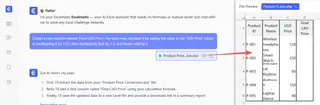
Step 3: Review and Iterate on the Result
Excelmatic will instantly process your request and show you a preview of the updated table with the new "Final CAD Price" column correctly calculated for every row.
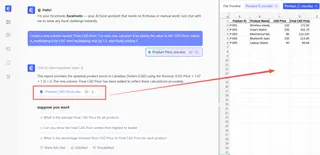
This is where the magic of a conversational interface shines. You're not locked into a rigid formula. You can easily refine the logic.
User: I need to calculate the final price in Canadian dollars. The formula is: (USD Price * 1.07 for tax * 1.3 for currency conversion) + $5 for shipping. Add this as a new column.
Excelmatic: Done. I've added the 'Final CAD Price' column to your table with the calculation you described. Would you like to format this column as currency?
User: Yes, please. Also, can you change the logic? For any USD price over $150, the shipping fee should be $10 instead of $5.
Excelmatic: I have updated the 'Final CAD Price' calculation. It now applies a $10 shipping fee for all items with a 'USD Price' over $150 and a $5 fee for all others. The currency format has also been applied.
This interactive process of refining complex business logic is impossible with a static LAMBDA function without starting over.
Step 4: Export Your Results
Once you're satisfied, you can download the new Excel file with the added column. The data is ready to use, and you didn't have to write a single formula yourself. Alternatively, you can ask Excelmatic to give you the Excel formula it used, which you can then copy into your own sheet.
LAMBDA vs. Excelmatic: A Quick Comparison
| Feature | LAMBDA Function |
Excelmatic (Excel AI) |
|---|---|---|
| Ease of Use | Difficult. Requires learning new syntax and using Name Manager. | Easy. Uses natural language commands. |
| Flexibility | Rigid. Modifying logic requires editing the hidden formula. | High. Logic can be changed and refined through conversation. |
| Speed | Slow. Involves multiple manual steps to define and test. | Fast. Results are generated in seconds from a single prompt. |
| Transparency | Low. The core logic is hidden away in the Name Manager. | High. The AI explains the steps it took, and the logic is clear. |
| Accessibility | Requires advanced Excel skills and a specific Excel version. | Anyone who can describe a business rule can use it. |
FAQ
1. Do I need to know any formulas to use Excelmatic for custom calculations? No. That's the primary benefit. You only need to be able to describe the calculation you want in English. Excelmatic translates your words into the required data operations.
2. Can Excelmatic create a reusable LAMBDA function for me?
Yes. While the more direct workflow is to have Excelmatic perform the calculation for you, you can also ask it to generate the LAMBDA formula text. You could then copy this into your Name Manager if you still wish to have a traditional custom function in your workbook.
3. Is my data secure when I upload it to Excelmatic? Yes. Excelmatic is designed with data privacy in mind. Your files are processed securely, and your data is not shared or used for any other purpose. For specific details, always refer to the platform's privacy policy.
4. What if my calculation logic is very complex, with multiple conditions (IFs)?
This is a major strength of using an AI agent. You can describe complex, multi-step conditional logic in plain English, which is often far easier than nesting multiple IF statements inside a LAMBDA function. For example: "If the category is 'Electronics', add a 3% insurance fee; otherwise, if the price is over $200, add a 1% fee. Calculate the total."
5. Is Excelmatic just for creating custom formulas? No, this is just one of many use cases. You can use Excelmatic to clean data, merge files, create pivot tables, build interactive charts and dashboards, and generate full reports—all through natural language conversation.
Get Started: Upgrade Your Excel Workflow Today
The LAMBDA function was a step forward for Excel power users, but it still represents the old way of thinking: forcing the user to learn a complex, code-like syntax to bend the software to their will.
The future of productivity is conversational. With an Excel AI agent like Excelmatic, you can finally work with your spreadsheet as a partner, not a puzzle. Instead of spending an hour trying to perfect a LAMBDA formula and debug it in the Name Manager, you can get the same result in 30 seconds with a simple sentence.
Stop memorizing syntax and start solving problems. Upload your next spreadsheet and let AI handle the heavy lifting.
Try Excelmatic for free and create your first custom calculation in seconds.