Key takeaways:
- Creating charts in Excel manually involves a repetitive, multi-step process of selecting data, navigating insert menus, choosing a chart type, and tediously formatting every element.
- An Excel AI agent like Excelmatic transforms this workflow by allowing you to generate and customize complex charts using simple, conversational English prompts.
- Using Excelmatic not only saves significant time but also lowers the barrier to effective data visualization, enabling you to explore different chart types and refine your presentation with unparalleled speed and flexibility.
The Challenge: Turning Raw Data into Compelling Visual Stories
Imagine you're a marketing manager preparing for a crucial leadership presentation. You have a spreadsheet with 12 months of email subscriber data. The numbers clearly show strong growth, a testament to your hard work.
Here’s the data:
| Month | Number of Subscribers |
|---|---|
| January | 5,143 |
| February | 5,583 |
| March | 6,294 |
| April | 6,882 |
| May | 7,149 |
| June | 7,850 |
| July | 8,341 |
| August | 8,992 |
| September | 9,512 |
| October | 10,034 |
| November | 10,789 |
| December | 11,521 |
Simply reading these numbers aloud won't capture the impressive upward trend. You know a chart is the answer. But now you face the "Excel chart ritual": a series of clicks, menu selections, and formatting adjustments that can turn a simple task into a frustrating time sink. How do you create a chart that is not just functional, but also polished, professional, and ready to impress your audience, without getting lost in a maze of options?
The Traditional Excel Method: A Journey of Clicks and Tweaks
The conventional way to create a chart in Excel is straightforward on the surface, but the devil is in the details. It's a manual process that requires precision and patience.
The Standard Steps to Create a Chart
Data Selection: First, you must carefully highlight the entire data range you want to visualize, including the headers. For a large dataset, this simple action can already be cumbersome.
Insert Chart: Next, you navigate to the
Inserttab on the Excel ribbon. Here, you're presented with a gallery of chart types: column, line, pie, bar, and more. You need to have a good idea of which chart best tells your story. For showing a trend over time, a line chart is usually the best choice.Initial Chart Generation: Excel instantly places a basic, unformatted chart onto your worksheet. It's functional, but rarely presentation-ready.
Customization and Formatting: This is where the real work begins. To make the chart clear and professional, you need to:
- Add a Title: Click on the default title and type a more descriptive one.
- Add Axis Labels: Click the chart, go to the
Chart Designtab, clickAdd Chart Element, and selectAxis Titlesfor both the horizontal and vertical axes. Then you have to type in the text for each. - Adjust Colors: To match your company's branding, you have to right-click the specific element (like the line or the bars), select
Format Data Series, and navigate the side panel to change the color. - Add a Legend: If you have multiple data series, you'll need to add a legend, again through the
Add Chart Elementmenu.
The Limitations of the Manual Approach
While this method works, it's fraught with inefficiencies that become more painful as your data or requests get more complex:
- Time-Consuming & Repetitive: Every single chart, and every single edit, requires the same sequence of clicks. Formatting a single chart to be presentation-ready can easily take 10-15 minutes.
- Requires Specific Knowledge: You need to know that a line chart is for trends and a bar chart is for comparisons. New users often struggle to pick the right visualization.
- Rigid and Inflexible: What if your boss asks, "What would this look like as a bar chart?" You have to go back to the
Chart Designmenu, findChange Chart Type, and then likely re-do some of your formatting. - Error-Prone: One wrong click in the formatting pane can mess up your entire chart, forcing you to undo or start over.
This entire process is reactive and mechanical. You're telling Excel how to do something step-by-step, rather than just telling it what you want to see.
The Excel AI Solution: Create Charts with Excelmatic
What if you could skip the clicks and just describe the chart you want? That's the power of an Excel AI agent like Excelmatic. It transforms chart creation from a manual chore into a simple conversation.

How It Works: From Prompt to Perfect Chart
With Excelmatic, you simply upload your data file and start making requests in plain English. The AI handles the technical steps of chart generation and formatting for you.
Step 1: Upload Your Data
First, upload your Excel or CSV file containing the subscriber data to Excelmatic. The AI will instantly read and understand your data structure, noting the "Month" and "Number of Subscribers" columns.

Step 2: Describe the Chart You Want
Instead of clicking through menus, you just type your request into the chat interface. Here are a few examples of prompts you could use for the subscriber growth scenario:
- "Create a line chart showing the number of email subscribers for each month."
- "Visualize the monthly subscriber growth with a column chart."
- "Generate a chart to show the trend of email subscribers from January to December and add a trendline."
- "Plot the number of subscribers against the month."
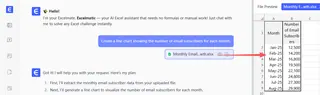
Step 3: Review and Iterate with Follow-up Questions
Excelmatic will generate the chart instantly based on your prompt. But the real magic lies in the ability to iterate. You can continue the conversation to refine the chart until it's perfect.
- "Change the chart title to '2024 Email Subscriber Growth'."
- "Make the line color dark blue and add data labels to each point."
- "Add a vertical axis title called 'Total Subscribers'."
- "Now, can you show this as a bar chart instead?"
Each request is processed in seconds, allowing you to experiment with different visualizations and formatting options without any manual effort.
Step 4: Export Your Final Chart
Once you're satisfied, you can download a new Excel file. This file contains your original data along with the beautifully formatted, presentation-ready chart you created. You can then copy it directly into your PowerPoint slides or reports.
Dialogue Example: Creating a Chart in Excelmatic
Here’s how that conversation might look in practice:
User: I've uploaded my subscriber data. Can you create a line chart to show the growth trend over the year?
Excelmatic: Of course. I've generated a line chart plotting the 'Number of Subscribers' for each 'Month'. The strong upward trend is clearly visible. Would you like to make any adjustments?
User: Yes. Please change the title to '2024 Subscriber Growth'. Also, add a label for the vertical axis called 'Number of Subscribers' and change the line color to #003366.
Excelmatic: The chart has been updated with the new title, axis label, and color. Is there anything else you'd like to change?
User: This looks perfect. Thanks!
Excelmatic: You're welcome. You can now download the Excel file containing this chart.
Traditional Method vs. Excelmatic: A Quick Comparison
| Aspect | Traditional Excel Method | Excelmatic AI Method |
|---|---|---|
| Time to Create | 5-15 minutes per chart, depending on formatting | 30-60 seconds per chart |
| Process | Multi-step clicking, dragging, and menu navigation | Simple, conversational prompts in plain language |
| Flexibility | Rigid; changing chart type or format requires rework | Highly flexible; iterate and change anything instantly |
| Learning Curve | Requires knowledge of chart types and formatting menus | Intuitive; if you can describe it, you can create it |
| Error Rate | High potential for manual errors in selection/formatting | Low; AI handles the technical execution consistently |
FAQ
1. Do I need to know the exact name of the chart type to use Excelmatic? Not at all. While you can ask for a "line chart" or "bar chart," you can also just describe your goal, like "show me the trend over time" or "compare the sales for each product," and Excelmatic will suggest and create an appropriate chart type.
2. Can Excelmatic handle more complex charts with multiple data series? Yes. If your data has multiple columns (e.g., subscribers from different sources), you can ask Excelmatic to plot them all on the same chart, and it will automatically assign different colors and create a legend.
3. Is my data secure when I upload it to Excelmatic? Excelmatic is built with data security as a priority. Your files are processed securely, and the platform adheres to strict privacy policies. For specific enterprise needs, always refer to the official security documentation.
4. What if my data isn't perfectly clean? Excelmatic can also help with data cleaning. You can ask it to "remove any duplicate rows" or "format the date column as MM/DD/YYYY" before you even start creating charts.
5. Can I use the chart created by Excelmatic in my PowerPoint presentation? Absolutely. You can download the new Excel file containing the finished chart. From there, you can simply copy and paste the chart directly into your PowerPoint, Word, or Google Slides presentation, where it remains fully editable.
6. Is this only for basic charts, or can it do more advanced visualizations? Excelmatic supports a wide range of visualizations, from basic line, bar, and pie charts to more advanced ones like scatter plots, combo charts, and more. You can even ask it to create pivot charts linked to pivot tables.
Take Action: Revolutionize Your Excel Charting Workflow
Stop letting the tedious, manual process of creating charts in Excel slow you down and stifle your creativity. Every minute spent clicking through formatting menus is a minute you could have spent analyzing your data and preparing your narrative.
By embracing an Excel AI agent, you can transform data visualization from a chore into a creative, interactive process. You can answer questions faster, explore your data more deeply, and produce professional-quality reports in a fraction of the time.
Ready to see it for yourself? Try Excelmatic today. Upload the very spreadsheet you're working on right now and use one of the prompts from this article. Experience firsthand how a simple conversation can build the perfect chart in seconds.