Key takeaways:
- Manually creating and managing official Excel Tables involves multiple steps for formatting, adding totals, and filtering, which is time-consuming for recurring analysis.
- Excel AI tools like Excelmatic replace these manual UI clicks with simple, conversational language, allowing you to format, summarize, and filter data instantly.
- By using Excelmatic, you can drastically reduce setup time, eliminate human error in filtering, and answer complex data questions on the fly, making your analysis more agile and efficient.
The Problem: Raw Data is Just a Grid, Not an Insight
Every day, professionals across sales, marketing, and finance find themselves staring at a familiar sight: a raw data export from a CRM, an analytics platform, or an accounting system. It's a plain grid of cells in Excel—functional, but static and unintelligent.
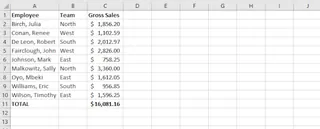
You know the insights are buried in there, but getting to them is a chore. Answering simple business questions like "What were our total sales in the North region?" or "Which products had a discount applied last month?" requires a series of manual, repetitive actions. You might be:
- Manually applying filters and hoping you don't misclick.
- Writing complex
SUMIFSorCOUNTIFSformulas that are easy to break. - Constantly re-adjusting your formulas every time new data is added.
- Struggling to create a quick summary without building a full-blown Pivot Table.
This process isn't just slow; it's fragile. A single wrong filter or a broken formula reference can compromise your entire analysis. There has to be a better way than just working with a "dumb" range of cells.
The Traditional Solution: Using Excel's "Format as Table" Feature
For seasoned Excel users, the immediate next step is to convert this static range into an official Excel Table. This is a significant improvement and a widely recognized best practice. You can do this by selecting a cell in your data and using the Ctrl+T shortcut or navigating to Insert > Table.
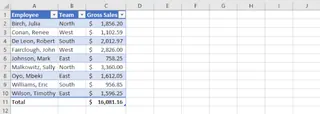
This action unlocks a suite of powerful features:
- Automatic Formatting: The table gets a clear, banded-row style, making it easier to read.
- Filter Buttons: Drop-down arrows are automatically added to each header, allowing for quick sorting and filtering.
- Dynamic Expansion: The table automatically expands to include new rows or columns, so your formulas and charts stay up-to-date.
- Total Row: With a single click in the
Table Designtab, you can add a "Total Row" that lets you easily calculate sums, averages, counts, and more for any column. - Slicers: For a more visual filtering experience, you can insert Slicers, which are interactive buttons that allow you to filter your table data on the fly.
The Limitations of the Manual Approach
While Excel Tables are a massive leap forward from plain ranges, they are still a product of a manual, click-based workflow. The "best practice" still has its pain points:
- Setup Overhead: It's not a single action. You still need to press
Ctrl+T, clickOK, navigate to theDesigntab, check theTotal Rowbox, then click on each total cell to select the correct aggregation (SUM, AVERAGE, etc.). - Clunky Filtering: Filtering by multiple criteria involves clicking a dropdown, checking multiple boxes, or inserting and arranging slicers. Answering a simple question like "Show me sales for the US and Mexico" requires several clicks.
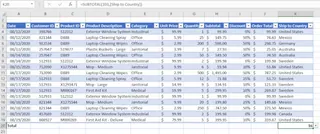
- Rigid Summaries: The Total Row is great for basic summaries, but what if you need to find the number of unique countries? You're back to writing complex formulas like
=SUMPRODUCT(1/COUNTIF(...))that are difficult for most users to understand and maintain. - Not Conversational: The entire process is a one-way street. You tell Excel what to do by clicking buttons. You can't simply ask your data a question and get an immediate answer. If your manager asks a follow-up question, you're back to clicking through menus again.
The New Solution: Using an Excel AI Agent (Excelmatic)
Instead of manually building and manipulating tables, what if you could just describe the outcome you want? This is exactly what Excel AI agents like Excelmatic are designed for. You can bypass the menus, buttons, and formulas and interact with your data through natural language.

Excelmatic acts as your personal data analyst. You upload your file, and then you start a conversation, telling the AI what you need. It performs the analysis, generates the tables, formulas, or charts, and presents the results, which you can then refine with follow-up questions.
Step-by-Step: From Raw Data to Insight with Excelmatic
Let's take the same raw data and achieve the same, and even better, results in a fraction of the time.
1. Upload Your Data File
First, simply drag and drop your Excel (.xlsx) or CSV file into Excelmatic. The AI will read your data and show you a preview. It's best to have clear column headers (like 'Sales Rep', 'Region', 'Order Amount') so the AI can easily understand your data structure.

2. Describe What You Want in Plain Language
Instead of clicking through menus, you just type your request. Here’s how you can replicate all the functions of a traditional Excel Table and more:
To format the data as a table:
Format this data as a table with alternating row colors.
To add a summary row:
Add a total row at the bottom. In that row, calculate the sum of 'Order Amount' and the average of 'Discount'.
To perform basic filtering:
Filter this table to only show records where the 'Ship to Country' is 'Mexico'.
To handle complex filtering (that would require slicers):
Show me all orders shipped to either 'United States' or 'Canada' that also had a discount greater than 10%.
To get complex summaries without formulas:
How many unique countries are we shipping to in this list?

3. Review and Iterate on the Results
Excelmatic doesn't just give you a final answer. It shows you the resulting table and explains what it did. The real power comes from the ability to iterate. You can continue the conversation to refine your analysis.
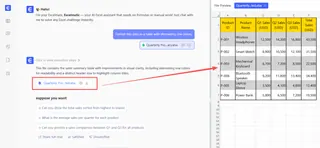
This conversational approach makes ad-hoc data exploration incredibly fast and intuitive.
4. Export Your Results
Once you're happy with the result, you can download the newly formatted and analyzed data as a new Excel file. You can also copy any formulas or Pivot Table configurations that Excelmatic generated and paste them directly into your own workbooks.
Dialogue Example: A Real-World Conversation with Excelmatic
Here's how a typical workflow might look when analyzing a sales report:
User: Here is my Q3 sales data. Please format it as a clean, professional table and add a total row that sums up the 'Sales Revenue' column.
Excelmatic: Of course. I have converted your data into a formatted table with a total row. The total sales revenue for Q3 is $452,890. The updated table is ready for you to view or download.
User: Great. Now, can you create a pivot table that shows the total sales revenue broken down by 'Sales Rep' and 'Region'? Please sort the reps by their total sales in descending order.
Excelmatic: Done. I've generated a pivot table summarizing sales by rep and region. The reps are sorted from highest to lowest total sales. It appears 'Jessica Miller' in the 'North' region was the top performer. Would you like me to create a bar chart to visualize this?
User: Yes, please create a stacked bar chart showing each rep's sales, with the stacks representing the different regions. And only include the top 5 sales reps.
Excelmatic: No problem. Here is a stacked bar chart visualizing the sales performance of your top 5 reps, broken down by region. You can download the Excel file containing this chart and the pivot table.
Traditional Tables vs. Excelmatic: A Quick Comparison
| Task | Traditional Excel Table Method | Excelmatic AI Method |
|---|---|---|
| Setup Time | Several minutes of clicks (Ctrl+T, Design tab, Total Row, select functions). | A few seconds to type one sentence. |
| Filtering | Click dropdowns or set up and click slicers. Prone to misclicks. | Describe the filter you want in plain language. |
| Complex Summaries | Requires writing difficult formulas (SUMPRODUCT, UNIQUE, etc.). |
Simply ask the question, e.g., "How many unique items?" |
| Flexibility | Rigid. Every new question requires more manual manipulation. | Highly flexible. Ask follow-up questions to explore data freely. |
| Skill Requirement | Intermediate Excel knowledge (Tables, Slicers, Formulas). | Ability to describe a business need in language skills. |
FAQ
1. Is it safe to upload my company's data to Excelmatic? Excelmatic prioritizes data security. Files are encrypted in transit and at rest. For specific details on data handling and privacy policies, it's always best to consult the official website. Your original file is never modified.
2. Do I need to be an Excel expert to use Excelmatic? Not at all. The entire point is to empower users who are not Excel gurus. If you can describe your business problem in words, you can use Excelmatic to solve it.
3. Can Excelmatic handle messy or unstructured data? Excelmatic includes data cleaning capabilities. You can ask it to "remove duplicate rows," "fill in blank cells with 0," or "split the 'Full Name' column into 'First Name' and 'Last Name'," which significantly speeds up data preparation.
4. Can I use the formulas or tables generated by Excelmatic in my own sheets? Yes. You can either download the complete, modified Excel file or ask Excelmatic to provide the specific formula it used. You can then copy and paste this formula into your own workbooks.
5. What happens if the AI misunderstands my request? Just like talking to a human assistant, you can clarify. If the first result isn't quite right, you can rephrase your request or add more detail. For example, if it sums the wrong column, you can say, "No, please sum the 'Sales Revenue' column instead."
Get Started: Upgrade Your Excel Workflow Today
Continuing to rely solely on manual table creation and manipulation is like choosing to walk when a car is available. It gets the job done, but it's slow, tiring, and inefficient. You spend more time clicking and formatting than you do thinking about what the data actually means.
By embracing an Excel AI agent, you can reclaim those hours. You can answer ad-hoc questions from your team in seconds, not minutes. You can build reports that are more accurate and easier to update. Most importantly, you can focus on strategic analysis rather than tedious technical execution.
Ready to see the difference? Try Excelmatic for free today. Upload one of the spreadsheets you're working on right now and try one of the prompts from this article. Your data is waiting to talk to you.