Key takeaways:
- Consolidating sales data from multiple tables or files is a common but time-consuming task, often requiring complex tools like Power Query that have a steep learning curve.
- Excel AI tools like Excelmatic automate this entire process. You can simply describe in plain language how you want to combine, merge, and calculate data, and the AI handles the execution.
- Using Excelmatic drastically reduces report creation time from hours to minutes, minimizes human error, and allows for flexible, on-the-fly analysis without writing a single formula or navigating complex menus.
The Challenge: Drowning in Disconnected Sales Data
Imagine you're a sales manager responsible for overseeing multiple regions. Every week, you receive sales data, but it's fragmented. The data for the North, South, and East regions are stored in separate tables, even if they're in the same workbook. To make matters worse, the product details, like category and full name, are in a completely different "master" Excel file.
Your goal is to create a unified report that shows performance across all regions. You need to see which product categories are selling best in which areas and group sales into performance tiers.
Manually, this is a nightmare. You might spend hours copying and pasting data, using VLOOKUP or INDEX/MATCH to pull in product information, and then manually adding columns for region names and sales groups. Not only is this incredibly tedious, but it's also highly prone to errors. One wrong copy-paste action can skew your entire report. And the worst part? You have to do it all over again next week.
The Traditional Power User Solution: Power Query
For experienced Excel users, Power Query is the go-to tool for this kind of data consolidation and transformation. It's a powerful engine built into Excel that allows you to connect to various data sources, clean and shape the data, and load it for analysis.
While powerful, it's far from simple. Here's a high-level overview of the steps involved in solving our multi-region sales report problem using Power Query.
The Power Query Workflow: Steps and Limitations
To build the consolidated report, you would typically follow a multi-step process inside the Power Query Editor:
Connect to the Data Source: First, you'd use the "Get Data" > "From File" > "From Workbook" option to connect to the
sales-data.xlsxfile.Filter and Select Tables: Power Query will show you all the tables and sheets in that workbook. You need to select only the relevant sales tables (
North_Sales,South_Sales,East_Sales).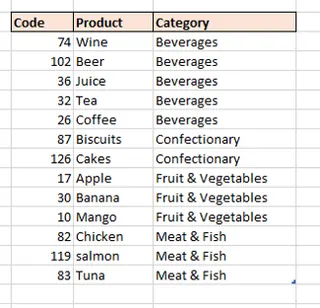
Append Queries: You would then combine, or "append," these three tables into a single, long list. This stacks the data from all regions into one master table.
Add a Custom Column for Region: Since the original tables didn't have a "Region" column, you'd have to create one. This often involves adding a custom column that extracts the region name (e.g., "North") from the source table name, which can be a tricky step.
Merge with Product Data: Next, you'd start another query to connect to your
sales-report.xlsxfile to get theproductstable. Then, you perform a "Merge Queries" operation—essentially a super-powered VLOOKUP—to join the productNameandCategoryinto your main sales table using theProduct Codeas the common key.Add a Conditional Column for Sales Groups: To group sales by value, you'd use the "Conditional Column" feature. You'd have to define rules one by one: if
Salesis less than 50, then "0-49"; ifSalesis less than 100, then "50-99", and so on.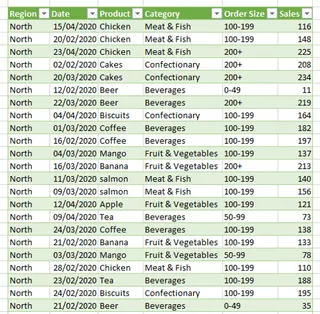
Load Data and Build Pivot Tables: Finally, you "Close & Load" the resulting clean table into your Excel sheet and build your desired Pivot Tables from it.
The Problems with the Traditional Approach
While this solution is automated after setup, it comes with significant baggage:
- Steep Learning Curve: Power Query is not intuitive for the average Excel user. Mastering its interface, understanding concepts like appending vs. merging, and writing custom M language formulas takes considerable time and training.
- Complexity and Rigidity: The query becomes a long chain of "Applied Steps." If something breaks or a business requirement changes (e.g., you need different sales group tiers), you have to dive back into this complex editor to diagnose and fix the issue.
- Poor Collaboration: If you build this complex query, you become the only person who can maintain it. Handing it off to a colleague who isn't a Power Query expert is often impossible.
- Time-Consuming Setup: Even for an expert, the initial setup of connecting, cleaning, merging, and adding columns can take a significant amount of time.
The New Solution: Using an Excel AI Agent (Excelmatic)
What if you could skip the entire Power Query learning curve and just... ask for the report you want? That's exactly what an Excel AI Agent like Excelmatic enables. It acts as your data analyst, understanding your requests in plain language and performing all the complex consolidation and transformation steps for you.

Let's rebuild the same multi-region sales report using Excelmatic.
Step 1: Upload Your Data Files
First, you simply upload all the necessary files to Excelmatic. In our case, that would be sales-data.xlsx (containing the regional sales tables) and sales-report.xlsx (containing the product lookup table). Excelmatic can handle multiple files at once, immediately understanding the context.

Step 2: Describe Your Goal in Plain Language
Instead of clicking through menus, you just talk to the AI. You can break down your request into simple, sequential steps or give a single, comprehensive instruction.
Here are the prompts you would use:
Combine the regional tables:
In the
sales-data.xlsxfile, combine the tables namedNorth_Sales,South_Sales, andEast_Salesinto a single table.Add the region information:
Add a new column named 'Region' that contains the name of the original table each row came from (e.g., 'North', 'South', 'East').
Merge with the product data:
"Now, using the 'products' table from the
sales-report.xlsxfile, add the 'Name' and 'Category' columns to my combined sales data by matching the 'Product Code' column.Create the calculated sales groups:
Create a new conditional column called 'Sales Group'. If 'Sales' is less than 50, the value should be '0-49'. If it's between 50 and 99, use '50-99'. If it's between 100 and 199, use '100-199'. Otherwise, use '200+'.
Generate the final Pivot Tables:
From this final table, create a pivot table that shows the sum of Sales with 'Category' in the rows and 'Region' in the columns. Also, create a second pivot table showing the count of transactions, with 'Sales Group' in the rows and 'Region' in the columns.

The AI processes these requests and generates the final, clean dataset and the requested Pivot Tables in seconds.
Example AI Conversation
Here’s how a real conversation with Excelmatic might look:
User: I've uploaded two files. First, combine the tables North_Sales, South_Sales, and East_Sales from the sales-data file.
Excelmatic: Done. I have combined the three regional sales tables into a new table with [X] rows.
User: Great. Now, add a 'Region' column based on the source table names. Then, merge this with the products table from the other file using 'Product Code' to bring in the product 'Category'.
Excelmatic: I have added the 'Region' column and merged the data with the product categories. The combined table is ready. What's next?
User: Perfect. Now create a pivot table to summarize total sales by Category and Region.
Excelmatic: Here is the pivot table you requested, showing total sales broken down by product category and region. You can download the new Excel file containing this pivot table and the consolidated data.
Traditional Method vs. Excelmatic: A Quick Comparison
| Aspect | Traditional (Power Query) | Excel AI (Excelmatic) |
|---|---|---|
| Time to Complete | 1-2 hours for first-time setup | 2-5 minutes |
| Required Skills | Deep knowledge of Power Query interface, data models, M language basics | Ability to describe business needs in plain language |
| Flexibility | Low. Changes require editing a complex query. | High. Just ask a follow-up question to modify. |
| Error Rate | Moderate. Easy to make a mistake in the steps. | Low. AI handles the technical execution. |
| Maintainability | Difficult. Often requires an expert to debug. | Easy. The conversation history is the documentation. |
FAQ
Q: Do I need to know any Excel formulas or Power Query to use Excelmatic? A: No. That's the primary benefit. You only need to describe your business objective in plain language. Excelmatic translates your words into the necessary data manipulations.
Q: Is my company's sales data safe when I upload it to Excelmatic? A: Data privacy and security are top priorities. Excelmatic uses secure protocols for data handling and does not store your files long-term. For specific details, always refer to the official privacy policy on the website.
Q: What if my data isn't perfectly clean? Can Excelmatic still help? A: Yes. Excelmatic is excellent for data cleaning. You can ask it to "remove duplicate rows," "fill in missing values in the 'Region' column with 'Unknown'," or "trim leading/trailing spaces from all text columns."
Q: Can I use the Pivot Tables generated by Excelmatic in my own Excel workbook? A: Absolutely. You can download a new Excel file that contains the final, clean data table and the fully functional Pivot Tables and charts generated by the AI. You can then use them just like any other Pivot Table.
Q: What happens if a new region, like West_Sales, is added later?
A: With the traditional Power Query method, your query might automatically pick it up if designed correctly, but it might also require modification. With Excelmatic, you would simply adjust your initial prompt: "Combine all tables that start with the word 'Sales_'." This makes the process incredibly adaptable.
Take Action: Revolutionize Your Excel Workflow Today
Stop wasting hours on repetitive, manual data consolidation. The time you spend wrestling with VLOOKUPs, copy-pasting, and navigating Power Query is time you could be spending on actual analysis and strategic decision-making.
By embracing an Excel AI Agent, you're not just getting a tool; you're getting a tireless assistant that handles the most tedious parts of your job. You can answer ad-hoc questions from your boss in minutes, not hours. You can build dynamic, error-free reports that update effortlessly.
Ready to see it in action? Try Excelmatic for free today. Upload one of your own challenging, multi-sheet Excel files and use the prompts from this article as inspiration. Experience for yourself how a simple conversation can transform your entire reporting process.