Key takeaways:
- Traditional conditional formatting in Excel is powerful but requires navigating multiple menus, managing complex rules, and is time-consuming to adjust.
- An Excel AI agent like Excelmatic automates this process, allowing you to apply sophisticated visual formatting—like data bars, icon sets, and top/bottom rules—using simple, conversational language.
- By using Excelmatic, you can transform raw data into an insightful, visually-appealing report in minutes, drastically improving efficiency and reducing the risk of manual errors.
The Problem: A Wall of Numbers Hides Critical Insights
Imagine you're a marketing analyst staring at a spreadsheet filled with website traffic data. You have rows for dozens of countries and columns for monthly sessions over the last quarter. Your manager wants a quick summary for an upcoming meeting: "Which countries are our top performers? Where are we seeing the most growth? Where are we lagging?"
The answers are buried in that spreadsheet, but it's just a wall of numbers. Manually scanning through hundreds of cells is inefficient and prone to error. You know that adding visual cues—like coloring the top-performing countries green, showing growth with up arrows, and visualizing traffic volume with bars—would make the key takeaways instantly obvious.
This is where most Excel users turn to Conditional Formatting. But while it's a native Excel feature, it comes with its own set of frustrations. You're about to spend the next hour clicking through menus, setting up rules, and tweaking settings, all while that meeting deadline looms closer.
The Traditional Excel Solution: A Labyrinth of Clicks and Rules
Excel's built-in Conditional Formatting tool is designed to solve this exact problem. It allows you to apply formatting (like colors, icons, and data bars) to cells that meet specific criteria.
For our website traffic report, the traditional approach would involve several manual steps:
Step 1: Highlighting Top Performers with Top/Bottom Rules
To find the top 10 countries by session volume in September, you'd have to:
- Select the entire column of September session data.
- Navigate to the
Hometab, clickConditional Formatting. - Hover over
Top/Bottom Rulesand selectTop 10 Items.... - In the dialog box, you can adjust the number (e.g., from 10 to 15) and choose a predefined format like "Green Fill with Dark Green Text".
- Click
OKto apply the rule.
This works, but if your manager asks for the "Top 12" instead of "Top 10," you have to go back into the Manage Rules dialog to edit it.
Step 2: Visualizing Volume with Data Bars
To make it easier to compare the relative traffic volume between countries, you might add data bars:
- Select the column for August's session data.
- Go back to
Conditional Formatting>Data Bars. - Choose a gradient or solid fill style. Excel automatically fills the cells with bars proportional to their value.
This is relatively straightforward, but combining multiple rules on the same data can start to get messy.
Step 3: Showing Trends with Icon Sets
What about showing month-over-month growth? If you have a 'Variance' column showing the percentage change, you can use Icon Sets:
- Select the 'Variance' column.
- Go to
Conditional Formatting>Icon Setsand choose a set of arrows (e.g., green up, yellow sideways, red down). - Here's the catch: By default, Excel applies a percentile-based rule. It might show a green arrow for the top 33% of values, not necessarily for all positive numbers. This is wrong and misleading.
- To fix this, you must go to
Conditional Formatting>Manage Rules..., select your Icon Set rule, and clickEdit Rule. - In the complex rule editor, you have to manually change the logic from 'Percent' to 'Number'. You'll set the green arrow to show when the value is
> 0, the yellow arrow when the value is= 0, and the red arrow for everything else.
The Limitations of the Manual Method
While functional, this traditional process is far from ideal:
- It's slow and click-heavy: Each formatting rule requires navigating through multiple menus and dialog boxes.
- Rules are rigid and hard to edit: The
Manage Ruleswindow is unintuitive. Modifying or debugging a complex set of rules can be a nightmare, especially for a colleague who didn't create them. - It's not flexible: If your manager asks a follow-up question ("Great, now can you also highlight any country with less than 1,000 sessions in red?"), you have to start the whole process over again for the new rule.
- High cognitive load: You have to think like the machine, translating a simple business request ("show me the winners") into a series of precise, mechanical steps.
You spend more time formatting the data than analyzing it. There has to be a better way.
The Excel AI Solution: Describe, Generate, Done with Excelmatic
Instead of telling Excel how to do something step-by-step, what if you could just tell it what you want? This is the power of an Excel AI Agent like Excelmatic. It replaces the complex menus and rule editors with a simple chat interface.

Here’s how you can create the same visually rich report in a fraction of the time.
Step 1: Upload Your Data
First, simply drag and drop your Excel or CSV file containing the website traffic data directly into Excelmatic. The AI will instantly read your data and show you a preview.

Step 2: Ask for What You Want in Plain Language
Now, instead of clicking through menus, you just type your requests into the chat.
To replicate the entire traditional process, you could ask:
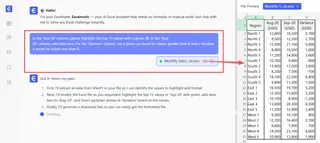
In the 'Sep-20' column, please highlight the top 15 values with a green fill. In the 'Aug-20' column, add data bars. For the 'Variance' column, use a green up arrow for values greater than 0 and a red down arrow for values less than 0.
Or you can build it up conversationally:
- To highlight top performers: "Highlight the top 15 countries based on 'Sep-20' sessions in green."
- To add data bars: "Now, add data bars to the 'Aug-20' column to visualize the traffic."
- To show trends with icons: "In the 'Variance' column, show a green up arrow for positive numbers and a red down arrow for negative numbers."
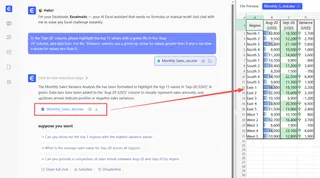
Excelmatic understands your intent and applies the correct formatting instantly. No rule editor, no mistakes.
Step 3: Iterate and Refine with Follow-up Questions
This is where an AI agent truly shines. Your manager's follow-up questions are no longer a chore.
User: Here is my website traffic data by country. Can you highlight the top 10 countries by sessions for 'Sep-20' in green?
Excelmatic: Of course. I have highlighted the top 10 countries in the 'Sep-20' column. I also see a 'Variance' column. Would you like me to add icons to visualize the growth or decline?
User: Yes, please! Use up and down arrows. Also, could you filter the table to ONLY show these top 10 countries?
Excelmatic: Done. The table is now filtered to show only the top 10 countries from September, and I've added trend arrows to the 'Variance' column. Is there anything else?
User: Great. Please create a bar chart comparing the 'Sep-20' sessions for these top 10 countries.
Excelmatic: Here is the bar chart you requested, comparing the September sessions for your top 10 countries. You can download the updated Excel file with the formatted table and the chart.
Step 4: Export Your Finished Report
Once you're satisfied, you can download a new Excel file. When you open it, you'll find a perfectly formatted table with all the conditional formatting rules and charts you requested, ready to be shared or pasted into a presentation.
Traditional Method vs. Excelmatic: A Quick Comparison
| Aspect | Traditional Conditional Formatting | Excelmatic (Excel AI) |
|---|---|---|
| Time to Complete | 15-30 minutes | 1-2 minutes |
| Process | Multi-step, click-heavy, manual rule editing | Conversational, describe the desired outcome |
| Flexibility | Rigid; changes require re-editing rules | Highly flexible; iterate with follow-up questions |
| Learning Curve | Moderate to high, requires learning rule logic | Almost zero; if you can describe it, you can do it |
| Error Potential | High (e.g., incorrect icon set logic) | Low; AI handles the rule configuration |
FAQ
Q1: Do I need to know any Excel formulas to use Excelmatic for formatting? No. You don't need to know any formulas or even where the Conditional Formatting button is. You just need to describe the visual outcome you want in plain English.
Q2: Will Excelmatic modify my original Excel file? No. Your original file remains untouched. Excelmatic operates on a copy of your data in a secure environment and allows you to download a new file with the results.
Q3: What if my data isn't perfectly clean? While clear column headers are always helpful, Excelmatic's AI is designed to understand common data structures even if they aren't perfect. It can often infer your intent from the context of your data and your questions.
Q4: Is it safe to upload sensitive company data to Excelmatic? Excelmatic is designed with data security as a priority, using industry-standard encryption and privacy protocols. For specific compliance requirements, it's always best to consult the official privacy policy on the website.
Q5: Can Excelmatic do more than just conditional formatting? Absolutely. Conditional formatting is just one of many tasks it can handle. You can ask it to generate complex formulas, create pivot tables, build interactive charts and dashboards, clean data, and even write summary reports.
Get Started: Elevate Your Excel Workflow with AI
Stop letting tedious formatting tasks slow you down and distract you from what truly matters: finding insights in your data. The time you spend wrestling with rule editors is time you could be using to make strategic decisions.
By embracing an Excel AI agent, you transform data analysis from a series of mechanical clicks into a creative, conversational process. You can test hypotheses, explore different views of your data, and produce professional-looking reports with unprecedented speed and ease.
Ready to see it in action? Try Excelmatic for free today. Upload the spreadsheet you're working on right now and ask it one of the questions from this guide. You'll be amazed at how much time you can save.