Key takeaways:
- Manually comparing two columns in Excel using formulas like
IF,COUNTIF, or conditional formatting is time-consuming, error-prone, and hard to adapt for different comparison types (e.g., case-sensitive vs. list-wide). - Excel AI tools like Excelmatic replace these manual steps. You can simply upload your file and ask in plain language to "find rows where column A and column B match" or "list all items from column A that are not in column B."
- Using Excelmatic not only saves hours of tedious formula writing but also provides instant, accurate results. You can easily switch between row-by-row comparisons and list-wide lookups without complex rules.
The Common Challenge: Comparing Lists in Excel
Picture this: you have two lists. One is the master list of all employees in your company. The other is a list of employees who completed a mandatory training session. Your task is to find out who hasn't completed the training yet.
Or maybe you're in finance, reconciling a list of invoices sent against a list of payments received. You need to quickly identify which invoices are still outstanding.
These scenarios, common in every department, all boil down to the same fundamental Excel task: comparing two columns to find matches and differences. For many, this is where the headache begins. Which formula should you use? VLOOKUP? COUNTIF? IF? What if the lists aren't in the same order? What about case sensitivity, like "John Smith" vs. "john smith"? The simple task of comparison quickly becomes a frustrating and time-consuming exercise.
The Traditional Way: A Maze of Formulas and Clicks
For years, Excel veterans have relied on a toolkit of formulas and features to tackle this problem. While powerful, these methods are often rigid, complex, and prone to human error. Let's review the common approaches and their inherent limitations.
Method 1: The Simple Row-by-Row Check
The most basic method is to check if the values in the same row of two columns are identical.
- Create a new "helper" column (e.g., Column C).
- In the first cell (e.g., C2), enter the formula:
=A2=B2. - Press Enter. Excel will return
TRUEif the values match andFALSEif they don't. - Drag this formula down for all rows you want to compare.
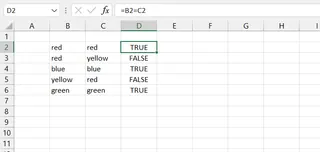
If you prefer a more descriptive output, you can wrap this logic in an IF function:
=IF(A2=B2, "Match", "Mismatch")
This will display "Match" or "Mismatch" instead of TRUE/FALSE, which is slightly more readable.
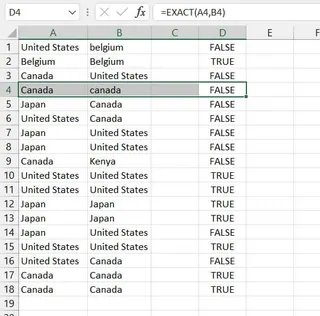
Method 2: Case-Sensitive Comparison with the EXACT Function
The simple = comparison is not case-sensitive. "USA" and "usa" are considered a match. To perform a case-sensitive comparison, you need the EXACT function.
=EXACT(A2, B2)
This formula will return TRUE only if the values are identical in every way, including capitalization.
Method 3: Finding if a Value Exists Anywhere in Another Column with COUNTIF
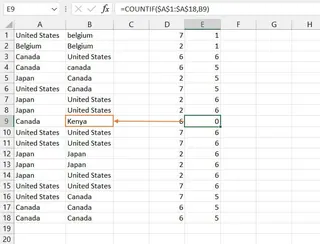
What if the lists are not sorted, and a match for cell A2 could be in B10 or B50? This is where row-by-row comparison fails. You need to check if a value from Column A exists anywhere in Column B. The COUNTIF function is the classic solution.
=COUNTIF(B:B, A2)
This formula counts how many times the value from A2 appears in the entire Column B.
- If the result is
> 0, a match exists somewhere. - If the result is
0, the value inA2is unique to Column A.
The Limitations of the Manual Approach
While these methods work, they come with significant drawbacks:
- High Learning Curve: You need to know which function (
IF,EXACT,COUNTIF,VLOOKUP) is right for your specific scenario. - Rigid and Inflexible: A formula built for row-by-row comparison is useless for unsorted lists. You have to start from scratch with a new formula.
- Error-Prone: A small typo in the formula or an incorrect cell range (
B:Bvs$B$2:$B$100) can lead to incorrect results that are hard to debug. - Time-Consuming: The process of writing, testing, and dragging formulas, then filtering the results, takes valuable time away from actual analysis.
- Difficult to Maintain: When new data is added, you must remember to extend your formulas and update your ranges, creating a maintenance burden.
The New Way: Compare Columns with Excel AI (Excelmatic)
Instead of forcing you to become a formula expert, what if you could just tell Excel what you want to do? That's the promise of Excel AI Agents like Excelmatic. You upload your spreadsheet and use plain language to ask for the comparison you need. The AI handles the complex logic for you.

Let's revisit our problem, but this time, solve it with Excelmatic.
Step 1: Upload Your Excel File
First, navigate to Excelmatic and upload your Excel or CSV file containing the two columns you want to compare. Your original file remains untouched; Excelmatic works on a secure copy.

Step 2: Ask Your Question in Natural Language
This is where the magic happens. Instead of writing a formula, you simply type your request into the chat interface. Here are a few examples based on the scenarios we discussed:
For a simple row-by-row match:
Create a new column called 'Status' that checks if the value in 'Column A' is the same as 'Column B' for each row. If they are the same, write 'Match', otherwise write 'Mismatch'.
For a case-sensitive check:
Perform a case-sensitive comparison between Column A and Column B. Show me the rows where they do not match exactly.
To find items in one list but not the other (the most common use case):
Give me a list of all 'Invoice IDs' from Column A that do not appear anywhere in Column B.
To highlight differences directly:
On my sheet, highlight all rows where the 'Employee Name' in Column A is different from the 'Trainee Name' in Column B.

Step 3: Review and Iterate on the Result
Excelmatic will instantly analyze your data and provide the result. This could be a new table, a list of differences, or a confirmation that it has highlighted the specified rows.
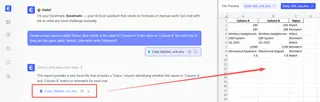
The best part is that you can continue the conversation.
User: I have two lists of product codes, 'Old_Codes' in column A and 'New_Codes' in column B. Find all the codes from the 'New_Codes' list that are not in the 'Old_Codes' list.
Excelmatic: I have compared the two lists. There are 42 product codes in 'New_Codes' that are not present in 'Old_Codes'. I have created a new table with just these 42 new codes.
User: Great. Now can you count how many codes are present in both lists?
Excelmatic: Certainly. There are 258 product codes that are present in both the 'Old_Codes' and 'New_Codes' lists.
Step 4: Download Your Results
Once you're satisfied, you can download a new Excel file containing all the analysis—the new columns, the filtered lists, the highlights—everything is ready to go. No formulas to copy, no formatting to fix.
Traditional Excel vs. Excelmatic: A Quick Comparison
| Feature | Traditional Excel | Excelmatic (Excel AI) |
|---|---|---|
| Time to Result | 15-30 mins (researching, writing, and debugging formulas) | < 1 minute |
| Required Skill | Knowledge of IF, EXACT, COUNTIF, Conditional Formatting |
Ability to describe the goal in plain language |
| Flexibility | Low. Changing comparison type requires a new approach. | High. Just ask a different question. |
| Error Rate | High (typos, incorrect ranges, logic errors) | Low. The AI handles syntax and logic. |
| Output | Raw helper columns that require further filtering | Clean tables, highlights, or summaries as requested. |
FAQ
Q1: Do I need to be an Excel expert to use Excelmatic? No, not at all. If you can describe what you want to achieve in a sentence, you can use Excelmatic. It's designed for everyone, from beginners who don't know formulas to experts who want to save time.
Q2: Is it safe to upload my company's data to Excelmatic? Yes. Excelmatic is built with data security as a top priority. Your data is encrypted during transit and at rest, and it is not used for training AI models. For specific compliance details, always refer to the official privacy policy.
Q3: Can Excelmatic handle messy data with typos or slight variations? While this guide focuses on exact matches, you can ask Excelmatic to help clean your data first. For example, you can ask it to "trim whitespace from all cells" or "convert the 'Name' column to proper case" before you perform the comparison, increasing your match accuracy.
Q4: Can I see the formula that Excelmatic uses? Yes. You can ask Excelmatic to not only perform the action but also provide the Excel formula to do it. This is a great way to learn or to implement the solution in a shared workbook where others don't have AI tools. For example: "Show me the formula to find values in A that are not in B."
Q5: How is this better than just using VLOOKUP?
VLOOKUP is a single-purpose tool for looking up a value. Excelmatic is a versatile assistant. It can replicate the function of VLOOKUP, COUNTIF, IF, and more, all through a single chat interface. You don't need to remember any function names; you just state your goal. Plus, it can generate summaries, create charts, and format your data in ways that a single formula cannot.
Get Started Today: Upgrade Your Excel Workflow
Stop wasting time wrestling with formulas. The next time you need to reconcile two lists, compare inventory, or check a roster, let an AI do the heavy lifting. The time you save isn't just a few minutes; it's the freedom to focus on what the data actually means, rather than how to manipulate it.
Ready to try it for yourself? Upload the spreadsheet you're working on right now and see how quickly you can get answers.
Try Excelmatic for free and transform your relationship with Excel.