Key takeaways:
- Calculating tiered sales commissions in Excel traditionally requires complex, error-prone
VLOOKUPformulas and manual data aggregation. - Running "what-if" scenarios, like adjusting rates to meet a budget, involves the non-intuitive, multi-step Goal Seek tool, which is difficult to audit and repeat.
- Excel AI tools like Excelmatic replace these manual steps with simple natural language. You can ask the AI to calculate commissions and perform goal-seeking analysis in a single conversation.
- By using Excelmatic, you dramatically reduce the time spent on formula creation and scenario testing, minimize human error, and make your financial models more flexible and transparent.
The Challenge: More Than Just Simple Math
For any sales manager, the end of the quarter or year brings a critical and often tedious task: calculating sales commissions. It's a moment of truth for the sales team, and accuracy is paramount. But this is rarely a simple case of multiplying total sales by a flat percentage.
Real-world commission structures are usually tiered. An employee might earn 10% on their first $50,000 in sales, 15% on the next $50,000, and so on. This immediately introduces complexity. You can't just use a simple formula; you need a way to look up the correct rate based on each employee's performance.
Now, let's add another layer of reality. The finance department has allocated a total budget for commissions, say $700,000. After your initial calculations, you find the total payout is only $650,000. As a manager, you want to reward your team by using the remaining budget. You decide to increase the commission rate for your top performers to meet the $700,000 target precisely. How do you figure out the exact new rate? This is a classic "what-if" problem that sends many Excel users down a rabbit hole of manual trial-and-error or obscure built-in tools.
The Traditional Excel Solution: A Labyrinth of Formulas and Clicks
To solve this two-part problem manually in Excel, you'd need to roll up your sleeves and deploy a combination of lookup functions, summary formulas, and a special analysis tool. It's a powerful workflow, but it's also rigid, time-consuming, and fragile.
Step 1: Calculating Tiered Commissions with VLOOKUP
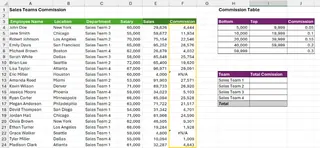
First, you need to determine the commission amount for each sales representative. Given a main data table and a separate commission tier table, the go-to function is VLOOKUP.
The commission table looks something like this, where the rate applies to sales above that threshold:
| Sales Threshold | Commission Rate |
|---|---|
| $0 | 10% |
| $50,000 | 15% |
| $60,000 | 20% |
To find the correct rate for an employee with $55,000 in sales, you'd use a formula like:
=VLOOKUP(E2, CommissionTable, 2, TRUE)
E2is the employee's sales amount.CommissionTableis the named range for your tier table.2tells it to pull from the second column (the rate).TRUEis the crucial part: it performs an "approximate match," finding the largest value that is less than or equal to the lookup value. This requires your table to be sorted in ascending order.
After finding the rate, you multiply it by the sales amount to get the commission value: =E2 * VLOOKUP(E2, CommissionTable, 2, TRUE). Finally, you might wrap this in an IFERROR function to avoid ugly #N/A errors, making the formula even longer: =IFERROR(E2 * VLOOKUP(E2, CommissionTable, 2, TRUE), "").
Step 2: Summarizing Totals with SUMIFS
Next, you need to calculate the total commission paid out to each team. This is a job for SUMIFS, which sums values based on one or more criteria.
=SUMIFS(F:F, D:D, "Team A")
This formula sums all values in the 'Commission Amount' column (F) where the 'Team' column (D) is "Team A". You'd repeat this for each team and then use a final SUM to get the grand total.
Step 3: The "What-If" Scenario with Goal Seek
Here comes the trickiest part. Your grand total is $650,000, but your budget is $700,000. You want to find the exact commission rate for the top tier that will make the grand total equal $700,000.
This is where you use Excel's Goal Seek tool.
- Navigate to the
Datatab >What-If Analysisgroup >Goal Seek. - In the dialog box, you configure three things:
- Set cell: The cell containing your grand total commission formula.
- To value: The target value you want to achieve:
700000. - By changing cell: The cell containing the commission rate for the highest tier.
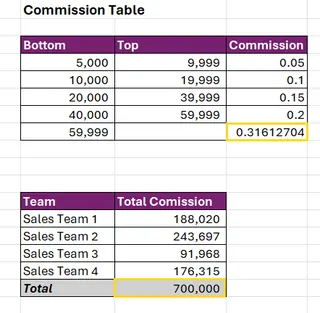
When you click OK, Excel runs a series of rapid calculations in the background and changes the input cell until the target cell reaches the desired value.
The Limitations of the Traditional Way
While this process works, it's fraught with issues:
- Complexity and Fragility: The nested
IFERROR(VLOOKUP(...))formula is hard to read, audit, and maintain. A single mistake, like an unsorted lookup table, can break everything. - Manual and Static: Goal Seek is a one-time, manual action. If the budget changes next month, or if you decide to adjust a different commission tier, you have to go through the entire click-heavy process again.s
- Lack of Transparency: When Goal Seek finds a solution (e.g., 32%), it just changes the number in the cell. There's no log or explanation of how it arrived at that number. A colleague opening the file a week later would have no idea where that "magic number" came from.
- High Skill Requirement: This workflow requires a solid understanding of lookup functions, summary formulas, and hidden analysis tools. It's not beginner-friendly.
The New Way: Conversational Analysis with Excel AI
Instead of building a fragile house of cards with formulas and menus, what if you could just tell Excel what you need? This is the promise of Excel AI Agents like Excelmatic. You upload your file and have a conversation to get the results you need, including complex what-if scenarios.

Let's solve the exact same problem using Excelmatic.
Step 1: Upload Your Data
Simply drag and drop your Excel file with the employee sales data and the commission tier table into Excelmatic. The AI will parse the data and show you a preview, ready for your instructions.

Step 2: Ask for the Commission Calculation
There's no need to remember VLOOKUP syntax. Just describe the logic in plain language.
I have two sheets: 'Sales Data' and 'Commission Table'. For each employee in 'Sales Data', calculate their commission amount. The commission rate should be determined by looking up their 'Sales' value in the 'Commission Table' using a tiered lookup. Create a new column named 'Commission Amount' which is the rate multiplied by their sales.

Excelmatic will perform the lookup, do the calculation, and add the new column to your data in seconds.
Step 3: Summarize and Perform What-If Analysis in One Go
Now for the magic. Instead of manually running Goal Seek, you just state your goal as a follow-up question.
Great. Now, calculate the total commission for all teams. I see the total is less than my budget of $700,000. Please figure out what the commission rate in the 'Commission Table' for sales over $60,000 needs to be to make the grand total commission exactly $700,000.
The AI understands this goal-seeking instruction. It will perform the iterative calculation and provide a direct answer.
Example Conversation with Excelmatic
Here’s how that entire workflow might look in a real conversation:
User: Here's my sales data and commission structure. Can you calculate the commission amount for each employee based on the tiered rates?
Excelmatic: Done. I've added a 'Commission Amount' column to your sales data. The total commission calculated is $658,500. The results are ready for you to view or download.
User: Thanks. My total commission budget is actually $700,000. I want to hit this exact target by only adjusting the rate for the highest sales tier (the one for sales over $60,000). What does that rate need to become?
Excelmatic: To reach a total commission of exactly $700,000, the commission rate for the top tier needs to be adjusted from 20% to 32%. I have updated the rate in the commission table and recalculated all affected commission amounts for you. The new grand total is now $700,000. Would you like to download the updated Excel file?
Traditional Method vs. Excelmatic: A Quick Comparison
| Aspect | Traditional Excel | Excelmatic (Excel AI) |
|---|---|---|
| Method | VLOOKUP + SUMIFS + Manual Goal Seek |
Simple, conversational language prompts |
| Time | 15-30 minutes of setup and execution | 2-3 minutes of typing and reviewing |
| Flexibility | Rigid. Changes require manual re-runs. | Highly flexible. Ask follow-up questions to explore new scenarios. |
| Audit Trail | None for Goal Seek. Hard to trace logic. | The conversation history provides a clear, auditable log of every step. |
| Required Skills | Intermediate-to-Advanced Excel knowledge | Ability to clearly describe a business problem |
FAQ
Do I need to know advanced Excel functions like VLOOKUP to use Excelmatic? No. You only need to describe the logic you want to apply. For example, instead of writing a VLOOKUP formula, you can say, "match each employee's sales to the tiered commission table to find their rate." The AI handles the technical implementation.
Is my company's financial data safe when I upload it to Excelmatic? Excelmatic is built with enterprise-grade security in mind. Data is encrypted in transit and at rest, and we adhere to strict privacy policies. Your data is used only to process your requests and is not shared or used for training other models without explicit permission. For specific compliance details, always refer to the official privacy policy.
Can Excelmatic handle messy or poorly structured data? Excelmatic has powerful data cleaning capabilities. If your data has inconsistencies, you can ask the AI to clean it up first. For example: "Remove any duplicate rows" or "Trim leading and trailing spaces from the 'Employee Name' column."
Can I use the results from Excelmatic back in my own spreadsheets? Absolutely. You can download the fully updated Excel file with all new calculations, tables, and charts. You can also ask the AI to simply provide the formula it used, which you can then copy and paste into your own workbook.
Does this make Excel's built-in tools like Goal Seek obsolete? For many common business scenarios like budget optimization and target-seeking, an AI approach is far more intuitive and efficient. While Goal Seek remains a powerful tool for specific, complex financial modeling, Excelmatic provides a much faster and more accessible alternative for the vast majority of day-to-day what-if analyses.
Take Action: Upgrade Your Excel Workflow Today
Every minute you spend wrestling with complex formulas or navigating obscure menus is a minute you're not spending on strategic analysis. The traditional way of calculating commissions and running what-if scenarios is powerful, but it's a relic of a pre-AI era. It's slow, error-prone, and requires specialized knowledge that locks other team members out of the process.
By embracing an Excel AI Agent, you transform this tedious task into a quick and simple conversation. You can answer your manager's "what if" questions in real-time, test different budget scenarios effortlessly, and produce accurate, auditable results in a fraction of the time.
Ready to see for yourself? Try Excelmatic for free today. Upload the very commission spreadsheet you're working on now and ask it one of the prompts from this article. It's time to let AI handle the mechanics so you can focus on what matters.