Key takeaways:
- Traditional data cleaning in Excel using tools like Power Query is powerful but requires learning a complex interface and a rigid, step-by-step process for tasks like filling down, splitting columns, and removing junk rows.
- Excel AI tools like Excelmatic replace this manual effort, allowing you to describe complex cleaning tasks in plain language, just as you would to a human assistant.
- By automating data preparation with an Excel AI, you can go from a messy spreadsheet to actionable insights—like average resolution times or issue counts—in a fraction of the time, without writing a single formula or Power Query step.
The Nightmare of Messy Data Exports
Imagine this: it's the end of the month, and you've just received an issue tracking report. Your task is to analyze it and find key metrics, like the average time to resolve issues and the number of high-priority tickets closed quickly. You open the file, and your heart sinks.
The data is a complete mess. It looks like it was copied and pasted from a PDF or exported from a legacy system that doesn't care about structure.
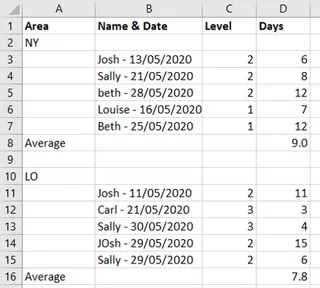
You're facing several classic data cleaning challenges:
- Merged or Grouped Rows: The area code (e.g., 'A101') is on its own row, above all the issues related to it.
- Combined Columns: The person assigned to the issue and the date it was handled are crammed into a single cell, separated by a hyphen.
- Inconsistent Formatting: Names are in all lowercase, making the data look unprofessional and hard to read.
- Junk Rows: There are blank rows and useless "Average" summary rows scattered throughout the file, which will break any formulas or pivot tables.
Before you can even think about analysis, you know you have to roll up your sleeves and embark on a tedious cleaning process. This is a common bottleneck for anyone working with data in Excel. The analysis itself might only take 10 minutes, but the preparation can easily consume hours.
The Traditional Solution: A Deep Dive into Power Query
For seasoned Excel users, the go-to tool for this kind of transformation is Power Query (also known as Get & Transform Data). It's an incredibly powerful data preparation engine built into Excel. However, "powerful" doesn't always mean "easy" or "fast."
Here’s a high-level overview of the manual steps required to clean the messy report using Power Query.
The Step-by-Step Power Query Workflow
- Load Data into Power Query: First, you select your data range and load it into the Power Query Editor. This opens a completely new interface, separate from the Excel grid.
- Fill Down Missing Values: To assign the correct area code to each issue, you use the "Fill Down" command. This finds the area codes and copies them down into the empty cells below them.
- Filter Out Junk Rows: Next, you need to filter the data to remove the blank rows and the rows containing "Average". This requires applying filters to one or more columns.
- Split Column by Delimiter: To separate the assigned person from the date, you use the "Split Column" feature. You'd specify the hyphen
-as the delimiter, which splits the single column into two. - Clean and Rename New Columns: After splitting, you'll have to trim any extra spaces from the new columns and rename them to something meaningful, like "Assigned To" and "Date".
- Standardize Casing: To fix the lowercase names, you use the "Capitalize Each Word" transformation on the "Assigned To" column.
- Set Data Types: You must then ensure each column has the correct data type (e.g., Text, Whole Number, Date) so that calculations work correctly.
- Load to Excel: Finally, you click "Close & Load" to place the clean, structured table back into an Excel worksheet.
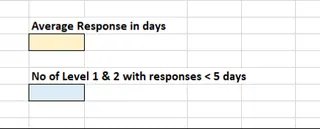
Only after completing these eight steps can you begin your analysis, using formulas like AVERAGE to find the average resolution time or COUNTIFS to count specific issues.
The Limitations of the Manual Approach
While Power Query is a fantastic tool, it has its drawbacks, especially for teams and busy professionals:
- Steep Learning Curve: If you're not a Power Query expert, finding the right buttons and commands in its crowded interface can be a frustrating treasure hunt.
- Rigid and Brittle: Power Query records a fixed sequence of steps. If the format of next month's report changes slightly (e.g., the delimiter is now a slash instead of a hyphen), your entire query can break, forcing you to debug the steps.
- Time-Consuming: Even for an expert, navigating the interface, applying each step, and verifying the result takes time. It's a manual, click-by-click process.
- Low Discoverability: You have to know that a feature like "Fill Down" exists and what it's called. You can't just describe your problem and expect Excel to solve it.
The New Solution: Using an Excel AI like Excelmatic
What if you could skip the entire Power Query learning curve and just... tell Excel what you want? That’s the promise of Excel AI Agents like Excelmatic. Instead of hunting for buttons, you describe your data cleaning goals in plain language.

Excelmatic acts as your personal data analyst. You upload your messy file, and then start a conversation to clean, transform, and analyze it.
Step-by-Step: From Messy to Clean with AI
Here’s how you'd solve the exact same problem using Excelmatic.
1. Upload Your Messy Excel File
First, you sign in to Excelmatic and upload your messy issue tracking report. It supports Excel (.xlsx), CSV, and other common formats. The AI will instantly read the file and show you a preview.

2. Describe Your Cleaning Steps in Plain Languege
Instead of clicking through menus, you simply type your instructions in the chat box. You can even chain multiple requests together in one go.
For this scenario, you could give the following instructions:
- "The first column contains area codes on their own rows. Fill these values down for the subsequent rows until the next area code appears."
- "Remove all rows where column 1 is blank or contains the word 'Average'."
- "Split the 'Assigned To / Date' column by the hyphen. Name the first new column 'Assigned To' and the second 'Date'."
- "In the 'Assigned To' column, capitalize the first letter of each name."
- "Ensure the 'Date' column is formatted as a date and the 'Days to Resolve' column is a number."

3. Ask for Analysis and Get Instant Answers
The best part? You don't have to separate cleaning from analysis. You can ask for the final answers in the same breath.
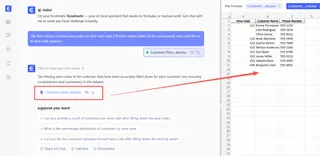
After providing the cleaning instructions, you can immediately ask:
- "Now, calculate the average of the 'Days to Resolve' column."
- "And can you also tell me how many issues have a 'Priority' of 1 or 2 and were resolved in less than 5 days?"
Excelmatic will perform all the transformations in the background and present you with the final, clean table and the answers to your questions.
Example AI Conversation
Here’s what that interaction might look like in Excelmatic:
User: I've uploaded an issue tracking report. It's very messy. First, the area code in the first column needs to be filled down. Then, please remove any blank rows and rows with "Average" in them.
Excelmatic: Done. I have filled down the area codes and removed 12 junk rows. The table is now more structured. What's next?
User: Great. Now, split the second column by the hyphen. The part before the hyphen is the 'Assigned To' person, and the part after is the 'Date'. Please also format the names to be properly capitalized.
Excelmatic: I have split the column, created 'Assigned To' and 'Date' columns, and capitalized the names. The data is now clean and ready for analysis.
User: Perfect. What is the average response time in days? And how many level 1 or 2 issues were resolved in less than 5 days?
Excelmatic: The average response time is 5.4 days. There were 8 issues with a priority of 1 or 2 that were resolved in less than 5 days. Would you like me to create a summary chart?
Traditional Method vs. Excelmatic: A Quick Comparison
| Aspect | Traditional (Power Query) | Excelmatic (Excel AI) |
|---|---|---|
| Time | 15-45 minutes (depending on expertise) | 2-5 minutes |
| Skill Level | Intermediate to Advanced Excel | Beginner-friendly; just describe the goal |
| Flexibility | Rigid; queries break with format changes | Highly flexible; just adjust your language prompt |
| Process | Manual, click-by-click transformation | Conversational, automated workflow |
FAQ
Q1: Do I need to be an Excel expert to use Excelmatic? No, not at all. Excelmatic is designed for users of all skill levels. If you can describe your problem in plain language, you can use it to clean and analyze data. It's perfect for those who find VLOOKUP, Pivot Tables, or Power Query intimidating.
Q2: Will Excelmatic modify my original Excel file? No. Your original file is never modified. Excelmatic works on a copy of your data in a secure cloud environment. You can then download the cleaned data, charts, or reports as a new Excel file.
Q3: What if my data is even messier than this example? Excelmatic is built to handle a wide range of messy data scenarios. You can instruct it to remove duplicates, standardize text, handle complex filtering logic, merge data from different sheets, and much more. The key is to describe the state of your data and your desired outcome clearly.
Q4: Is it secure to upload my company's data to Excelmatic? Excelmatic is built with enterprise-grade security. Data is encrypted both in transit and at rest. For specific details on data privacy and security policies, it's always best to consult the official website.
Q5: Can I get the formulas or Power Query steps from Excelmatic? Yes. In many cases, you can ask Excelmatic to provide the Excel formula or describe the steps it took. This makes it a great learning tool, as it not only gives you the answer but can also teach you how to get it.
Take Action: Revolutionize Your Excel Workflow Today
Think about the hours you've lost to cleaning messy spreadsheets. That's time you could have spent on strategic analysis, generating insights, or simply finishing your work early. Continuing with manual methods is not just tedious; it's a significant drain on your productivity.
With an Excel AI agent like Excelmatic, you can reclaim that time. Instead of fighting with complex interfaces, you can have a simple conversation and get to your results in minutes.
Ready to see it in action? Try Excelmatic for free. Upload that one messy report you've been dreading, and try using some of the prompts from this article. Let an AI handle the grunt work, so you can focus on what matters.