Key takeaways:
- Cleaning messy, single-column data exports with Power Query is a multi-step, technical process involving splitting columns, trimming spaces, and setting data types before you can even start your analysis.
- Excelmatic, an Excel AI Agent, automates this entire data cleaning and analysis workflow. You just upload the file and describe your desired report in plain language.
- Dramatically reduce report creation time from hours to minutes, eliminate manual errors, and easily build complex pivot tables, slicers, and calculated fields without knowing Power Query or advanced Excel functions.
The Problem: The Monthly Mess of Exported Data
Imagine you're the manager of a bustling coffee shop. At the end of each month, you need to analyze your sales performance. You log into your point-of-sale (POS) system and export the month's sales data. But instead of a clean, organized table, you get a single, jumbled column in an Excel or CSV file.
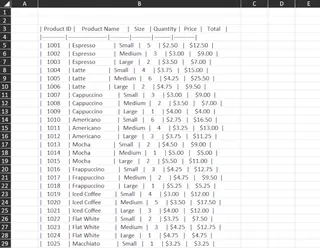
Sound familiar? This is a common headache for anyone working with data from third-party systems. All the crucial information—product name, size, and price—is crammed into one column, separated by commas. To make matters worse, there are random extra spaces, irrelevant header rows, and inconsistent formatting.
Before you can even think about analyzing sales trends, you're faced with a tedious data cleaning task. Your goal is simple: you want to see the total sales for each coffee type, be able to filter by size, and maybe even calculate the final price with tax. But the raw data stands in your way, turning a quick analysis into a time-consuming chore.
The Traditional Solution: A Deep Dive into Power Query & Pivot Tables
For seasoned Excel users, the go-to tool for this kind of cleanup job is Power Query. It's an incredibly powerful data transformation engine built into Excel. Combined with Pivot Tables, it allows you to clean the messy data and then summarize it.
However, "powerful" doesn't mean "simple." The traditional process is a long sequence of manual steps, each requiring specific knowledge of the Excel interface.
Step 1: Cleaning the Data with Power Query
First, you have to get the data into the Power Query Editor.
- Import Data: Navigate to
Data > From Text/CSVand select your file. - Split Column: In the Power Query Editor, you need to find and use the "Split Column by Delimiter" tool, specifying that the delimiter is a comma.
- Promote Headers: The first row likely contains your column names, so you use the "Use First Row as Headers" command.
- Clean and Trim: You select all columns and apply the "Trim" function to remove leading and trailing spaces. You also need to manually identify and remove any junk rows.
- Set Data Types: Power Query might guess the data types, but you often need to manually correct them, changing the Sales column to "Currency" and others to "Text."
- Load to Excel: Finally, you click "Close & Load To..." and load the cleaned data as a new table in your Excel worksheet.
After all that, you finally have a clean table ready for analysis.
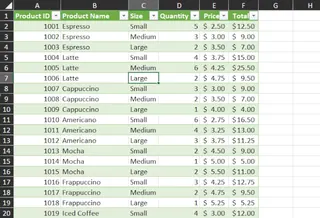
Step 2: Building the Pivot Table Report
Now, the analysis begins.
- Insert Pivot Table: With the clean table selected, you go to
Insert > PivotTable. - Configure Fields: Drag
Productto the Rows area andSalesto the Values area. - Add a Calculated Field: To add a 20% tax, you navigate to
PivotTable Analyze > Fields, Items, & Sets > Calculated Field. You then create a new field named "Total with Tax" using a formula like='Sales' * 1.2. - Sort Data: Right-click on the sales values and select
Sort > Largest to Smallest. - Insert a Slicer: To filter by size, you go to
PivotTable Analyze > Insert Slicerand check the box forSize. - Format Everything: This involves multiple steps: applying a Pivot Table style, changing the number format to Accounting, re-configuring the slicer to be horizontal, and applying a matching style to it.
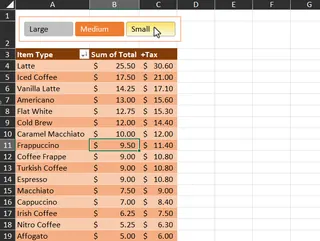
The final result is exactly what you wanted, a clean, interactive report.
The Limitations of the Manual Method
While this process works, it's fraught with challenges:
- Time-Consuming: The entire sequence can take anywhere from 15 minutes to an hour, depending on your familiarity with Power Query.
- High Learning Curve: Each step requires knowing where to click in Excel's crowded ribbon. Power Query itself is a tool that takes time to master.
- Rigid and Brittle: If next month's export has a slightly different format (e.g., uses a semicolon delimiter), your entire Power Query script might break, forcing you to debug the steps.
- Hard to Collaborate: If you go on vacation, will your colleague be able to replicate this 20-step process? It's difficult to document and even harder for a non-expert to take over.
There has to be a better way.
The New Solution: Using an Excel AI Agent (Excelmatic)
Instead of a long, manual process, what if you could just describe the report you want in plain language? That's the promise of Excel AI Agents like Excelmatic. It combines the power of advanced data analysis with the simplicity of a chat interface.

You can perform the entire workflow—from cleaning the messy data to generating a fully formatted Pivot Table with calculated fields—just by having a conversation with the AI.
Step-by-Step Guide with Excelmatic
Here’s how you'd solve the exact same coffee shop problem in a fraction of the time.
1. Upload Your Messy File
Simply drag and drop your raw Excel or CSV file directly into the Excelmatic chat interface. The AI will immediately preview the data, even in its messy state.

2. Describe Your Goal in Plain language
You don't need to tell the AI how to do it. Just tell it what you want. You can start with a simple request to clean the data and then build on it.
Here are some example prompts you could use:
- "This data is all in column A, separated by commas. Please split it into columns for Product, Size, and Sales. The first row should be the headers."
- "Clean the data by trimming all extra spaces. Then create a pivot table to show the sum of sales for each product."
- "Sort the pivot table by sales from largest to smallest."
- "Now, add a slicer to this report so I can filter by Size."
- "Finally, add a calculated field to the pivot table named 'Total with Tax' that calculates the sales amount plus a 20% tax."
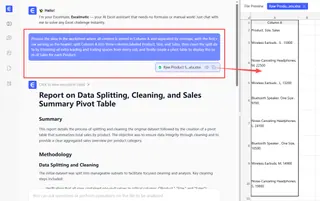
You can even combine these into a single, comprehensive request!
3. Review and Iterate Instantly
Excelmatic will process your request and generate the result—be it a cleaned table, a pivot table, or a chart—in seconds. The best part is that you can continue the conversation to refine the output.
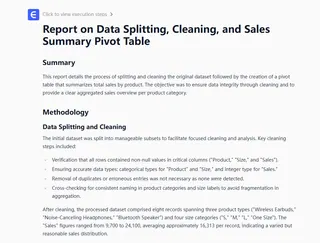
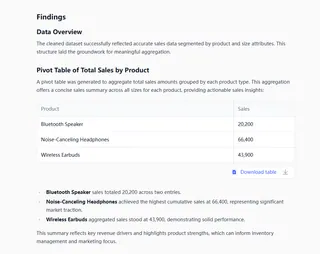
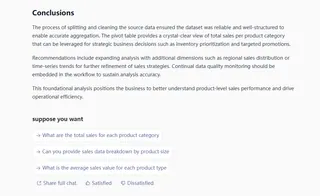
Want to see a chart instead? Just ask. Need to exclude a certain product? Tell the AI. This conversational iteration is impossible with the rigid, step-by-step nature of Power Query.
4. Download Your Final Report
Once you're happy with the result, you can download the fully functional Excel file, complete with the cleaned data, the Pivot Table, and the slicer. You can also copy the generated formulas or configurations to use in your existing workbooks.
Example Dialogue with Excelmatic
Here’s what that entire workflow could look like as a conversation:
User: I've uploaded my coffee shop sales data. It's a mess, all in one column separated by commas. Can you clean it up and create a pivot table to show total sales by product, sorted from highest to lowest?
Excelmatic: Done. I have cleaned the data, split it into Product, Size, and Sales columns, and created the requested pivot table. I also noticed you have different sizes. Would you like me to add a slicer to filter by Size?
User: Yes, please. Make the slicer horizontal and place it above the table. Also, add a calculated field to the pivot table named 'Total with Tax' which is the sales amount plus 20% tax.
Excelmatic: I've added the horizontal slicer and the 'Total with Tax' calculated field to the pivot table. The report is ready for you to view or download.
In just two prompts, you've accomplished what took dozens of clicks and deep Excel knowledge using the traditional method.
Traditional Method vs. Excelmatic: A Quick Comparison
| Feature | Manual (Power Query + Pivot Table) | Excelmatic (AI Agent) |
|---|---|---|
| Time to Complete | 20-60 minutes | 1-3 minutes |
| Required Skills | Advanced: Power Query, Pivot Tables, Calculated Fields | Basic: Describing your business need in plain language |
| Flexibility | Low: Rigid queries, changes require re-editing steps | High: Instantly adapt and refine with chat commands |
| Error Rate | Medium: Easy to miss a step or make a formula error | Low: AI handles the technical execution consistently |
FAQ
Q: Does Excelmatic replace Power Query completely?
A: For the vast majority of day-to-day data cleaning and reporting tasks that business users face, Excelmatic provides a much faster and more intuitive alternative. For extremely complex, multi-source enterprise ETL (Extract, Transform, Load) pipelines, Power Query may still have a role. But for tasks like the one in this article, Excelmatic is a game-changer.
Q: Is my data safe when I upload it to Excelmatic?
A: Yes. Excelmatic is built with enterprise-grade security. Your data is encrypted in transit and at rest, and it is never used for training AI models. You can refer to the official website for the detailed privacy policy.
Q: What if my data is even messier than this example?
A: Excelmatic's AI is designed to handle many types of inconsistencies. You can describe the issues in the chat, for example: "Ignore the first 3 rows, they are just notes," or "Some of my rows use a semicolon instead of a comma as a separator."
Q: Can I get the cleaned data back in an Excel file?
A: Absolutely. You can download the final report, which includes the cleaned data table, the generated Pivot Table, and any charts or slicers, as a standard .xlsx file.
Q: Do I need to be an Excel expert to use Excelmatic?
A: Not at all. If you can describe what you need in a sentence, you can use Excelmatic. It's designed for everyone from beginners who want to perform complex tasks without learning formulas, to experts who want to automate their repetitive work.
Get Started: Upgrade Your Excel Workflow Today
Stop wasting valuable hours on tedious, repetitive data cleanup. The time you spend wrestling with Power Query and manually formatting Pivot Tables is time you could be spending on strategic analysis and making data-driven decisions.
By embracing an Excel AI Agent like Excelmatic, you can transform your workflow. Turn messy exports into polished, insightful reports in minutes, not hours. Respond to ad-hoc requests from your team or manager instantly. Empower your entire team to work with data, regardless of their Excel skill level.
Ready to see it in action? Try Excelmatic for free today. Upload that messy spreadsheet you've been dreading and use the prompts from this article to see how quickly you can create a perfect report.